¶ Purpose
You're here to score contestants - fairly, carefully, and section by section - and to leave feedback that helps people grow (and helps producers understand the room). SquirrelScore puts your score sheet on a phone or laptop instead of a binder.
¶ Before You Begin
-
Accept your judge invitation / agreement if you haven't yet (Accepting an invitation)
-
Finish any set-password email so you can log in
-
Know which contest you're judging and what sections the producers defined
-
Bring a charged device
¶ Step-by-Step Instructions
-
Log in to SquirrelScore. You land on the shared My Contests page (same list producers and contestants use).
-
Find the contest you're judging - look for the Judge role badge (not a Contestant or Producer card for the same event).
-
Click Open Contest.
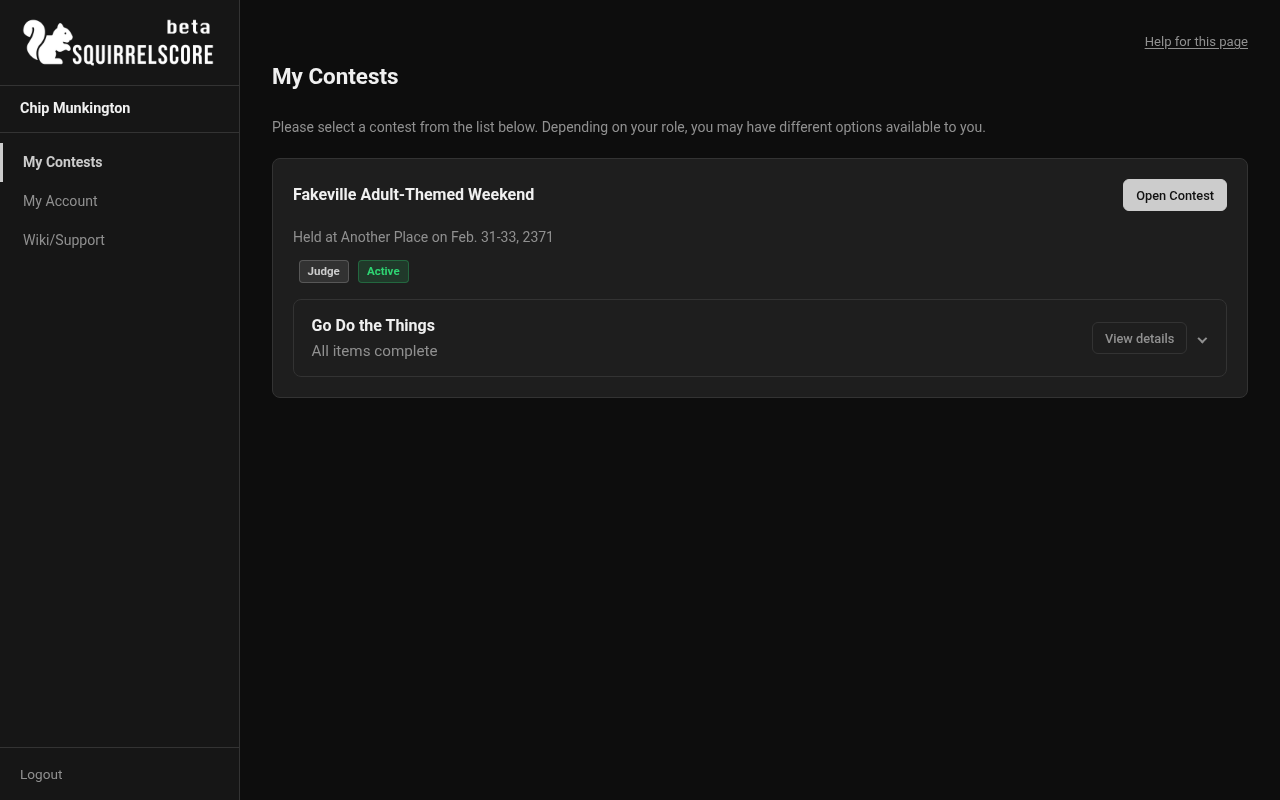
Desktop — Judge, My Contests
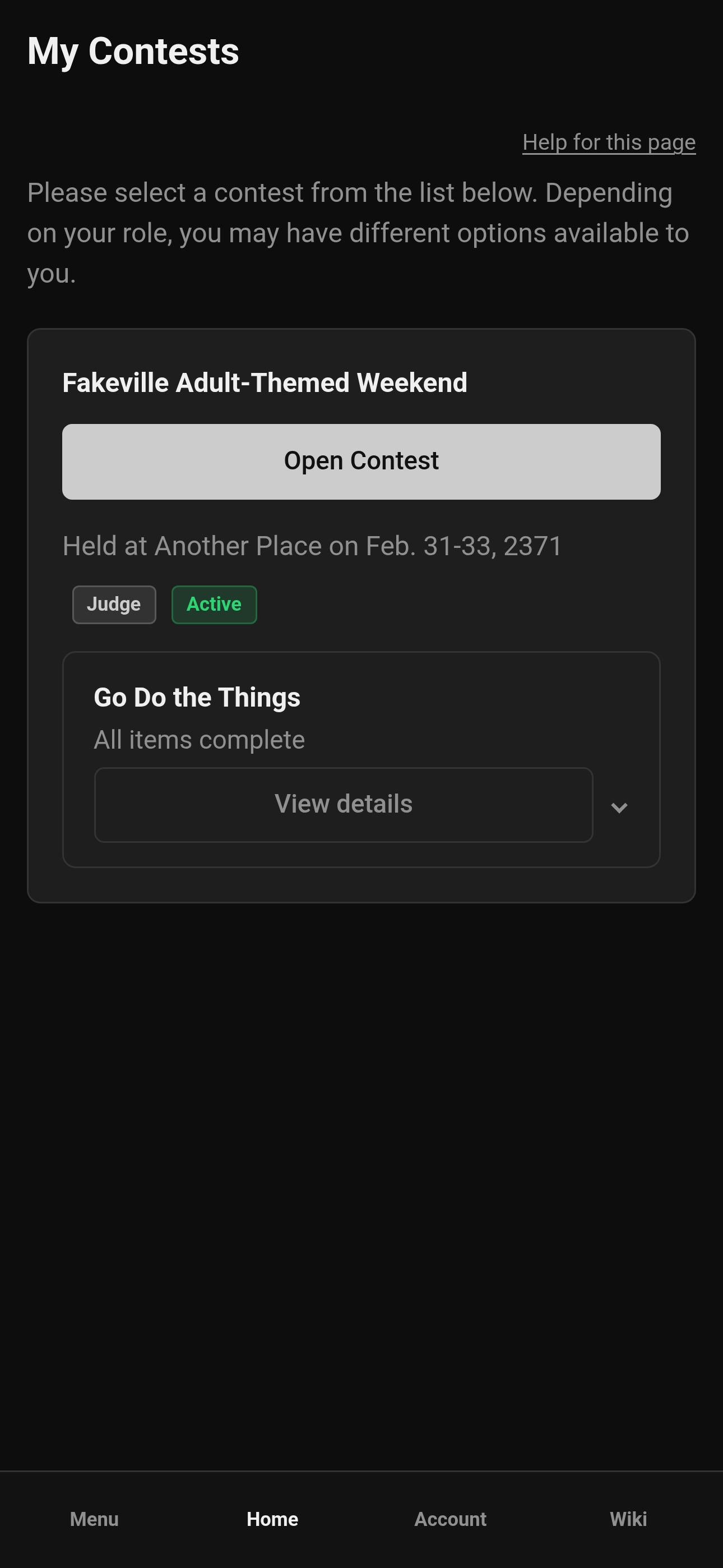
Mobile — Judge, My Contests
- Confirm the sidebar shows your judge tools.
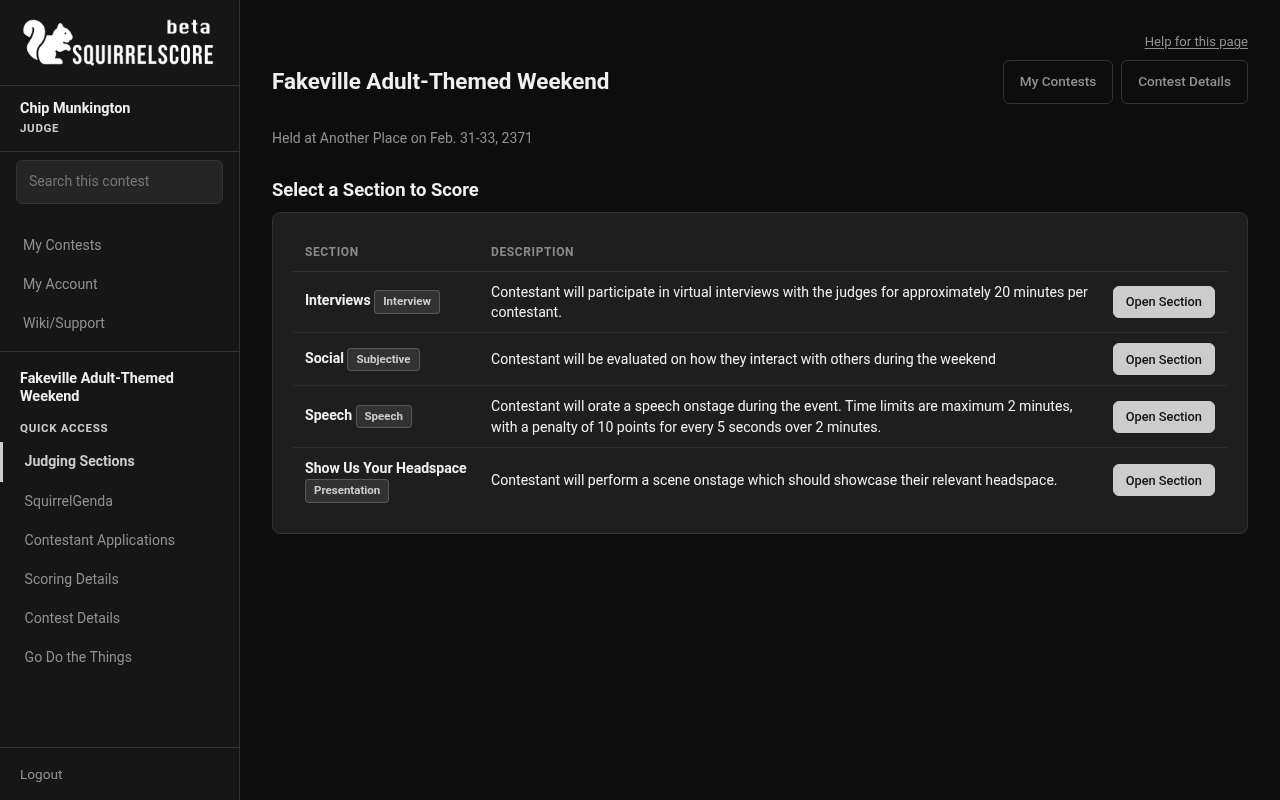
Desktop — Judge sidebar
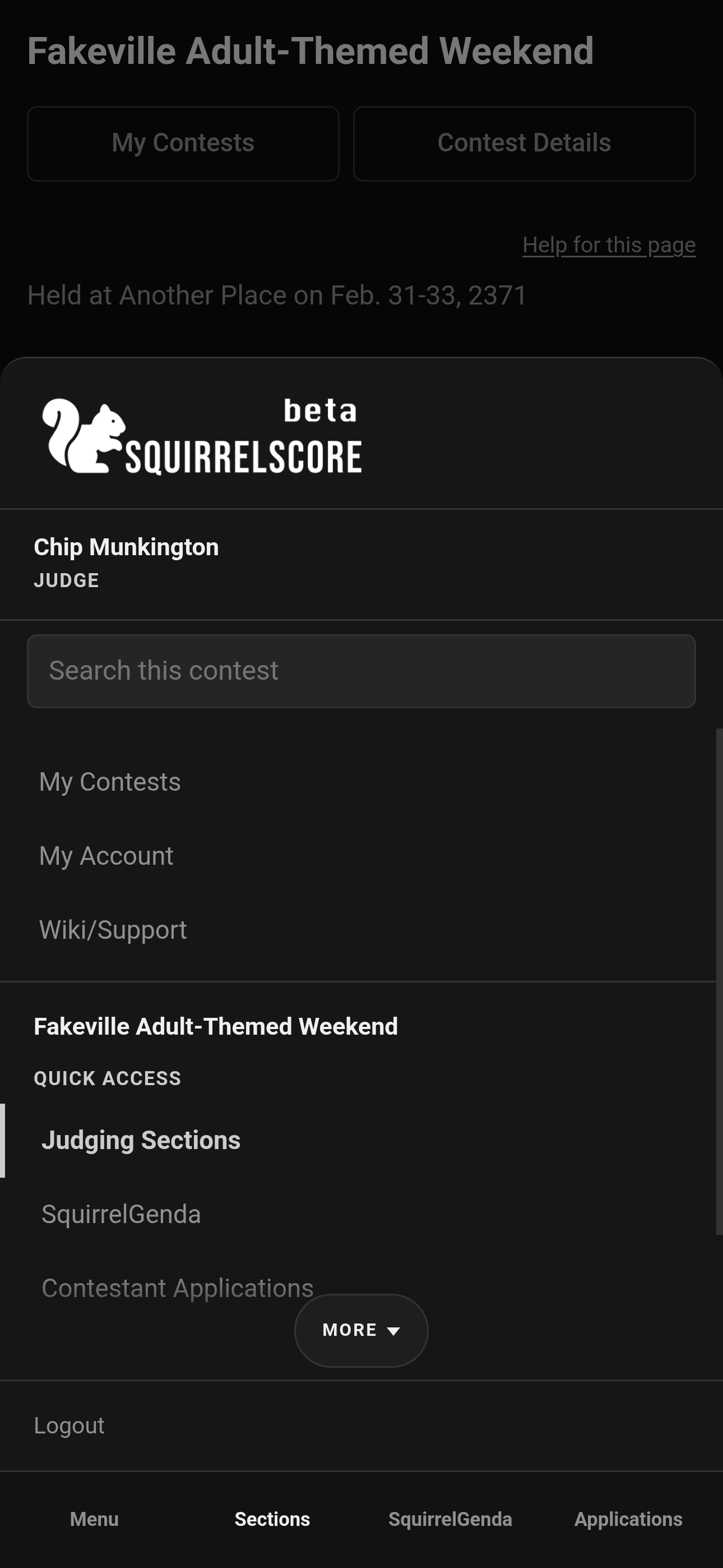
Mobile — Judge sidebar
-
Open Scoring Details once to learn the rubric before you're supposed to score the contestants.
-
Open Contest Details for schedule, venue, and other important info your producer published.
-
When it's time to score, open your judge-scored sections and work contestant by contestant.
-
If Chaos Ops is on, peek at Go Do the Things so you can see what the producers may still need from you (usually they'll want it emailed to them). The same checklist can appear at the bottom of your My Contests card (View details). It starts collapsed when every item is complete.
¶ What judges can (and can't) do
| You can | You can't |
|---|---|
| Score judge-scored sections while the contest is active and the section is unlocked | Change contest settings or approve applications |
| Leave contestant feedback and producer-only notes | Unlock a locked section (ask the tallymaster) |
| Read approved applications | See full producer Manage tools |
| Review scoring details & contest details anytime | Score tallymaster-only sections |
| View locked section scores | Publish contestant results |
¶ Your menu
After login: shared My Contests (Judge cards say Open Contest), then inside a contest:
-
Judging Sections- pick a section, score contestants, and provide feedback
-
Scoring Details- the rubric / how scoring works for this contest
-
Contest Details- info your producer published for participants
-
Contestant Applications- approved apps, read-only
-
SquirrelGenda- public schedule when the producer enabled it
-
Go Do the Things- Chaos Ops prep checklist when enabled
¶ Tips
-
Read Scoring Details so you know the rubric before you start scoring.
-
Save often so a dead battery or a closed tab doesn't cost you work.
-
If a section is missing, it may be tallymaster-scored - or you're on the wrong contest (or the wrong role card). Check Selecting a contest.
¶ Common Mistakes
-
Scoring in the wrong contest when you judge multiple weekends
-
Leaving scores blank thinking "empty means zero" (put a zero in there if that's your intent)
-
Ignoring the locked warning and repeatedly refreshing or hitting back
¶ Frequently Asked Questions
When can I score?
When the contest is active, you're enrolled as a judge, and the section is unlocked. Locked sections are view-only. If the contest is inactive, it sits under Inactive Contests with no buttons until the producer turns it back on.
Where do results go?
You enter scores; the tallymaster locks sections; producers/tallymasters handle reveal. Contestants see My Results only after all sections are locked, the contest is marked inactive, and a producer clicks Release Results.
Do I need Chaos Ops?
Only if your producer enabled it. Otherwise Go Do the Things may not appear - and that's fine.