¶ Purpose
Multi-factor authentication (MFA) adds a second check after your password — usually a rotating code from an authenticator app on your phone. Think of it as password and a second proof it's you.
¶ Before You Begin
-
Install an authenticator app on your phone (many free options exist)
-
Be logged into SquirrelScore
-
Have a safe place ready for recovery codes (password manager, printed sealed note — not a sticky note on the venue monitor)
-
Know that site admins may be required to turn MFA on
If you already lost access and can't get past MFA, skip to the FAQ and ask a site admin to clear MFA.
¶ Step-by-Step Instructions
¶ Turning MFA on
-
Open My Account.
-
Choose the option to enroll / set up MFA.
-
When the QR code appears, open your authenticator app and add a new account by scanning it.
-
If you can't scan, use the text / manual key your screen offers (if shown).
-
Enter the current 6-digit code from the app to confirm enrollment.
-
Save your recovery codes somewhere safe — one-time codes exist for when you lose your phone.
-
Finish / confirm until the page says MFA is enabled.
¶ Signing in with MFA
-
Log in with username and password as usual (Logging in).
-
When prompted, open your authenticator app.
-
Type the current 6-digit code.
-
Continue. Codes change about every 30 seconds — wait for a fresh one if a code fails.
-
If you don't have the phone, use a recovery code instead (each usually works once).
¶ Recovery codes
-
Store recovery codes offline or in a password manager when you first enroll.
-
Use a code only when you can't open the authenticator app.
-
After using a code, note that it's spent — don't expect it to work twice.
-
From account settings, regenerate unused codes when your site allows it (you'll typically need your current MFA working to do that).
-
Destroy old printed lists after you regenerate so leftovers can't be reused.
¶ Tips
-
Don't screenshot recovery codes into a shared album.
-
Set your phone clock to automatic time — wrong clocks make good codes look wrong.
-
Enroll MFA on a calm afternoon, not while the emcee is already on stage.
-
Keep at least one recovery code printed for travel days when phones die at a bad moment.
¶ Common Mistakes
-
Clock skew on your phone making codes fail — turn on automatic date & time
-
Deleting the authenticator account before disabling MFA on the site
-
Saving recovery codes only in the same phone you might lose
-
Sharing MFA codes in a group chat "just this once" (please don't)
¶ Frequently Asked Questions
I lost my phone and my recovery codes.
Ask a site admin to Clear MFA on your account, then log in with password only and enroll MFA again.
Do I have to use MFA?
Regular users: often optional but strongly recommended. When in doubt, turn it on.
My codes never work.
Confirm you're using the entry for this site, wait for the next 30-second code, and check automatic time. Still failing? Try a recovery code, then contact an admin.
Can a producer clear my MFA?
Usually no — that's an admin Users tool. Producers manage contests; admins unstick logins.
Is MFA the same as the "I'm not a robot" box?
No. Turnstile / robot checks stop bots on login, forgot-password, set-password, and public forms when enabled. A site admin can turn those checks off from Site Settings (for screenshot capture) and back on without restarting the app. MFA proves it's still you after the password.
¶ Related Topics
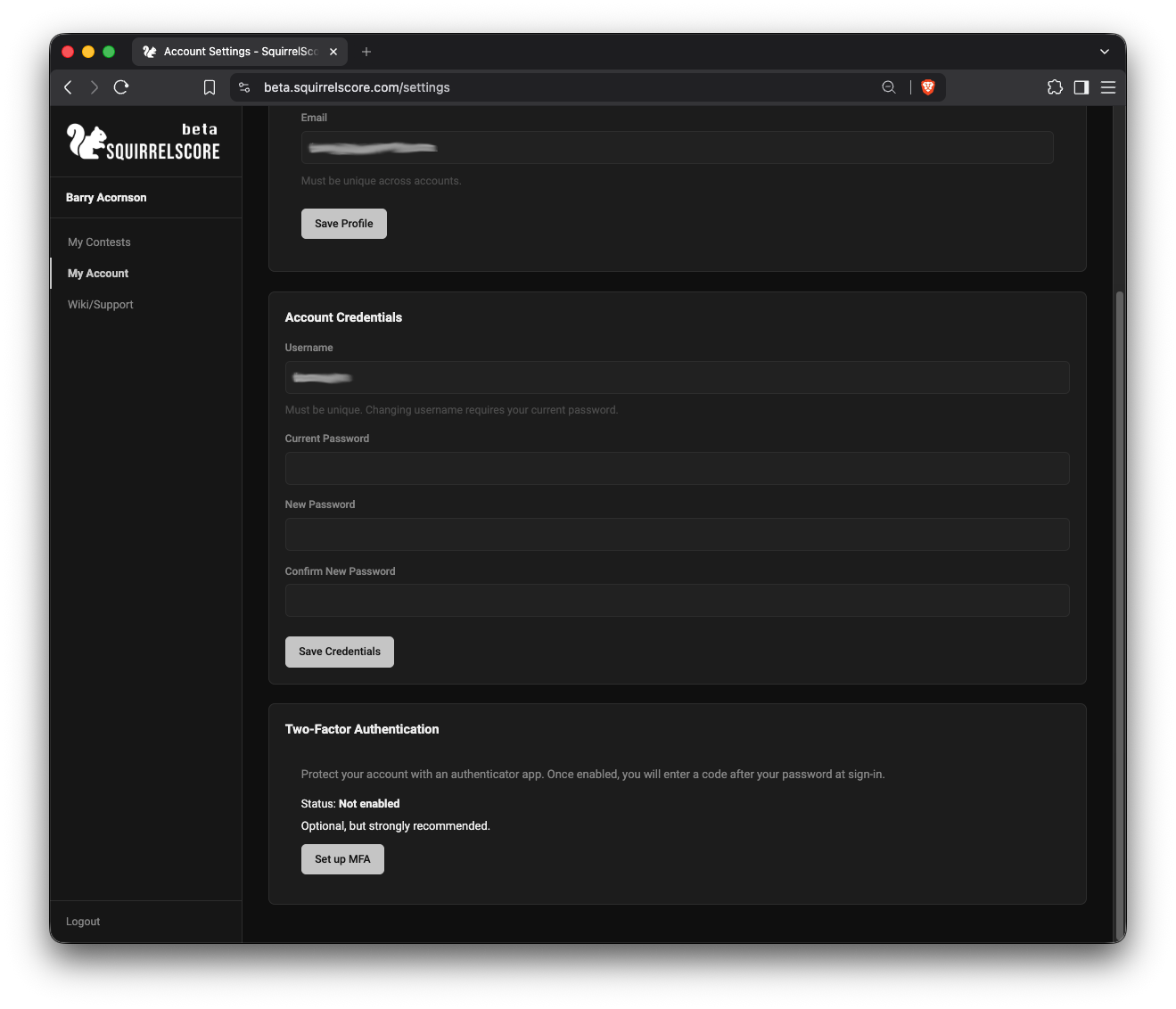
Scroll to the bottom of My Account
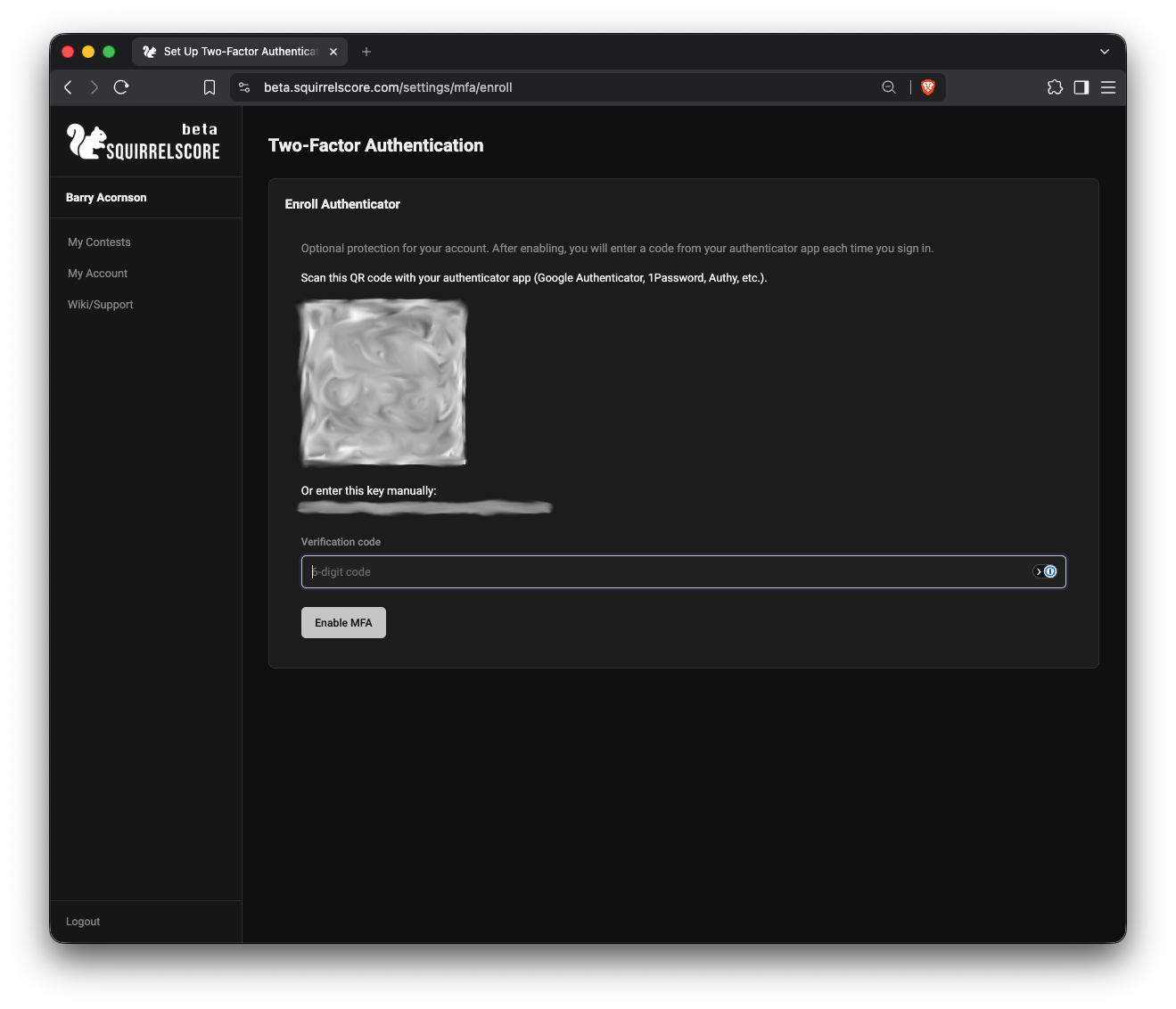
Use your authenticator app to set up the MFA
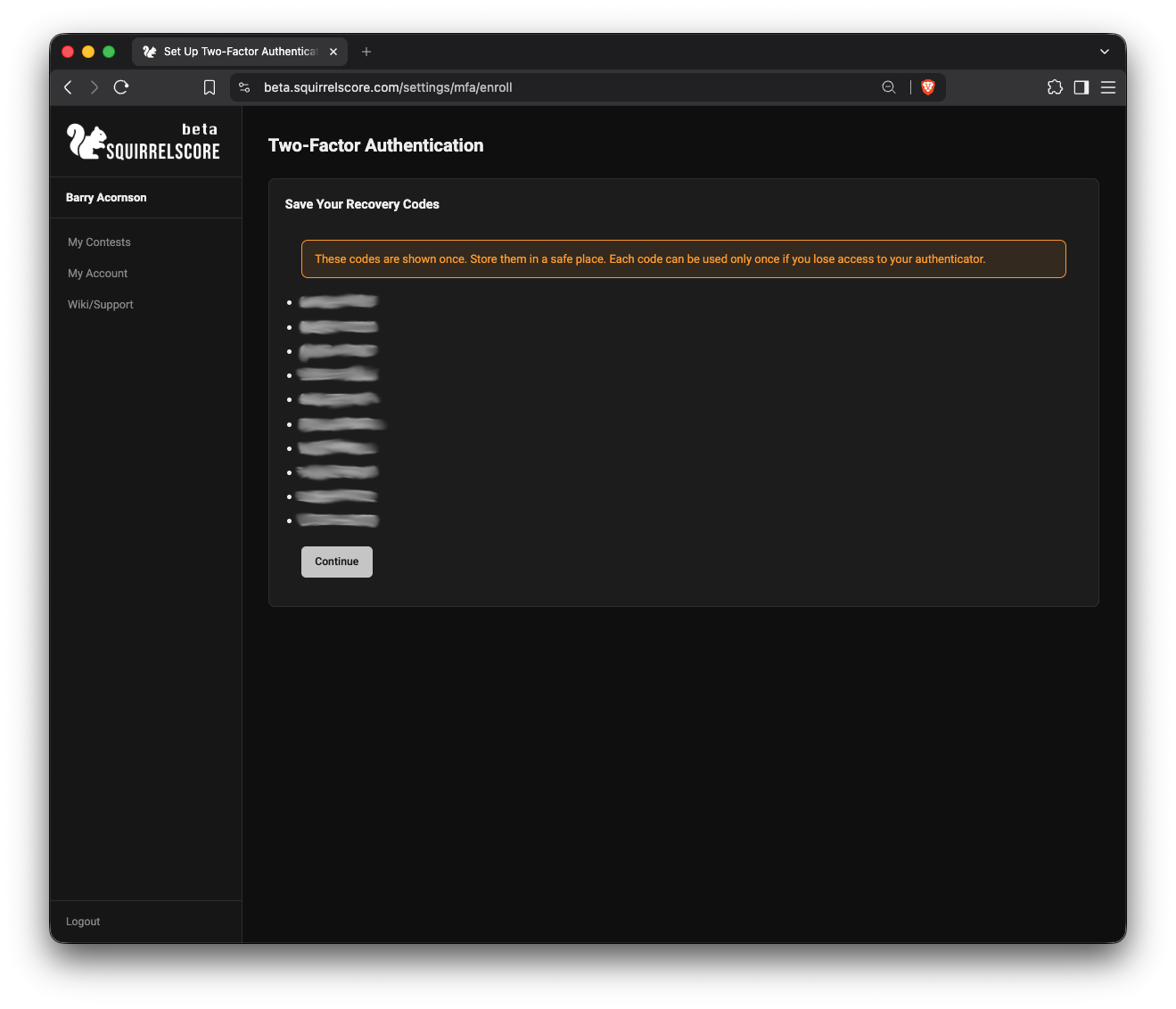
Don't forget to save the backup codes somewhere safe!
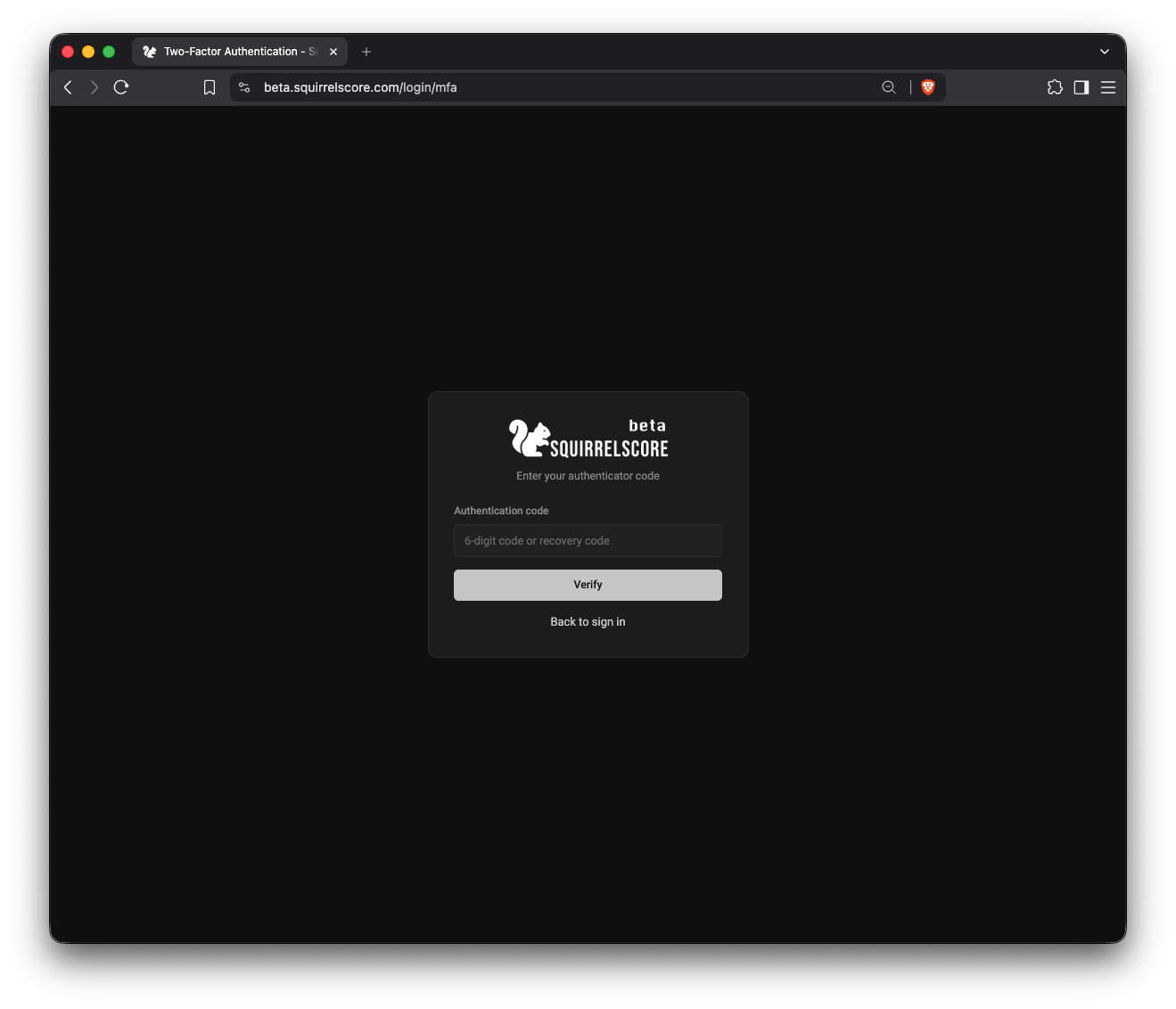
Enter your MFA code when logging in