¶ Purpose
Turn on Home Screen / browser notifications for a contest you are signed into.
This is not SMS and not a third-party “app push” vendor. The site uses Web Push with a VAPID key the operator stores like other secrets.
¶ Before You Begin
-
Be signed in
-
Prefer the Home Screen app if you want alerts when the browser tab is closed
-
The site must be on HTTPS (or localhost)
¶ Step-by-Step
-
Open My Contests.
-
On the contest card for the role you care about, open Notifications.
-
Click Enable notifications and allow the browser prompt.
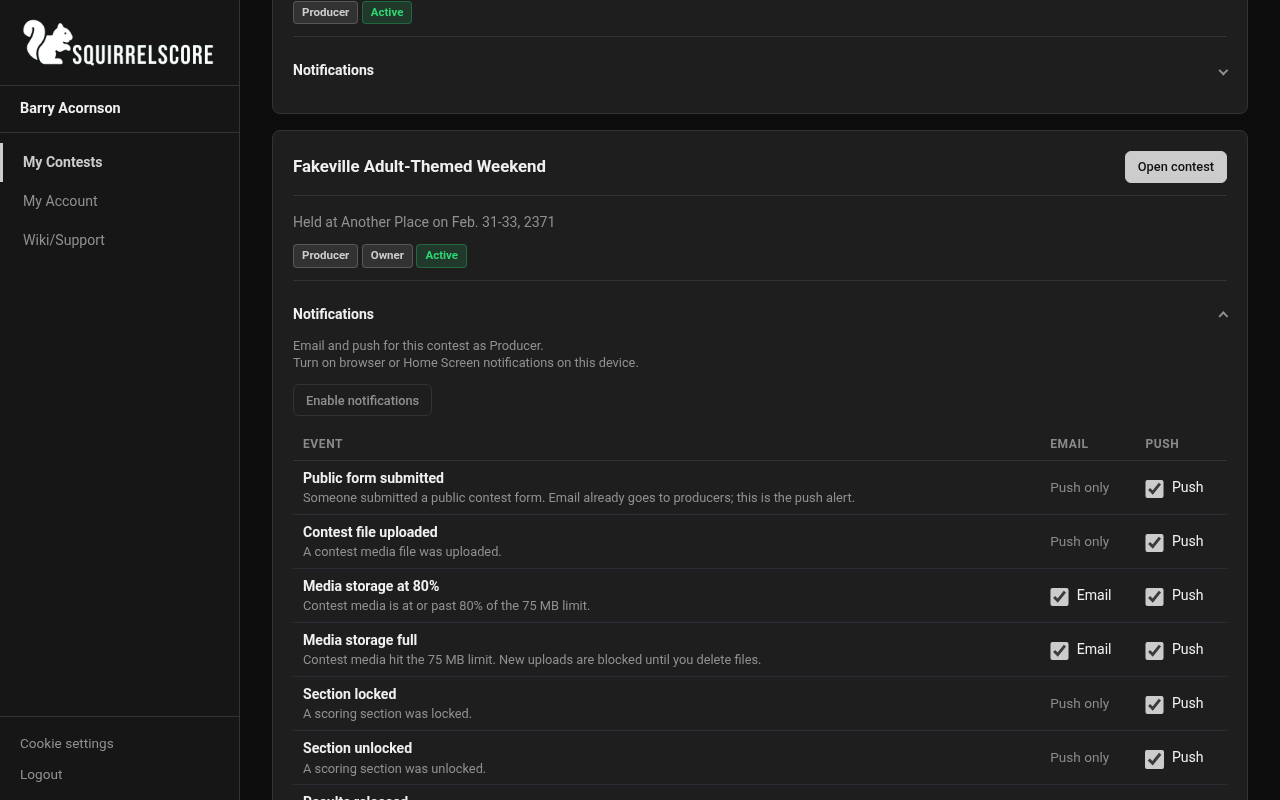
Desktop — Producer, Enable notifications
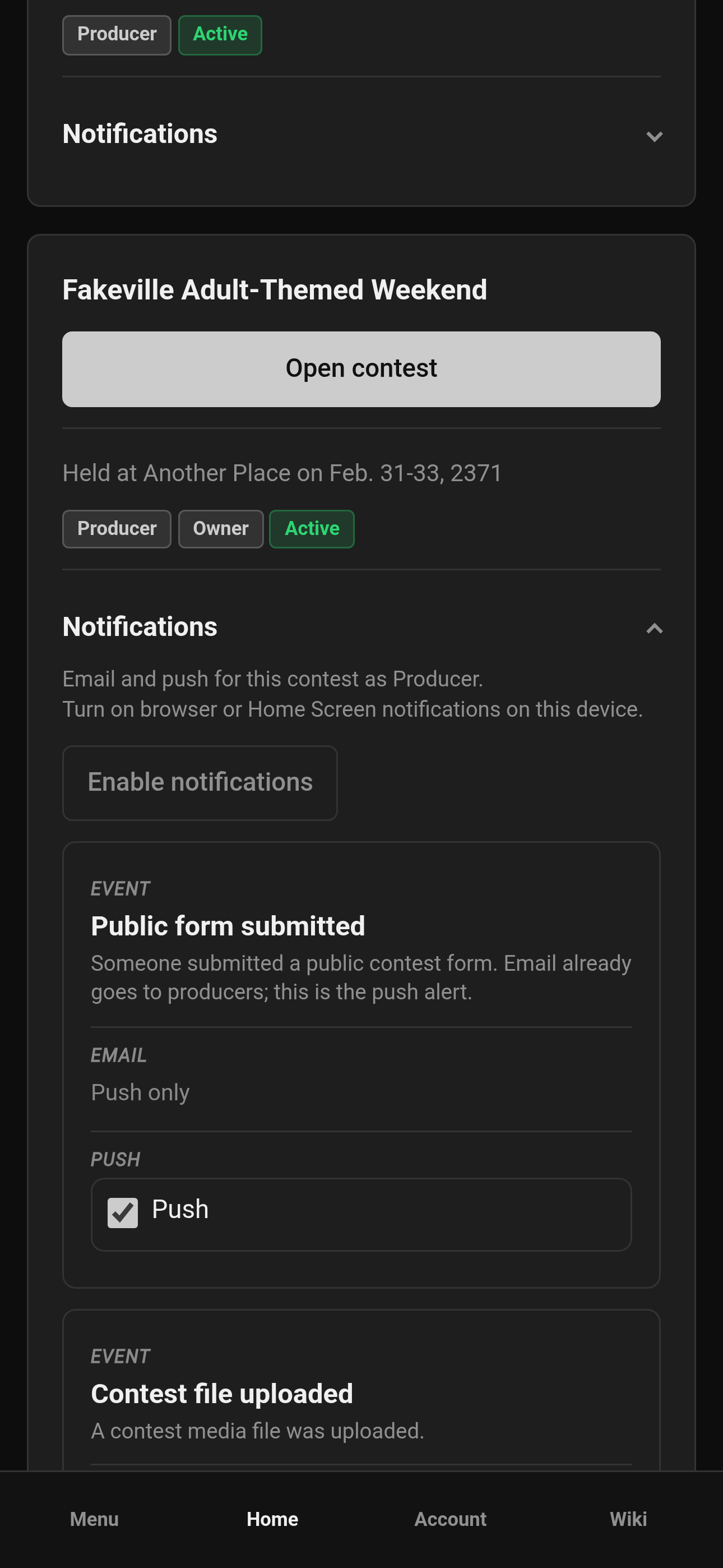
Mobile — Producer, Enable notifications
- Tick the events you want. Save.
Producers also have a Notifications card on Manage for the same producer switches. This device still lives on the My Contests card.
A producer turning the contest active, a tallymaster locking a section, or a file hitting the media quota can all show a notification on this device if you left Push on for that event.
¶ If nothing arrives
-
Check that Push is ticked for that event on the contest card (or Manage, if you produce).
-
Check the browser still allows notifications for this site.
-
Enable push again on this device (a new phone needs that once).
-
Contest Updates also need the producer to tick Push on the message itself. Registration-email-only audiences are email, not push.
¶ Computer browsers
After you click Allow, the site still has to subscribe this browser to Web Push. If you see a failure after Allow:
-
Reload My Contests, then Enable notifications once more. An old subscription from a previous key will be replaced.
-
Use HTTPS (or localhost). HTTP on a LAN IP will not work.
-
Chrome, Edge, and Brave need the browser’s own push service. If a work network or Brave Shields blocks Google services, subscribe fails even though Allow succeeded.
-
Safari on a Mac needs a recent Safari. The notification worker must be allowed to run (not blocked by an extension).