¶ Purpose
Share production duties with trusted teammates so one person isn't trying to do everything themselves.
Co-producers help day-to-day. Ownership stays special for a reason (delete contest, transfer ownership, and similar actions).
¶ Before You Begin
-
Be the contest owner for add/remove/transfer actions that require ownership.
-
Have the teammate's email ready - they must already have a producer-level account.
-
If they don't, they should request producer-level access from the login page. You cannot create new producer accounts from the co-producer form.
-
Agree who owns final decisions before you hand out producer-level access.
-
Prefer adding people well before the contest, not during the first day, while things are ramping up.
¶ Step-by-Step: add a co-producer
-
Open Manage for the contest.
-
Find the Producers card.
-
Click Add Co-Producer.
-
Enter their Email (producer-level account required).
-
Click Add Co-Producer.
-
Confirm they appear in the Producers list with a Co-producer badge (not Owner).
-
They should get a "you've been added as a co-producer" email when site email is enabled.
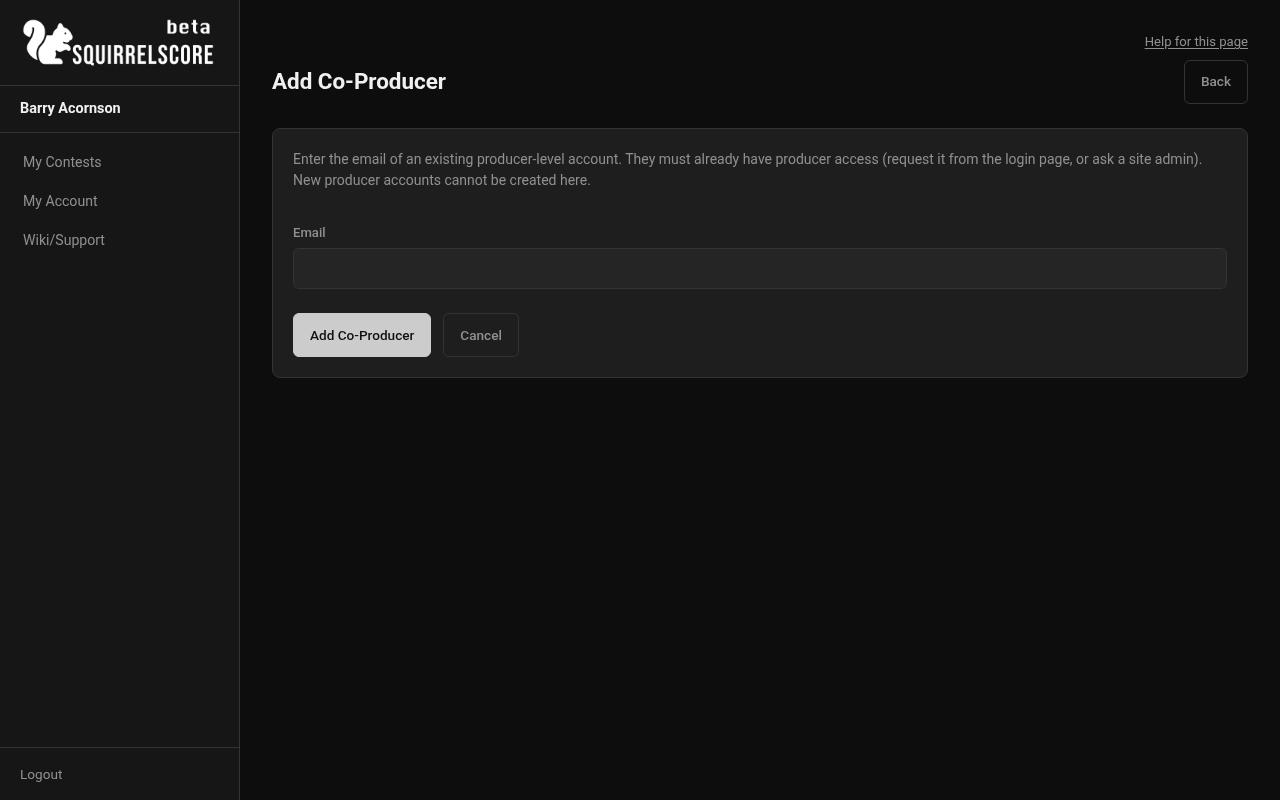
Desktop — Producer, Add Co-Producer
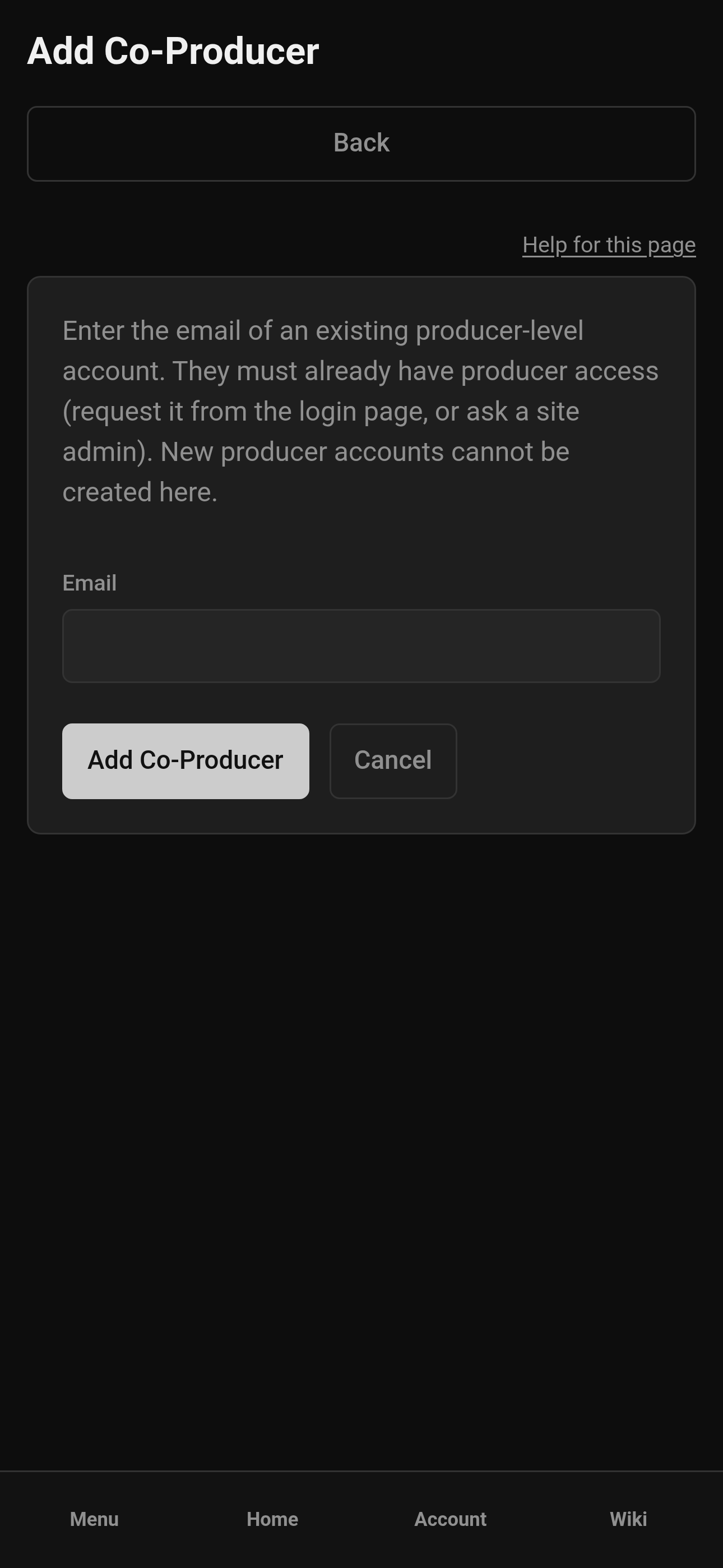
Mobile — Producer, Add Co-Producer
¶ Step-by-Step: remove a co-producer
-
On Manage > Producers, find the co-producer.
-
Click Remove (owners and your own row are protected from casual remove).
-
Confirm when asked.
-
They lose access to their producer-level access to the contest; they are not erased from the system.
¶ Step-by-Step: transfer ownership
Only the current owner can transfer ownership.
-
On Manage > Producers, find Transfer Ownership.
-
Choose a co-producer from the list (you can't transfer to just anyone).
-
Check the acknowledgment box: you understand the selected producer will become the contest owner.
-
Click Transfer Ownership.
-
Confirm the dialog.
-
Verify badges: the new owner shows Owner; you typically remain as a co-producer.
-
Previous and new owners should get an ownership-change email.
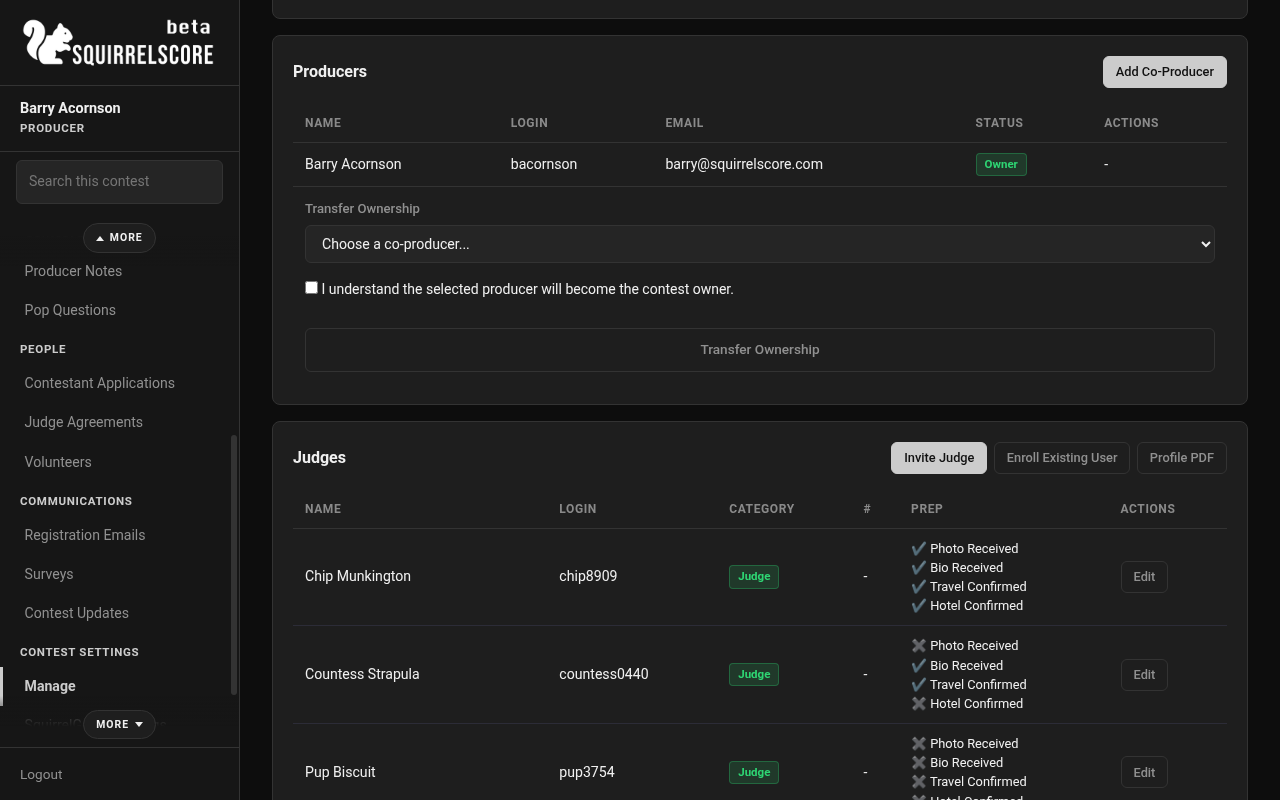
Desktop — Producer, Transfer Ownership
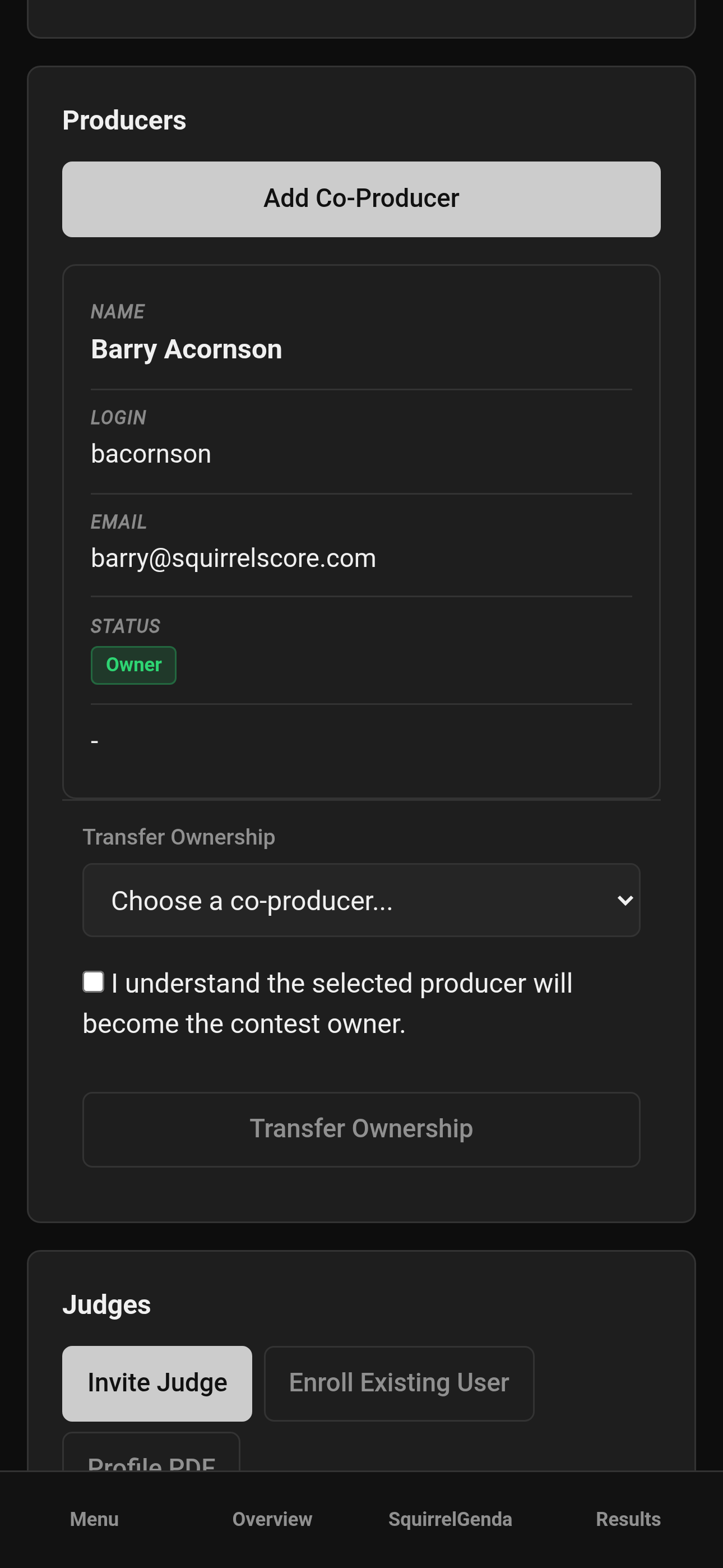
Mobile — Producer, Transfer Ownership
¶ Contest handoff mini-checklist
When transferring ownership:
-
Add the new owner as co-producer first (if they aren't already).
-
Walk them through Manage, Overview, Results, and Chaos Ops at least once.
-
Transfer ownership and make sure to complete all steps.
-
Confirm Delete Contest now appears for them (owner-only).
-
Stay as co-producer for a transition period if you can.
¶ Owner vs co-producer
| Action | Owner | Co-producer |
|---|---|---|
| Day-to-day manage (people, sections, apps) | Yes | Yes |
| Add / remove co-producers | Yes | No |
| Transfer ownership | Yes | No |
| Delete contest | Yes | No |
Exact badges appear on the Producers table so you don't have to guess.
¶ Tips
-
Two (or more) producers can definitely distribute the load when it comes to running a contest.
-
Transfer ownership outside the contest season, that way there's less disruption.
-
Add co-producers to the Chaos Ops weekly email update - keep everyone in the loop.
-
Keep at least one owner or producer ready to make decisions on the fly during the contest, just in case you run into an unexpected issue.
¶ Common Mistakes
-
Trying to remove the owner - they're protected (and for good reason).
-
Transferring without finishing the process, then wondering why nothing happened.
-
Typing an email that isn't a producer-level account yet - they must request access first.
-
Waiting until the middle of the contest weekend to add co-producers.
¶ Frequently Asked Questions
Can I add someone who isn't a producer yet?
No. They need to request producer-level access on the platform first. Then you add them by email.
Do co-producers get Chaos Ops weekly email?
When weekly Chaos Ops email is enabled, summaries go to owner and co-producers.
Who can delete the contest?
Owner only - see Clone & delete.
Can there be multiple owners?
One owner at a time.