¶ Purpose
Optional task tracking for running a contest - tasks, stages, forecasts, and prep - without the headache and overwhelming features of enterprise project management software.
Chaos Ops is the task tracking board. Skip it if checklists aren't needed; enable it when you want due dates and a place to keep the work visible.
¶ Before You Begin
-
Create the contest first (Chaos Ops is enabled from Edit Contest, not the brand-new create form).
-
Set pacing dates in contest settings (application opens/closes, contest starts/ends) so due dates have something to base themselves on initially.
-
Be ready to walk through a short setup wizard the first time you enable it.
-
Know that cancelling setup before seeding turns Chaos Ops back off.
¶ Enable Chaos Ops
-
Open the contest > Manage > Edit (contest settings).
-
Scroll to Enable Chaos Ops and check it.
-
Save / continue so the setup wizard opens.
-
Walk through the wizard:
-
Preview default tasks
-
Confirm dates
-
Generate / enable
-
If you cancel before seeding completes, Chaos Ops turns off again so you are not left half-enabled with a mess to clean up.
-
When enable succeeds, Chaos Ops appears in the sidebar for this contest.
¶ Dashboard
- Click Chaos Ops in the sidebar.
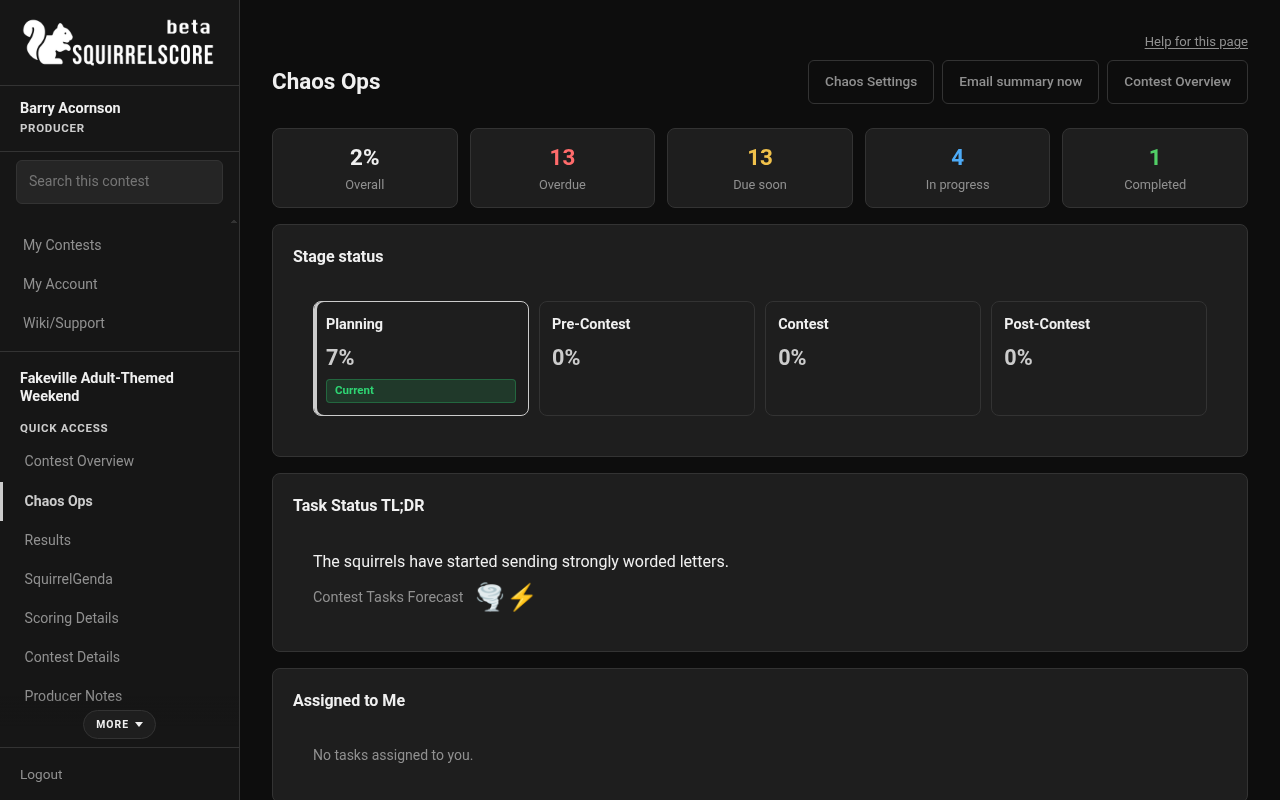
Desktop — Producer, Chaos Ops dashboard
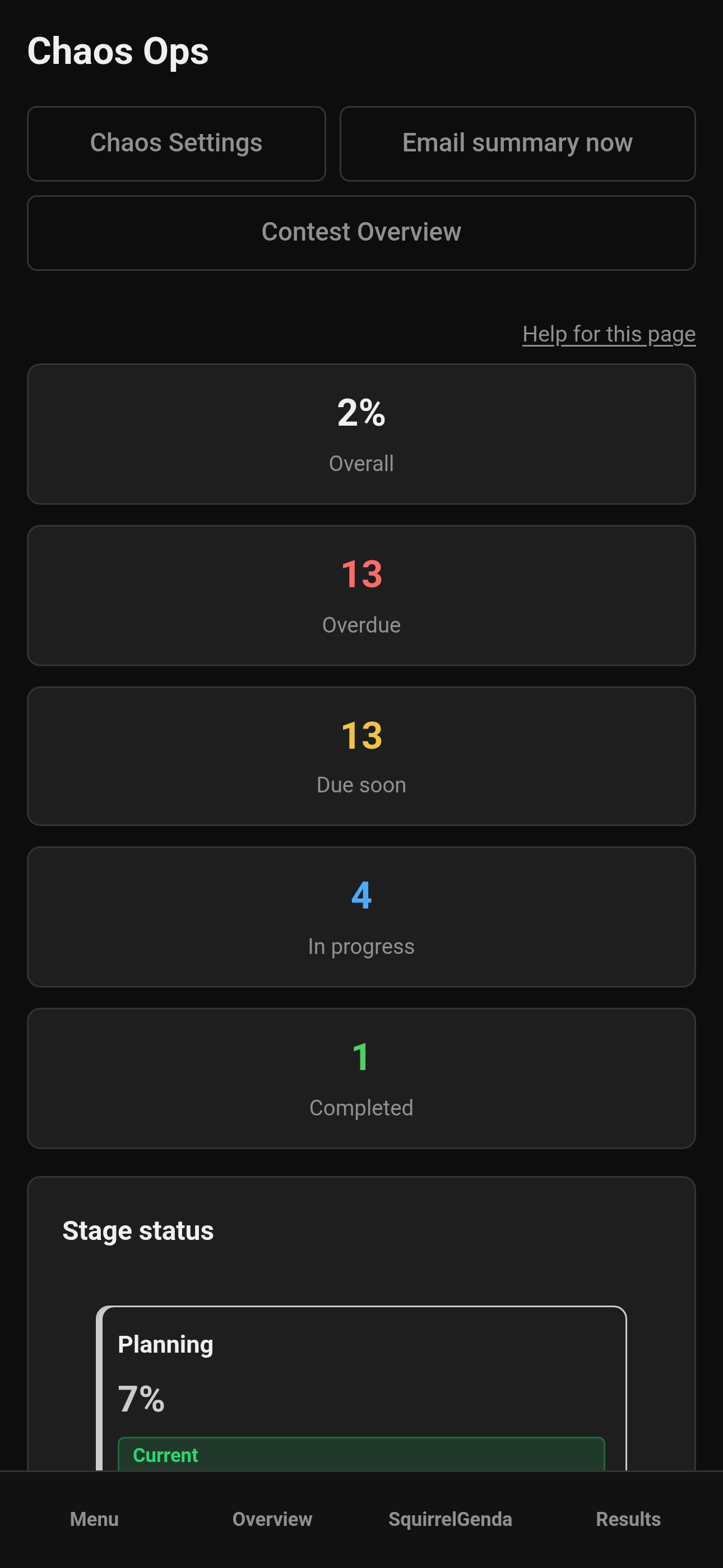
Mobile — Producer, Chaos Ops dashboard
- Review the summary section:
-
Overall %
-
Overdue
-
Due soon
-
In progress
-
Completed
-
Check Stage status (Planning, Pre-Contest, Contest, Post-Contest style phases) and which stage is Current.
-
See the Task Status TL;DR and the Contest Tasks Forecast.
-
Work Assigned to Me- right near the top and easy to find.
-
Check Next Due so nothing sneaks up on you.
-
Use header actions as needed:
-
Chaos Settings
-
Email summary now
-
Contest Overview
¶ Status dropdowns
For manual tasks on the dashboard:
-
Find the task.
-
Change the status dropdown (Not started, In progress, Completed).
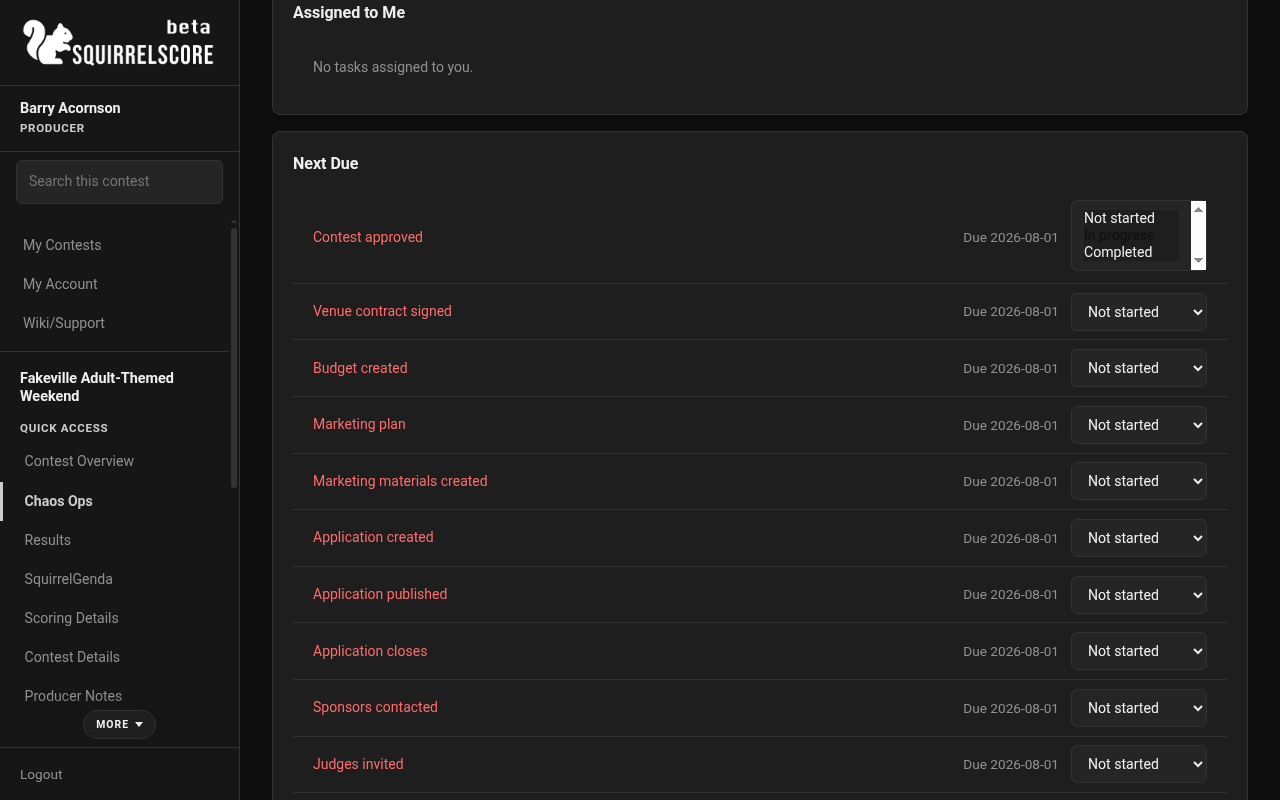
Desktop — Producer, Chaos Ops task status
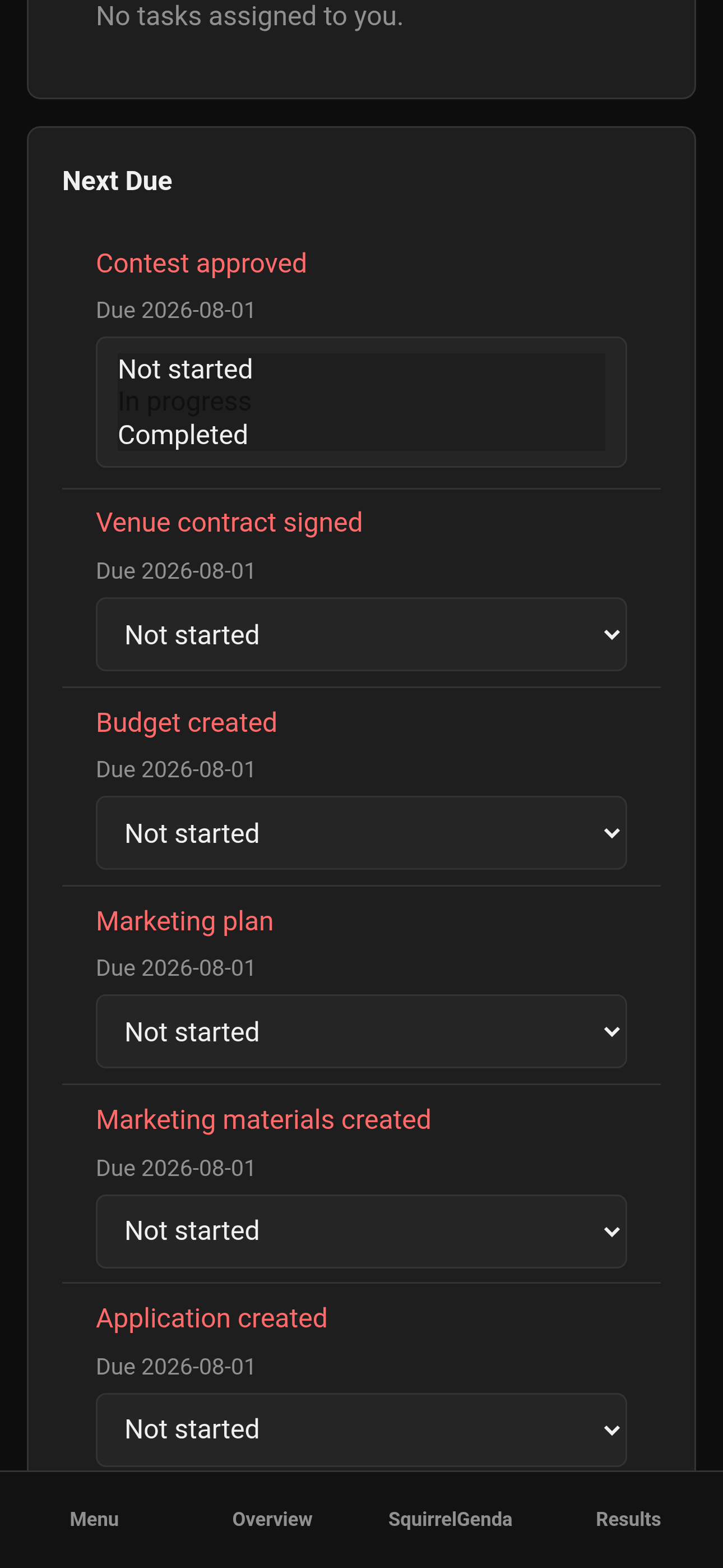
Mobile — Producer, Chaos Ops task status
-
The new status saves automatically when you change it.
-
If a save fails, try the change again. Avoid spam-refreshing.
This auto-save behavior is intentional. Preparation checklists on person edit pages are different - those use Save.
¶ Chaos Settings
- From the Chaos Ops dashboard, open Chaos Settings.
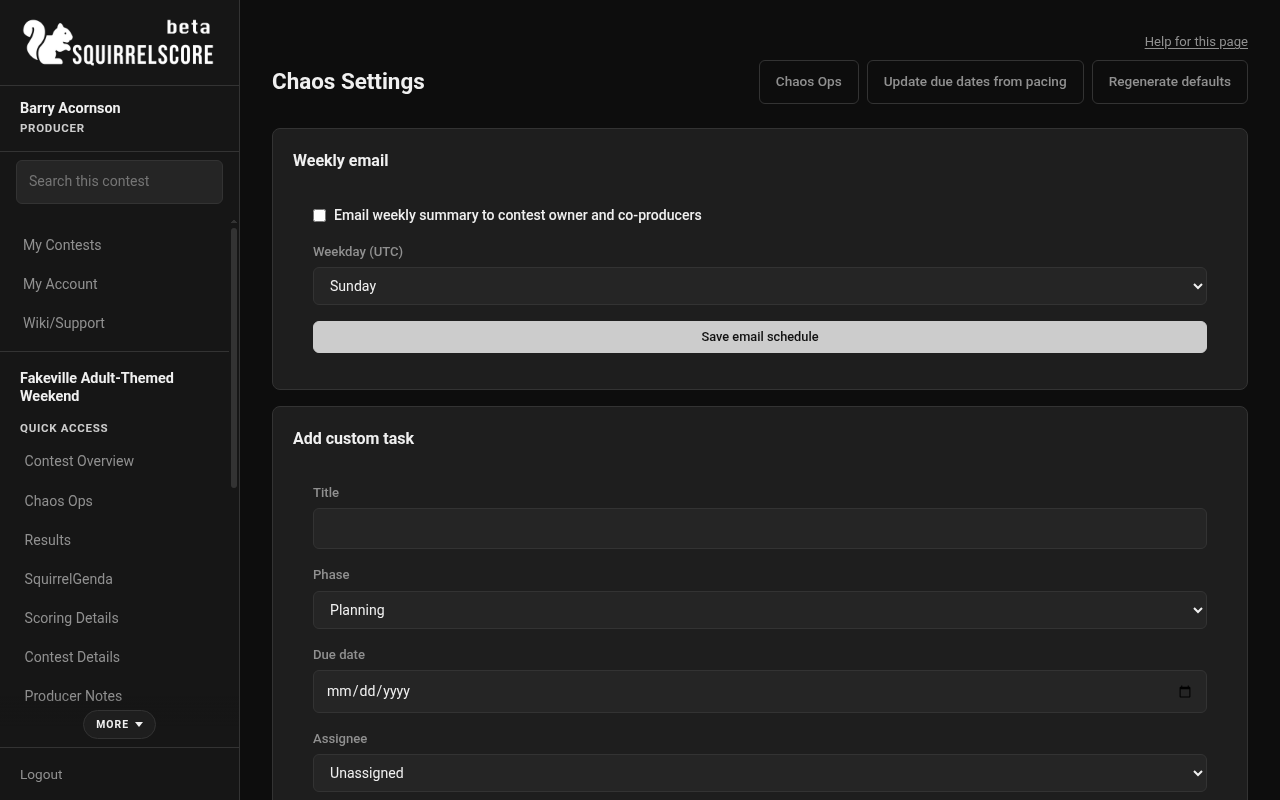
Desktop — Producer, Chaos Settings
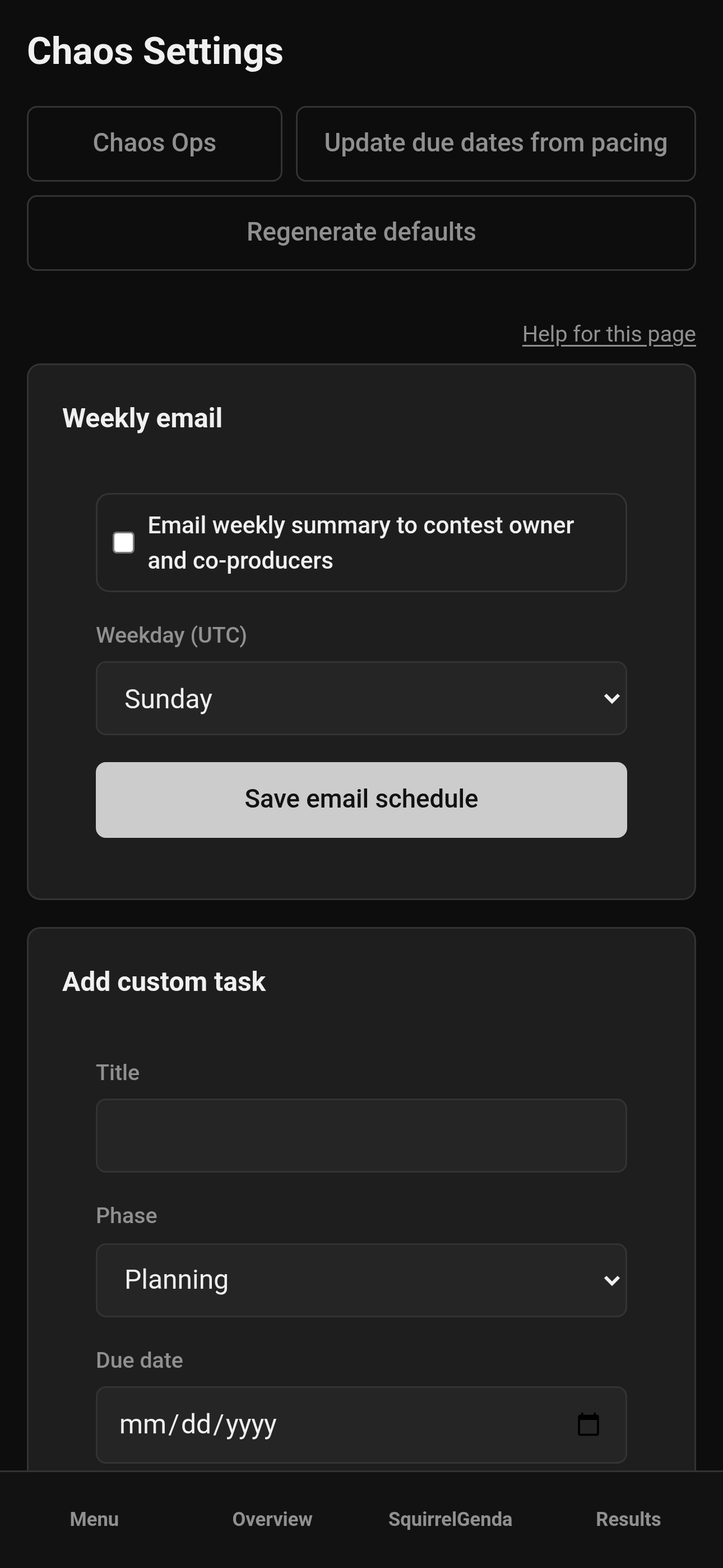
Mobile — Producer, Chaos Settings
-
Weekly email
-
Optionally enable Email weekly summary to contest owner and co-producers.
-
Pick the Weekday (UTC).
-
Click Save email schedule.
-
-
Add custom tasks with title, phase, due date, assignee, and description.
-
Filter, reorder, edit, or delete tasks as the settings list allows.
-
After you change contest pacing dates, click Update due dates from pacing so incomplete tasks pick up the new calendar.
-
Use Regenerate defaults when you need missing default tasks merged back in (custom tasks are kept; you'll confirm before it runs). Newer SquirrelScore tools (registration emails, surveys, contest updates, audience scoring, Pop Questions, SquirrelGenda, backup, Emcee Reveal, Release Results) have extra default tasks — regenerate if this contest was seeded before those existed.
-
Return to Chaos Ops when you're done tinkering.
¶ Preparation checklists
Person-level prep (photos, bios, travel-ish items depending on your defaults/custom setup) lives on edit pages:
-
Open a contestant, judge, or volunteer edit page.
-
Find Chaos Ops preparation.
-
Check off completed items.
-
Click Save- this one does need the Save button.
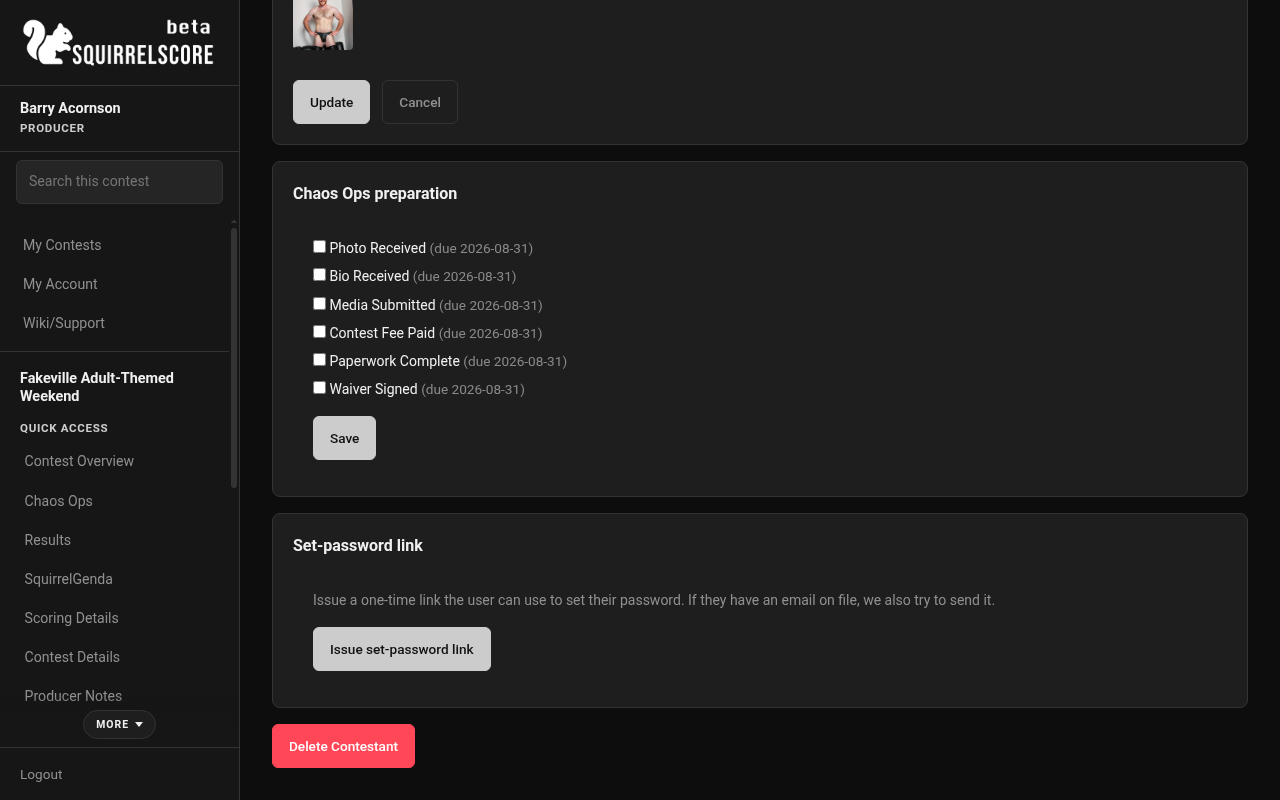
Desktop — Producer, Save preparation on a person edit page
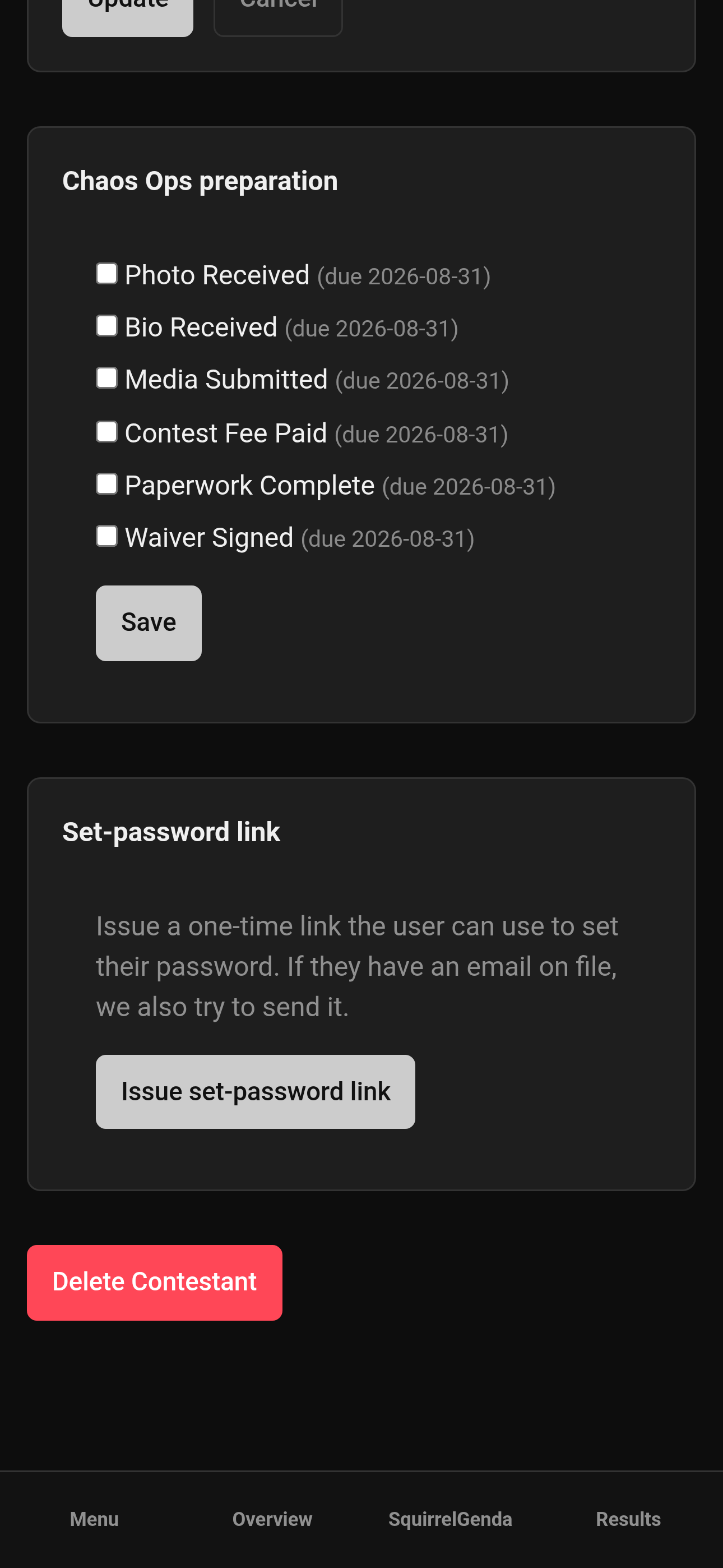
Mobile — Producer, Save preparation on a person edit page
- Participants can open Go Do the Things on their side to see their checklist.
Grouped person items (photos, bios, etc.) on Chaos Ops are computed from enrolled people - not duplicated.
¶ Tips
-
Status dropdowns save on change. Prep checklists save on Save. Two different habits - both correct.
-
Set pacing dates before you enable, or update dues right after date changes.
-
Weekly email is UTC - pick the weekday with that in mind.
-
Use Email summary now when you want a pulse without waiting for the next one.
-
The Action log is newest-first and paginated (10 at a time) - flip pages instead of scrolling forever.
¶ Default tasks that were added later
If you turned Chaos Ops on before surveys, registration emails, and similar tools existed, Regenerate defaults (Chaos Settings) adds the missing checklist items without deleting your custom tasks. In plain language, the newer defaults cover:
-
Building scoring structure, contest details, emails, and inviting co-producers
-
Registration email list, audience-score QR links, Pop Questions, SquirrelGenda, and a backup export before contest weekend
-
Opening/closing audience scoring, Pop Questions draw, locking sections, Emcee Reveal
-
Releasing results, sending a feedback survey and a thank-you contest update, then reviewing survey results
Skip any row that does not apply to your contest (mark complete, or leave it).
¶ Common Mistakes
-
Expecting a Save button beside dashboard status dropdowns — those dropdowns save automatically.
-
Cancelling the setup wizard and wondering why Chaos Ops vanished from the sidebar.
-
Changing pacing dates and never clicking Update due dates from pacing.
-
Checking prep boxes but forgetting Save.
¶ Frequently Asked Questions
Is Chaos Ops required?
No. Completely optional.
Who gets weekly emails?
Contest owner and co-producers when weekly email is enabled.
Can I turn Chaos Ops off later?
Use contest settings to manage the enable flag; treat disable carefully if your team relies on the lists.
Why don't I see Chaos Ops in the sidebar?
It's hidden until enabled (and successfully seeded). Cancelled setup turns it back off.
Where did the old "Recent activity" list go?
Same bottom section, now labeled Action log, with 10 newest entries per page and Previous/Next when there's more.