¶ Purpose
You're the producer. You build the contest, collect applications and scores, set up scoring, and keep contest night organized.
SquirrelScore holds the operational pieces: applications, judges, volunteers, scores, results, and (if you want it) a checklist called Chaos Ops so important work doesn't slip through the cracks.
This page is your map. Use it as the starting point, then jump to the topic pages when you need the details.
¶ Before You Begin
-
Have a producer account (use Request Producer-Level Access on the login page if you don't). Regular judge or contestant logins will not show producer tools.
-
Log in and confirm you land on My Contests (the shared contest list for every contest role).
-
Know the name of the contest you're running (or be ready to create one).
-
Optionally decide whether you want co-producers helping before contest tasks set in motion.
¶ What can a producer do?
In plain language, you can:
-
Create and configure contests- name, logo, scoring modes, active status, pacing dates, optional public contest hub
-
Organize people- contestant applications, judge agreements, volunteer applications
-
Build the scoring rubric- sections, subsections, sub-contests, time penalties
-
Watch the progress- Contest Overview for progress; Results when scores land
-
Run contest tools- Emcee Reveal, Pop Questions random draw, score adjustments, score exports, and a judge Profile PDF from Manage
-
Keep operations on track- Chaos Ops checklists, emails, contest details, co-producers
-
Follow up after the contest- registration email guest list, feedback surveys, and contest update emails (optional)
You do not need to be a technician. Things are written to be as direct as possible.
¶ Your sidebar at a glance
After you open a contest, the left sidebar is the menu for that contest. Links are grouped under Quick Access, People, Communications, Contest Settings, and Danger. On a phone or tablet, use the bottom Menu plus Overview / SquirrelGenda / Results — see Navigation. Expect items like:
| Sidebar item | What it's for |
|---|---|
| My Contests | Shared contest list (home base) - producer cards say Open Contest; New Contest if you can create |
| My Account | Password, profile, MFA-style account stuff |
| Wiki/Support | This help site (opens in a new tab) |
| Contest Overview | Progress dashboard for the selected contest |
| Manage | People, sections, forms, and settings |
| Chaos Ops | Checklist dashboard (only if you enabled it) |
| SquirrelGenda | Public/embed schedule (only if you enabled it) |
| Results | Standings, exports, reveal tools |
| Weeks | Multi-week contests only: weeks, weekly judges, optional per-week cuts |
| Producer Notes | Read-only feedback judges left for your eyes only |
| Scoring Details | Read-only view of your scoring structure |
| Contest Details | Info pages you publish for participants |
| Contestant Applications | Review contestant applications |
| Judge Agreements | Review judge agreement submissions |
| Volunteers | Positions, assignments, volunteer apps |
| Pop Questions | Audience questions and random draw |
| Registration Emails | Contest email list for audience scoring and surveys |
| Surveys | Feedback surveys, charts, invite reminders |
| Contest Updates | Write a message; the people list is looked up when it actually sends. Email, Home Screen / browser push, or both. |
| Contact Us | Optional public message form. Does not create accounts. |
| Vendor / Sponsor inquiries | Optional public vendor / sponsor form. Files go to Contest media when that is on. |
| Contest media | Optional file store for this contest (75 MB). |
| Backup & Restore | CSV export/import packs for structure, forms, surveys, and snapshots |
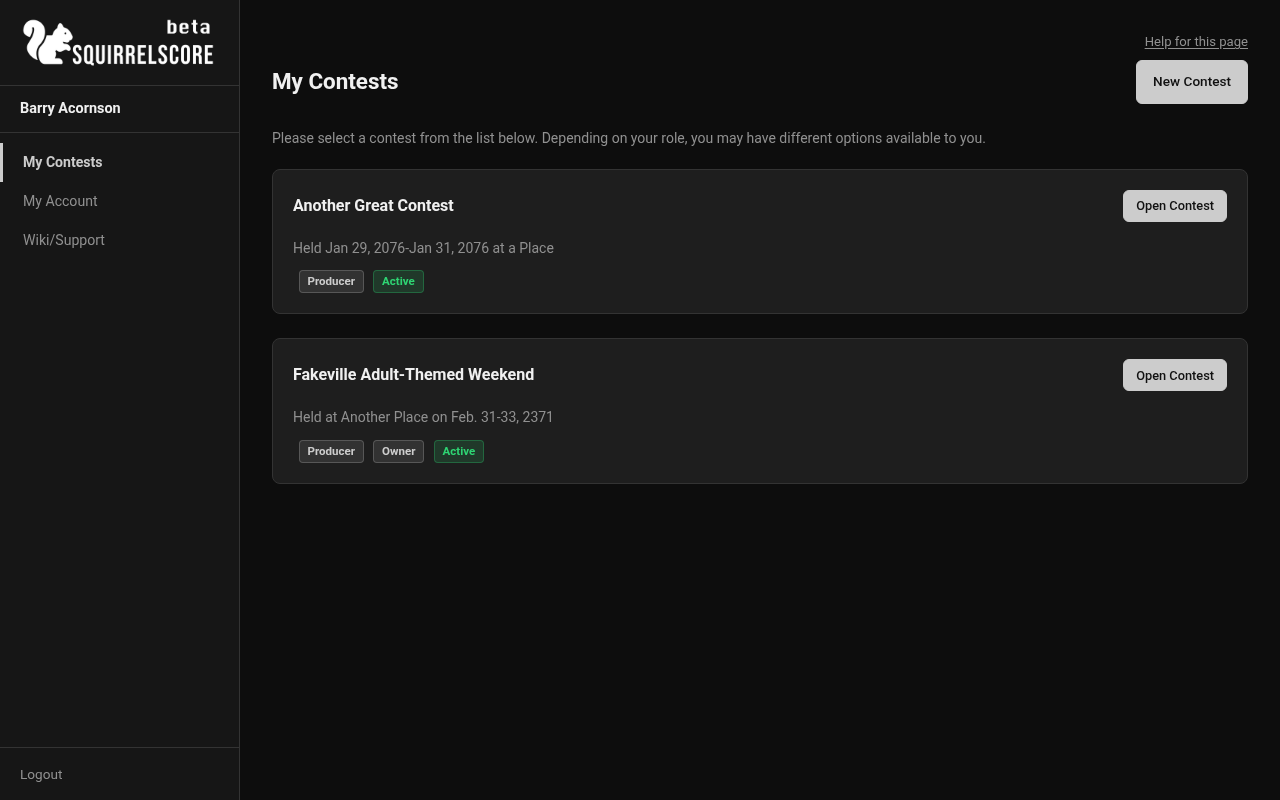
Desktop — Producer, My Contests
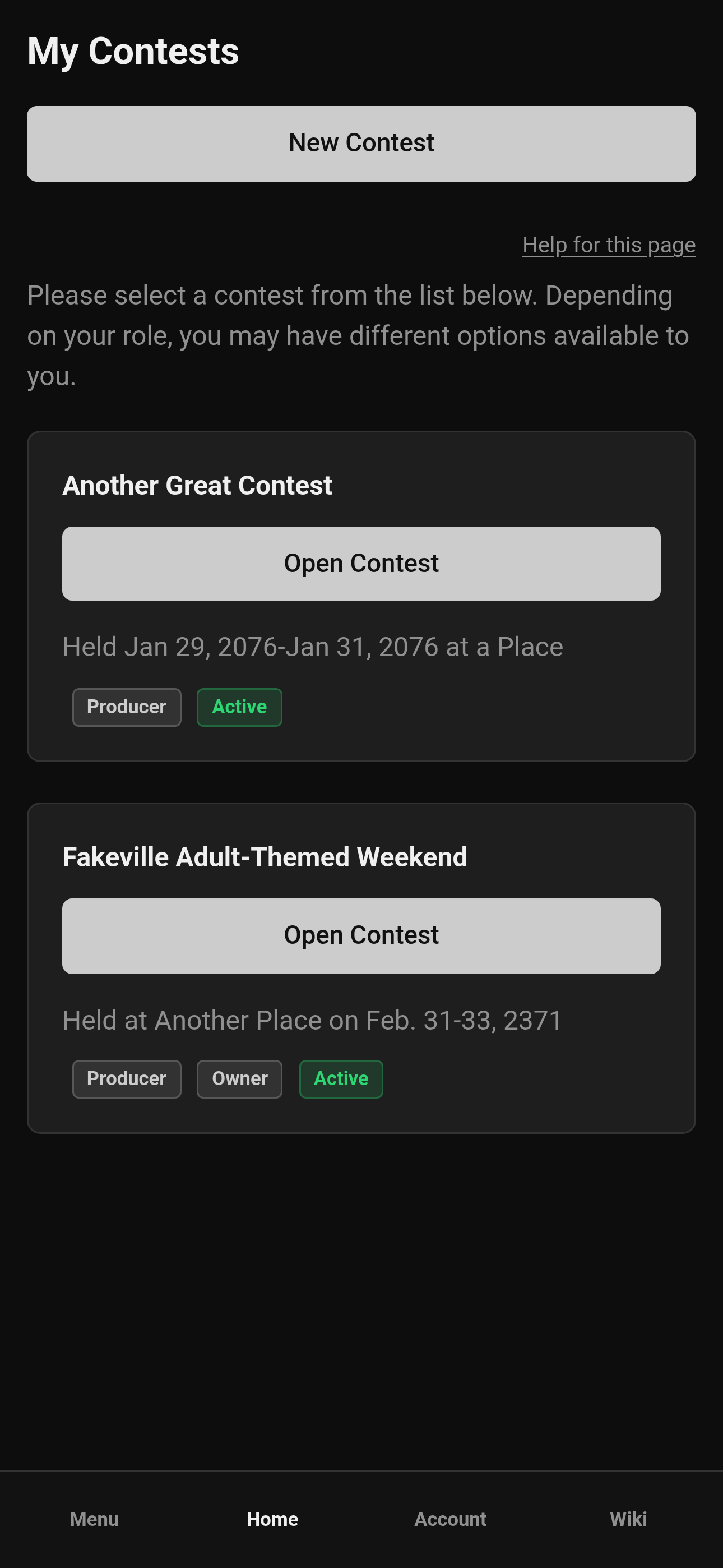
Mobile — Producer, My Contests
¶ Step-by-Step: find your contest
-
Log in with your producer account.
-
In the sidebar, click My Contests (same page judges and contestants use).
-
You should see each contest you own or co-produce, with a Producer role badge - including inactive ones (those stay in the main list for producers).
-
Click Open Contest on the producer card to open that contest.
-
You land on Contest Overview- a progress board, not a settings form.
-
When you need to build or change things, open Manage from the sidebar or Overview links.
If you also judge or compete in other events, those appear as separate cards with their own role badges. Open the Producer card when you need producer tools.
¶ A sensible first-week path
You do not have to do everything on day one. A suggested order of tasks looks something like this:
-
Create the contest (name, logo, basic scoring toggles).
-
Tune settings (active status, pacing dates, Chaos Ops if you want it).
-
Build scoring structure and sub-contests if you use divisions or have different titles under one contest and set of judges.
-
Set up applications, judge agreements, and volunteers.
-
Enroll or approve people; check completeness and the details of their responses for submissions like contestants and judges.
-
Publish Contest Details so participants know the rules and details of the contest.
-
Customize emails before you send a wave of invitations or get submissions to approve/reject.
-
Use Contest Overview during the contest; Results when scores exist.
-
Optional, often after the contest: keep a registration email list, send contest updates, and collect feedback surveys.
Manage is for building. Contest Overview is for watching. If you feel lost, ask yourself whether you are building or watching, then pick the matching page.
¶ Tips
-
Invite a co-producer before the wheels are in motion, not during on-site setup right before registration opens.
-
Leave Contest Active on while judges and tallymasters need to work. Turning it off parks their membership under Inactive Contests (they can see it, but they can't open it to score).
-
Build scoring sections before you invite judges. Empty scoring rubrics will get you a flood of questions.
-
Use Chaos Ops if you need to figure out where to start, or if you just like having a running checklist of the things you need to do (and when). Skip it if checklists only serve to stress you out - it's optional.
-
Bookmark the wiki. You'll want it on contest weekend when something needs to change on the fly.
-
When something "disappears" from the sidebar, ask: Did I select a contest? Did I open a Producer card (not a Judge/Contestant card on the same event)? Is the contest active for the people who need it?
-
Keep one browser tab on Overview and one on the queue you're clearing. That is easier than bouncing between five windows.
¶ Contest-week rhythm
-
Morning: Overview attention flags + remaining queues.
-
Afternoon: Review and approve or reject what's left, check numbers/sub-contests, check Chaos Ops tasks and due dates. Download the judge Profile PDF from Manage if hospitality (judge pets) needs the agreement packet.
-
Call time: Manage only for emergencies; live in Overview/Results.
-
After scores are turned in: Results > Automatic Tiebreak / adjustments if needed > Emcee Reveal > score exports.
-
After the contest (optional): Producer Notes triage, thank-you contest updates, and feedback surveys (those can stay open even after the contest is inactive).
¶ Common Mistakes
-
Opening the wrong contest (or a Judge/Contestant card) and wondering where Manage went - you need the Producer card.
-
Creating three contests named "Test" and losing track of which is the real one.
-
Sharing public apply links before the form fields are finalized.
-
Enabling Chaos Ops, cancelling the setup wizard, and assuming it's still on - cancel keeps it off if nothing was seeded yet.
-
Expecting edit buttons in Overview. Overview watches; Manage edit/builds.
¶ Frequently Asked Questions
Do I need Chaos Ops?
No. It's optional. Many contests can run happily without it. Turn it on when you want due dates and preparation checklists in one place.
Can more than one person produce the same contest?
Yes. The owner can and should add co-producers. See Co-producers.
Where do I change Olympic scoring, point-system normalizing, or Automatic Tiebreak later?
Contest settings (Edit Contest).
Where do judges leave private notes for me?
They enter them while scoring. You read them on Producer Notes. Contestants DO NOT see those notes.
What's the difference between Scoring Details and Scoring structure?
Scoring structure (from Manage) is where you build and edit your scoring sections and optional sub-sections. Scoring Details is the friendly read-only view everyone can skim. For brainstorming weights and examples first, see Designing your contest.