¶ Purpose
Run the full judge onboarding loop: build the agreement form (you can include more items, more on that below), send invitation links, review submissions, and approve (or reject, if necessary) with the right Judge vs Alternate Judge category.
This is the main workflow to bring new judges onboard. Enrolling an existing account is covered on Judges & invitations.
¶ Before You Begin
-
Enable/build your scoring structure so approved judges have a scoring rubric to review.
-
Customize judge-related emails (invitation, approved, rejected, credentials).
-
Keep Contest Active on so judges can access after approval.
-
Decide what the plan is and who should be Alternates (if using alternate judges) before you click Approve on everyone.
¶ Configure the Judge Agreement form
-
Open Judge Agreements in the sidebar (or Manage).
-
Click Form Settings.
-
Check Enable judge agreement form- invited judges can submit only while this is enabled.
-
Click Save Settings.
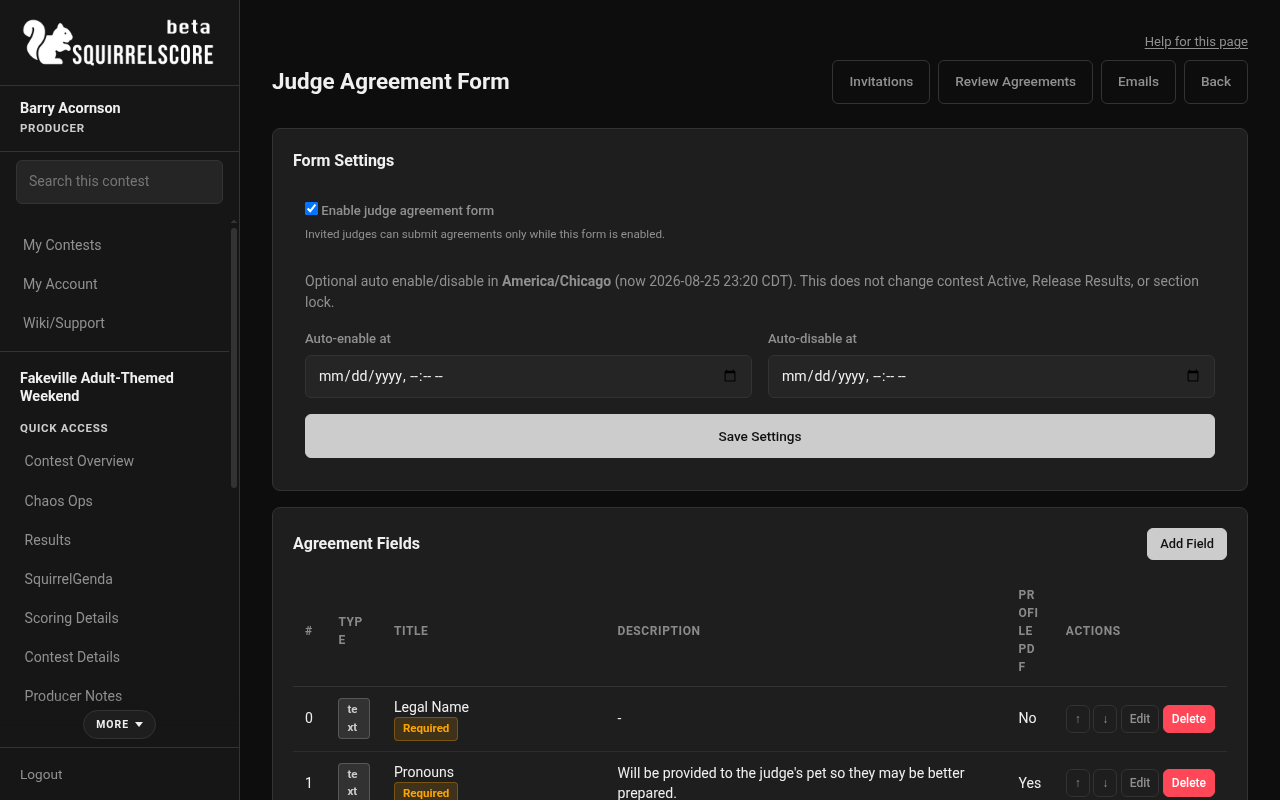
Desktop — Producer, Judge Agreement Form settings
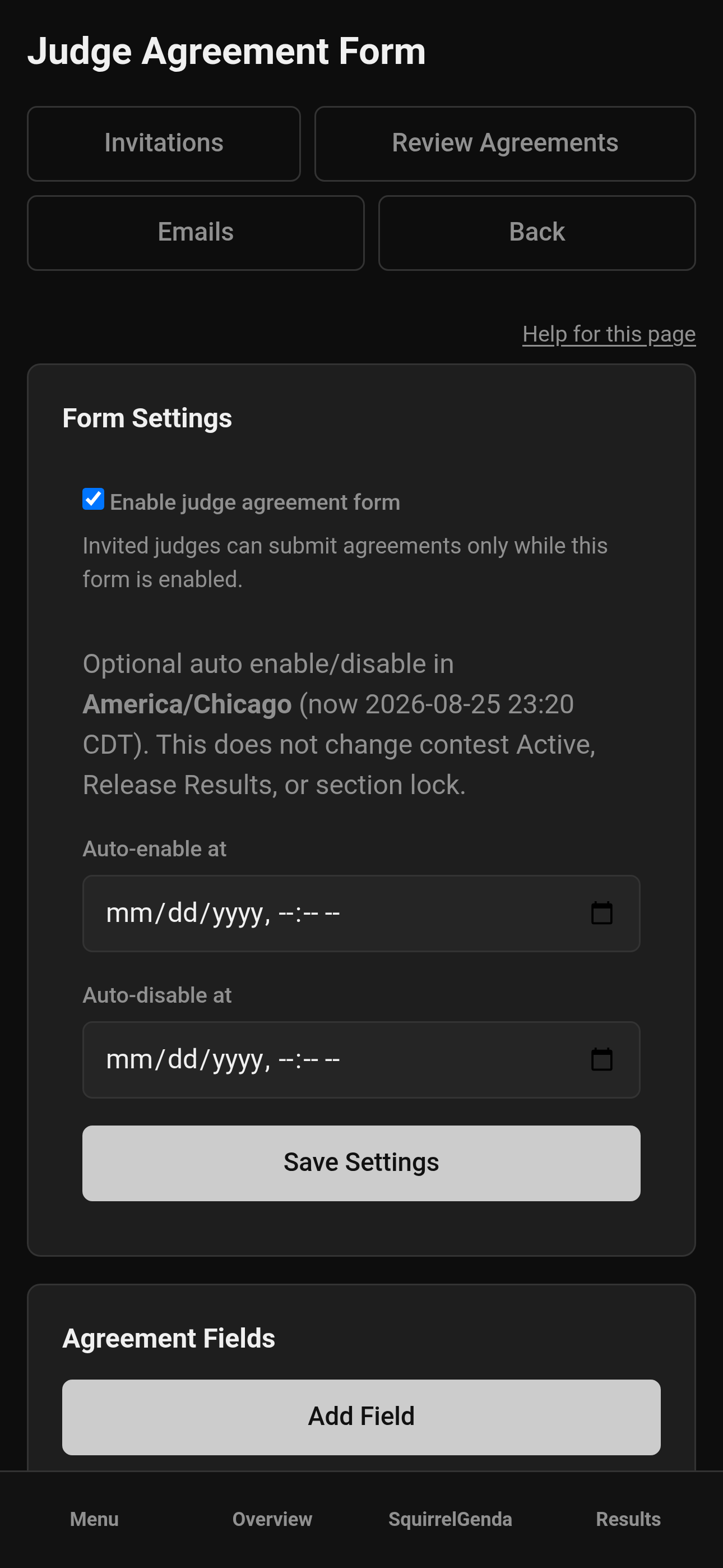
Mobile — Producer, Judge Agreement Form settings
-
Under Agreement Fields, click Add Field.
-
Choose field type, title, and description (conflicts of interest, size, dietary - your call).
-
Check Include in Profile PDF if this question should appear on the combined judge Profile PDF from Manage (on by default).
-
Save the field.
-
Add more fields as needed. Invitee name and invitation email are always collected even with zero custom fields. You can even use this as an opportunity to collect additional information, such as the judges' preferences to assemble a butler book for the judge's pet (volunteer assigned to assist the judges)
-
Edit or delete fields later carefully if invites are already out. The fields list shows a Profile PDF column so you can scan what will print.
Titles, descriptions, and answers use Markdown on the Profile PDF. Descriptions already support Markdown on the form; titles and answers render the same way in that download.
¶ Send invitations
-
From Form Settings or Judge Agreements, open Invitations.
-
Enter one or more email addresses as the page allows.
-
Send the invitation(s).
-
Track status (open / completed / expired style tracking on the invitations list).
-
Resend or invite someone new if an email bounced or vanished into a spam folder.
-
Invitees open the agreement link from email and complete the public form.
¶ Review, approve, or reject
-
Open Judge Agreements in the sidebar.
-
Filter Pending, Approved, Rejected, or All.
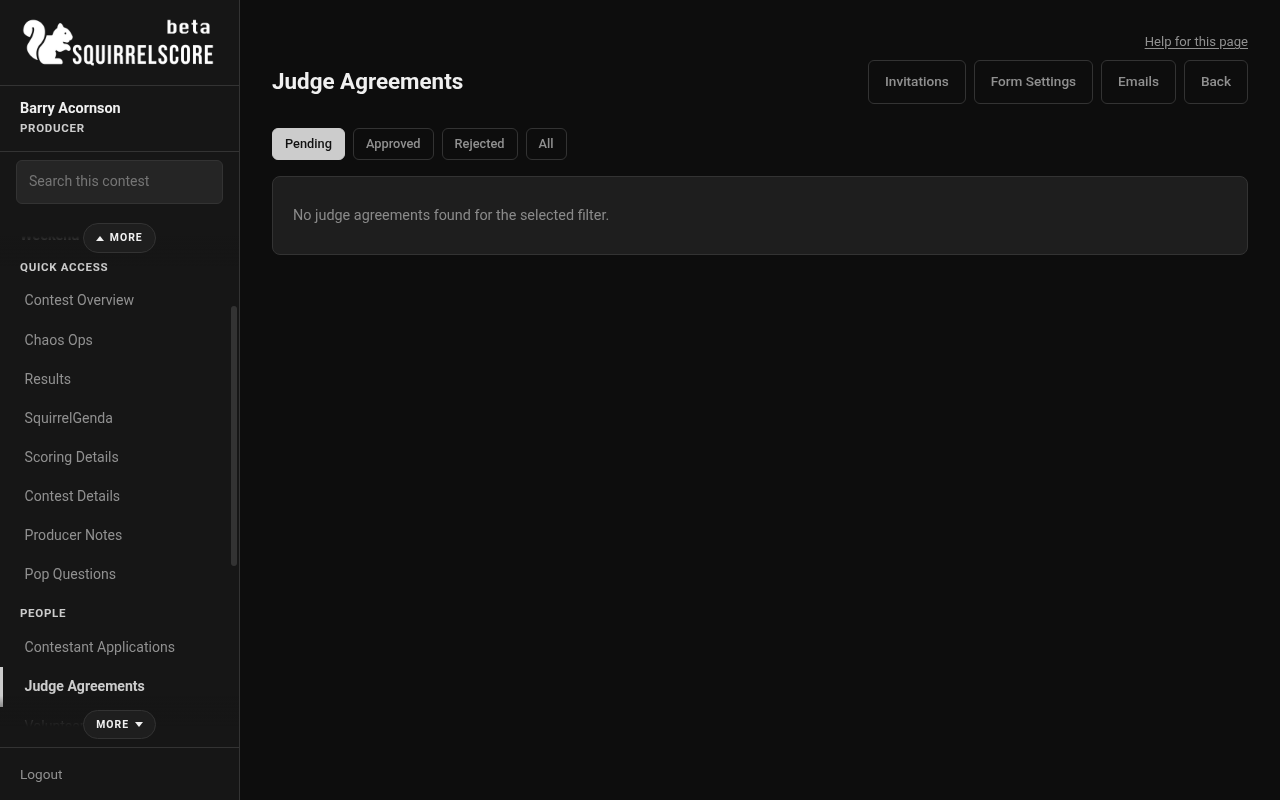
Desktop — Producer, Judge Agreements list
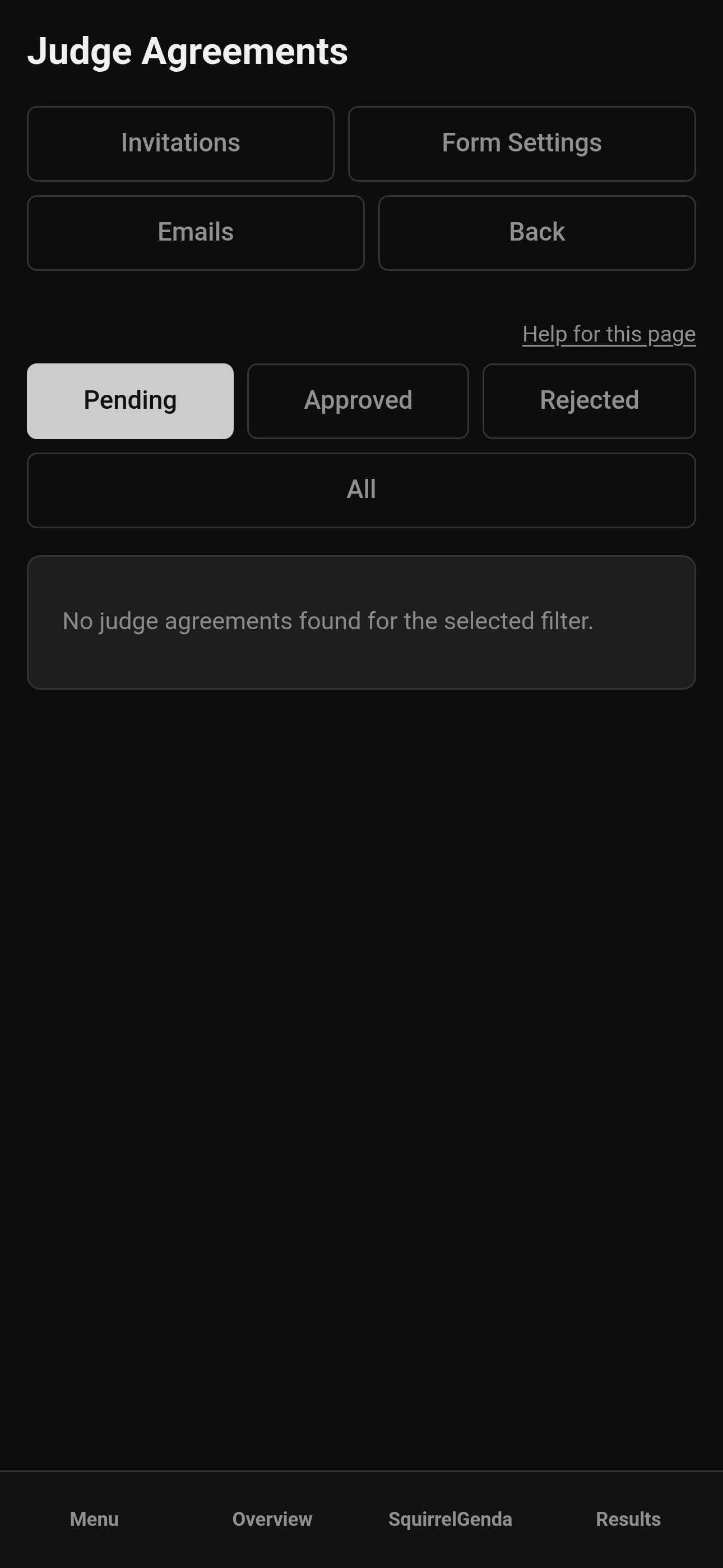
Mobile — Producer, Judge Agreements list
-
Click View on a submission.
-
Read applicant name, email, submitted time, linked judge if shown, current category, and status.
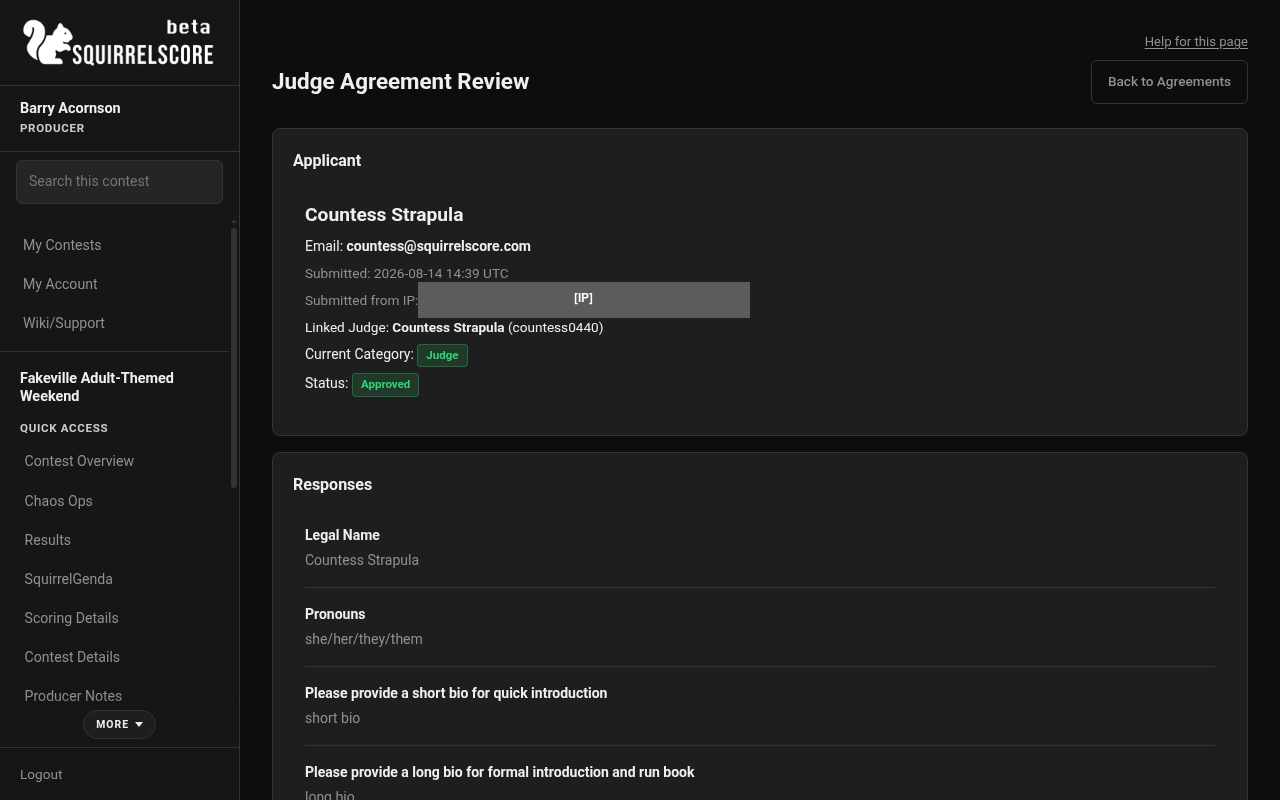
Desktop — Producer, review a judge agreement
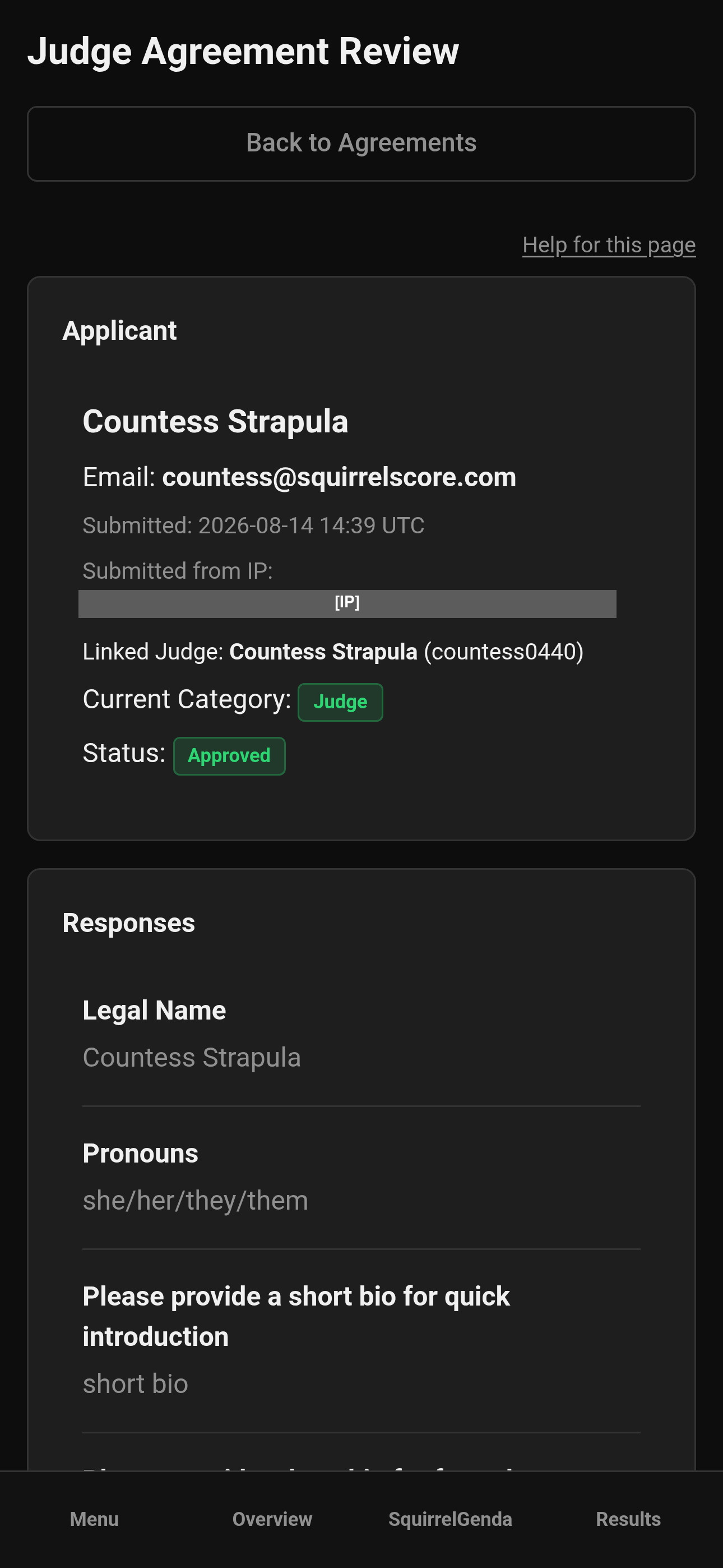
Mobile — Producer, review a judge agreement
-
Read all Responses to your custom fields.
-
Under Make a Decision (or Change Decision):
-
Choose Approve or Reject.
-
Set Judge Category on Approval: Judge or Alternate Judge.
-
Optionally add Notes about the decision.
-
Click Submit Decision (or Update Decision).
-
-
Confirm emails go out per your templates (approved/rejected; credentials only when a new account is created).
¶ Judge vs Alternate Judge
Want to have a backup, just in case: one judge has an emergency and has to leave halfway through the contest (switch leaving judge to alt, switch alt to regular judge), you want additional scores to add in if needed to break a tie (switch alt to regular judge and check results), you want to demonstrate you have an actionable plan in case there is perceived bias or another issue (complaint, observed behavior, violates rules, commentary/feedback observed by tallymasters and producers), or potentially another reason?
Use an alternate judge!
A producer can swap judge settings at any time - even during the contest (you've got to plan for the worst, hope for the best).
| Judge Type | Scores recorded? | Counted in final results? | Producer Notes & Contestant Feedback Collected & Shown? |
|---|---|---|---|
| Judge | Yes | Yes | Yes |
| Alternate Judge | Yes | No | Yes |
Set category on approval (and adjust later on the judge edit page if needed). The agreements list shows category badges so you can spot Alternates quickly.
¶ After approval
-
Confirm the person appears in your judges roster on Manage.
-
Set Judge Number on edit if you didn't already.
-
Optionally complete Chaos Ops Save items on their edit page.
-
Download Profile PDF from the Judges card when you need a packet of every judge's selected agreement answers (photos, questions, descriptions, and answers).
-
Point them at Accepting an invitation / scoring docs if they're new.
¶ Example judge agreement questions
| Field Type | Title (Main Text) | Description (optional) | Options |
|---|---|---|---|
| text | Legal Name (First and Last) | May be provided to the judge's pet so they may be better prepared. | |
| text | Pronouns | Will be provided to the judge's pet so they may be better prepared. | |
| phone | Phone Number | Will be provided to the judge's pet so they may be better prepared. | |
| date | Date of Birth | ||
| text | Facebook URL | May be provided to the judge's pet so they may be better prepared. | |
| text | Instagram URL | May be provided to the judge's pet so they may be better prepared. | |
| text | Twitter/X URL | May be provided to the judge's pet so they may be better prepared. | |
| text | Other Social Media URL | May be provided to the judge's pet so they may be better prepared. | |
| text | Which of the provided social media accounts do we NOT have consent to tag you in posts, pictures, stories, and other types of posts? | Will be provided to the judge's pet so they may be better prepared. | |
| text | Telegram | We use Telegram as our main communication platform. Please provide your @ username. Will be provided to the judge's pet so they may be better prepared. | |
| textarea | What travel arrangements have been made so we can better assist with things like transportation? | Please include hotels, AirBnBs, arrival date/time, departure date/time, and any other relevant information you're comfortable sharing with us. Will be provided to the judge's pet so they may be better prepared. | |
| multiple choice | Do you have any accommodation needs to help you judge and/or access the contest events? | Accessibility is core to our mission, and we will try our best to make accommodations for those who need them to access this platform. We recognize that some of these accommodations may require ongoing discussion and preparation. | No, Yes |
| textarea | Accommodations/Accessibility: If yes, please provide details | Will be provided to the judge's pet so they may be better prepared. | |
| textarea | Please provide a short bio for quick introduction | We'll be reading short bios to introduce you quickly for the meet & greet, long bios for introductions during the contest and the contest program. | |
| textarea | Please provide a long bio for formal introduction and the contest program | We'll be reading short bios to introduce you quickly for the meet & greet, long bios for introductions during the contest and the contest program. | |
| textarea | What are your preferred beverage choices? | Can be alcoholic or non-alcoholic. If you drink coffee or tea, please list how you like it as well. Please also list any dietary restrictions, allergies, or beverages you prefer to avoid (no explanation needed). Will be provided to the judge's pet so they may be better prepared. | |
| textarea | What are your preferred snack choices? | Prefer grab-and-go style. Please also list any dietary restrictions, allergies, or foods you prefer to avoid (no explanation needed). Will be provided to the judge's pet so they may be better prepared. | |
| textarea | Emergency Contact | Optional. We hope to never have to use this. | |
| textarea | Is there anything else you'd like us to know? | Optional. Can be preferred communication styles, stress indicators to monitor, or even just some fun fact you'd like to share. Will be provided to the judge's pet so they may be better prepared. | |
| multiple choice | I have read, understand, and accept all terms available on the Contest website, including policies, releases, and the Code of Conduct. |
These include but are not limited to: the Rules & Requirements, Expectations & Prize Package, Terms & Conditions, Privacy Policy, Release of Liability, Photography & Media Release, Code of Conduct, and Diversity & Inclusion Policy. | No, Yes |
| multiple choice | I understand I may be provided physical materials including but not limited to computers and computer access to use for the duration of the contest. I will do my best to ensure the security and safety of any materials. | No, Yes | |
| multiple choice | I agree to uphold the Contest ideals, and to maintain integrity, respect, and good sportsmanship while judging contestants. |
No, Yes | |
| multiple choice | I agree to protect and not disclose any PII, confidential information, and systems that I may be granted access to without the prior written authorization of all involved, and to use all data and systems responsibly. | No, Yes |
¶ Tips
-
Enable the form before sending invites - disabled forms confuse everyone ("go fill this out!" "oh, hey, yeah, I can't?").
-
Approve everyone early enough for everyone to plan travel and prep.
-
Use Alternates when possible; you never know when they'll come in handy.
-
Change Decision can come in handy if you clicked Reject by accident - use notes.
¶ Common Mistakes
-
Sending invites with the form disabled.
-
Approving as Judge when you meant Alternate (or the reverse).
-
Skipping custom field answers that mention conflicts.
-
Expecting the invitation email to include passwords - credentials are a separate template when a new account is created.
¶ Frequently Asked Questions
Can someone become a judge without this flow?
Existing accounts can be enrolled from Manage - see Judges. New judges use invitations/agreements.
What do invitees see?
Public judge agreement.
Where is the sidebar entry?
Judge Agreements.
Do rejected people stay on the roster?
Rejecting keeps them from joining as an approved judge for that agreement path; treat roster cleanup deliberately if they were already linked.
What does Resend do to a completed agreement?
It deletes that invitation's agreement (and unenrolls if it was approved), issues a new token, and emails the invite again. The old link stops working.
How do I print every judge's answers at once?
Profile PDF on the Manage Judges card. Uncheck Include in Profile PDF on any field you don't want in that packet. See Judges.