¶ Purpose
Get judges onto your contest roster with the right category (Judge vs Alternate), numbers, and prep.
Judges score contestants. Alternates can score for practice or backup visibility, but Alternate Judge scores are not counted in final results.
¶ Before You Begin
-
Build your scoring structure so judges know what they're going to judge contestants on.
-
Decide who is a full Judge vs Alternate Judge.
-
Customize judge-related emails (invitation, agreement approved/rejected, credentials).
-
Keep Contest Active on when judges need to open and score this contest.
¶ How judges usually join
For new judges, SquirrelScore expects the invitation + agreement flow:
-
You configure the Judge Agreement form in SquirrelScore.
-
You send invitations through SquirrelScore that are delivered to potential judges via email.
-
They complete the judge's agreement link, sent via email.
-
You review, then approve or reject.
-
Approval enrolls them; new accounts may get credential emails.
Deep dive with screenshots: Judge agreements.
For someone who already has an account, you can enroll them from Manage without having to create a new login.
¶ Step-by-Step: invitation path (overview)
-
Open Manage > Judge Agreement Form Settings (or sidebar Judge Agreements > Form Settings).
-
Enable the form and add the fields you need.
-
Open Invitations.
-
Enter emails and send invite links.
-
For open invites, use Copy link on the invitations list (handy for texting them a link if they've missed the email). Older invites without a stored link need Resend once to generate one.
-
Track invites (open / completed / expired style statuses).
-
Open Judge Agreements, filter Pending, View, then approve or reject.
-
On approve, set Judge vs Alternate Judge carefully if the review UI asks - category also appears on the agreements list.
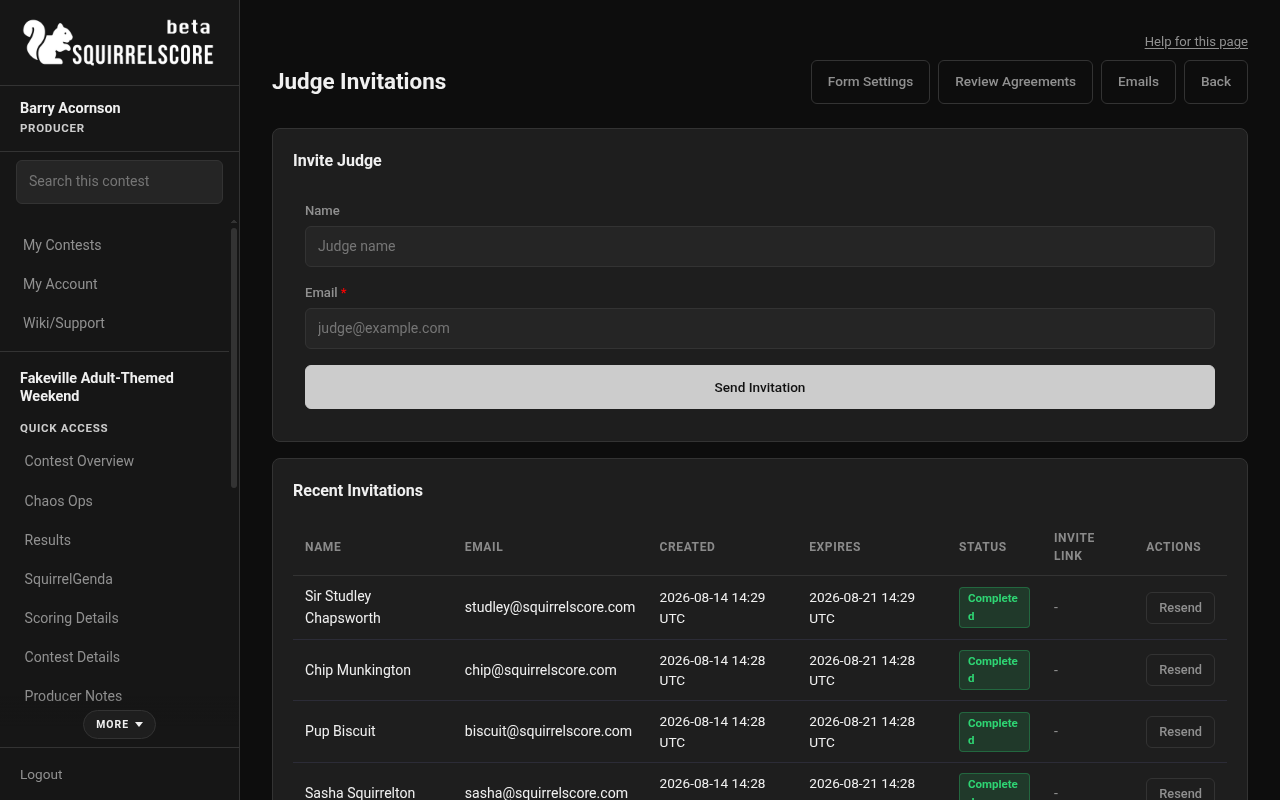
Desktop — Producer, Judge Invitations
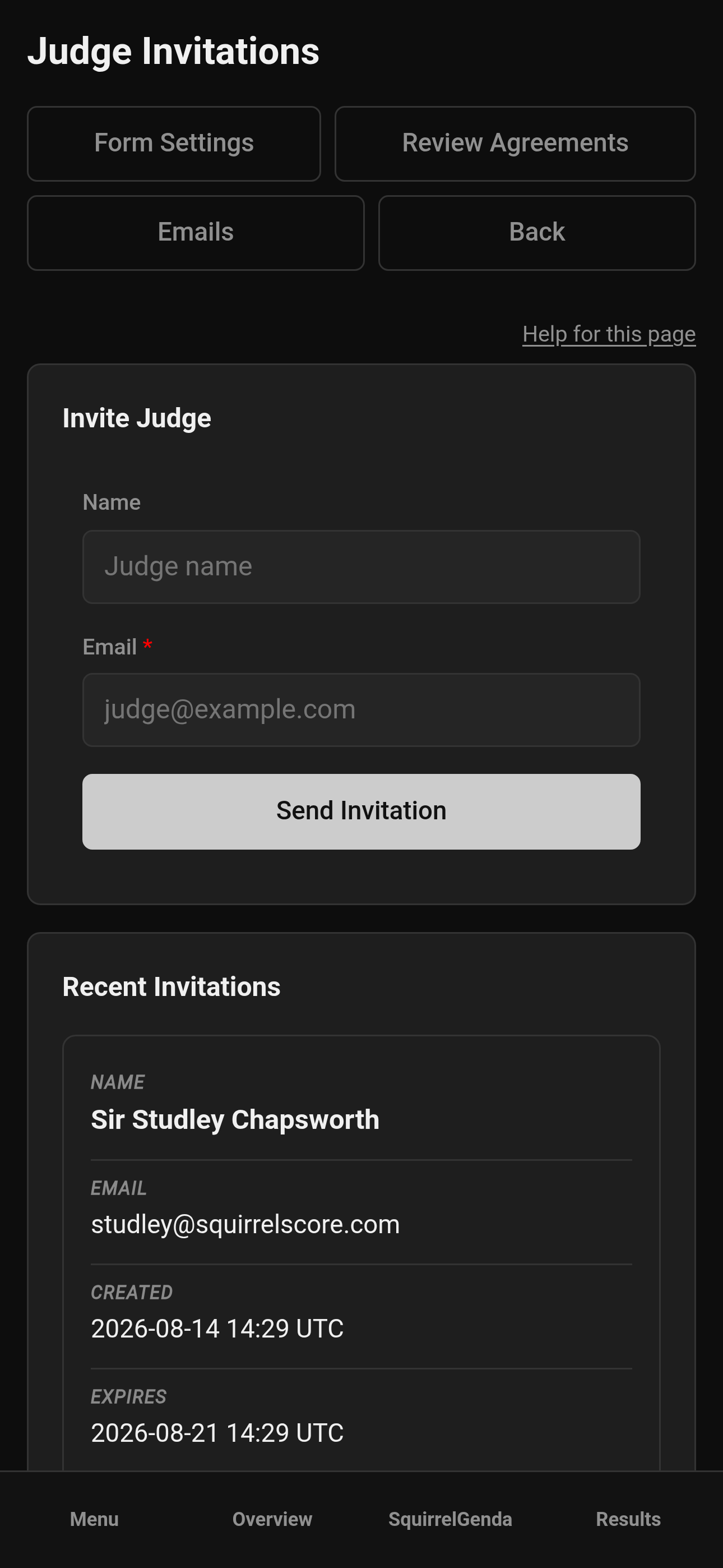
Mobile — Producer, Judge Invitations
¶ Step-by-Step: enroll an existing judge
Use this when the person already has a user account and you only need them on this contest. This is the alternate way to manually insert a judge, bypassing the invitation (which is still the recommended way to add a judge).
-
On Manage, open judges and choose the add / enroll action.
-
Read the info flash: new judge accounts are created through invitation/agreement; this page enrolls existing users by email.
-
Enter the Email and any name fields the form shows.
-
Click Find Existing Account.
-
If matches appear, click Use existing on the right person.
-
Set Judge Category (Judge or Alternate Judge).
-
Set Judge Number if you use numbers.
-
Optionally add a profile photo. Extra files for that judge go on Contest media when that is on — send them an upload link from that page.
-
Save / enroll as the buttons indicate.
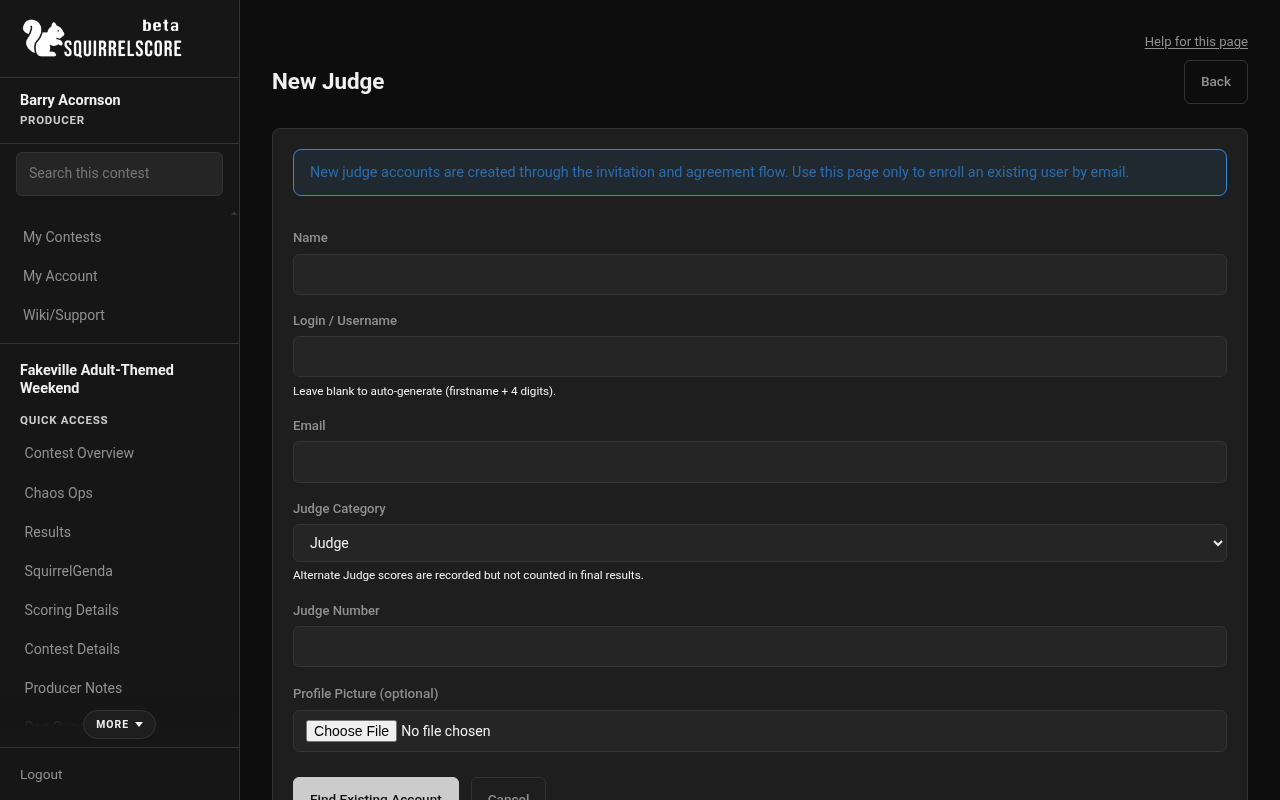
Desktop — Producer, enroll existing judge
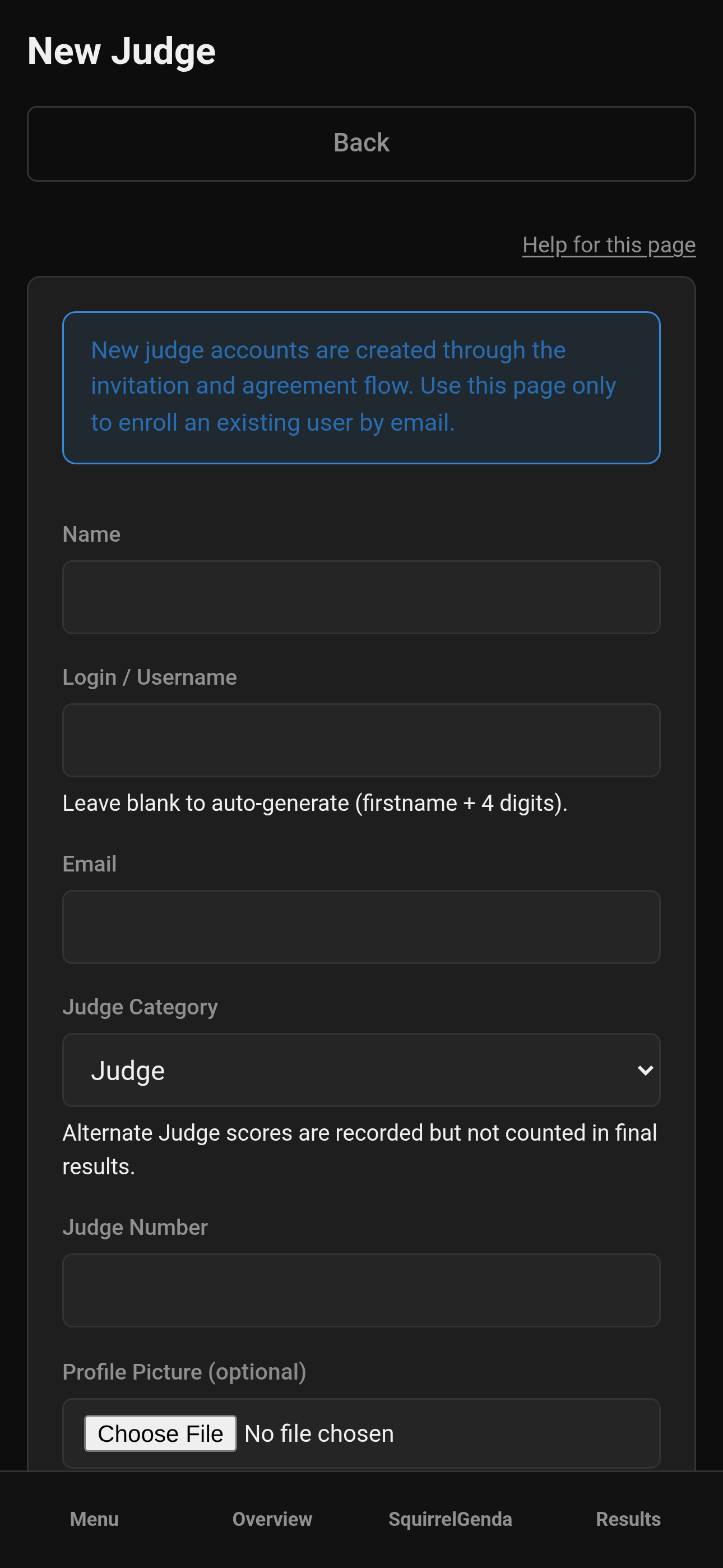
Mobile — Producer, enroll existing judge
¶ Edit judges (numbers, category, photo)
-
Open the judge from Manage.
-
Click Edit.
-
Update name, login, email, Judge Number, Judge Category, photo.
-
Click Update.
-
Optionally issue a set-password link from the edit page when someone is locked out (it happens).
¶ Profile PDF (all judges)
On Manage, the Judges card has Profile PDF when at least one judge is enrolled. It downloads one Letter PDF of every judge (Judge and Alternate), in the same name order as the table.
Each judge gets their own page: photo and name at the top (photo comes from the judge's profile picture on Edit), then the agreement questions you marked Include in Profile PDF. Titles, descriptions, and answers render Markdown. Judges without an approved agreement still appear, with a short note instead of answers.
The file name looks like Contest_Name-Profile_PDF.pdf. See Downloading files.
Choose which questions print on Judge agreements when you add or edit a field. Existing questions default to included until you uncheck them.
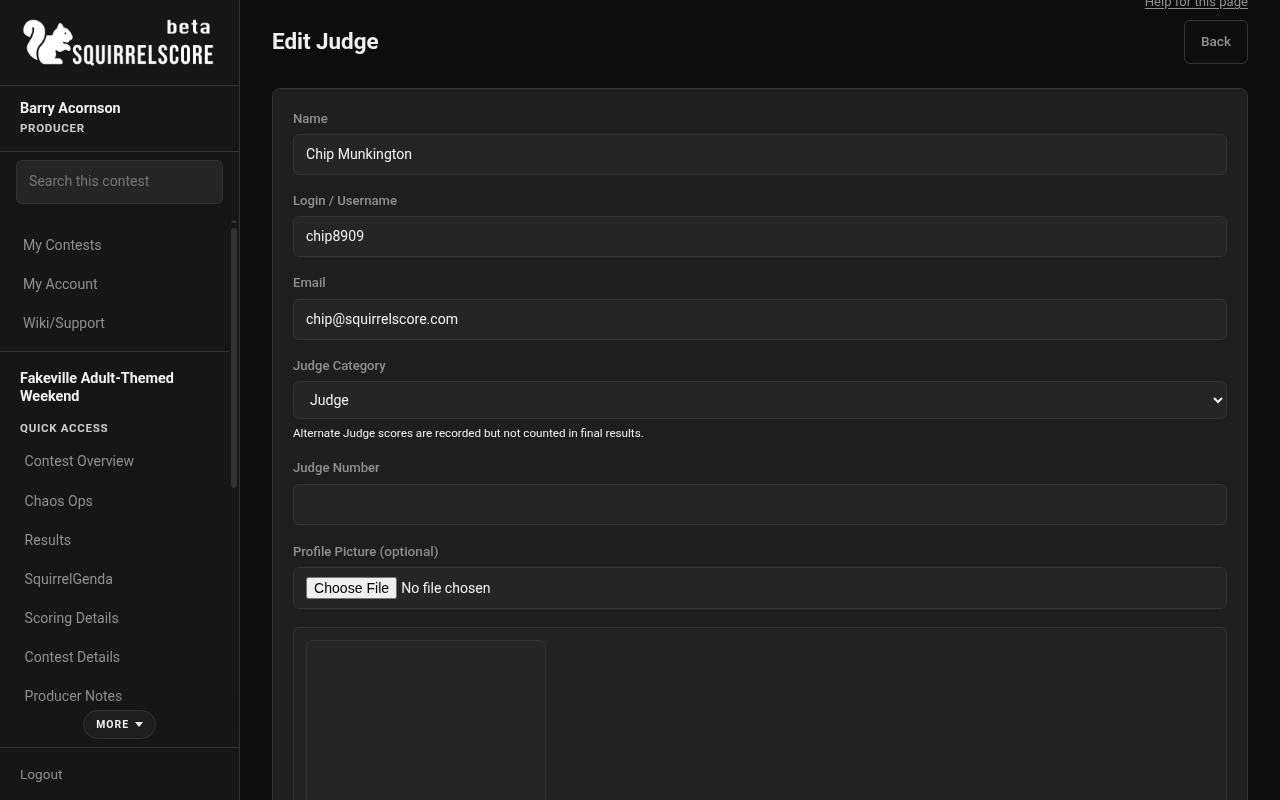
Desktop — Producer, Judge Category on edit
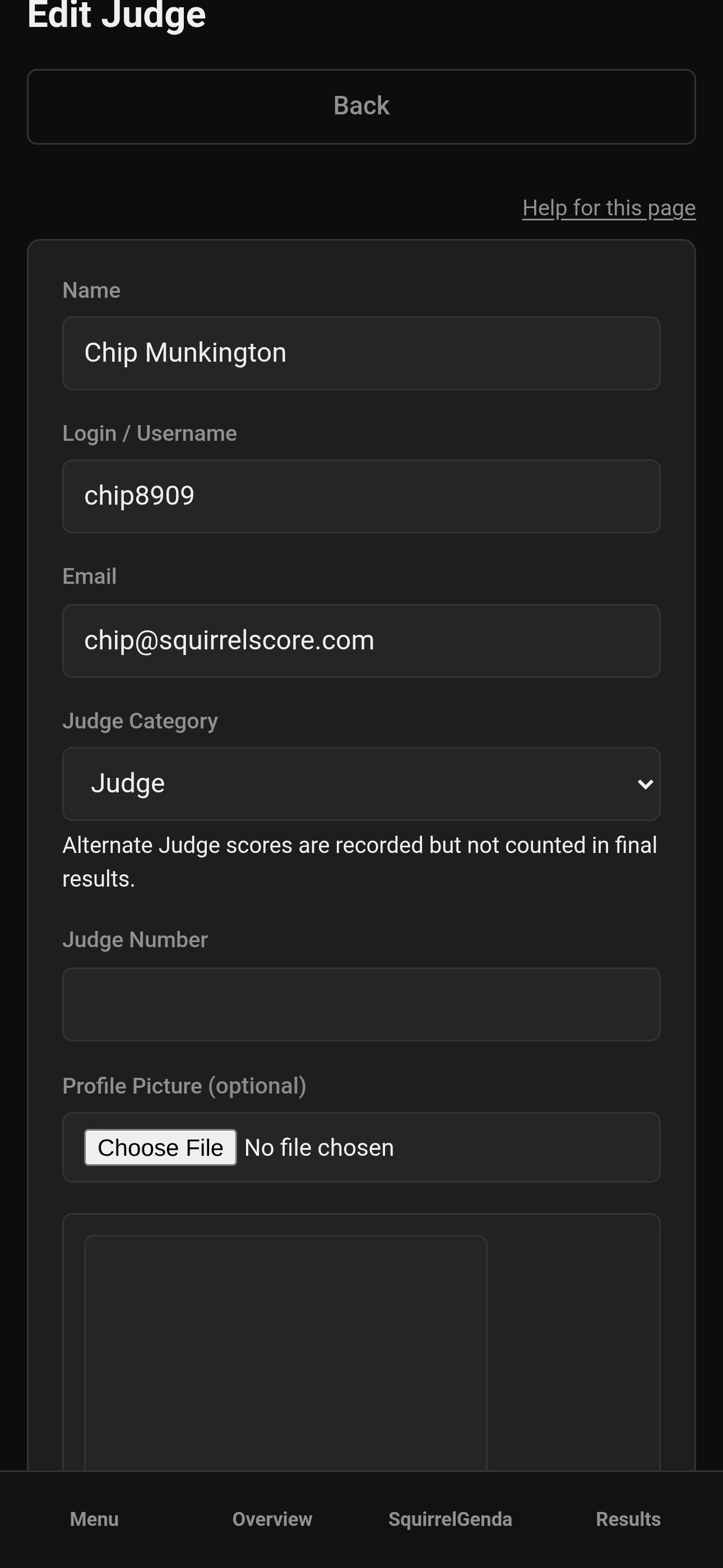
Mobile — Producer, Judge Category on edit
¶ Judge vs Alternate Judge
Want to have a backup, just in case: one judge has an emergency and has to leave halfway through the contest (switch leaving judge to alt, switch alt to regular judge), you want additional scores to add in if needed to break a tie (switch alt to regular judge and check results), you want to demonstrate you have an actionable plan in case there is perceived bias or another issue (complaint, observed behavior, violates rules, commentary/feedback observed by tallymasters and producers), or potentially another reason?
Use an alternate judge!
A producer can swap judge settings at any time - even during the contest (you've got to plan for the worst, hope for the best).
| Judge Type | Scores recorded? | Counted in final results? | Producer Notes & Contestant Feedback Collected & Shown? |
|---|---|---|---|
| Judge | Yes | Yes | Yes |
| Alternate Judge | Yes | No | No, except as the last step of Automatic Tiebreak if a contest has that on and a tie survives the Olympic / point-system normalizing peels |
Set category on approval (and adjust later on the judge edit page if needed). The agreements list shows category badges so you can spot Alternates quickly.
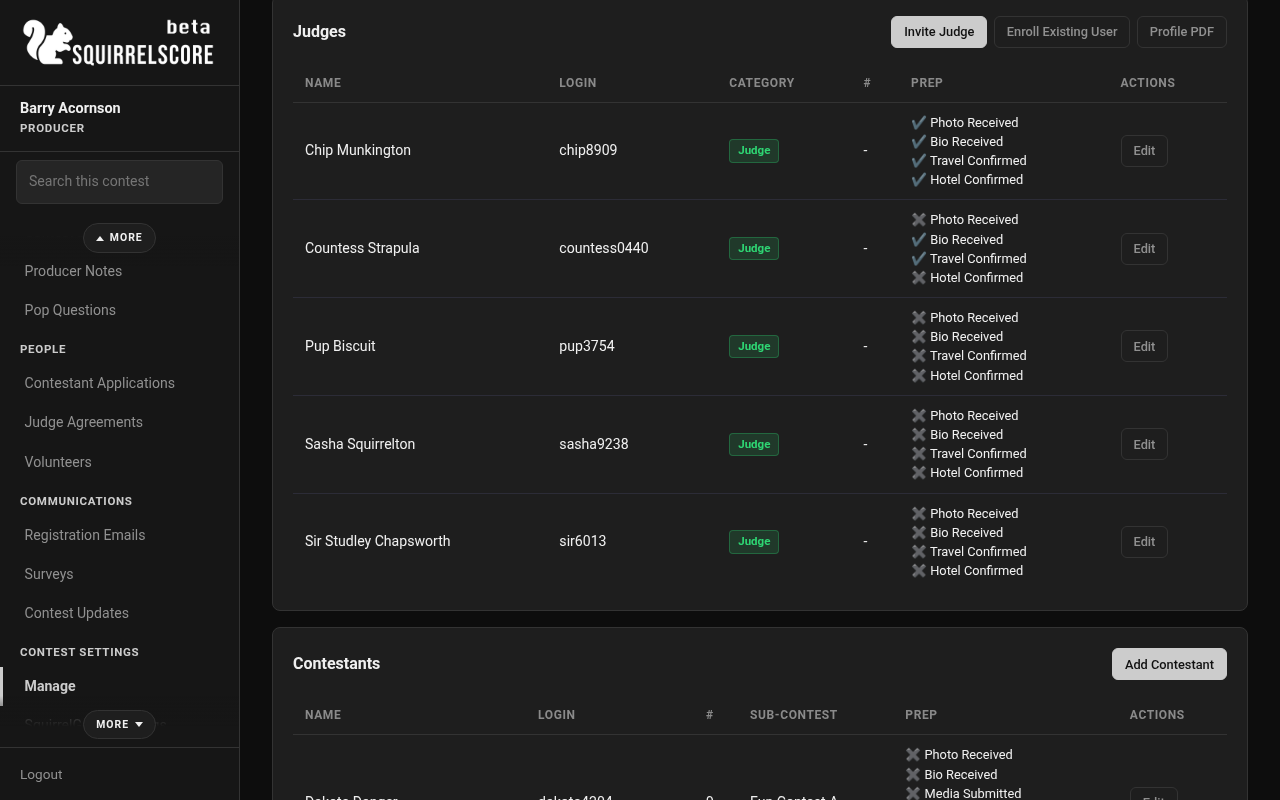
Desktop — Producer, Profile PDF on the Judges card
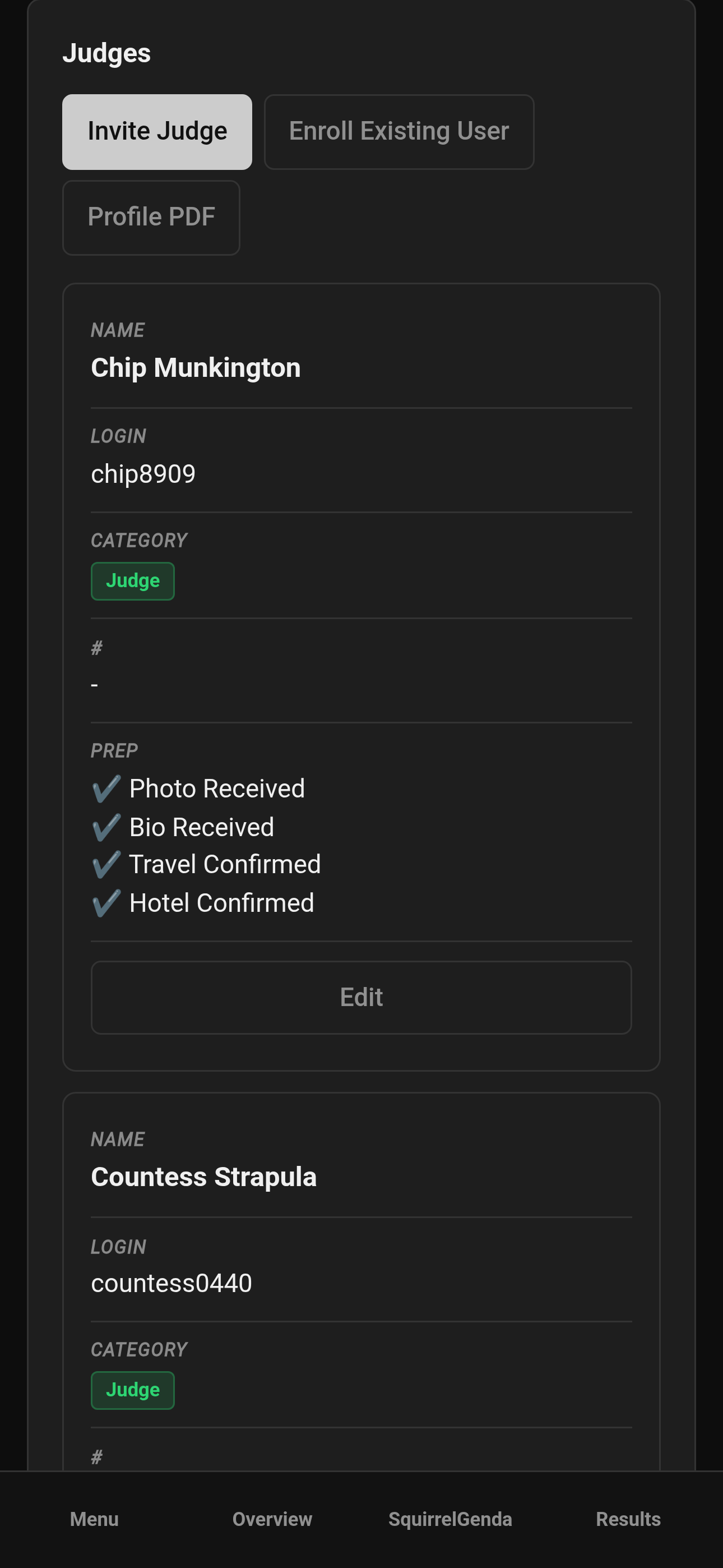
Mobile — Producer, Profile PDF on the Judges card
¶ Chaos Ops for judges
When Chaos Ops is on and prep items exist:
-
Edit the judge.
-
Open Chaos Ops.
-
Check completed items.
-
Click Save.
Judges see their own checklist under Go Do the Things.
¶ Tips
-
Send invitations early; there's too much going on to try and sort it all while you're setting up hours before registration opens at the event.
-
Number judges the way your packets and exports expect.
-
You SHOULD announce that there is an alternate judge (and what their function is), but you DON'T necessarily need to announce WHO is the alternate judge - that way all judges are treated the same.
-
If a judge can't open the contest, confirm Contest Active (and that they're enrolled correctly) before doing a panicked password reset.
¶ Common Mistakes
-
Adding judges without sending invites and wondering why they haven't submitted anything (use the invite function!!!).
-
Leaving someone as Alternate when their scores should be applied.
-
Approving agreements without reading custom field answers or reaching out to ask clarifying questions if needed (conflicts of interest sometimes hides in the fine print).
-
Forgetting to click Save on the edit pages.
¶ Frequently Asked Questions
Where do I review submitted agreements?
Sidebar Judge Agreements, or see Judge agreements.
Can alternates still use the scoring screens?
They can participate in scoring workflows; their scores simply aren't counted in final score unless the producer switches their judge status from the contest's Manage page.
What should judges look at first if they have questions about what to do with judge invitations/agreement links?
Judge agreement link and Accepting an invitation.
Do I need Chaos Ops for judges?
No. Prep checklists appear only when Chaos Ops is enabled and items exist.
Where is Profile PDF?
On Manage, Judges card header, once at least one judge is enrolled. It is not on Results. See Exports.