¶ Purpose
Contest Overview is a quick check on how the contest is going.
Use it to watch scoring progress, standings (when you choose to show them), application queues, pop questions, volunteer sign-ups, and - if enabled - a quick Chaos Ops task health overview.
¶ Before You Begin
-
Have at least one contest.
-
Open that contest so the sidebar shows contest links.
-
Optionally enable Chaos Ops if you want Chaos Ops (see Contest settings).
¶ Step-by-Step Instructions
-
Log in as a producer.
-
Go to My Contests.
-
Click Open Contest on the contest you're working on.
-
Confirm you are on Contest Overview (also linked in the sidebar as Contest Overview).
-
Scan any Attention flags at the top - those are some quick reminders of critical things.
-
If Chaos Ops is enabled, read the Chaos Ops summary (overall health, overdue, due soon, and similar summary signals).
-
Review Scoring Progress to see how judging is moving along (completion % is based on locked section max points vs contest max points).
-
Optionally open Current Standings — Top 3 with the Show top 3 toggle (collapsed by default). Each sub-contest (or Overall / Unassigned) has its own mini-table. Groups with 3+ people show official places 1–3 including ties; smaller groups show everyone. People below minimum % do not fill a top-3 slot unless the group has fewer than 3 contestants. The list scrolls inside the card. Full Results lives in the sidebar.
-
Check the Review/Approval Summary for queues that need love:
-
Contestant applications
-
Volunteers
-
Judges / agreements
-
Pop Questions
-
Use the Review links on those to jump straight into the matching queue.
-
When you need to change structure or people, leave Overview and open Manage.
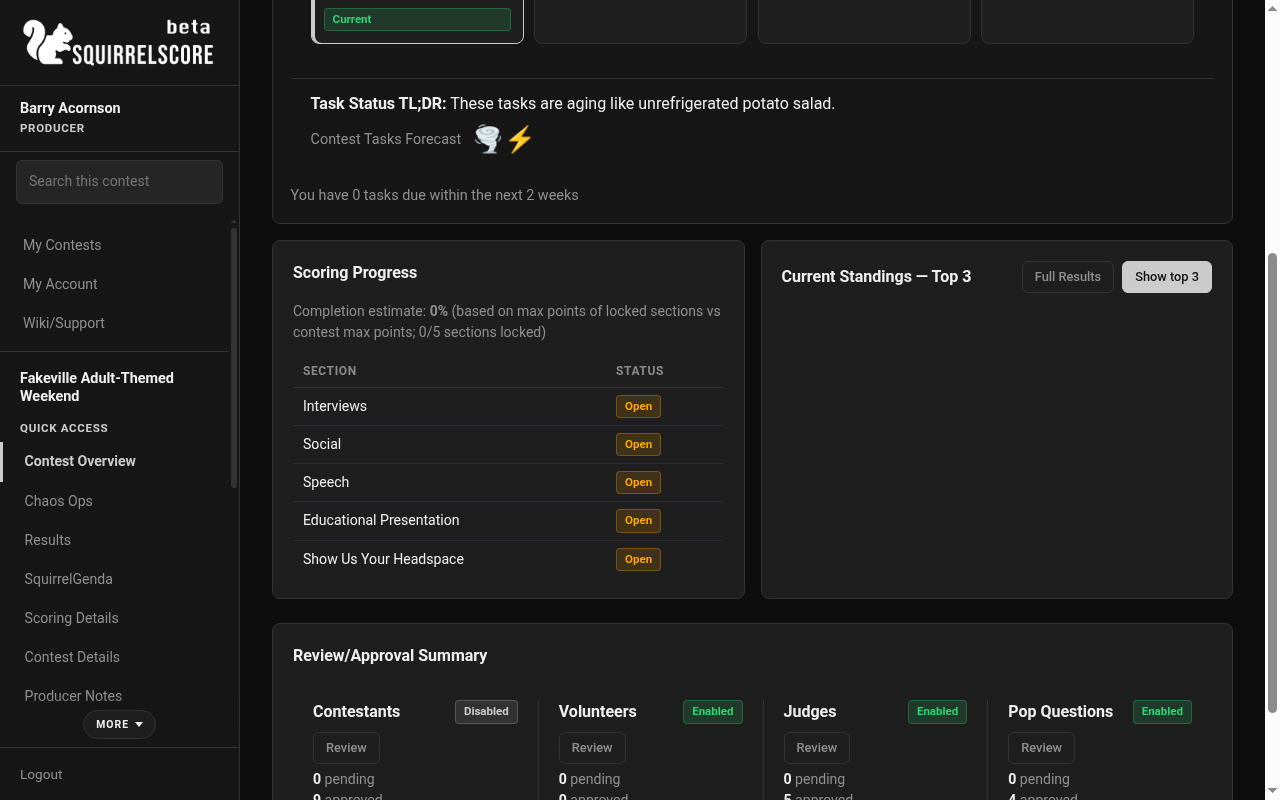
Desktop — Producer, Contest Overview, Scoring Progress
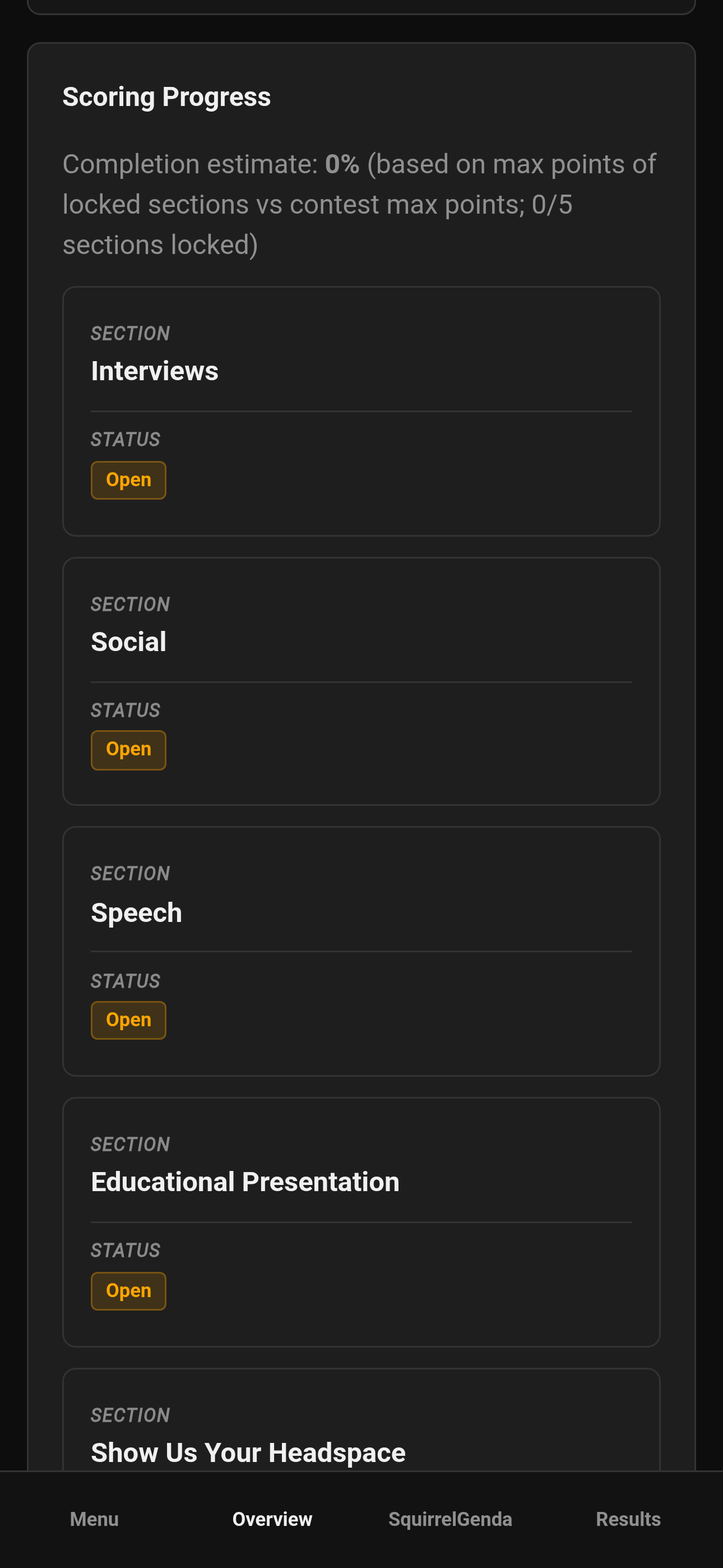
Mobile — Producer, Contest Overview, Scoring Progress
¶ What you'll see on the page
¶ Attention
Short flags when something needs a human. Treat them like sticky notes, not error codes.
¶ Chaos Ops summary (when enabled)
A compact contest-wide task summary so you don't have to open the full Chaos Ops dashboard for a pulse check. Typically includes:
-
Overall % plus Overdue / Due soon / In progress / Completed counts
-
Stage status (when stages are configured)
-
Task Status TL;DR and Contest Tasks Forecast
-
A short "your tasks" cue (for example overdue or due within 2 weeks)
-
Manage Chaos for producers
For the full checklist experience, open Chaos Ops in the sidebar.
¶ Scoring Progress
How much of the contest judging has been committed - useful for "how are we doing?" conversations with your tallymaster.
The completion estimate % is typically weighted by points: max points of locked sections divided by the contest's total max points (the same sheet maxes you see when designing scoring). A small section locked does not move the dial as much as a large one. The parenthetical still shows how many sections are locked out of the total. Open sections with scores entered but not locked do not count as complete.
¶ Current Standings (optional display)
The standings check is titled Current Standings — Top 3. Use Show top 3 to reveal the snapshot (there is also a small Results shortcut). Totals and places match Results (same Olympic / point-system normalizing flags, sub-contest groups, Automatic Tiebreak after lock, and producer tiebreak points). Original contest-default totals show when a peel ran. Overview is a producer tool; do not project it if you do not want the room to see standings.
¶ Review/Approval Summary
Quick counts and Review shortcuts for:
-
Contestant applications > Applications
-
Volunteers > Volunteers
-
Judges > Judge agreements / Judges
-
Pop Questions > Pop Questions
Each queue shows Enabled/Disabled, pending / approved / rejected counts, and a Review link. On a phone those four queues stack instead of sitting in a row.
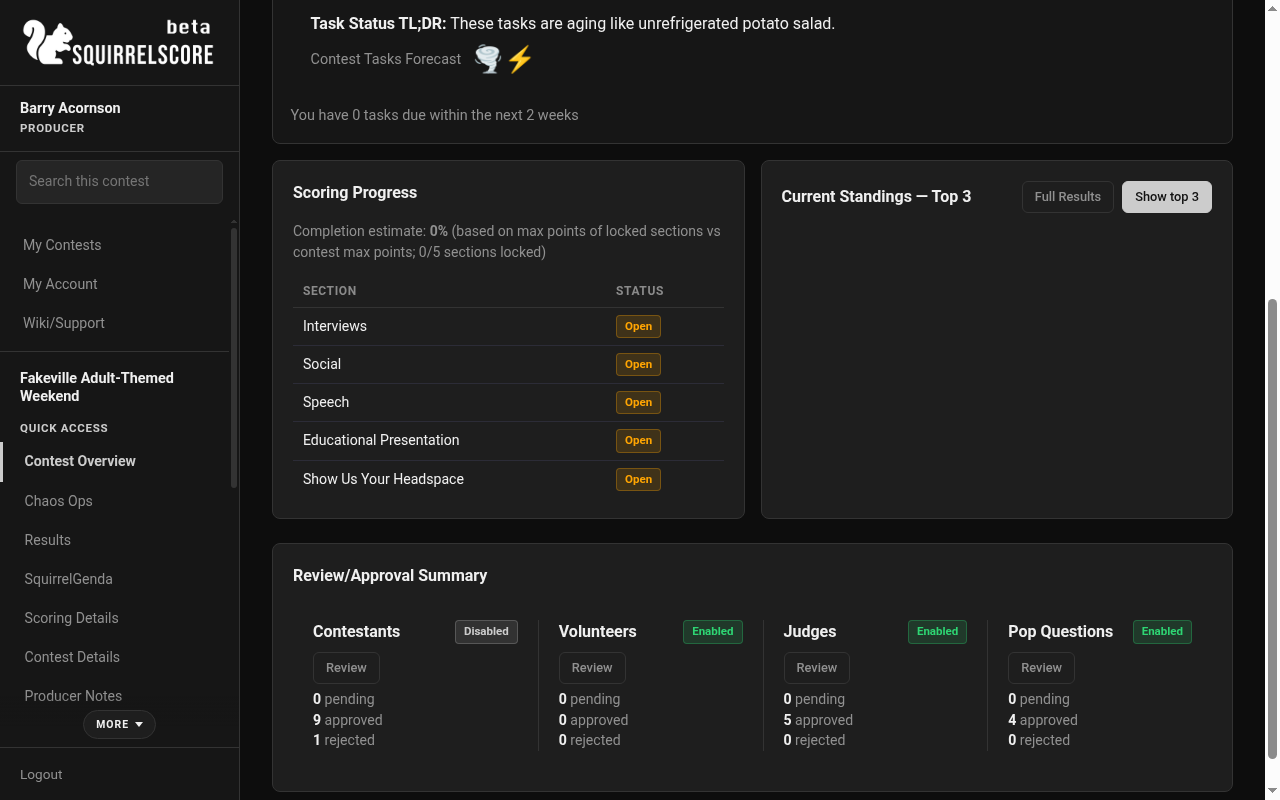
Desktop — Producer, Review/Approval Summary
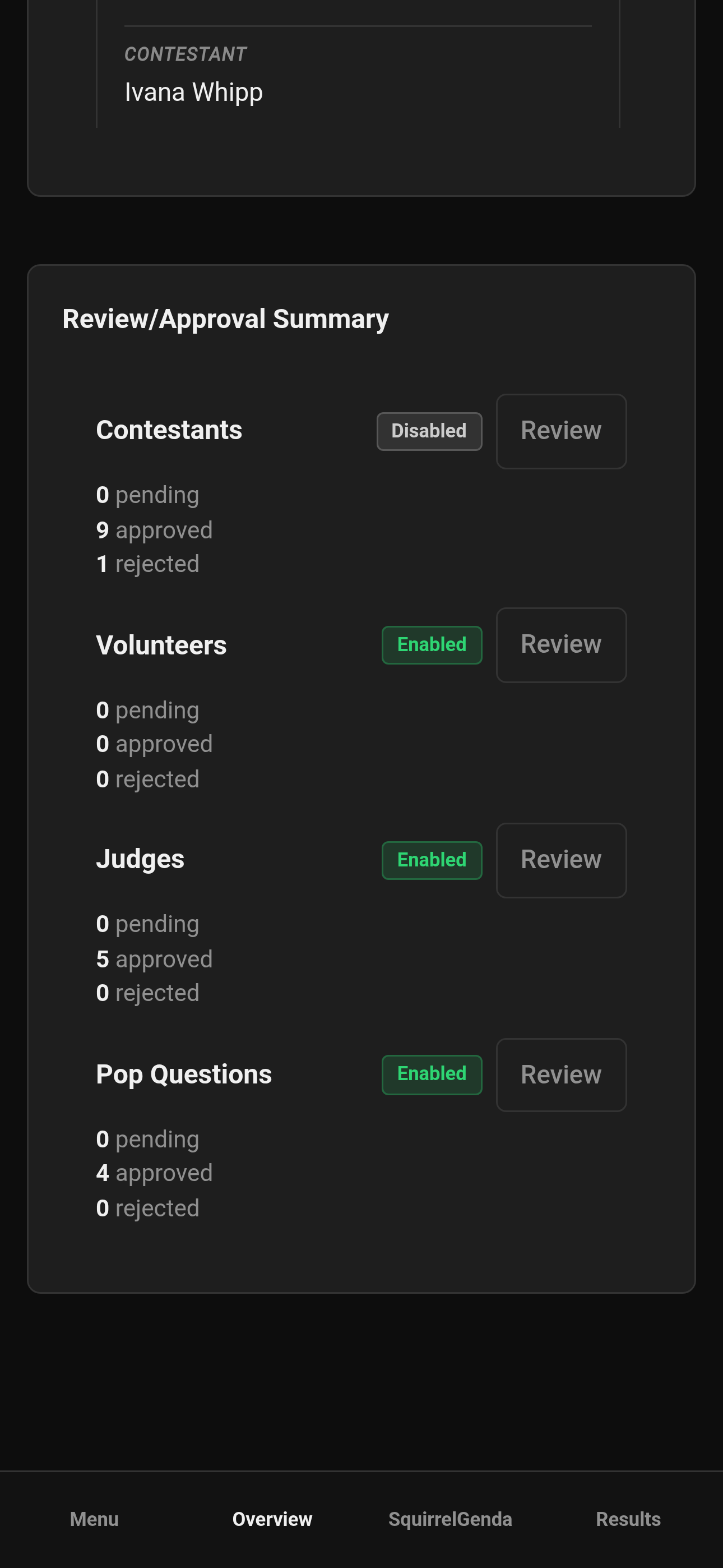
Mobile — Producer, Review/Approval Summary (stacked)
¶ How often to check Overview
-
Daily during open applications- pending counts should not be a surprise, make sure Chaos Ops is not on fire.
-
After contest starts- scoring progress and attention flags.
-
Before announcements- queues clear, standings only if you mean to show them.
-
After winner announcements - optional victory lap, then exports.
¶ Tips
-
Overview is for watching. Manage is for building.
-
Check Overview regularly during the contest, just in case.
-
If Chaos Ops looks angry (overdue pile), open Chaos Ops and triage - don't try to run tasks from memory.
-
Use Review links; they save you from hunting through menus.
¶ Common Mistakes
-
Trying to add scoring sections from Overview - use Manage / scoring structure.
-
Leaving standings visible on a shared laptop folks can look at.
-
Ignoring Attention flags until just before a major milestone date, then discovering you had ten pending applications.
-
Confusing Overview with Results - Results is the deep scoreboard; Overview is the pulse check.
¶ Frequently Asked Questions
Why don't I see Chaos Ops on Overview?
Chaos Ops isn't enabled for this contest, or setup was cancelled before seeding. Enable it from Contest settings.
Can tallymasters see this same Overview?
Tallymasters have their own tools. This page is the producer Contest Overview.
Where do I download PDFs?
Score packets and CSVs are on Results / Exports, not Overview. The combined judge Profile PDF is on Manage (Judges card).
Is Overview required?
No, but it's the fastest way to keep tabs on everything.