¶ Purpose
Publish a live contest schedule — what’s happening now, what’s next, and what’s coming up — with an optional public page and website embed, keeping your schedule in one place...even any updates.
SquirrelGenda is the weekend contest schedule board. It is not Contest Details (info pages inside SquirrelScore) and not Chaos Ops (ops checklist).
¶ Before You Begin
-
Create the contest first (and enable SquirrelGenda from Edit Contest).
-
Know the contest’s local timezone (IANA name, e.g.
America/Chicago). -
Gather titles, dates/times, optional locations / maps links (like Google Maps share link for the venue or even a dropped pin share link) / presenters / descriptions.
-
If you want the schedule on your public website, know which builder that site uses (WordPress, Elementor, Bricks, Squarespace, Wix, and so on). You do not need to be a developer - you need a Code / HTML / Embed block, not a Text box.
-
If you want Telegram notices, you will create a bot and add it to a channel or group. See Telegram channel notices.
¶ Three ways people can see the schedule
| Where | Who sees it | Colors | Best for |
|---|---|---|---|
| Public link / QR | Anyone with the URL | SquirrelScore’s default public-page colors | Sharing in chat, printing a QR, a dedicated schedule tab |
| Website embed | Anyone who visits your site | The Embed colors you pick on SquirrelGenda | Putting “what’s happening now” on the contest homepage you already have |
| Contest Details | People who can log into this contest | Normal SquirrelScore styling | Rules, hotel notes, and other info for participants - not the public street |
The embed is a live window into the same board. When you add an item, post a change notice, or the clock rolls to the next event, the website updates on its own (about every 30 seconds). You do not re-paste the snippet for ordinary schedule edits. You do re-paste if you click Rotate public link (that invents a new secret URL and the old embed goes blank on purpose).
¶ Enable SquirrelGenda
-
Open the contest → Manage → Edit.
-
Check Enable SquirrelGenda and pick a timezone. Confirm Current time for contest is about: matches the venue clock before saving.
-
Save. You’re taken to the SquirrelGenda manage page; a random public token is created (not the contest id), which is used as part of the public URL you can share (or embed in your website).
-
SquirrelGenda appears in the sidebar for this contest when enabled.
¶ Manage the schedule
-
Open SquirrelGenda in the sidebar.
-
Set timezone (the manage page also shows Current time for contest is about: as you change it).
-
Choose Time display: 24-hour or AM/PM. This controls how times appear on the manage list, live board, public page, and embed (item entry still uses the browser time control).
-
Optionally set Embed colors (hex codes and/or color pickers; live mini-preview). These apply only to the iframe embed that is for you to copy/paste into your website. The regular SquirrelScore public link page uses the site’s default SquirrelScore colors.
-
Add item: required date, start time, and title; optional end time, location, maps URL, presenter, Markdown description.
-
Overlaps are allowed (two rooms/events can run at once).
-
Post a change notice on an item when something moves — the board shows a
Title - notenotification on the schedule for current and upcoming items. -
Use Copy link / Download QR for the public URL, or paste the iframe embed snippet on your website (see Website embed). Rotate the public link if a token leaks and you want a new link that invalidates the old one.
-
Optionally set Telegram channel notices for this contest (bot token + channel or group), then check lead times on items you want posted. See Telegram channel notices. If you do not have a bot yet, start at Create a Telegram bot.
¶ Telegram channel notices
Each contest has its own Telegram setup. There is no site-wide bot. If you run two contests, you paste the bot token and chat on each contest’s SquirrelGenda page.
When a lead time comes due, the app posts to that contest’s channel or group. People in that chat get Telegram’s own notification — the same as any other post.
A channel is the usual setup (one-way announcements). A group works if the bot is in the chat and allowed to post. The form still labels the field Channel either way.
Nothing is posted until:
-
Telegram notices are turned on for this contest,
-
a bot token and channel (or group) are saved for this contest, and
-
the item has at least one lead time checked.
¶ Create a Telegram bot
The app posts as a bot you create in Telegram, not as your personal account. BotFather is Telegram’s official bot for creating those.
-
Open Telegram (phone or desktop) and search for @BotFather. Open the account with the verification mark.
-
Tap Start if you have not talked to it before.
-
Send
/newbot. -
Give it a display name, such as
Midwest Regionals Schedule. -
Give it a username. It must end in
bot, such asmidwest_regionals_schedule_bot. If that name is taken, try another. -
BotFather replies with a token — a long string with a colon in the middle, like
123456789:AAH…. Copy it and keep it private. Anyone with the token can post as that bot.
You can reuse one bot on several contests, or make a new bot per contest. Each contest still needs the token pasted on its own SquirrelGenda page.
If you lose the token, talk to BotFather again: /mybots → pick the bot → API Token.
Treat the token like a password. Do not paste it into a group chat, a wiki page, or an email thread.
¶ Add the bot to a channel
This is the usual setup.
-
Create a channel, or open one you already run. New Channel is in Telegram’s compose / new-message menu.
-
Open the channel → tap the channel name → Administrators → Add Administrator.
-
Search for the bot’s username (the one that ends in
bot) and pick it. -
Turn on Post Messages. The other admin switches can stay off.
-
Save.
You can also open the bot’s profile and use Add to Group or Channel, then pick the channel and grant posting.
The bot has to be an admin that can post. If it is only a subscriber, Telegram will refuse the message.
¶ Add the bot to a group
Use a group when that is already where your people read messages, and you want notices there instead of a channel.
-
Open the group → Add members (wording varies: Add, Invite).
-
Search the bot’s username and add it. If search does not find it, open the bot’s profile and use Add to Group or Channel.
-
If only admins can send messages in that group, promote the bot to admin and allow it to send messages.
A group with a public username can use @groupname in the Channel field. Most groups do not have one, so you will paste the numeric chat id instead.
¶ Find the channel or chat id
The Channel box wants one of these:
| What you have | What to paste |
|---|---|
| Public channel or group with a username | @channelname (include the @) |
| Private channel, private group, or a chat with no username | The numeric id, often starting with -100 |
Do not paste the bot’s own @username. That is the bot, not the chat.
Public username. Open the channel or group, then Edit / info. If Telegram shows a public link like t.me/mychannel, paste @mychannel.
Numeric id from a message link (Telegram Desktop). Right-click a message in that channel or group → Copy Message Link. If the link looks like https://t.me/c/2415435801/3, the chat id is -100 plus the middle number: -1002415435801. Public username links (https://t.me/mychannel/3) do not contain that number — use @mychannel instead.
Numeric id from Telegram’s bot API. After the bot is in the chat, send a message it can actually see, then open:
https://api.telegram.org/botPASTE_YOUR_TOKEN_HERE/getUpdates
In a group, send /start or mention the bot by its @username. Ordinary chat messages often never reach the bot, because Privacy Mode is on by default. In a channel, post any message — an admin bot can see those.
Find "chat":{"id": and copy the number next to it. Close the tab when you are done. That URL includes your token, so do not screenshot it or send it to anyone.
If the page shows "ok":true and an empty "result":[], the bot did not see a message yet. In a group, try /start or an @mention and refresh. In a channel, confirm the bot is an admin and post again. If it stays empty, use the Desktop message-link method above.
¶ Turn it on for this contest
-
On this contest’s SquirrelGenda page, check Post to a Telegram channel.
-
Paste the bot token. If a token is already saved, leave the box blank to keep it.
-
Paste
@channelnameor the numeric chat id. -
Send a test post. Check the channel or group (and your phone if you follow it). A successful test does not save the form — click Save settings when the values are right.
-
On each schedule item, check 1 week before, 1 day before, 1 hour before, and/or 15 minutes before as you want. Leave them unchecked if that item should stay quiet.
-
Lead times that are already in the past when you save are skipped. Moving an item’s start time reschedules any notices that have not gone out yet.
The bot token is stored for this contest only. It is not cloned, not included in Backup & Restore, and not shown again after you save. Clone also leaves the channel and the posting switch blank. Backup can copy the channel id and lead-time checkboxes; it never copies the token.
¶ How the board works
-
Times are interpreted in the contest timezone, in your chosen 24-hour or AM/PM format.
-
After notices, items are grouped under day headers like Monday - August 10, 2026.
-
Happening now and Next up are large; the rest of the upcoming list is chronological.
-
View past items expands earlier entries (also grouped by day).
-
Public and embed boards soft-refresh about every 30 seconds (scroll position stays put; an open View past items section stays open).
-
The public page matches other public forms (page header + content): SquirrelGenda: Contest with the contest name bold, using site default colors. The website embed shows only the live board inside the iframe (no SquirrelScore header, card, age check, or cookie banner inside the frame) and uses your Embed colors. The pasteable iframe grows with the board so the inner page does not show a vertical scrollbar — but only when the snippet (iframe and its script) actually runs. See Website embed.
-
Items without an end time stay “current” until the next later start time, or for 24 hours after start if nothing follows.
¶ Website embed
The embed is a live schedule block for your public website. Visitors stay on your page; SquirrelScore draws the happening now / next up / coming up board inside a window (an iframe) that stretches to fit the list. The iframe does not show this site’s age confirmation or cookie banner; those stay on the public SquirrelGenda link page. If your website needs its own cookie notice, that stays on the host page.
You do not upload a screenshot, and you do not paste a picture. You copy a short HTML snippet from SquirrelGenda and paste it into a Code / Custom HTML / Embed block on the website.
¶ What you are copying
On SquirrelGenda → Public link & embed, the Copy-paste iframe box contains two pieces stacked together:
-
An
<iframe ...>line - the window that loads the schedule -
A
<script>...</script>line - a small helper that listens for the board’s height and stretches that window so you do not get an inner scrollbar or a clipped list
Copy both. If you only copy the iframe, the block stays about 480 pixels tall and will not grow when you add items or someone opens View past items.
The snippet is already filled in with your contest’s public address. You should not need to edit it.
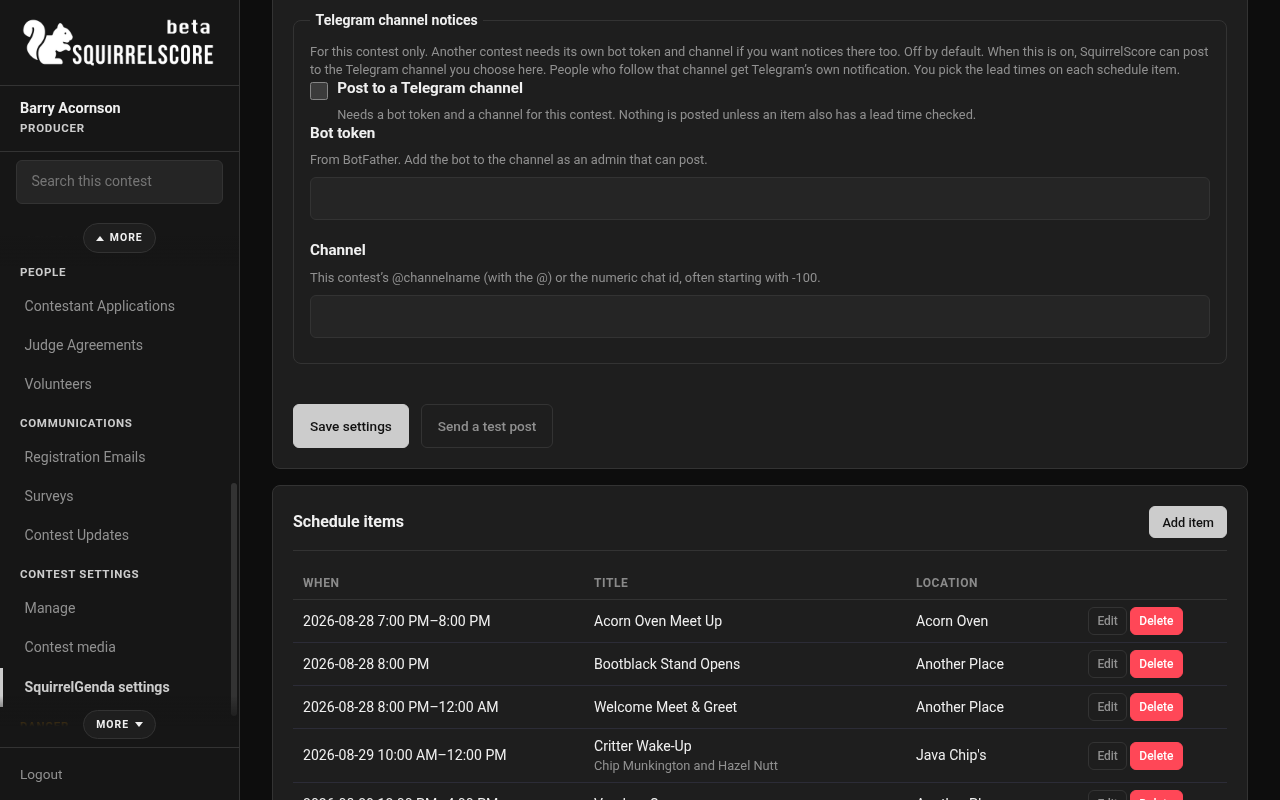
Desktop — Producer, SquirrelGenda Telegram settings
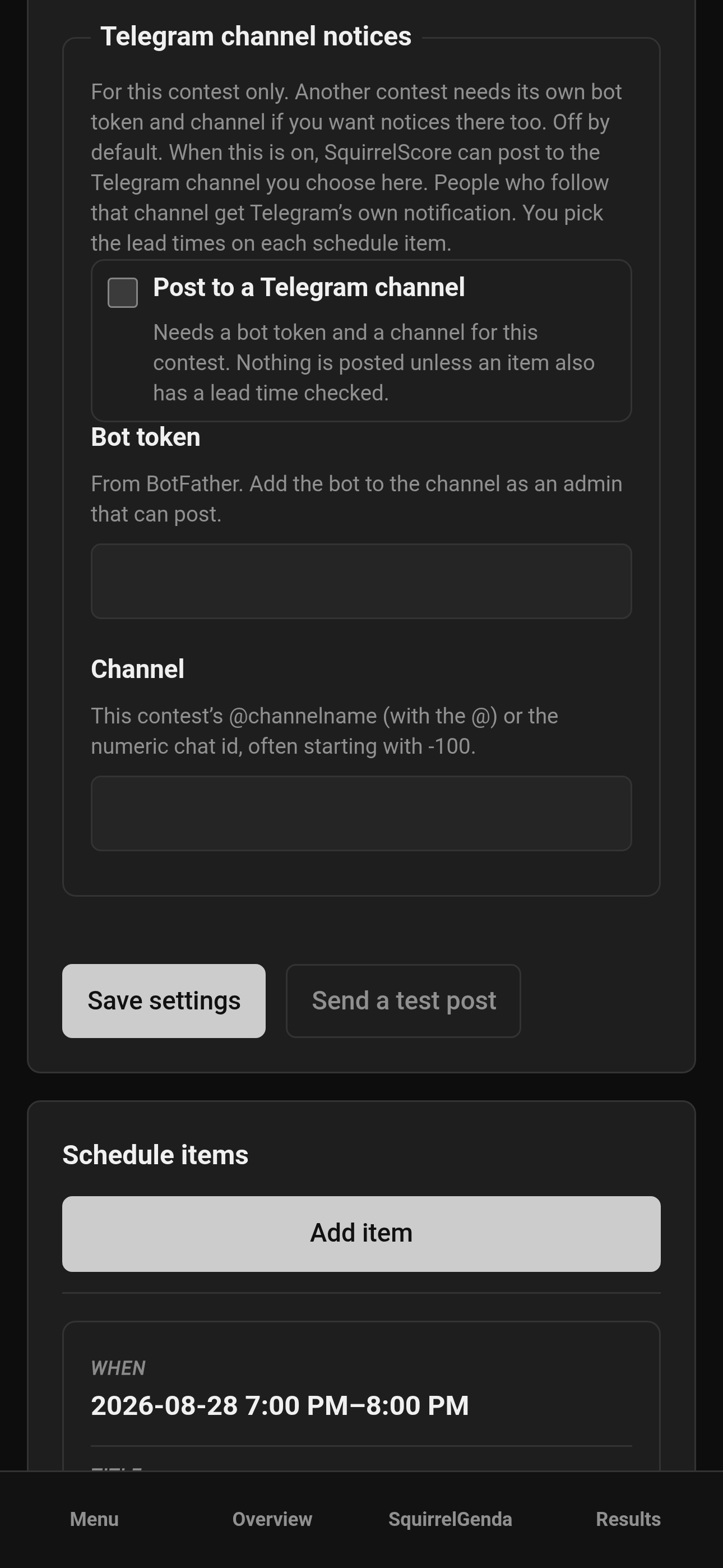
Mobile — Producer, SquirrelGenda Telegram settings
¶ Use an HTML block, not a text box
Paste into a block whose job is HTML, not a block whose job is words.
| Use this kind of block | Do not use this kind of block |
|---|---|
| Custom HTML, HTML, Code, Embed HTML, Embed a widget | Paragraph, Text, Text Editor, Markdown, Heading, “normal content” |
A Text block often shows the tags as readable text, strips the script, or wraps everything so the height helper never runs. Then the iframe stays at its starter height (~480px) and will not auto-adjust.
Page-builder previews sometimes refuse to run scripts even when the published site is fine. After you paste, publish / update, then open the live page in a new tab (and on a phone).
If you pasted an older fixed-height iframe (no script), copy the snippet again from SquirrelGenda.
¶ WordPress (block editor / Gutenberg)
This is the editor most WordPress sites use when you click Edit Page.
-
In SquirrelScore, open SquirrelGenda and copy the whole snippet from Copy-paste iframe.
-
In WordPress, edit the page (or post) where the schedule should appear - often the contest homepage or a “Schedule” page.
-
Click the + (Add block) where you want the board.
-
Search for Custom HTML and insert that block. Do not insert Paragraph.
-
Paste the entire snippet into the Custom HTML box.
-
Click Update or Publish.
-
View the page on the public site (not only the editor canvas) and confirm the board grows with the schedule.
If you still use the Classic Editor, switch the editor from Visual to Text (sometimes labeled HTML) before pasting, or the Visual view will mangle the tags.
If Custom HTML is missing, a plugin or role may be hiding unfiltered HTML. An administrator can paste it, or you can use the Elementor / Bricks steps below if that is how the site is built.
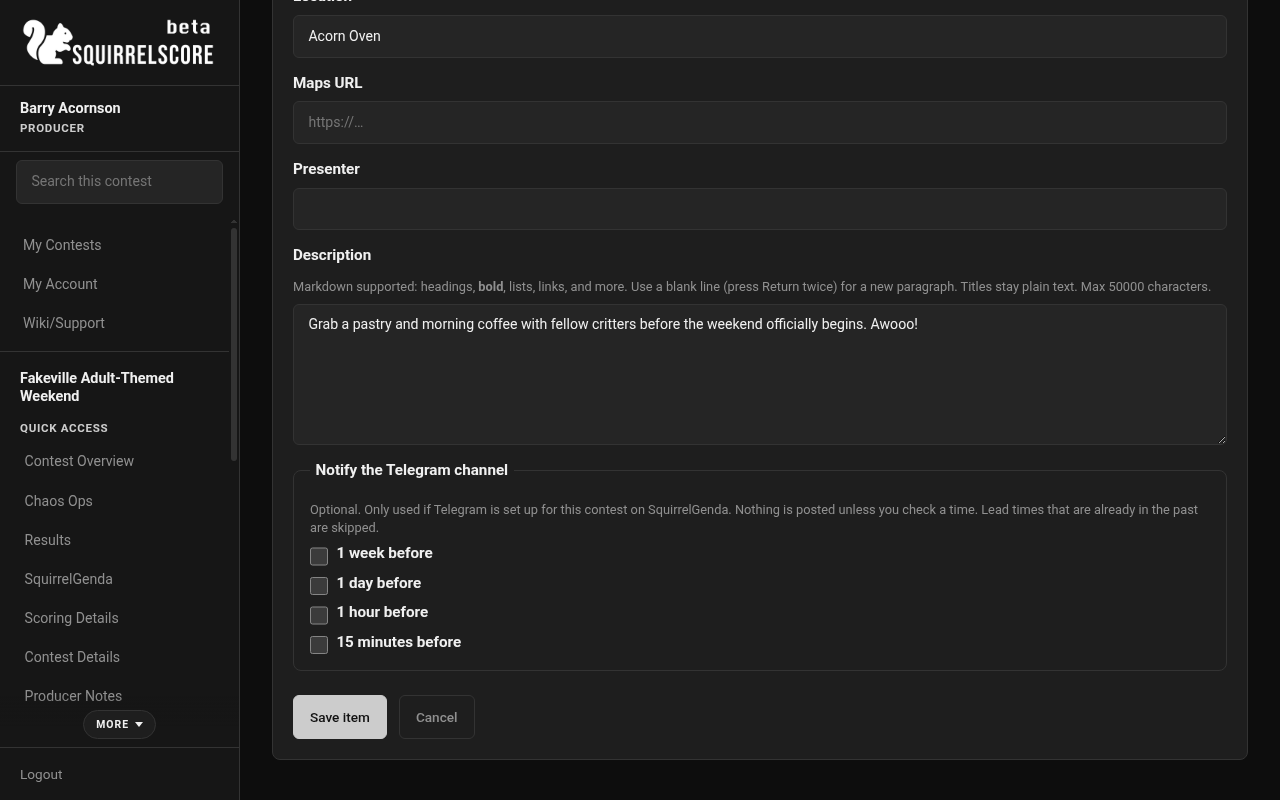
Desktop — Producer, SquirrelGenda item lead times
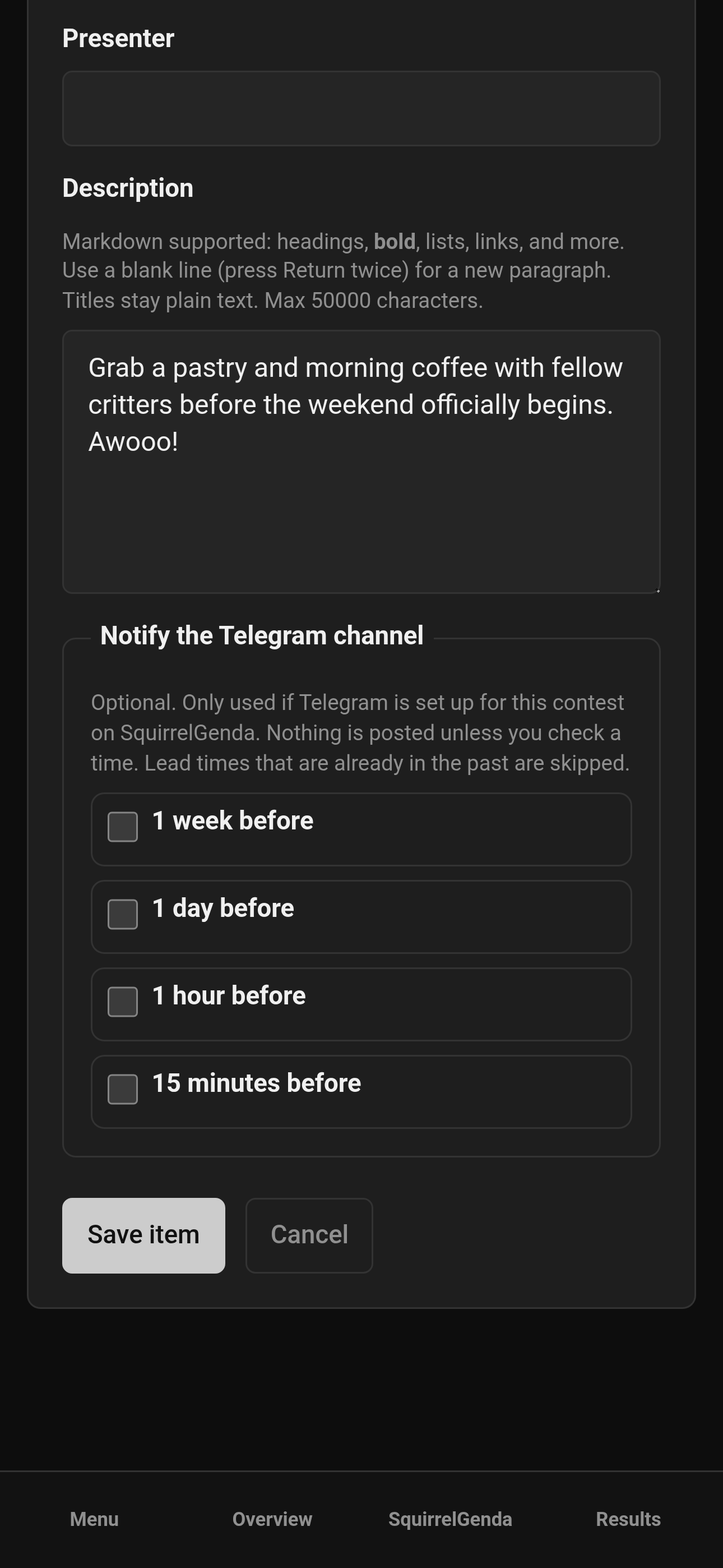
Mobile — Producer, SquirrelGenda item lead times
¶ Elementor (WordPress page builder)
Use this if the page is built with Edit with Elementor.
-
Copy the full snippet from SquirrelGenda.
-
Open the page with Edit with Elementor.
-
In the left widget panel, search for HTML (under Basic / General). Drag the HTML widget onto the page. Do not use Text Editor or Heading.
-
Paste the entire snippet into the HTML widget’s code field.
-
Set the widget/column to a comfortable width (the board is
width: 100%of whatever box you give it). -
Click Publish or Update, then view the live page.
If the HTML widget is locked or the script disappears after save, the WordPress user may not be allowed to post unfiltered HTML. Have a site admin paste it, or use a WordPress Custom HTML block on a simple page instead.
¶ Bricks (WordPress page builder)
Use this if the page is built with Edit with Bricks.
-
Copy the full snippet from SquirrelGenda.
-
Open the page in Bricks.
-
Add an element: Code (or HTML, if your Bricks setup lists that separately). Do not use Text, Rich Text, or a heading.
-
Paste the entire snippet into that element.
-
Save, then open the front-end page (Bricks’ canvas preview can hide scripts).
If a Code element offers an “execute code” / HTML mode, you want it treating the paste as HTML in the page, not as PHP.
¶ Squarespace
Squarespace pages are edited with blocks. You need a Code block.
-
Copy the full snippet from SquirrelGenda.
-
Edit the Squarespace page where the schedule should live.
-
Click an insert point and Add Block.
-
Choose Code (sometimes under More). Do not choose Text. Do not choose Embed if that block only asks for a website URL / YouTube link - that tool is for simple links, not this snippet.
-
Paste the entire snippet into the Code block.
-
Save, then view the live site.
Plan note: Squarespace often restricts Code blocks to Business (or higher) plans. If you cannot add a Code block, that is a Squarespace plan limit, not a SquirrelScore setting. Workarounds: upgrade the plan, put the public SquirrelGenda link on the page as a button, or host the schedule page on WordPress/Wix instead.
¶ Wix
Wix sites use Embed Code for HTML that is not a Wix app. You need a code box, not a paste-a-URL widget.
-
Copy the full snippet from SquirrelGenda.
-
Open the site in the Wix Editor.
-
Click Add (+) → Embed Code → Embed HTML (wording can be HTML iframe or Embed a widget - you want the one that gives you a code box, not “paste a Facebook URL”).
-
Paste the entire snippet into the code box and Update.
-
Drag the embed box wide enough on the page (the schedule fills that box). Give it some height to start; the script still resizes when it runs.
-
Publish, then view the published site (the editor preview is not always trustworthy for scripts).
If Wix truncates a very long paste, you are in an older/limited embed. The SquirrelGenda snippet is short; paste it again carefully so the <script> line is not cut off.
¶ Other builders (Weebly, and friends)
Same idea: find Embed, Custom HTML, or Code, paste both lines, publish, check the live URL. A paragraph or blog text box is the wrong place.
¶ After it is on the site
-
Add a test schedule item in SquirrelGenda (or open View past items on the live board).
-
Wait up to about 30 seconds, or refresh the website.
-
Confirm the website board grew instead of sprouting a leftover empty strip or cutting the list off.
-
Check a phone. A too-narrow column is a website layout issue - widen the Code/HTML block.
You can keep editing times, titles, notices, and embed colors in SquirrelScore without touching the website again. Rotate public link is the exception: that breaks the old snippet until you paste the new one.
¶ Common Mistakes
-
Pasting the embed into a Text / Paragraph / Text Editor block, then wondering why the schedule is clipped or has a leftover empty strip
-
Copying only the
<iframe>line and leaving the script behind -
Leaving an old fixed-height embed on the site after SquirrelScore started shipping the auto-height snippet
-
Judging success from the page-builder canvas instead of the published page
-
Clicking Rotate public link and forgetting the website still has the old snippet
-
Expecting Contest Details to show on the public homepage (that page is for people inside SquirrelScore)
-
Checking item lead times and wondering why nothing posted — Telegram has to be set up on this contest first
-
Pasting the bot’s
@usernamein the Channel box (that is the bot, not the chat) -
Adding the bot as a subscriber instead of a channel admin that can Post Messages
-
A test post succeeding, then skipping Save settings (the test does not save the form)
-
Expecting a cloned contest to keep last year’s Telegram bot token, channel, or posting switch (it does not; set those on the new contest)
¶ Frequently Asked Questions
The embed is a short box and does not grow with the schedule.
You are almost certainly in a Text block (or an older snippet without the resize script). Switch that widget to a Code / Custom HTML / Embed block, paste the full snippet from SquirrelGenda, publish, and check the live URL.
Can I paste it into a WordPress “Paragraph” or Squarespace text area?
Not if you want auto-height. Those are text blocks. Use a Custom HTML / Code / Embed block instead.
Do I paste this in Contest Details?
No. Contest Details is inside SquirrelScore for people with contest access. The embed is for your public website.
Will the website show my custom colors?
Yes, if you set Embed colors and saved. The standalone public link / QR page always uses SquirrelScore’s default public colors.
Someone leaked the schedule URL. What now?
On SquirrelGenda, Rotate public link. Old bookmarks, QRs, and website embeds stop working. Copy the new snippet onto the website.
The schedule on the website is hours off.
Fix the contest timezone on SquirrelGenda (and confirm Current time for contest is about:). The embed uses that zone. Then hard-refresh the website.
Can I put this in an email or Facebook post?
Email and most social posts will strip the script (and often the iframe). Share the public link there. Keep the embed for an actual webpage.
How do I create a Telegram bot and add it to a channel or group?
BotFather (/newbot), then add the bot as a posting admin (channel) or as a member who can send messages (group). Click-by-click: Create a Telegram bot.
Do I set the Telegram bot once for the whole site?
No. Each contest has its own bot token and channel on that contest’s SquirrelGenda page.
Does a Telegram notice also ping people inside SquirrelScore?
No. The post goes to the Telegram channel or group you chose for this contest. Anyone in that chat gets Telegram’s own notification.
I saved a token and nothing showed up in the channel.
Use Send a test post. If that fails, the bot is usually missing from the chat, or it is not allowed to post (for a channel: not an admin with Post Messages). If the test works but later notices do not, confirm you clicked Save settings, turned the posting switch on, and checked a lead time on that item.
The Channel field wants a number. Where do I get it?
Private channels and most groups need the numeric chat id (often starting with -100). Find the channel or chat id.
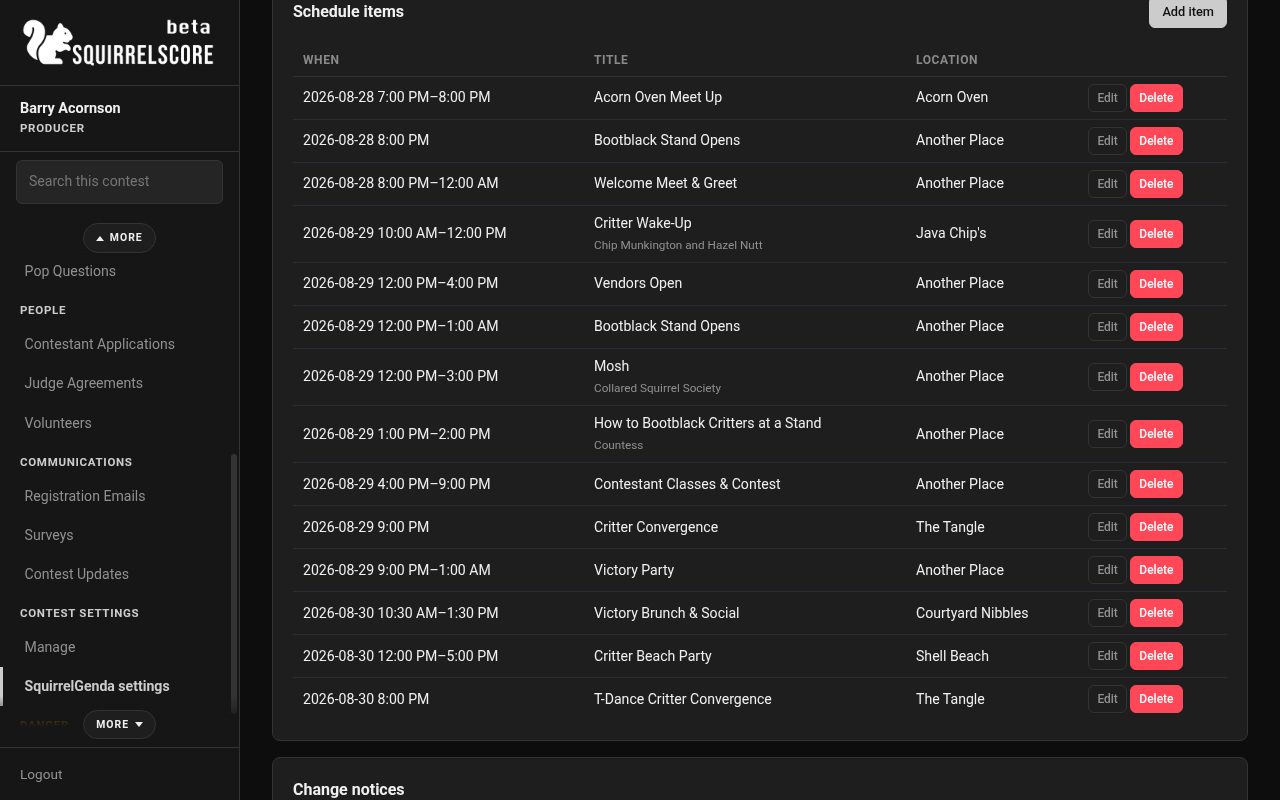
Desktop — Producer, SquirrelGenda schedule items
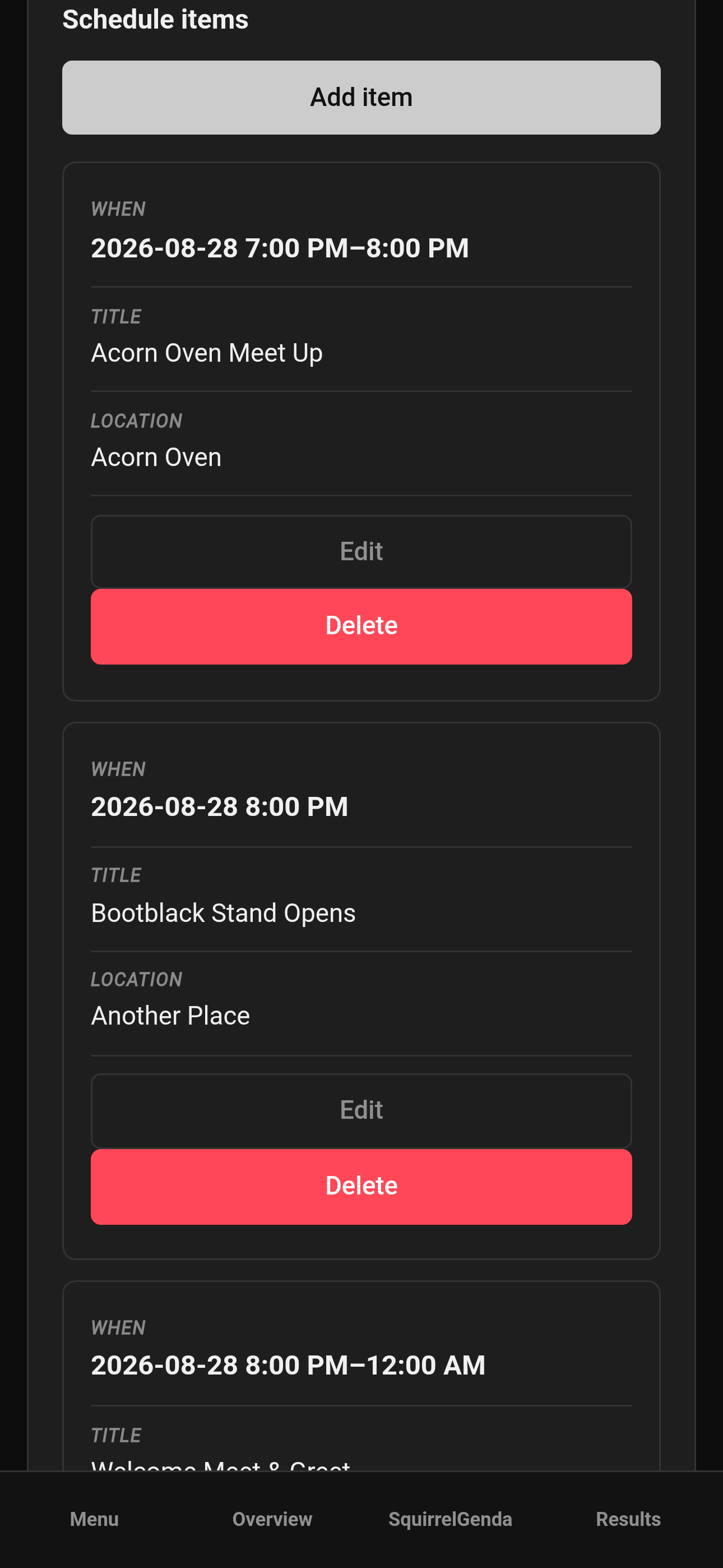
Mobile — Producer, SquirrelGenda schedule items
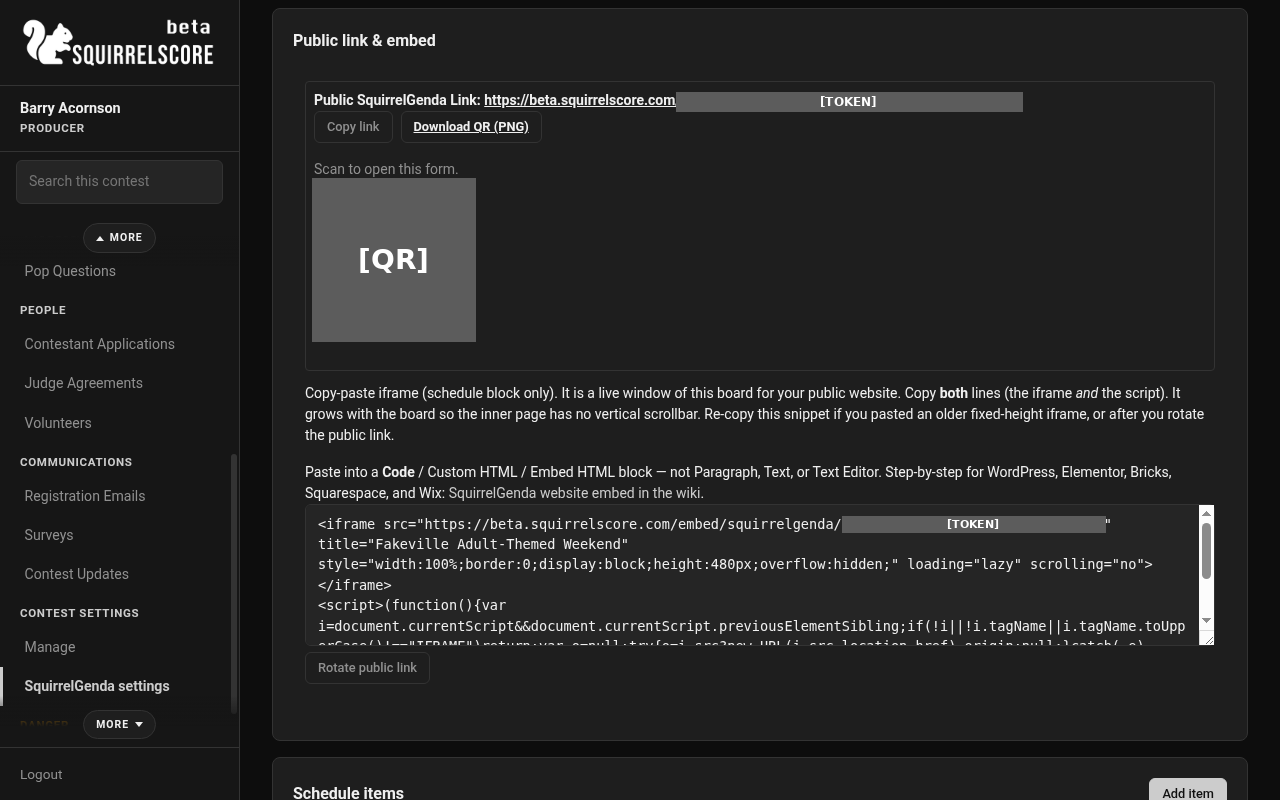
Desktop — Producer, SquirrelGenda Public link & embed
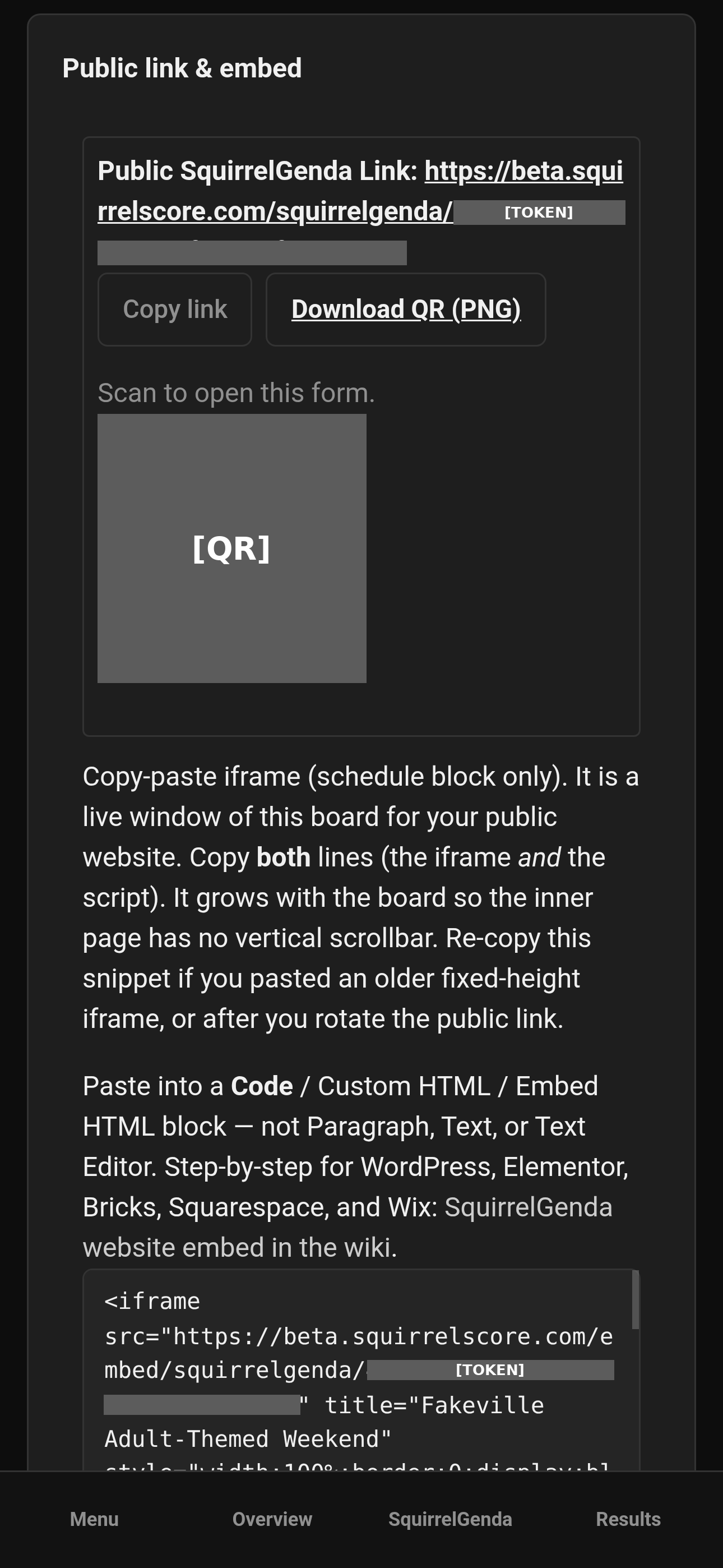
Mobile — Producer, SquirrelGenda Public link & embed
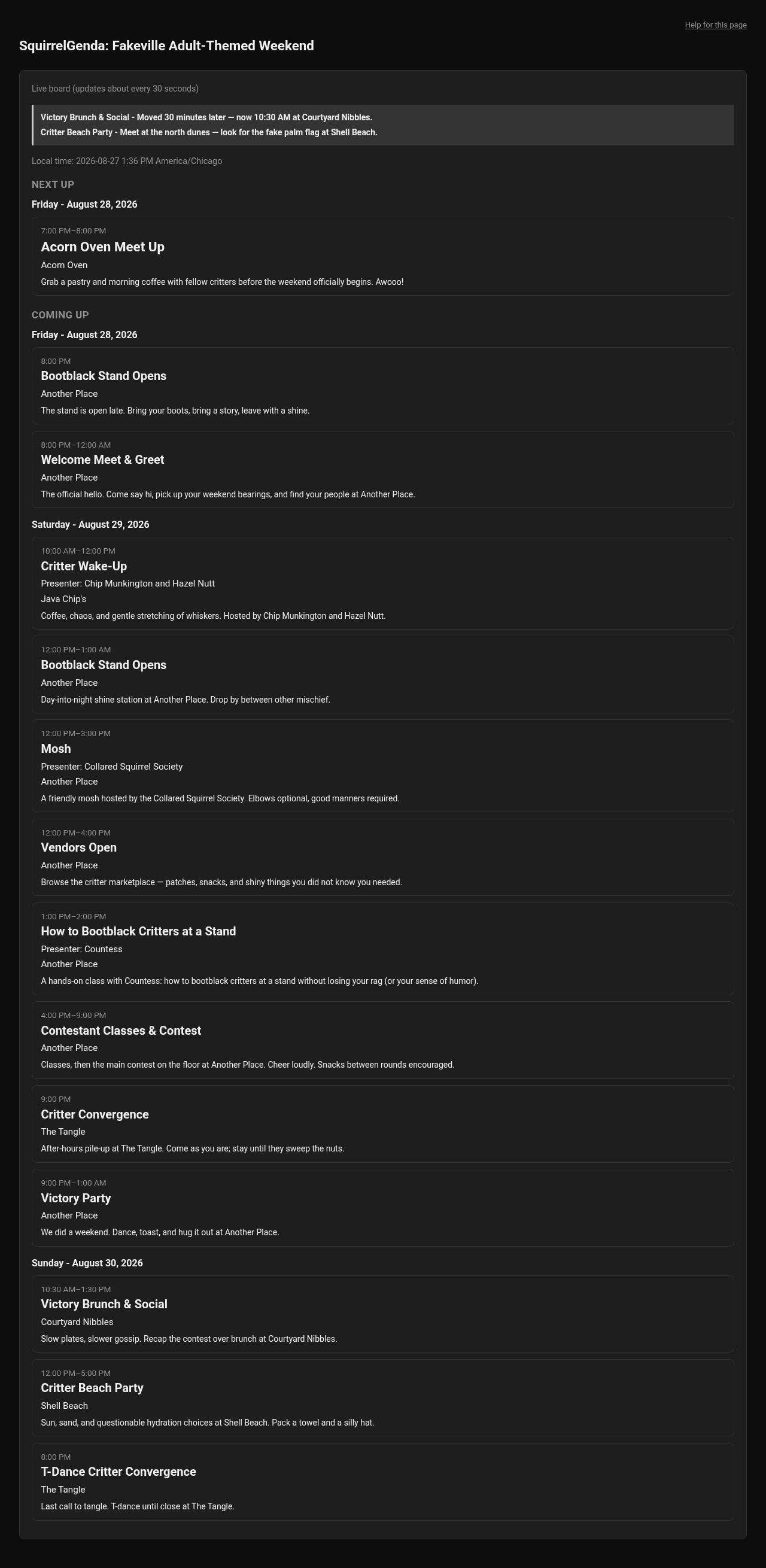
Desktop — Public SquirrelGenda live board with change notices
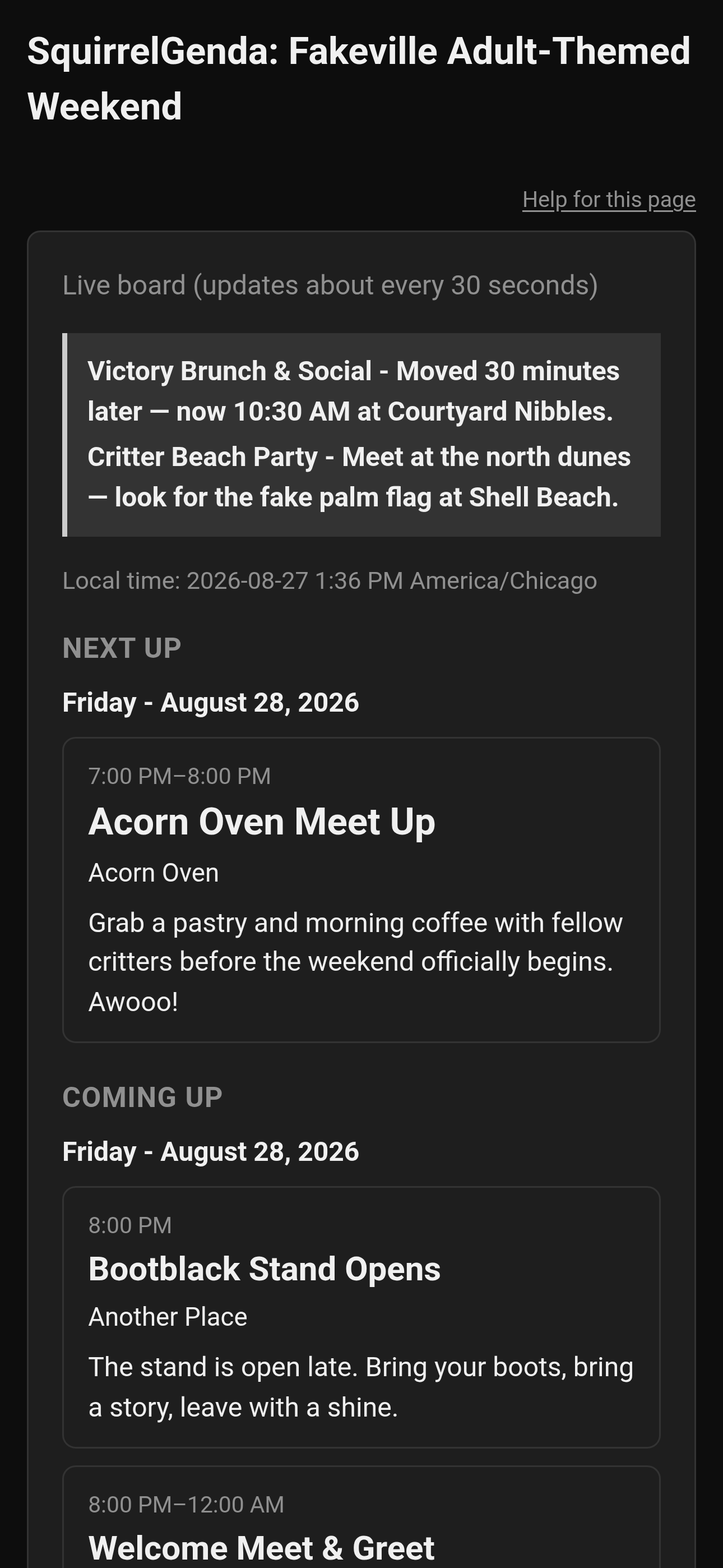
Mobile — Public SquirrelGenda live board with change notices