¶ Purpose
Keep one contest-wide list of registration emails - the addresses people used when they signed up for the contest (ticket, weekend pass, guest list), not a SquirrelScore login.
This is the guest list from your ticketing system, copied into SquirrelScore so two optional tools can use it:
-
Audience scoring (optional): a per-section checkbox can require the form email to be on this list before a score is allowed.
-
Surveys and contest updates: you can include "registration emails" as an audience when you send.
Matching ignores capitalization ([email protected] and [email protected] are the same person to the list).
This is not an extra login, and cloning a contest does not copy last year's list.
¶ Before You Begin
-
Be a producer for the contest (or a volunteer the producer granted Registration Emails access).
-
Have this year's attendee emails from your ticketing / registration system (Eventbrite, Ticket Tailor, Dice, Brown Paper Tickets, a Google Form, a spreadsheet someone already keeps - whatever you actually use). Last year's clone left this list blank on purpose.
-
Decide which audience-scored sections should require a match (per-section checkbox only - there is one list for the whole contest).
-
Know you do not need a SquirrelScore account for anyone on this list. You are only storing email addresses.
¶ Who uses this list
Public surveys never ask someone to type a list email to identify themselves. Audience scoring still asks for an email so you can block duplicates - that typed address is only checked against this list if you turn the section checkbox on.
¶ Where the emails come from
SquirrelScore does not talk to Eventbrite (or any other ticket seller) by itself. You export the guest list there, clean it up in a spreadsheet, save a CSV, then upload it here.
¶ Step 1: export from ticketing (or your registration spreadsheet)
In whatever system sold the tickets or collected RSVPs, look for Export, Download attendees, Download orders, or Reports. You want a file that includes each person's email.
Typical examples (wording varies by vendor):
-
Eventbrite: the event → Orders or Reports → download / export attendees
-
Ticket Tailor, Dice, Humanitix, Brown Paper Tickets, and similar: an Attendees, Guests, or Export CSV button
-
A Google Form or Typeform: Responses → spreadsheet or CSV download
-
A box-office spreadsheet you already live in: skip the export and start at Step 2
If the export offers attendee email and purchaser email, prefer attendee (the person who will actually be in the room). A four-pack bought by one person often has only the purchaser's address - that is still useful, but that one email can only submit one audience score per contestant.
You do not need ticket numbers, payment info, or mailing addresses for SquirrelScore. Those extra columns are fine to leave in the file (they are ignored), as long as there is at least one column of real email addresses.
¶ Step 2: open it in a spreadsheet
Open the file in Excel, Google Sheets, LibreOffice, Numbers, or whatever you already use. You should see columns such as name, ticket type, and email.
If the file opens as one smashed-together column, the export used a different separator. In Excel, use Data → Text to Columns. In Google Sheets, File → Import often splits it correctly. You want emails sitting in their own column, not mixed into a name.
¶ Step 3: keep a readable email column
You can leave extra columns in place. SquirrelScore reads cells that look like emails and skips the rest.
Helpful cleanup:
-
Confirm there is a header such as
email,e-mail, oremail_address(those header words are ignored - they will not be treated as people). -
Delete obviously blank rows if they bother you. Blank cells are skipped anyway.
-
If two columns both have emails (purchaser and attendee), you can keep both. Duplicates are merged (same address twice still counts as one person).
-
Do not upload an Excel workbook (
.xlsx/.xls). SquirrelScore only reads CSV or pasted text.
¶ Make a CSV SquirrelScore can read
A CSV is just a plain-text table: Comma-Separated Values. It is not a special SquirrelScore format. Excel and Google Sheets can save one.
¶ What a good file looks like
Simplest (one email per line, optional header):
email
[email protected]
[email protected]
[email protected]
A typical ticketing export is also fine (names and ticket types are skipped):
First Name,Last Name,email,Ticket Type
Alex,Rivera,[email protected],Weekend
Sam,Lee,[email protected],Saturday
Jordan,Patel,[email protected],VIP
One long comma-separated line of emails works too:
[email protected], [email protected], [email protected]
You can paste any of those into the Or paste emails box instead of uploading a file.
¶ What SquirrelScore actually keeps
| In the file | What happens |
|---|---|
A cell that looks like [email protected] |
Kept (up to 200 characters, ordinary ASCII, no spaces) |
Header cells named email, e-mail, or email_address |
Skipped on purpose |
| Names, ticket types, order numbers, phone numbers | Skipped (they are not emails) |
| Blank cells | Skipped |
| The same email twice, or with different capitalization | Stored once |
Quotes around a cell ("[email protected]") |
Fine - quotes are stripped |
| Extra columns | Fine, as long as emails are in there somewhere |
Addresses must look like [email protected] (there has to be a dot in the domain). They cannot contain spaces. Unusual international characters in the address are skipped - ordinary [email protected] style addresses are what this list is built for.
¶ Save or download as CSV
Google Sheets: File → Download → Comma Separated Values (.csv).
Excel (Windows): File → Save As → choose CSV UTF-8 (Comma delimited) (*.csv) if you see it, otherwise CSV (Comma delimited) (*.csv). Close the "some features may be lost" warning - that is normal for CSV.
Excel (Mac): File → Save As → CSV UTF-8 (or Comma Separated Values).
Numbers / LibreOffice: Export or download as CSV, comma as the separator.
Limits: a CSV file can be up to 1 MB. A paste can be up to about 200,000 characters. Weekend guest lists are almost always well under that. If the file is huge, delete unused columns first, or paste only the email column.
Important for some countries: the file must use commas between columns, not semicolons. If your Excel saves with semicolons (common in parts of Europe), either change the save options to comma-separated, or copy just the email column and paste one address per line into SquirrelScore.
Do not email the CSV around more than you need to. It is a list of people's addresses.
¶ Upload or paste into SquirrelScore
-
Open the contest as a producer (or as a volunteer who has Registration Emails in Quick Access).
-
Click Registration Emails in the left sidebar (or Manage list from an audience-scored section).
-
On Add emails:
-
Click Choose file / Browse and pick your
.csv, or -
Paste emails into Or paste emails (one per line, or comma-separated).
-
You can do both in the same submit if you want.
-
-
Click Add to list. New addresses merge in. Duplicates update the spelling you see on screen. Invalid cells are skipped silently - if nothing valid was found, you get an error instead of an empty success.
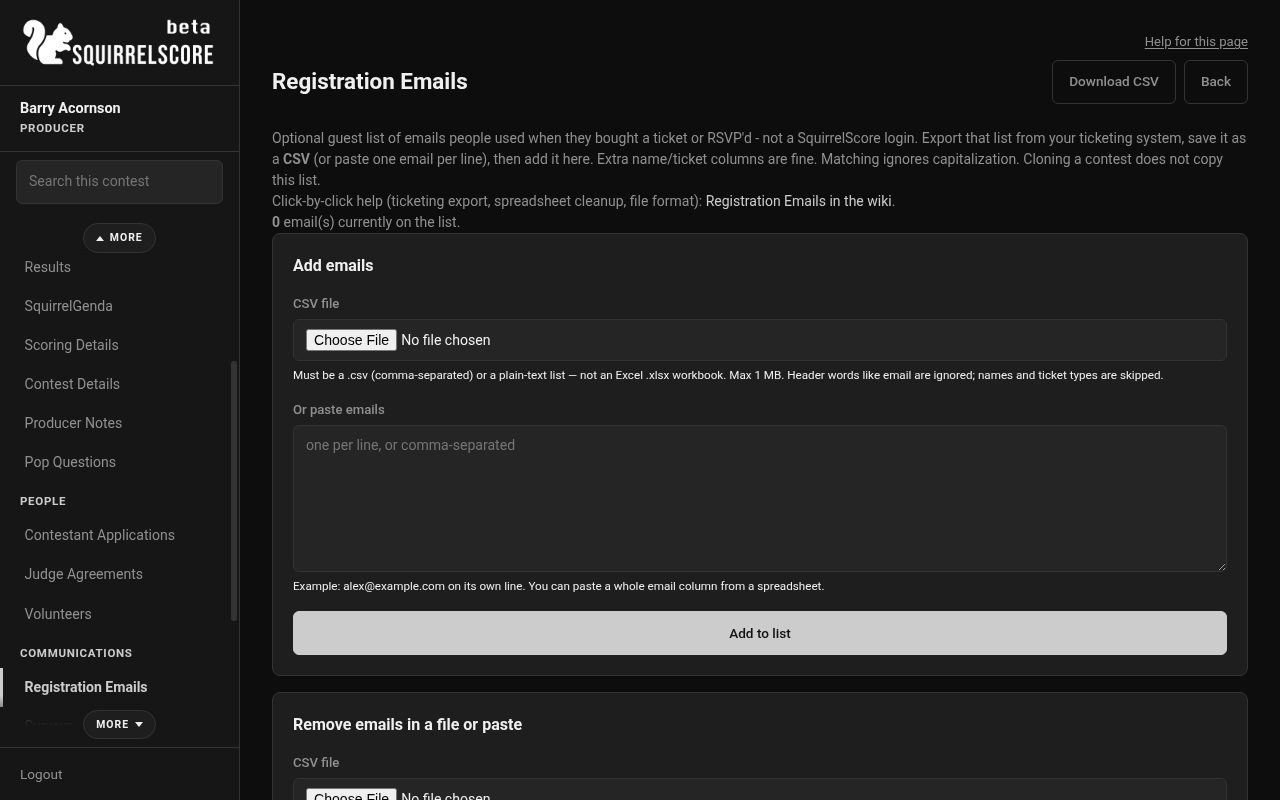
Desktop — Producer, Registration Emails
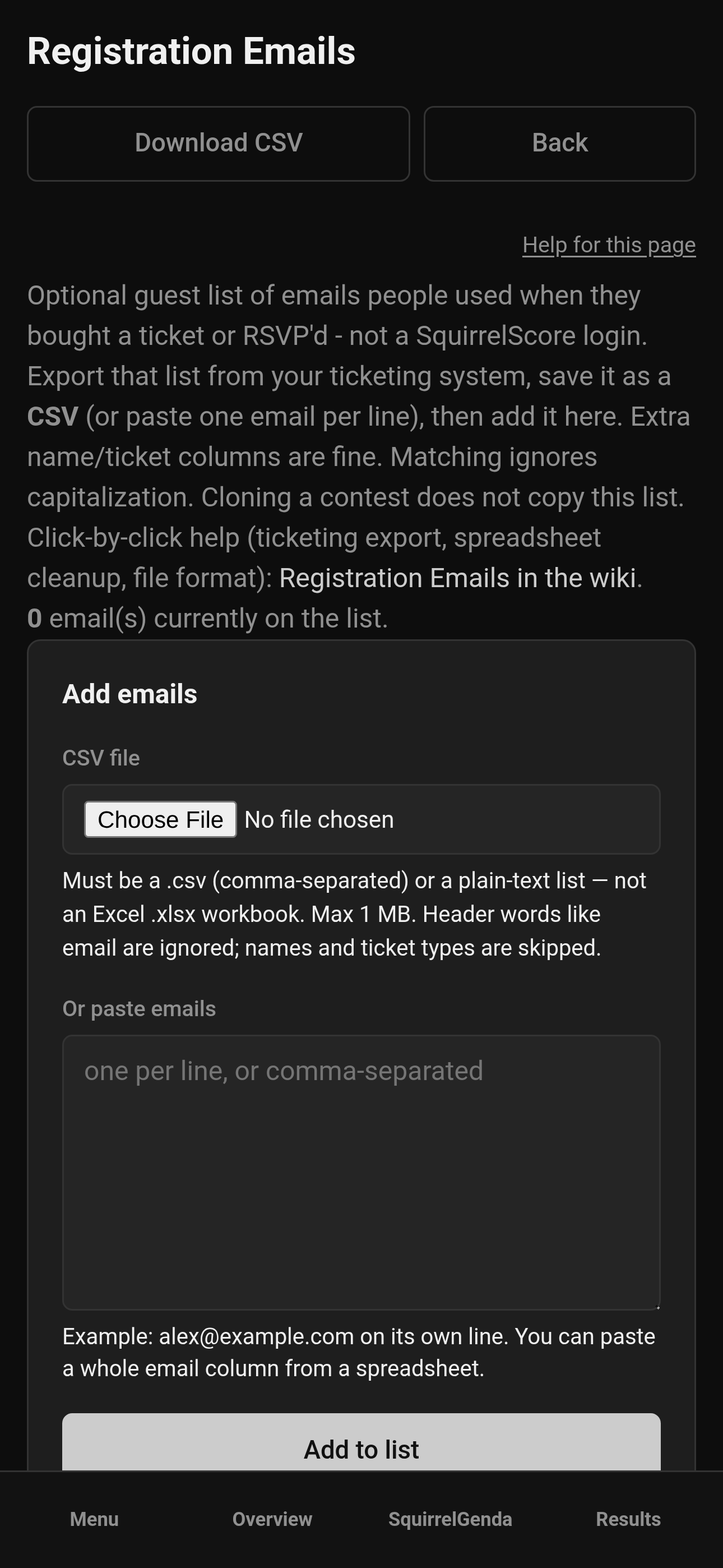
Mobile — Producer, Registration Emails
- Check the count at the top (X email(s) currently on the list) and spot-check a few names you recognize.
You do not need to "format it for SquirrelScore" beyond: real emails, CSV or paste, commas (not an Excel workbook).
¶ Maintain the list
After the first upload you can keep the list current as tickets sell or refunds happen.
-
Add another export (or paste) anytime - it merges; it does not wipe the list.
-
Remove one row with that row's Remove button.
-
Remove emails in a file or paste if you have a refund / cancellation export and want those addresses gone in one shot.
-
Replace entire list deletes everyone currently on the list, then adds only what you upload or paste. Check the confirmation box. Download CSV first if you might want the old copy.
-
Clear all empties the list.
-
Download CSV saves a simple one-column file (
email) of what SquirrelScore currently has. Restore later from that file, or from Backup & Restore (dedicated pack, Scoring Structure pack, or the comprehensive surveys pack).
¶ Optional audience scoring check
On each audience-scored section page you can turn on Require the registration email to be on the contest list. That checkbox does not create a second list. Add or remove emails here (or the dedicated page), not as a one-off file that only applies to that section.
If the check is on and the list is empty, everyone is rejected. That is on purpose so a forgotten list does not accidentally let the whole internet through. Turn the check off, or add emails, before you open scoring.
¶ Tips
-
Export from ticketing close to contest night, then Add the latest sales rather than replacing unless you mean to start over.
-
Treat the CSV like any spreadsheet with people's addresses - don't leave it on a shared desktop forever.
-
One list for the whole contest keeps Friday's class and Saturday's survey from drifting into two different guest lists.
-
Clone next year's contest, then restore this list from backup or paste this year's registration export.
-
If only a handful of people need to be added at the door, paste those few addresses - you do not need a new full export for three walk-ups.
¶ Common Mistakes
-
Uploading an Excel workbook (
.xlsx) instead of a CSV - SquirrelScore will not find emails in that. -
Turning the section check on before anyone is on the list (every audience score will bounce).
-
Expecting clone to copy last year's emails.
-
Thinking this email is a SquirrelScore login (it is not).
-
Using the public survey to "capture" registration emails (public survey answers stay anonymous).
-
Saving a spreadsheet with semicolons between columns, then wondering why nothing imported.
-
Using the purchaser email for a table of four, then expecting each guest to score separately under their own address (only emails that are actually on the list will match).
¶ Frequently Asked Questions
Who can edit the list?
Producers and tallymasters on that contest.
Do judges see the list?
No. They may see reminder banners about locking/releasing if you set those times; the email list itself is a producer tool (and optionally a granted volunteer).
Who can edit the list?
Producers. Tallymasters cannot. You can grant selected volunteers access from Volunteers (Registration Emails column). That volunteer then sees Registration Emails under Quick Access.
Can I have a different list per section?
No. One contest list. Each section only chooses whether to require a match.
Do I have to use a CSV?
No. Paste works. CSV is just the easy way when ticketing already gave you a spreadsheet.
My ticketing export has twenty columns. Do I have to delete them?
No. Keep them if you want. Only cells that look like emails are stored.
It said "No valid email addresses were found."
Usually the file is still an Excel workbook, the emails are in a weird formula (="[email protected]"), the columns are split with semicolons, or the column is names/phones only. Open it in a spreadsheet, copy one real address, paste it alone, and try Add. If that works, fix the file and upload again.
What if a bundle ticket used a different email?
Audience scoring helper text covers that - use the email they would use for themselves. Add walk-up addresses if you want those people to pass the list check. For surveys, send an invite to the address you actually have.
Is replace dangerous?
Yes if you skip the confirmation box - replace deletes the current list, then adds only what you uploaded. Download CSV first if you might want the old copy.
Does this email people by itself?
No. Uploading the list does not send mail. Mail goes out only when you send a survey or a contest update and include registration emails as an audience.