¶ Purpose
Some contests publish a public hub: one friendly page with the forms and info the producer chose to share. You do not need an account to use it. If you already have one, Log in at the bottom of the hub is the usual sign-in page — the same access contestants, volunteers, judges, and producers use.
¶ Before You Begin
-
Have the hub link or QR code from the producer
-
Know which contest you meant to open (read the name on the page)
¶ Step-by-Step Instructions
-
Scan the QR code or open the link you were given.
-
Confirm the contest name at the top.
-
Tap a card: apply, volunteer, Pop Questions, Contact Us, vendor / sponsor inquiry, a survey, SquirrelGenda, or (if the producer turned them on) read-only Contest Details or Scoring Details. Those details pages include Download PDF when the producer has enabled them on the hub.
-
If a card asks for a passphrase or robot check, that is the same as the usual public forms.
-
Have an account? Use Log in at the bottom of the hub.
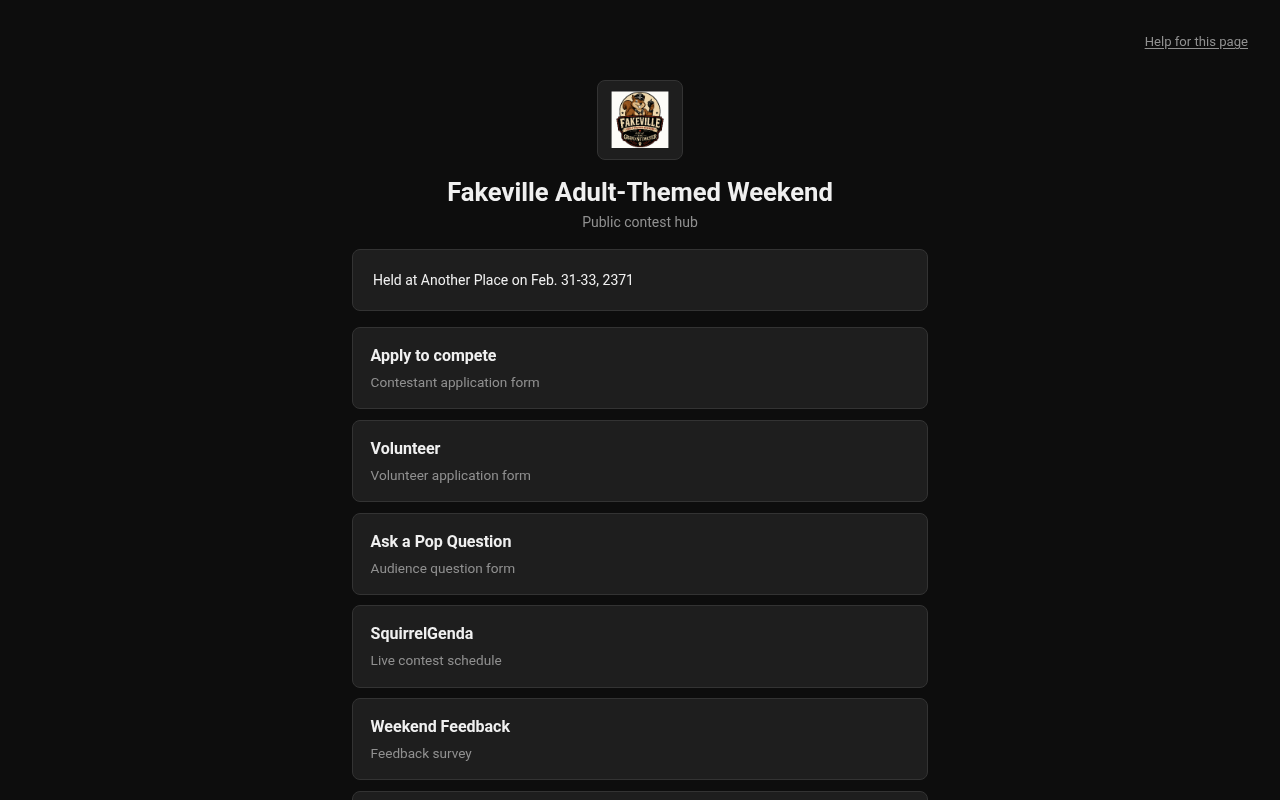
Desktop — Public contest hub
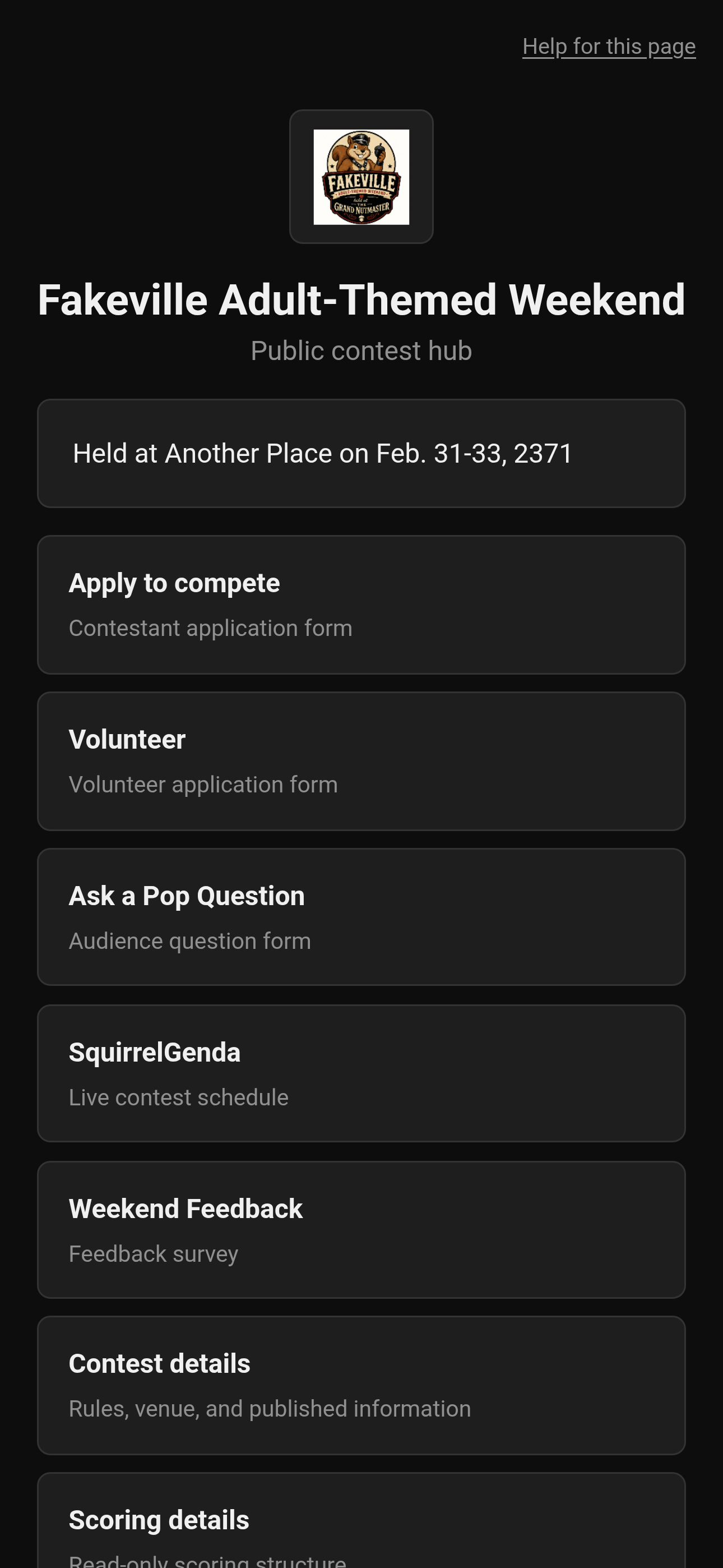
Mobile — Public contest hub
¶ What might be missing
The producer picks what appears. A closed application, a draft survey, or an unpublished schedule will not show a card. If you expected something, ask them — do not guess another URL.
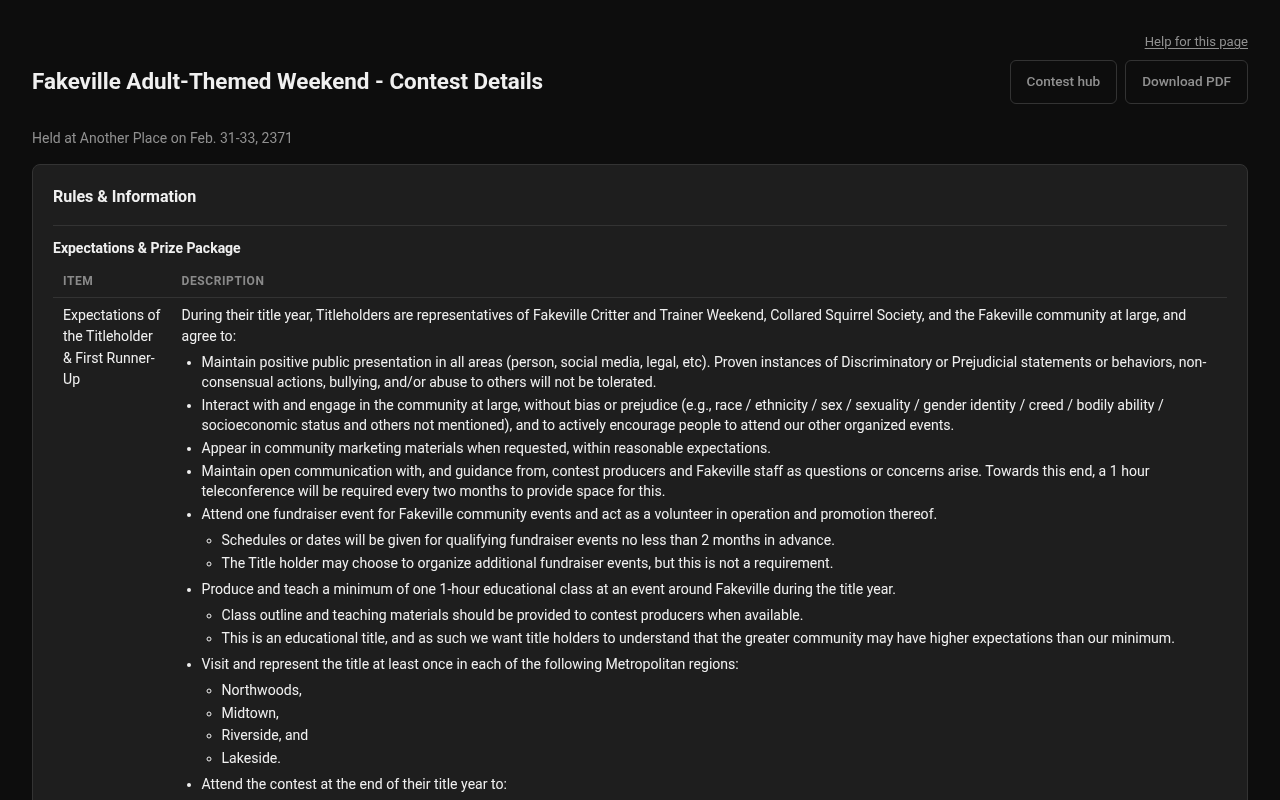
Desktop — Public Contest Details, Download PDF
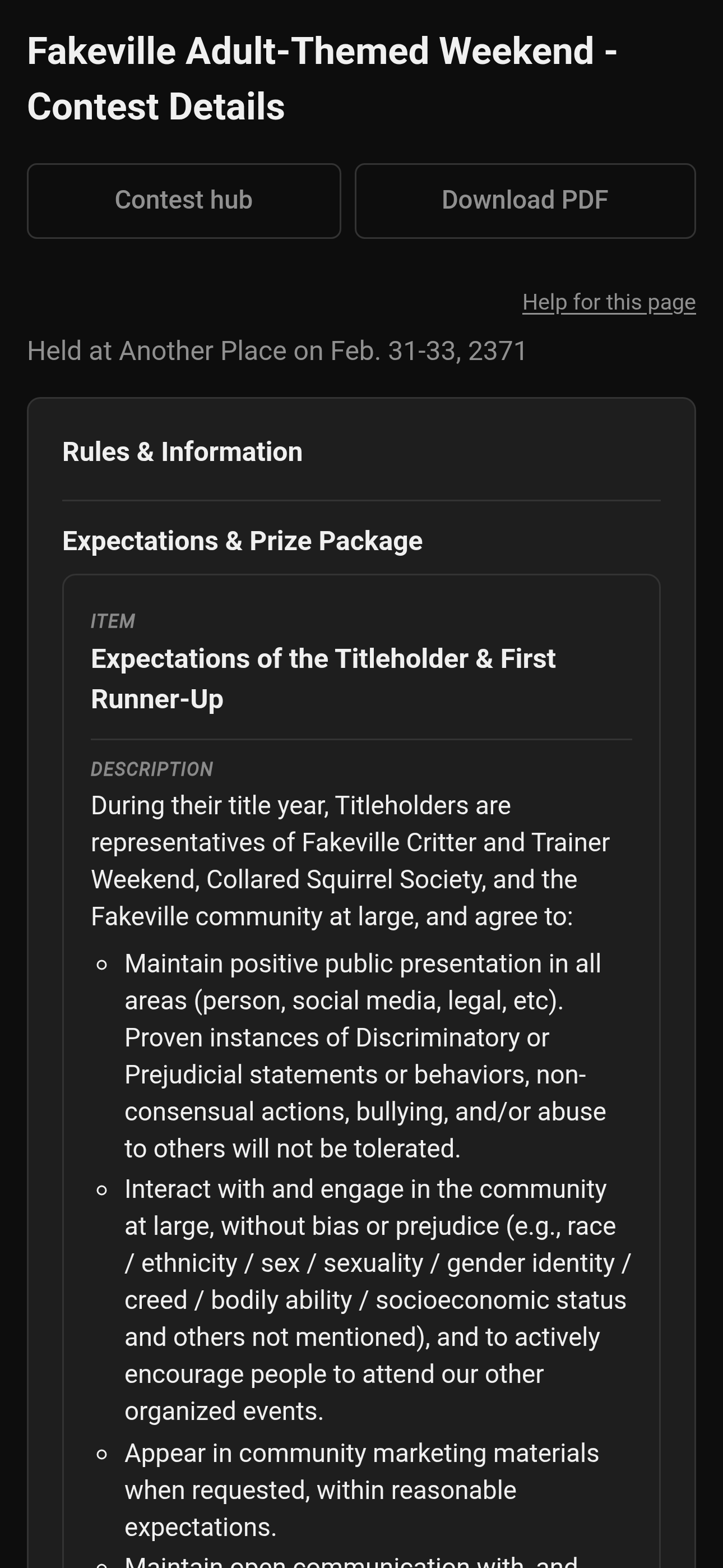
Mobile — Public Contest Details, Download PDF
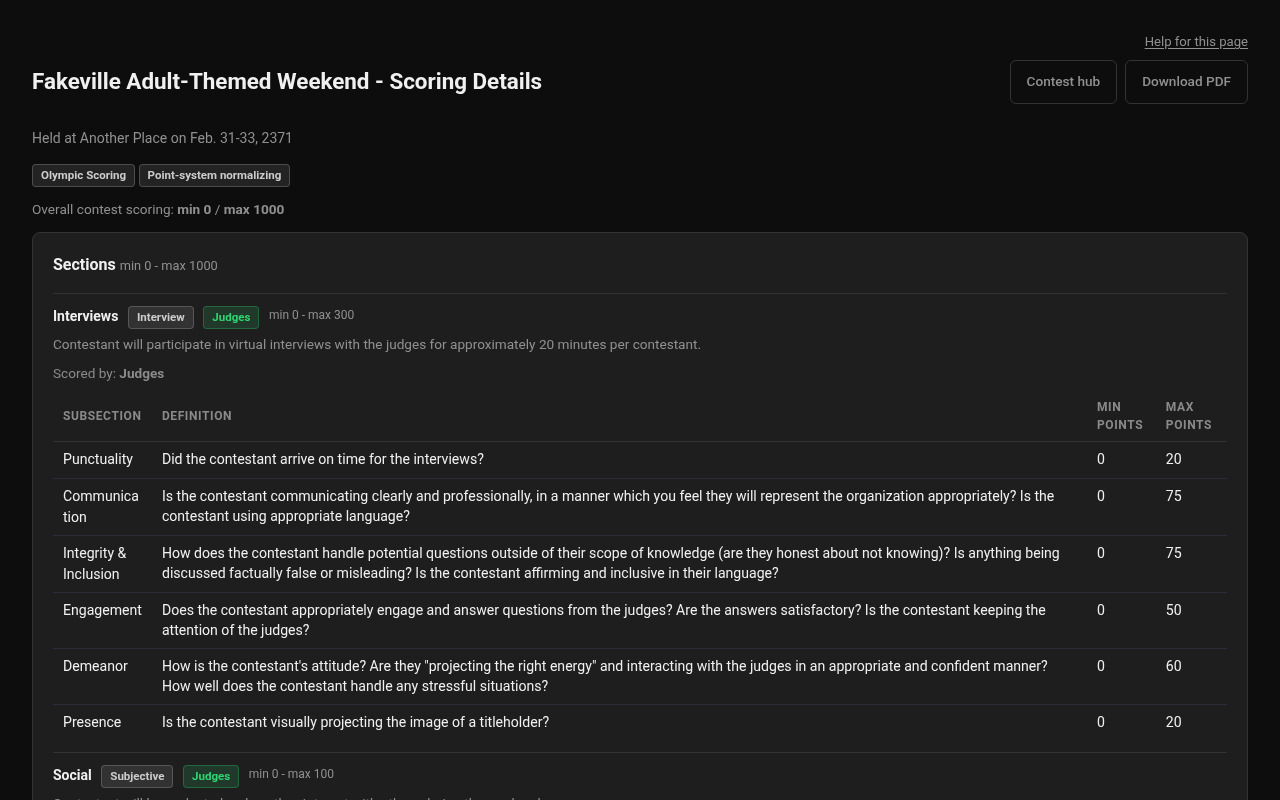
Desktop — Public Scoring Details, Download PDF
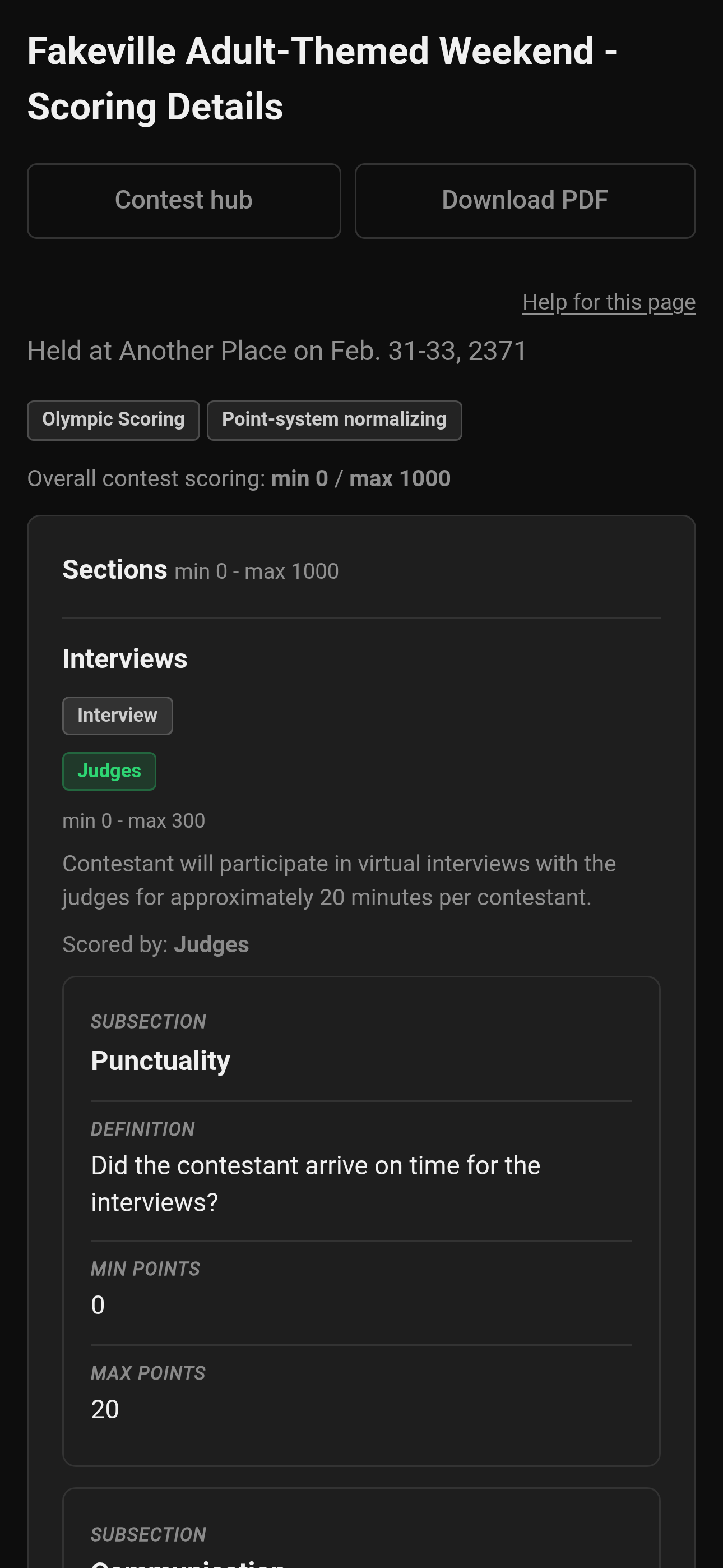
Mobile — Public Scoring Details, Download PDF
¶ Tips
-
Bookmark the hub if you will visit more than one form this weekend.
-
Scoring Details on the hub is read-only. It is the rubric, not a place to enter scores. Download PDF on that page (or Contest Details) is the same packet, without the hub chrome. Description Markdown still shows (bold, italic, headings, lists, allowed links).
-
A Home Screen icon is optional and is offered on the login page, not on the hub. Install the app icon.
¶ Common Mistakes
-
Treating the hub as a login. If you already have an account, use Logging in.
-
Sharing last year's QR. Hub links can be replaced; old codes stop working.
¶ Frequently Asked Questions
Do I need an account?
Not for the hub or the public forms listed on it.