¶ Purpose
Give the public one landing page (QR + copyable link) that lists only the forms and read-only pages you choose. People with accounts still use the usual Log in page.
¶ Before You Begin
-
Be a producer on the contest (owner or co-producer).
-
Have the site public base URL set (needed for QR and the full link).
-
Turn on the public forms you actually want listed (applications, volunteer apply, Pop Questions, public surveys, SquirrelGenda).
¶ Step-by-Step Instructions
-
Open Manage, then Edit (Contest Settings).
-
Scroll to Public contest hub.
-
Check Enable public contest hub.
-
Optionally check Include read-only Contest Details and/or Include read-only Scoring Details.
-
Click Update Contest.
-
Re-open Edit. Copy the link, download the QR, or print it like other public forms.
-
Replace hub link if a QR leaked. Printed codes from the old link stop working.
The hub automatically lists enabled public forms for this contest (apply, volunteer apply, Pop Questions, Contact Us, vendor / sponsor inquiry, active public surveys, SquirrelGenda when it is on). Contact Us and vendor inquiry appear from their own enable flags even if the contest is marked inactive.
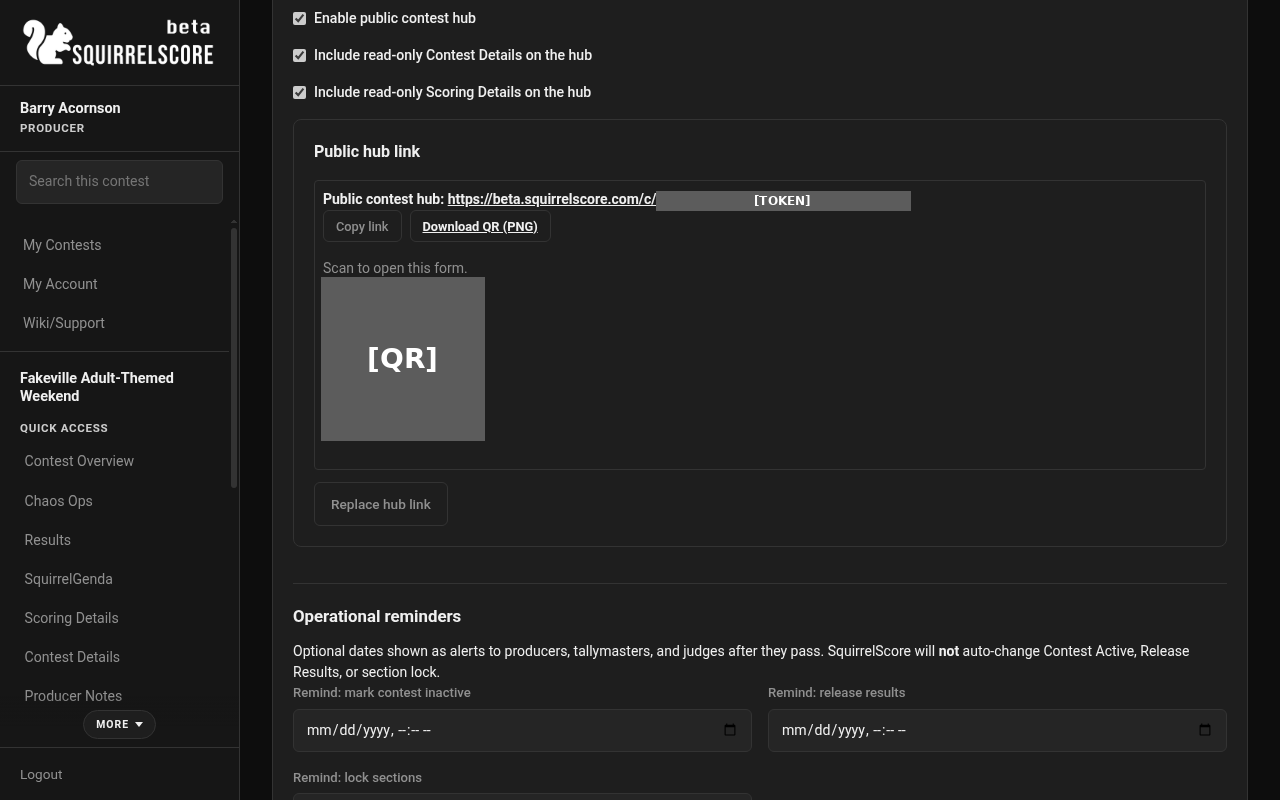
Desktop — Producer, public hub settings (enabled)
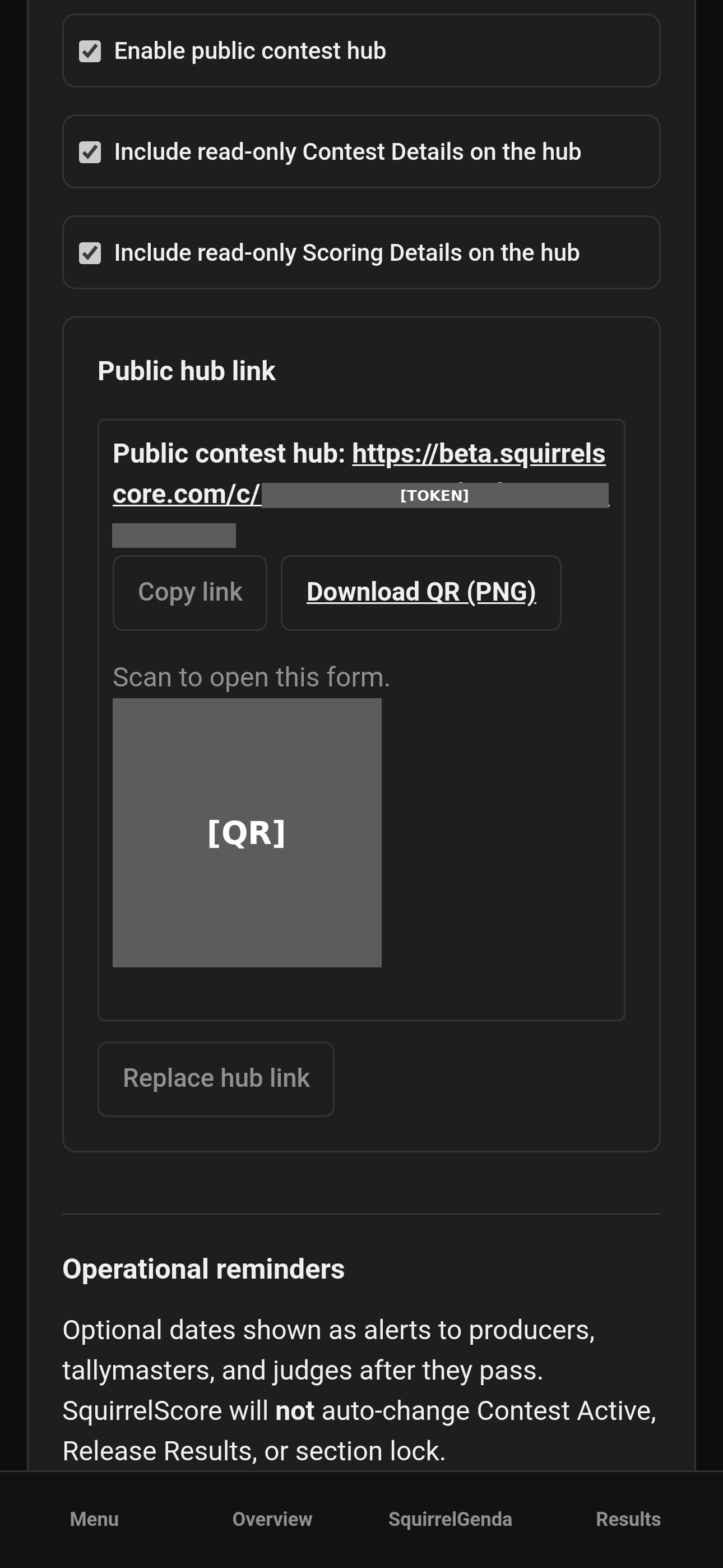
Mobile — Producer, public hub settings (enabled)
¶ What clone does
Clone does not copy the hub token. The new contest starts with the hub off. Turn it on again if you want a fresh public page.
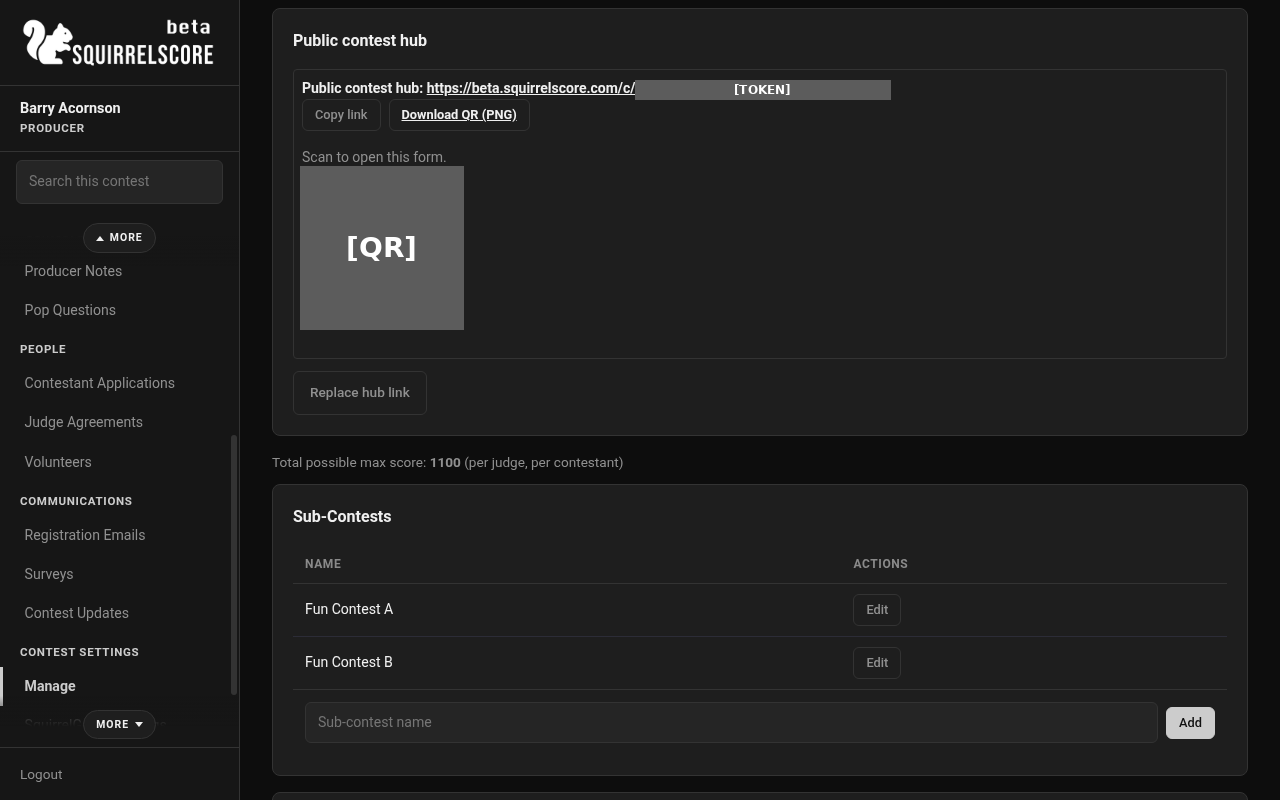
Desktop — Producer, public contest hub on Manage
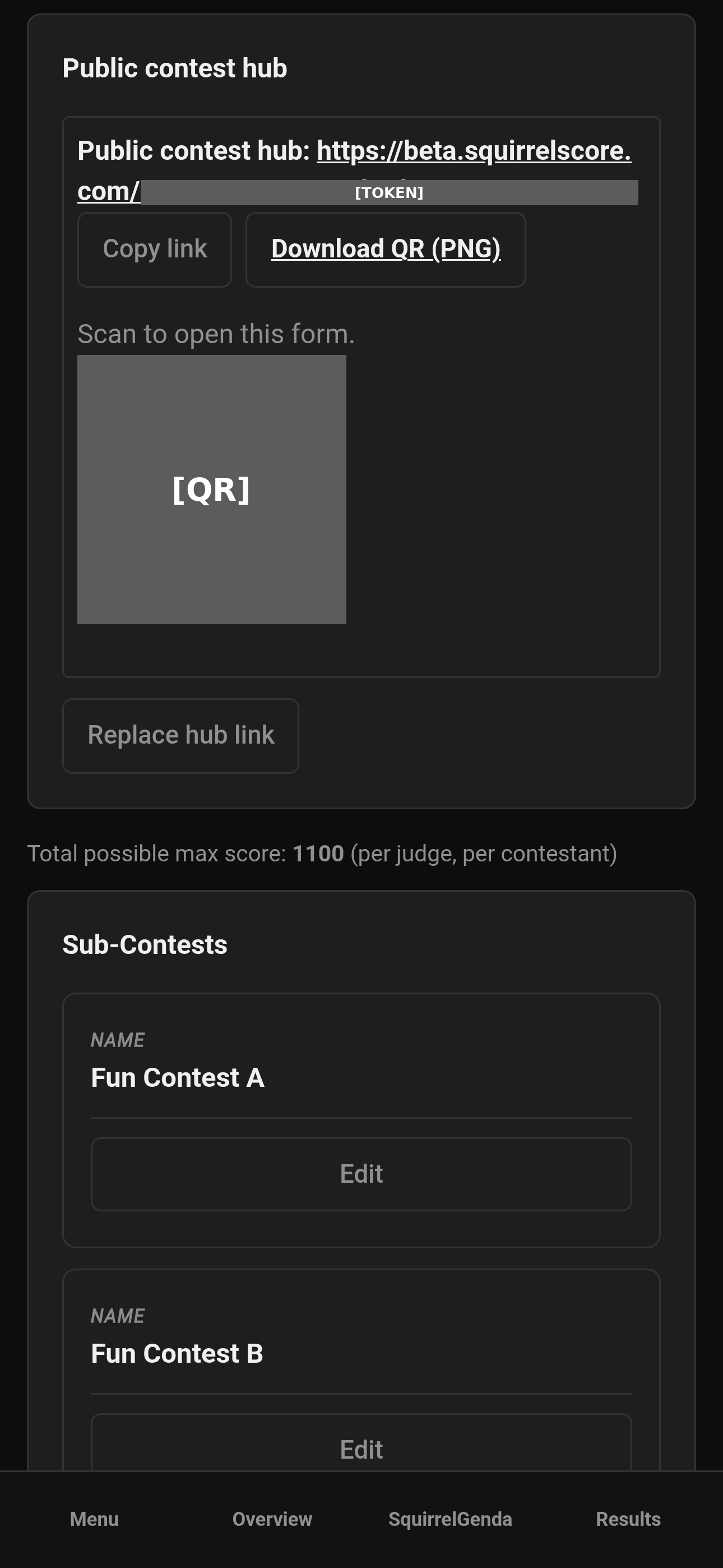
Mobile — Producer, public contest hub on Manage
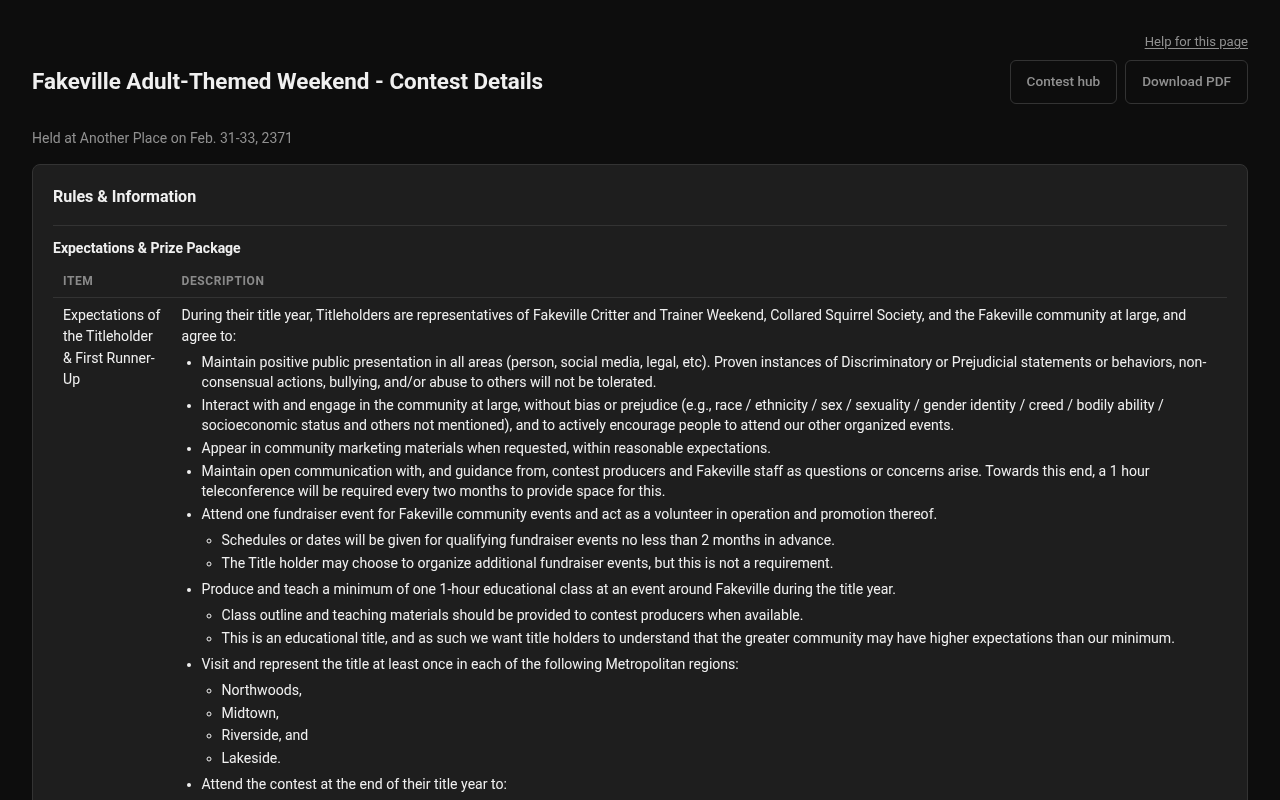
Desktop — Public hub, Download PDF on Contest Details
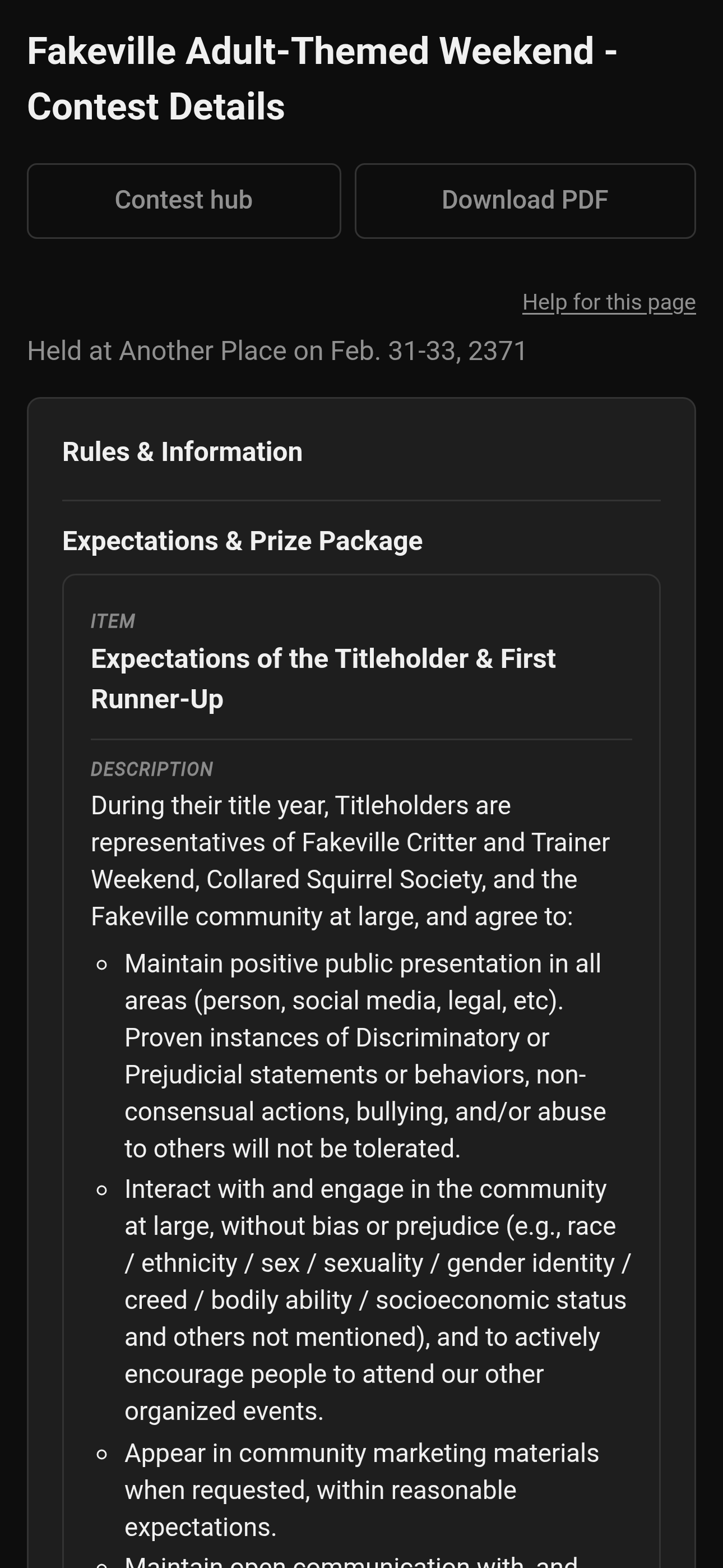
Mobile — Public hub, Download PDF on Contest Details
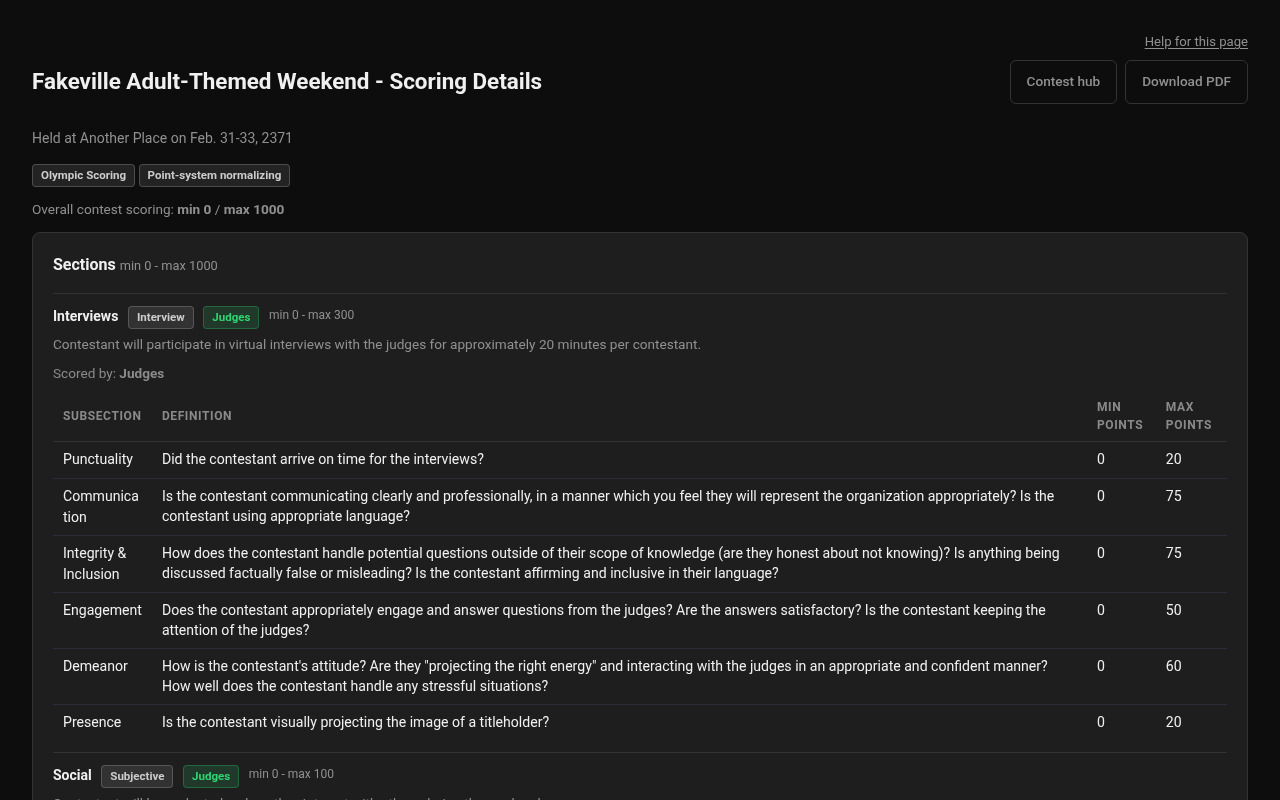
Desktop — Public hub, Download PDF on Scoring Details
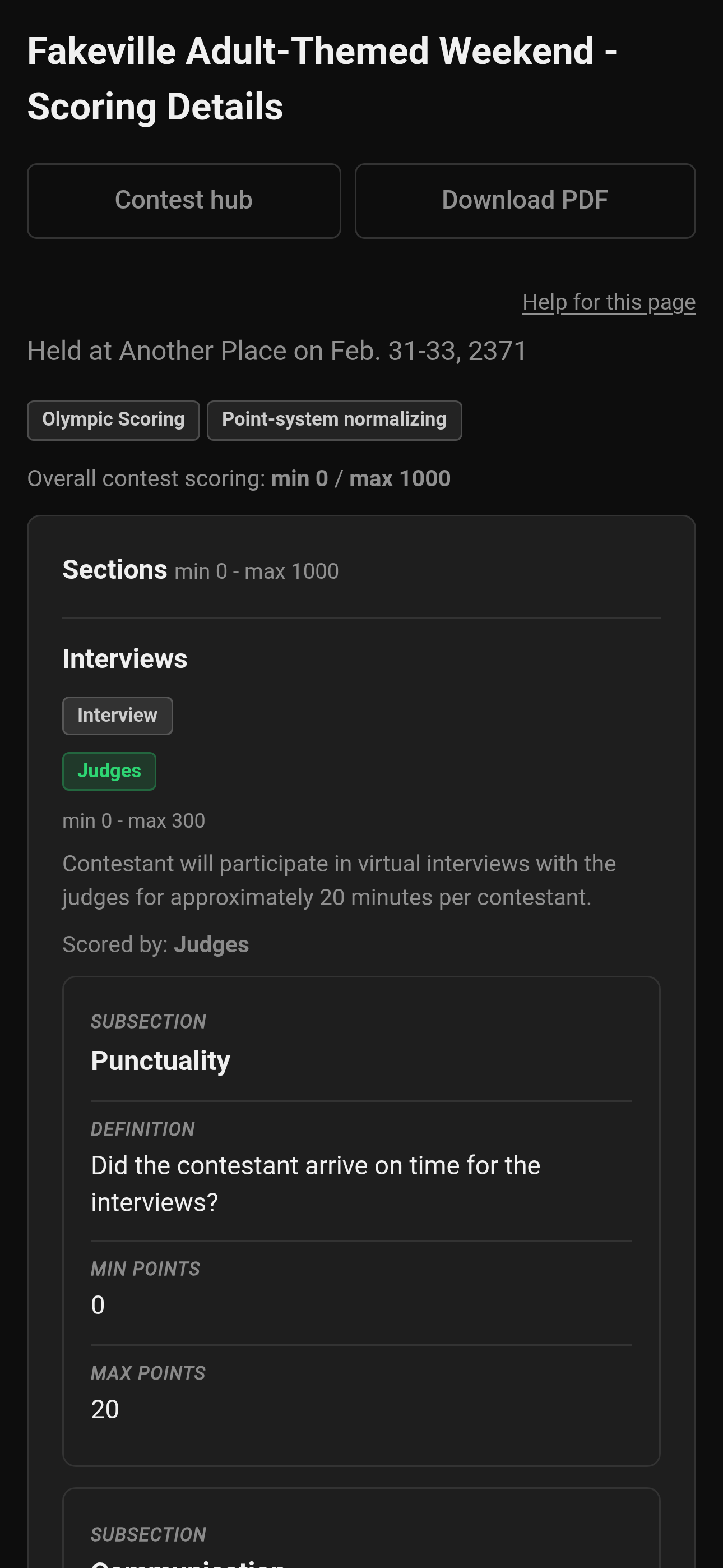
Mobile — Public hub, Download PDF on Scoring Details
¶ Tips
-
Log in is how anyone with an account signs in (producers, judges, tallymasters, contestants, volunteers, admins). The hub is for public forms and printed posters — no account required.
-
Scoring Details on the hub is the rubric only — no score entry. Anyone opening those hub pages can Download PDF when you include them. Description Markdown (bold, italic, headings, lists, allowed links) is on those PDFs too.
-
The optional Home Screen icon popup lives on the login page, not the hub. See Install the app icon.
¶ Common Mistakes
-
Enabling the hub before applications or SquirrelGenda are actually on — people who open the QR will see an empty-looking list.
-
Forgetting to set the site public base URL, then wondering why QR is missing.
¶ Frequently Asked Questions
Can I hide Scoring Details later?
Yes. Uncheck it and Update Contest. The hub card disappears.