¶ Purpose
Define volunteer positions, collect applications, assign people, and keep prep on track.
Volunteers keep watch over doors, merch, hospitality, and generally help make the contest weekend run. SquirrelScore won't haul ice for you, but it will remember who signed up that can do that.
¶ Before You Begin
-
Brainstorm the positions you actually need (Registration, Door Person, Security, Set Up/Tear Down, Stage Hands, Photographer, Safety Monitor, Merch Table, AV/Lighting, Assistant/Runner, and more).
-
Decide capacities for those positions, that way you don't overfill one and leave others empty.
-
Customize volunteer emails before approving.
¶ Create volunteer positions
-
Open Volunteers from the sidebar (or Manage).
-
Add a position (name it clearly).
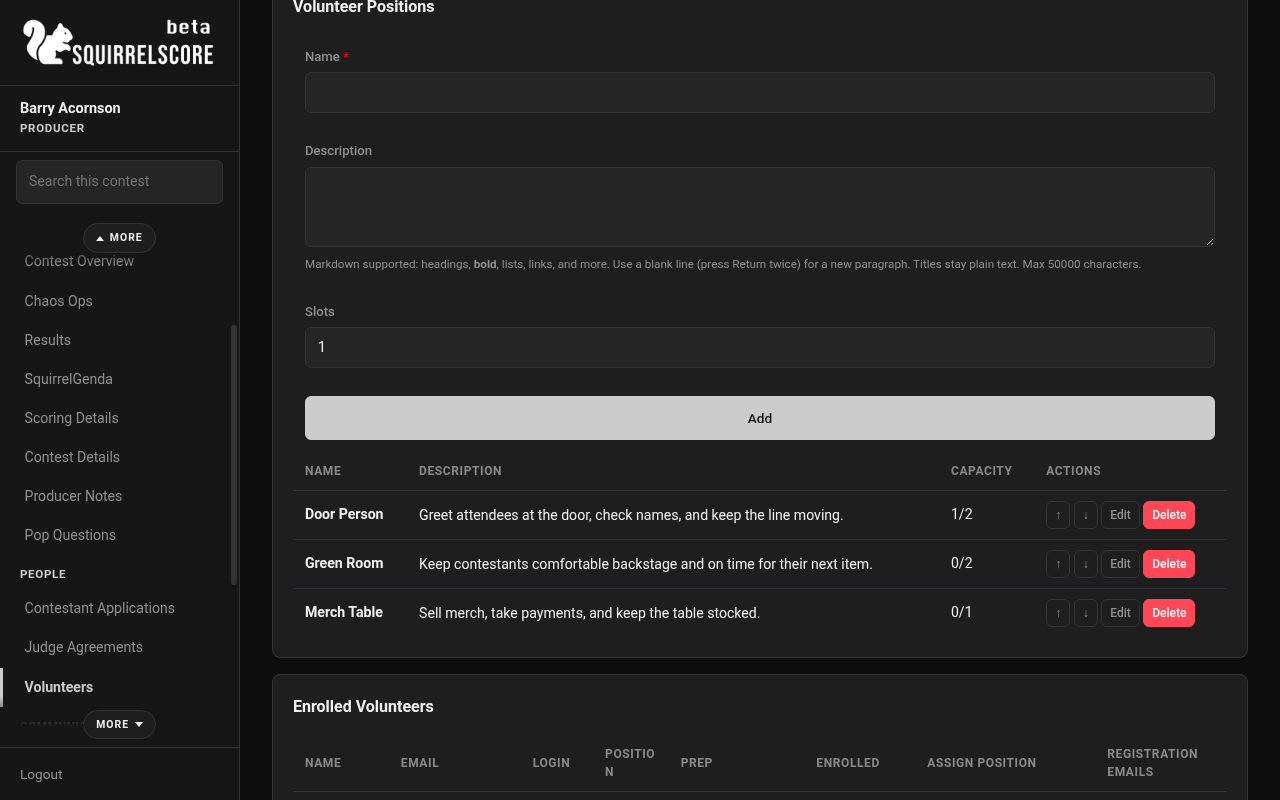
Desktop — Producer, add volunteer position (stacked fields)
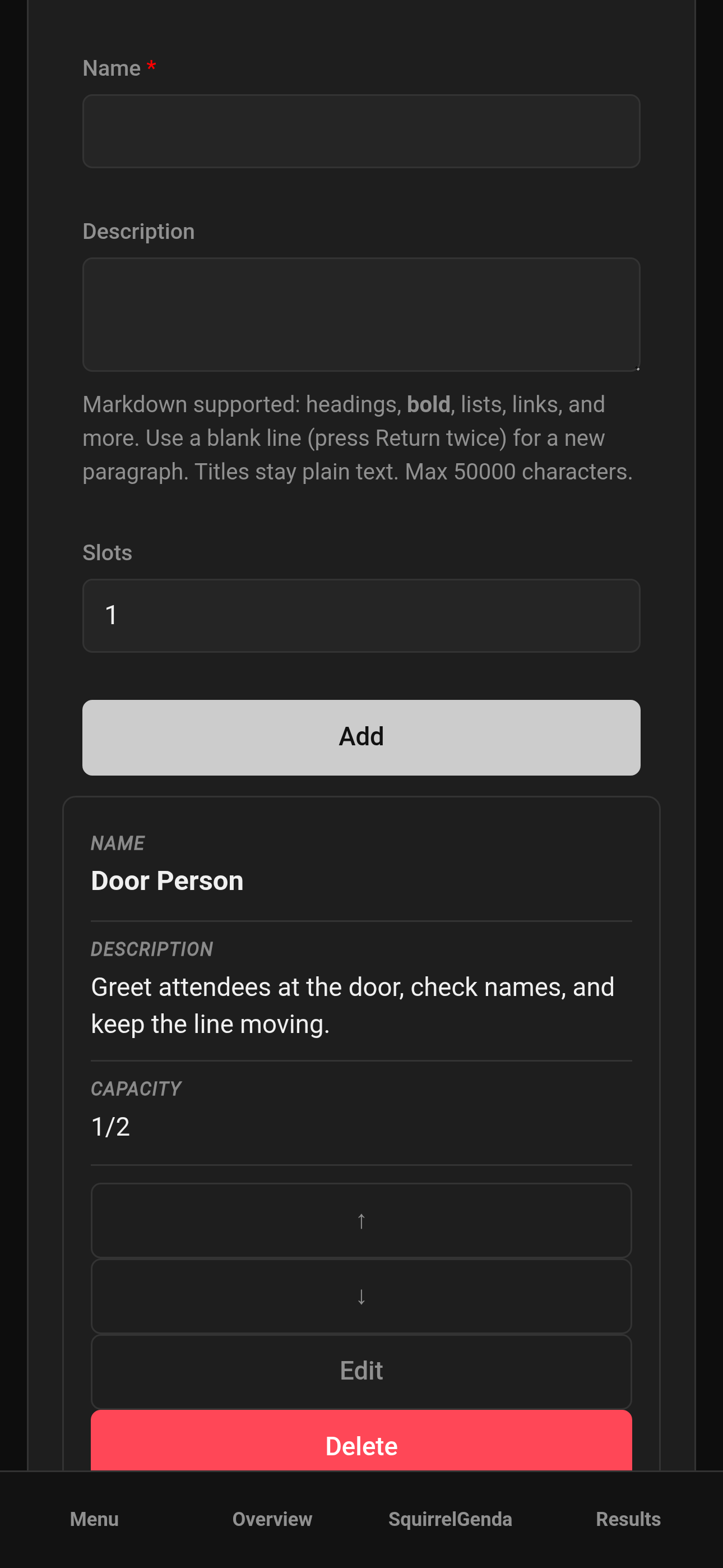
Mobile — Producer, add volunteer position (stacked fields)
-
Set capacity / details the form offers for that position. New positions append to the end of the list.
-
Save.
-
Use ↑/↓ on the positions list to set display order (saves without reloading the page).
-
Repeat for each role.
-
On Enrolled Volunteers, you can also grant Registration Emails access (Allow + Save). That volunteer then sees Registration Emails under Quick Access and can maintain the guest list. Leave it off unless they need it.
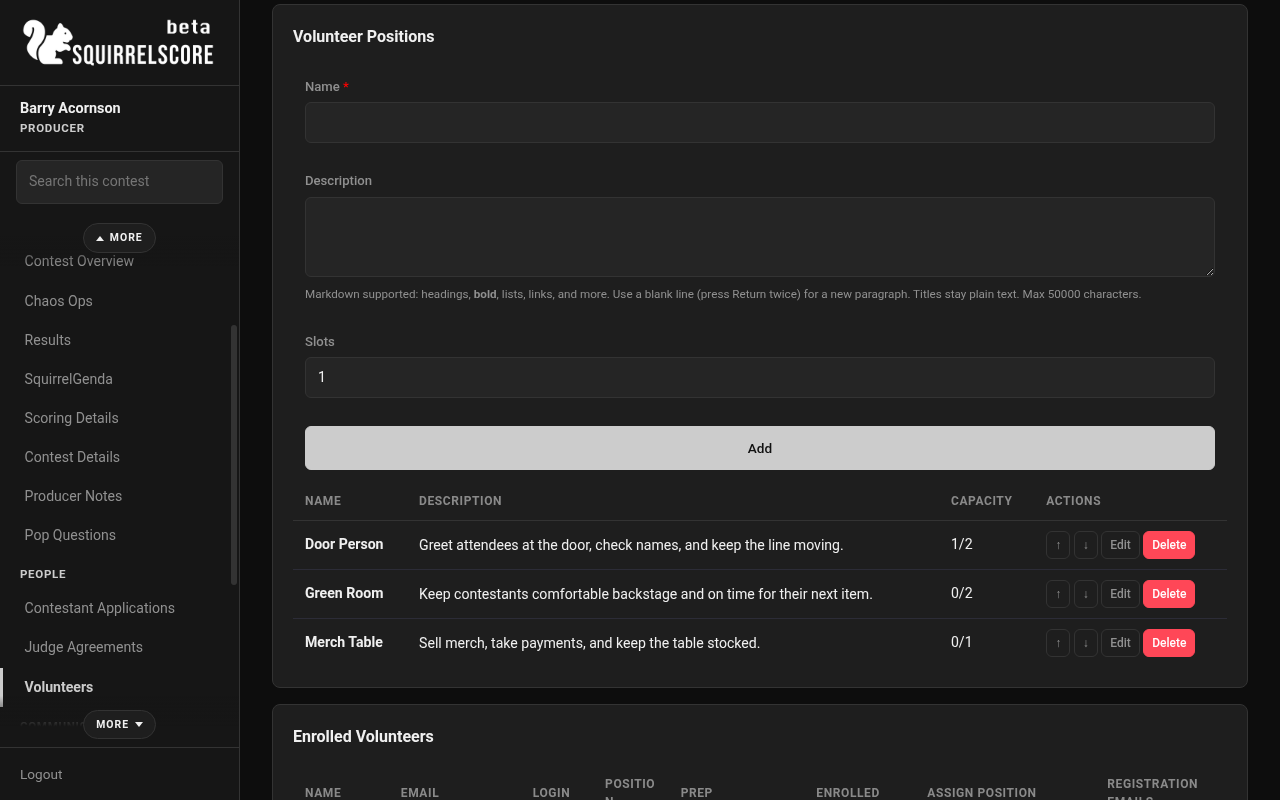
Desktop — Producer, volunteer positions (Door Person, Green Room, Merch Table)
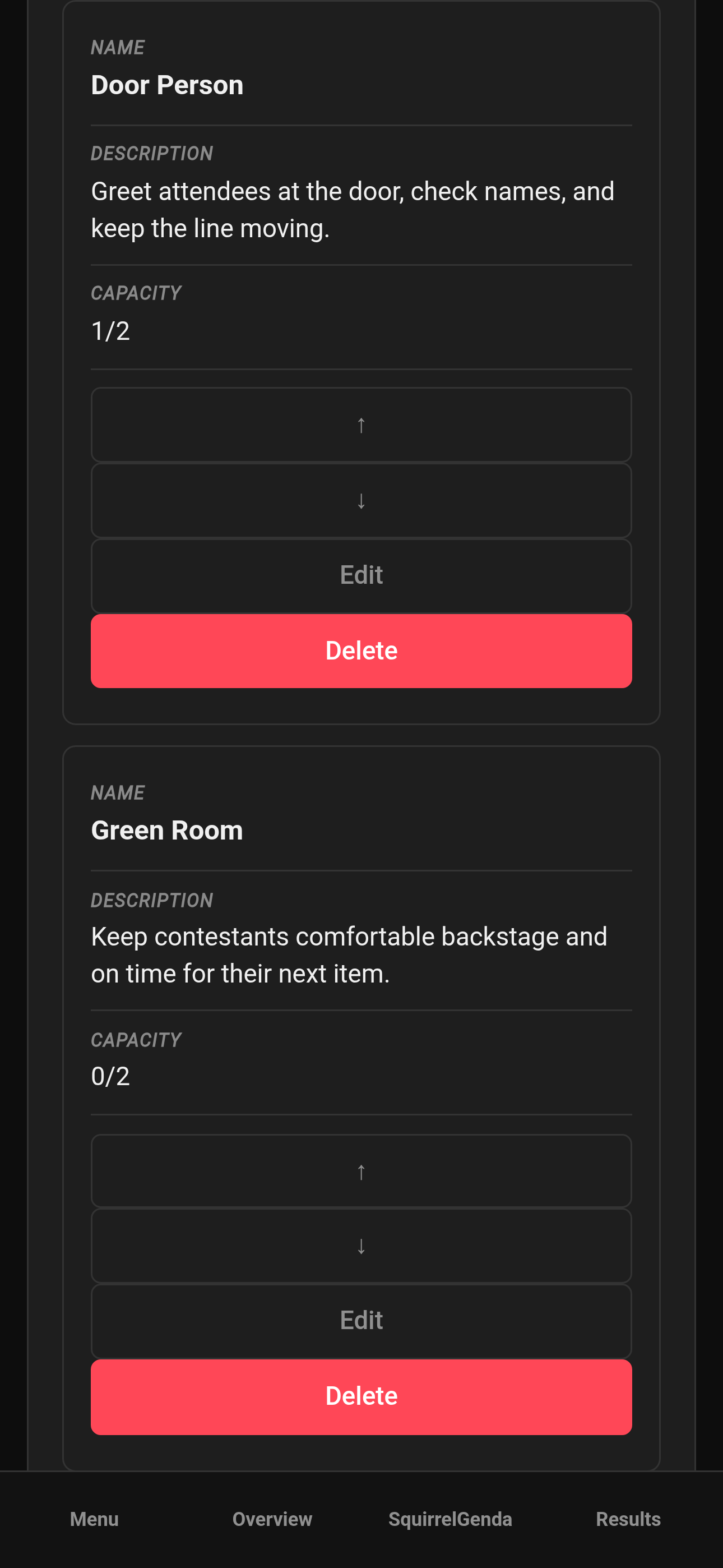
Mobile — Producer, volunteer positions (Door Person, Green Room, Merch Table)
¶ Set up the volunteer application form
-
From Volunteers / Manage, open the Volunteer Form settings.
-
Enable the public form.
-
Optionally require a passphrase.
-
Add custom fields (availability, shirt size, "I can lift amplifiers," etc.). Optionally check Required on public form so volunteers must answer (you can change that later on edit). Field descriptions and volunteer position descriptions support Markdown. Use ↑ / ↓ to reorder questions.
-
Save.
-
Use the Copy button to grab the public link (volunteer apply path on your site) and, if a QR code is shown, Download it for signage - then share both.
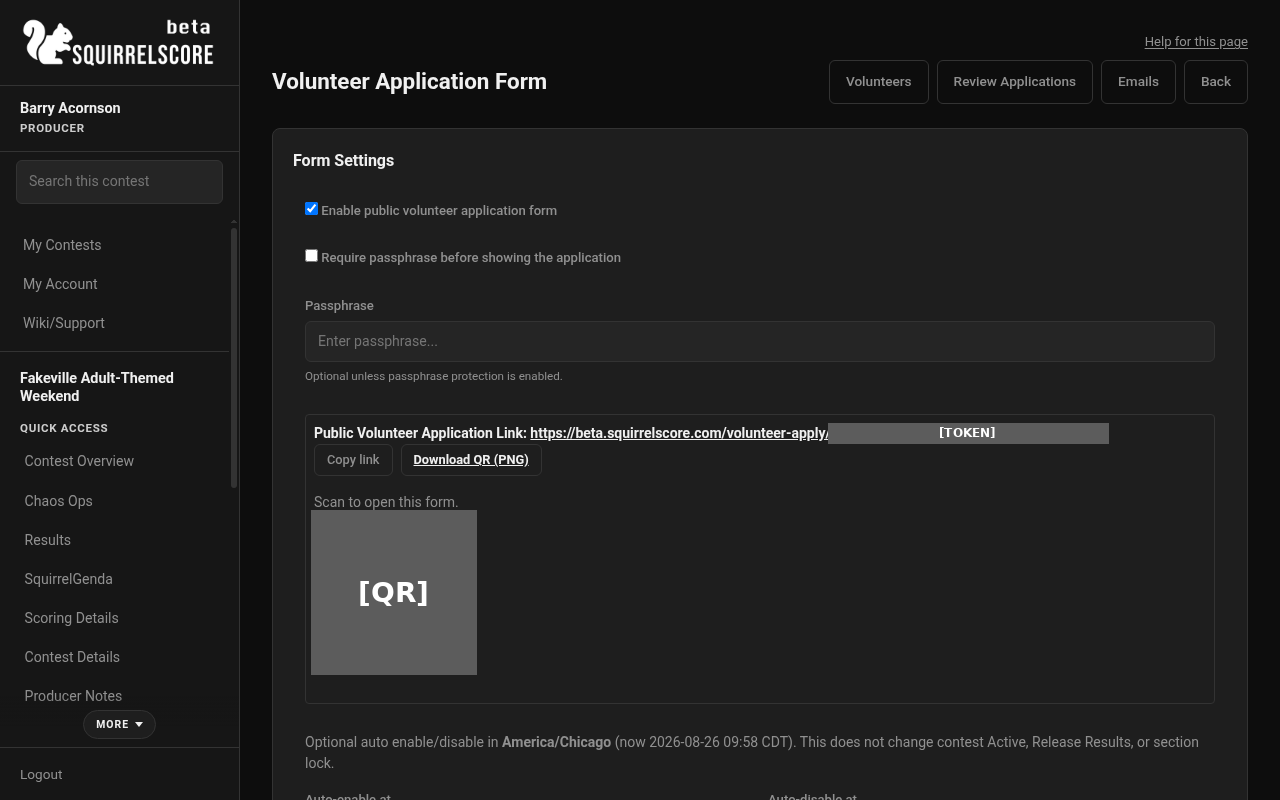
Desktop — Producer, Volunteer Application Form settings
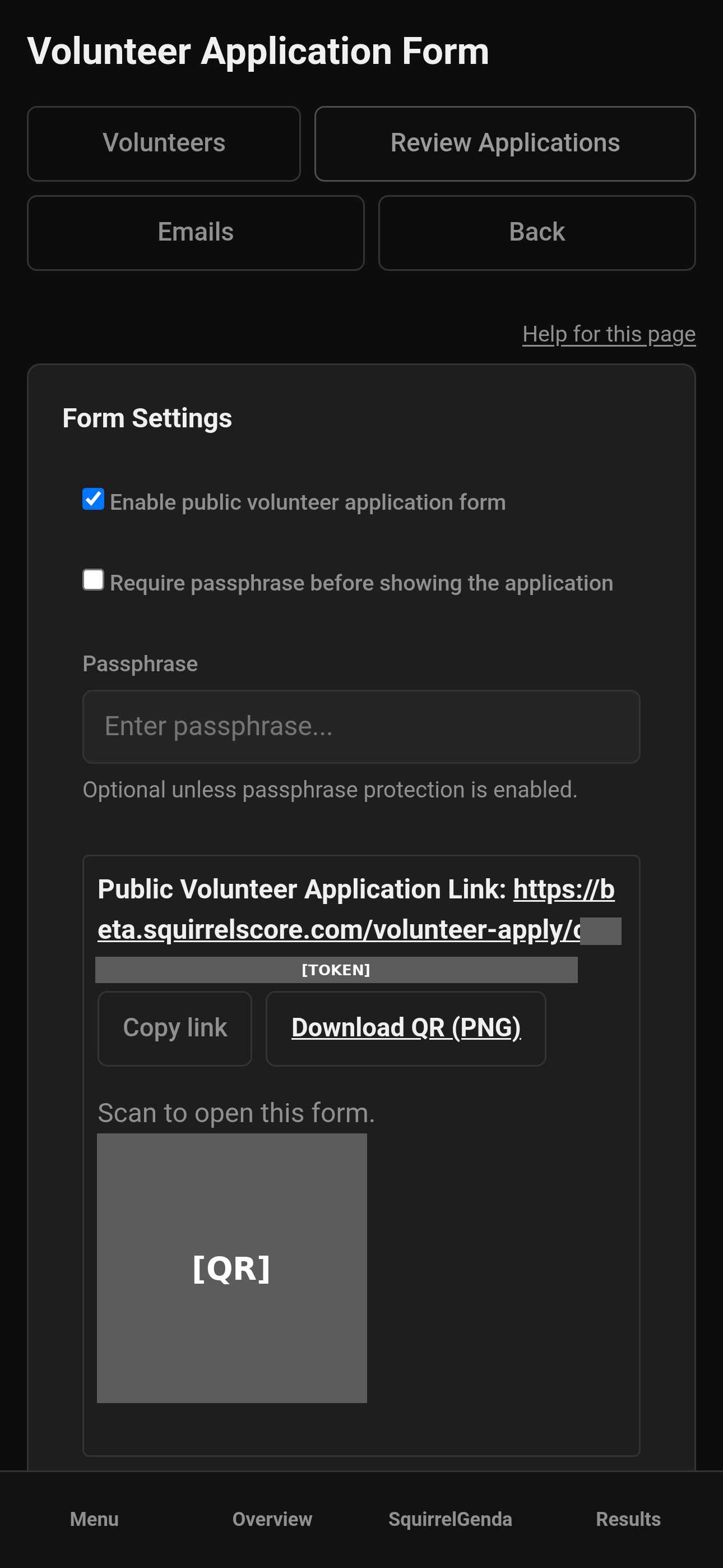
Mobile — Producer, Volunteer Application Form settings
¶ Review volunteer applications
-
Open volunteer Applications from the Volunteers hub.
-
Filter pending / approved / rejected / all as available.
-
View an application.
-
Approve or reject (approval may create or enroll accounts and send emails depending on the path).
-
After approval, assign them to a position if that didn't happen in the same step.
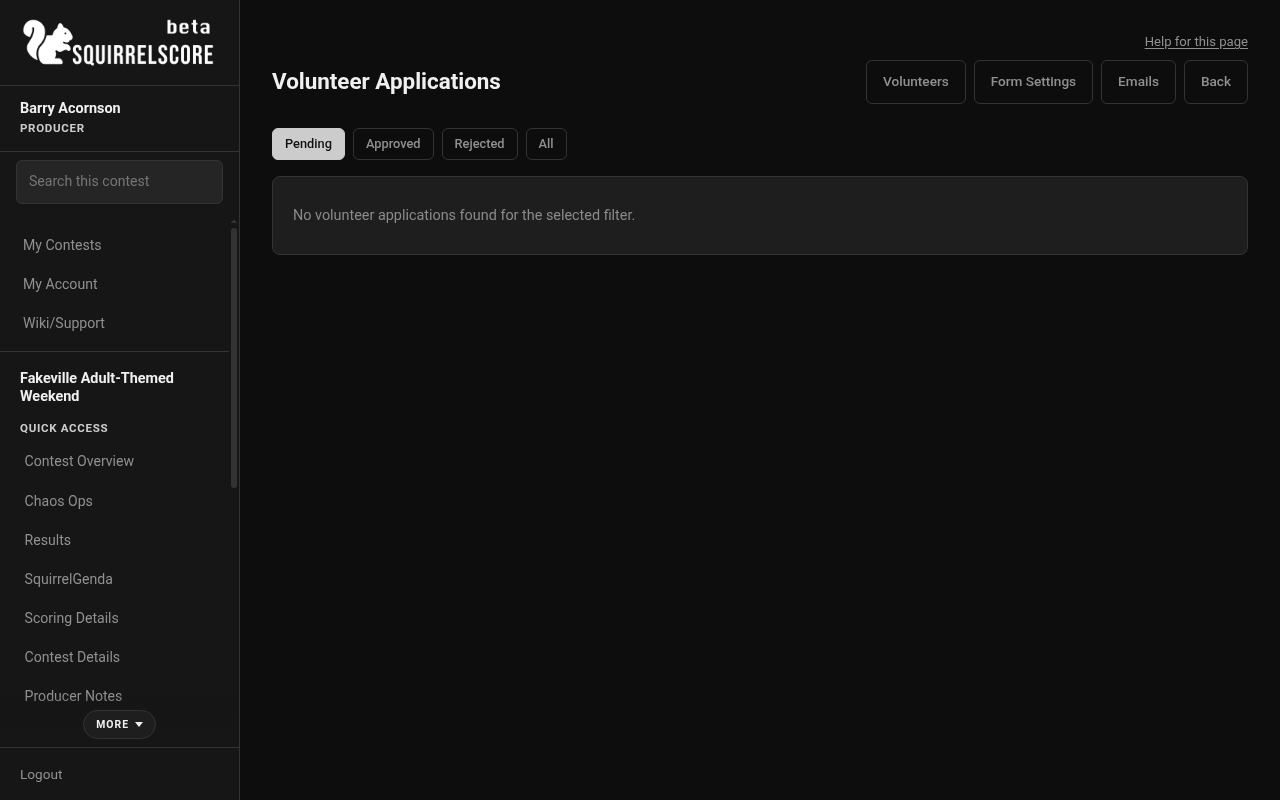
Desktop — Producer, volunteer applications (empty Pending)
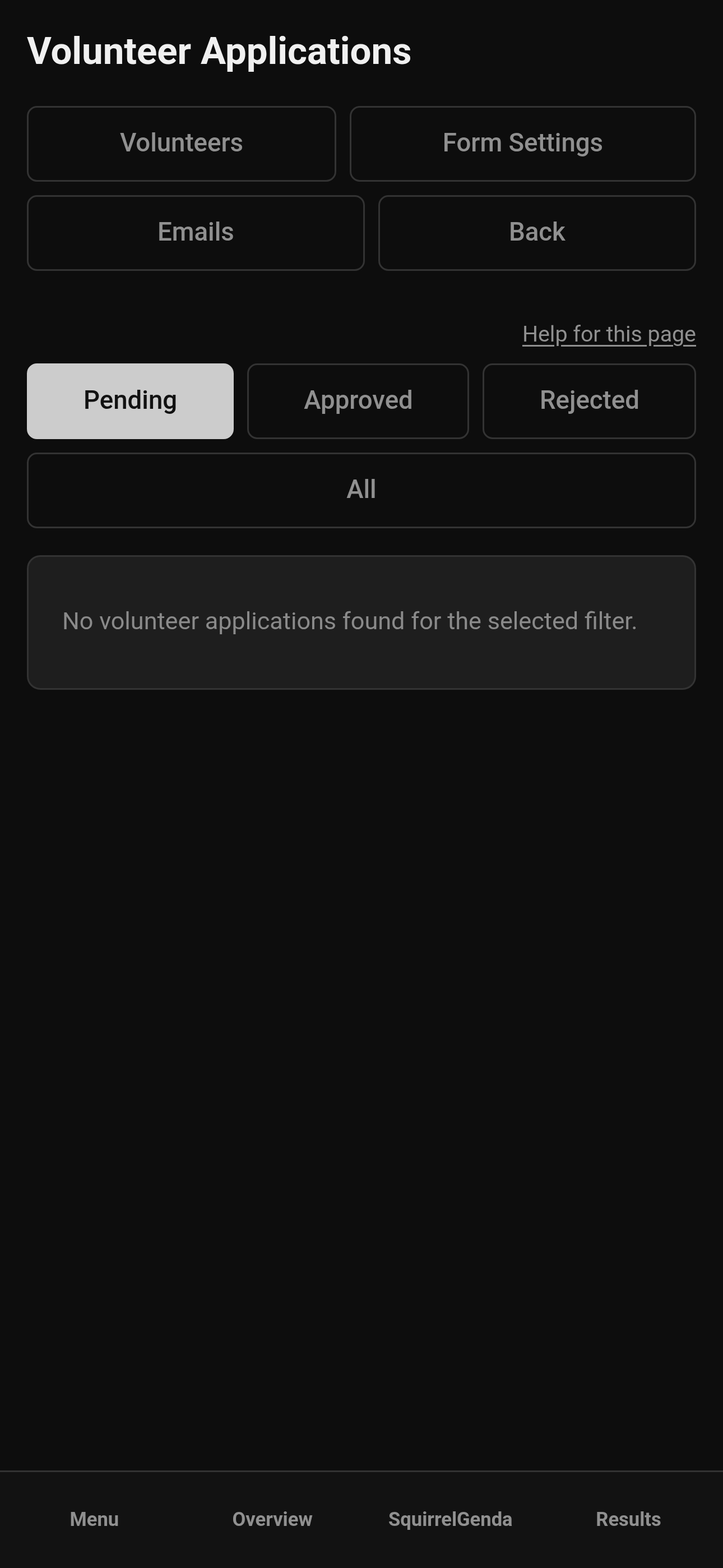
Mobile — Producer, volunteer applications (empty Pending)
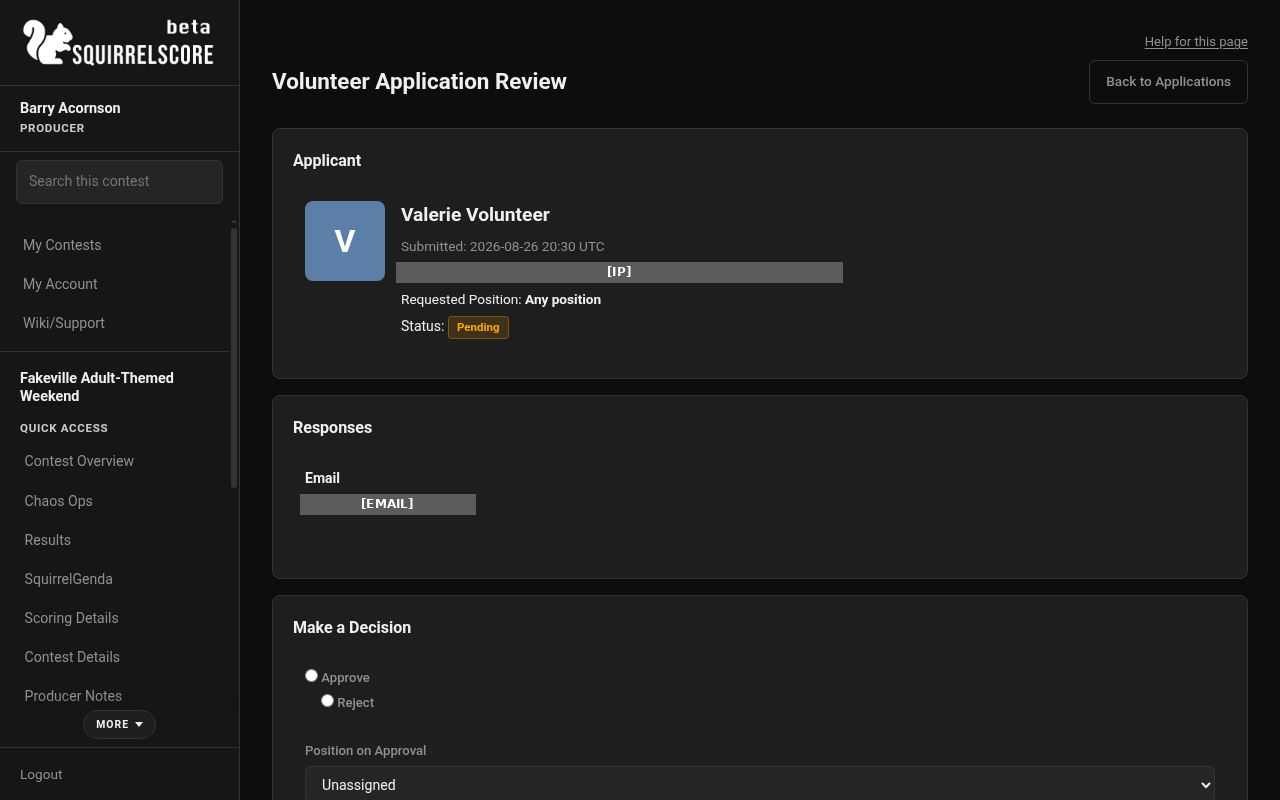
Desktop — Producer, volunteer application review (Pending)
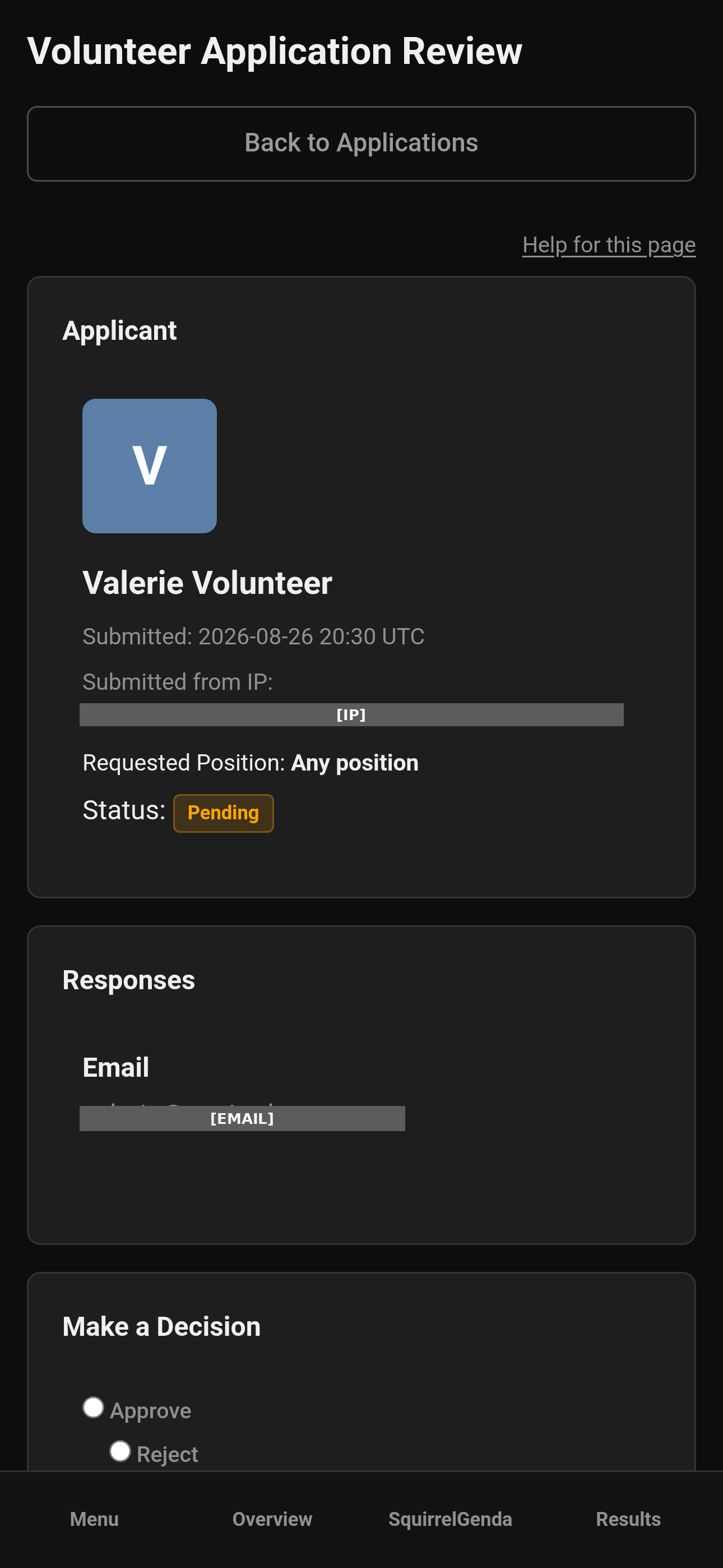
Mobile — Producer, volunteer application review (Pending)
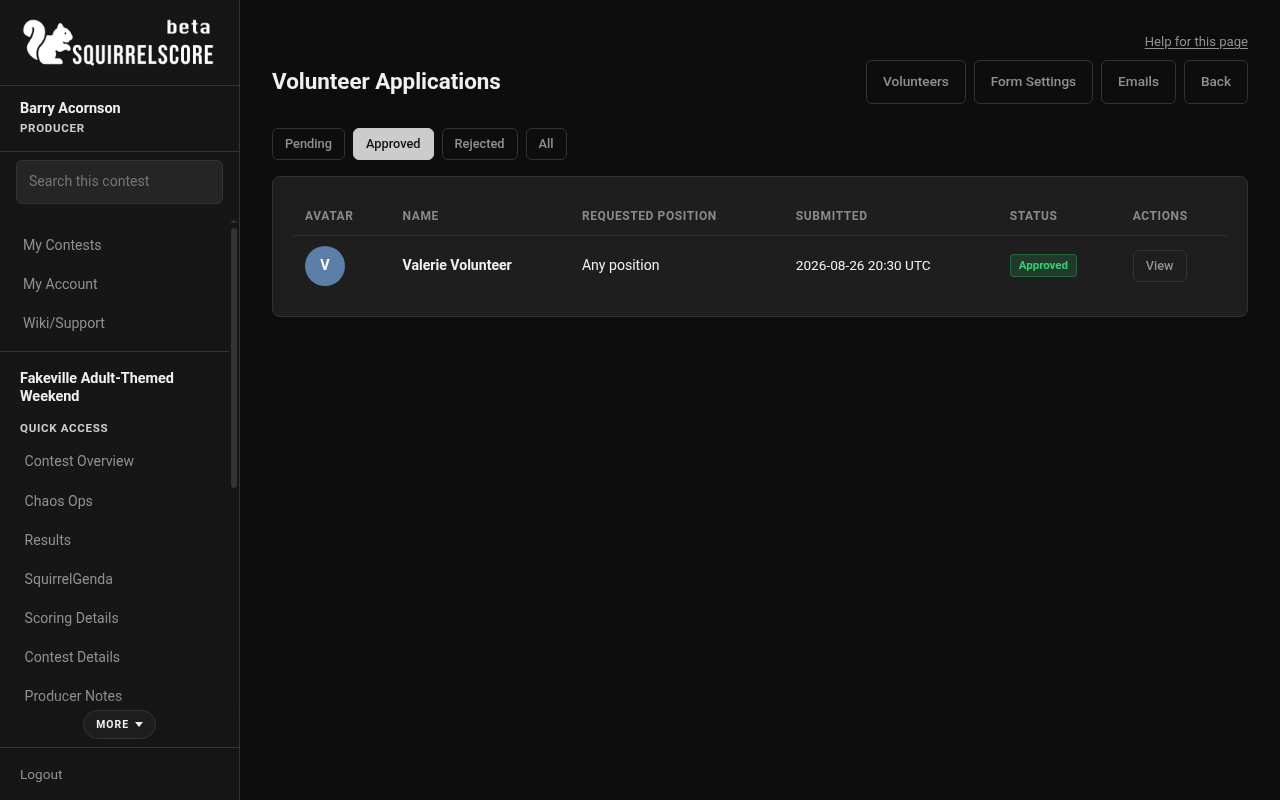
Desktop — Producer, volunteer applications (Approved)
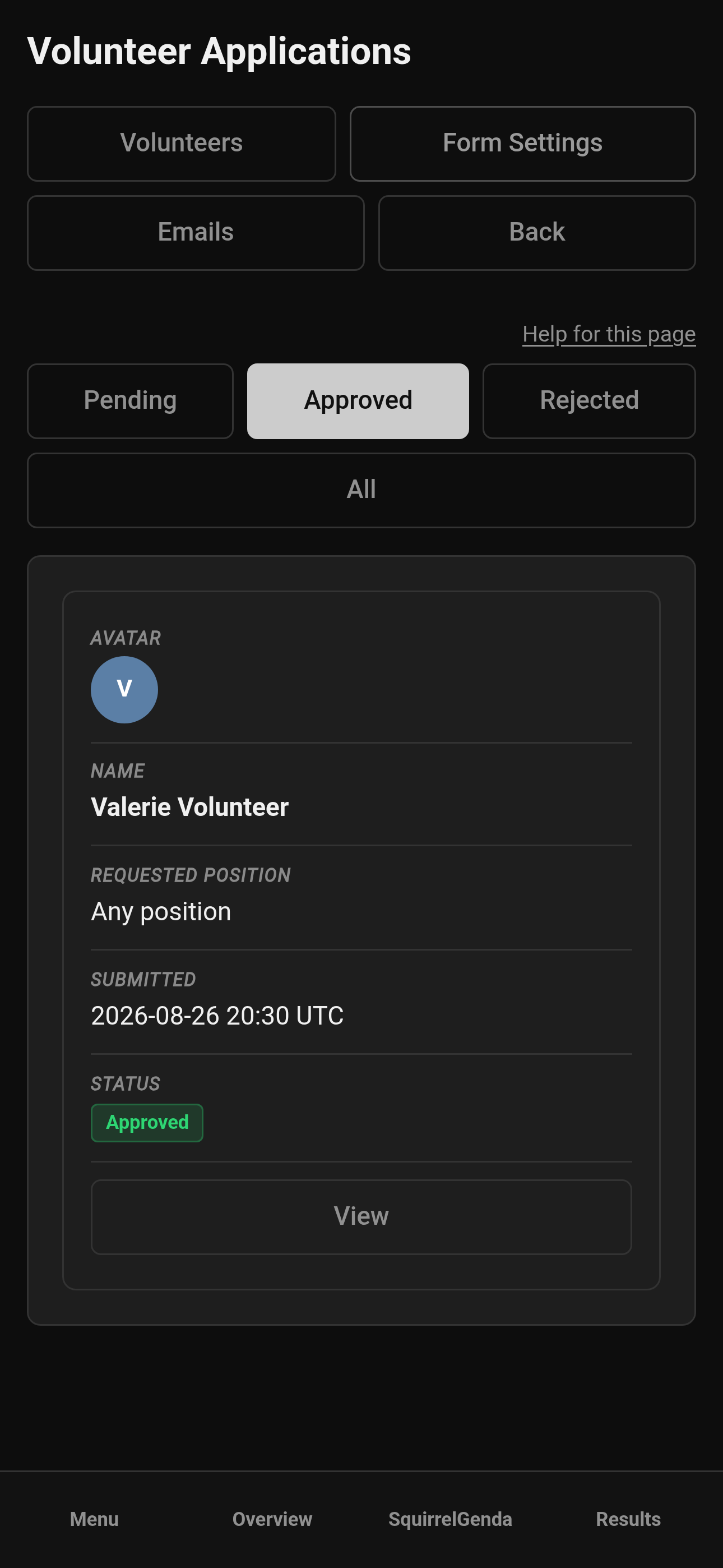
Mobile — Producer, volunteer applications (Approved)
¶ Assign volunteers to positions
-
Open Volunteers.
-
Find the person or use assign controls on the position.
-
Choose the position.
-
Save / assign.
-
Confirm they appear under that position's roster.
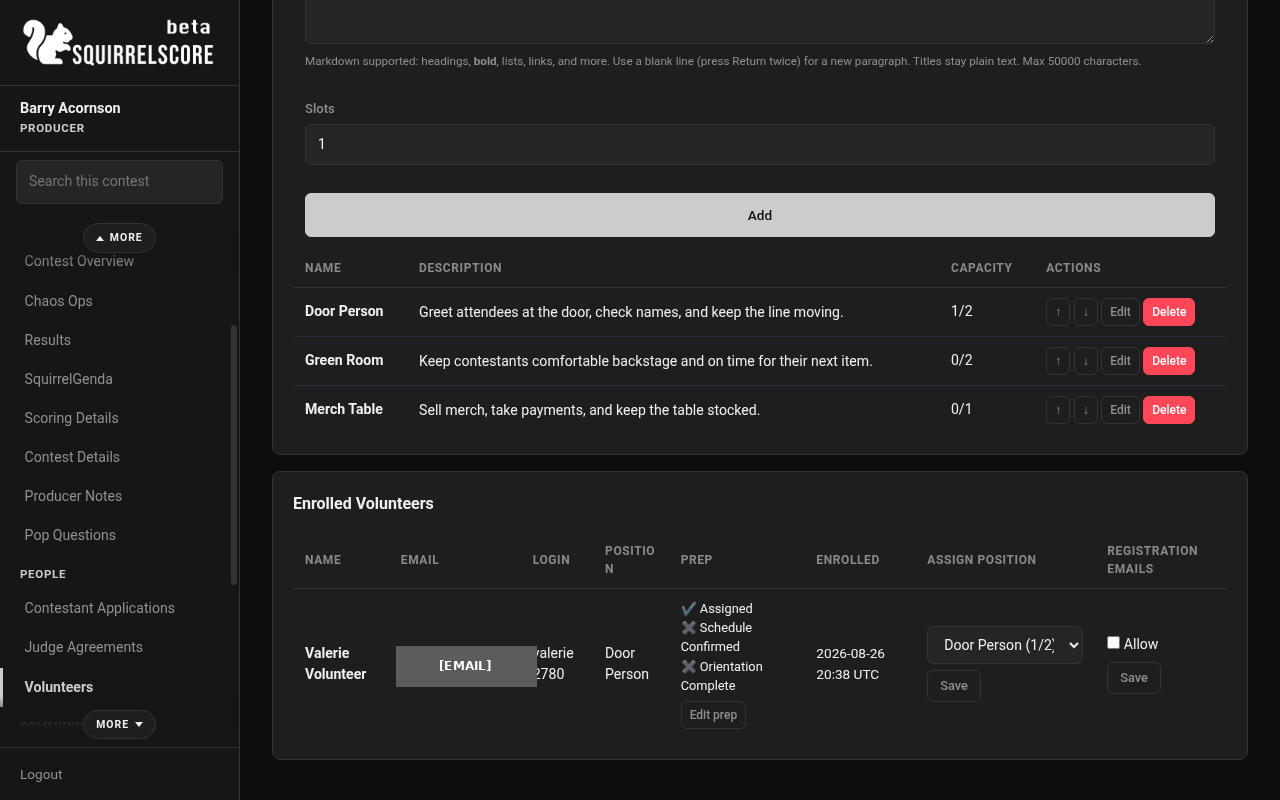
Desktop — Producer, enrolled volunteers (email redacted)
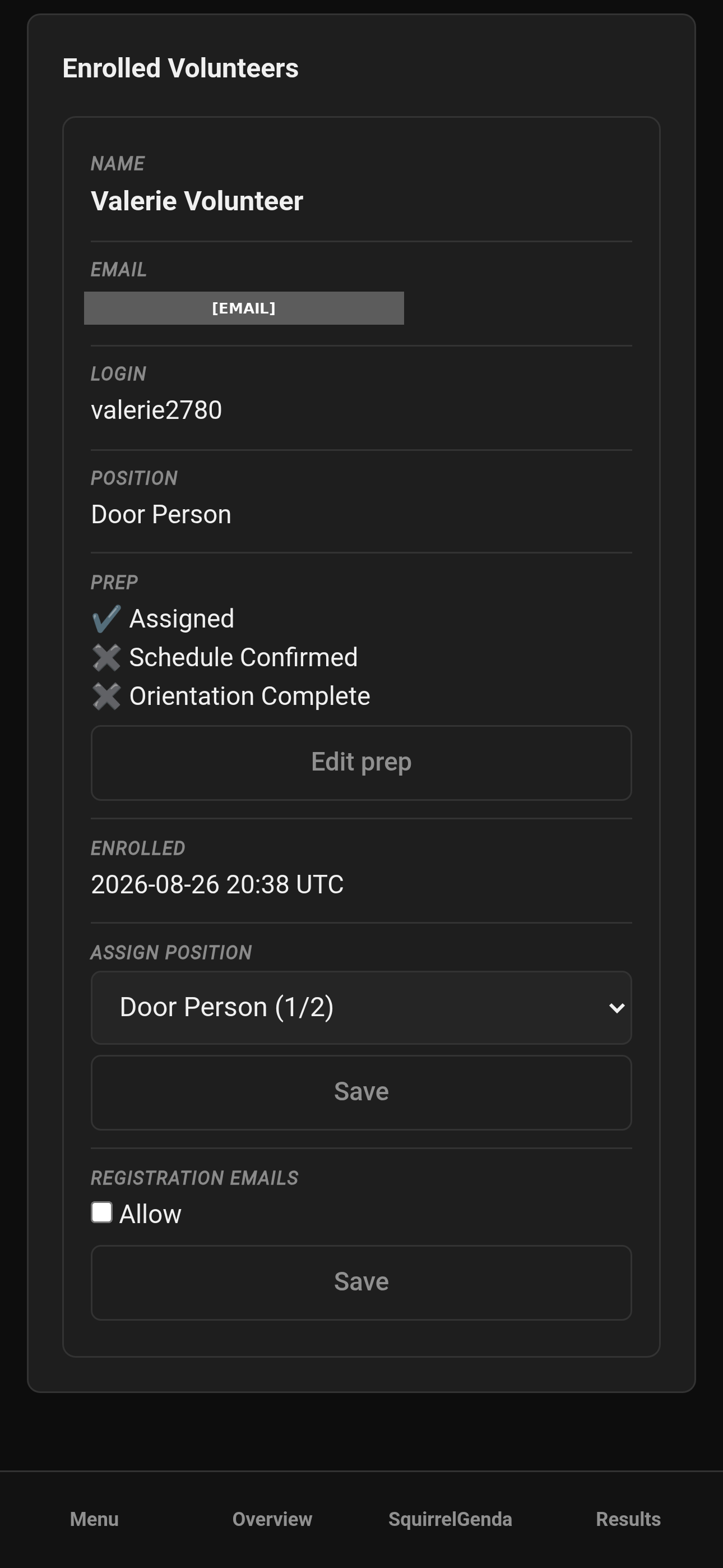
Mobile — Producer, enrolled volunteers (email redacted)
¶ Overfill confirmation
If a position is already full, SquirrelScore warns you (for example "already has 3/3 volunteers").
-
Read the overfill warning - it is not a random error.
-
If you truly want more people on that position, submit again to confirm overfilling.
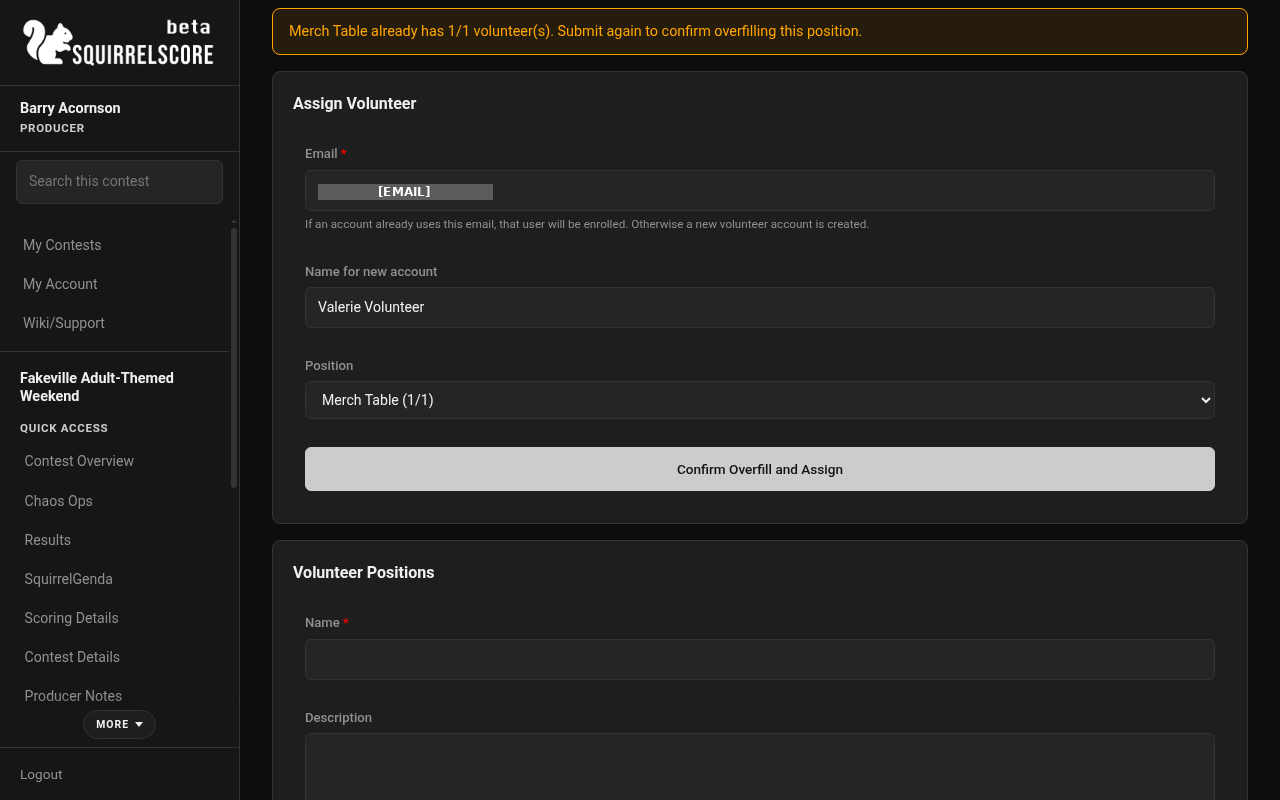
Desktop — Producer, volunteer overfill confirmation (email redacted)
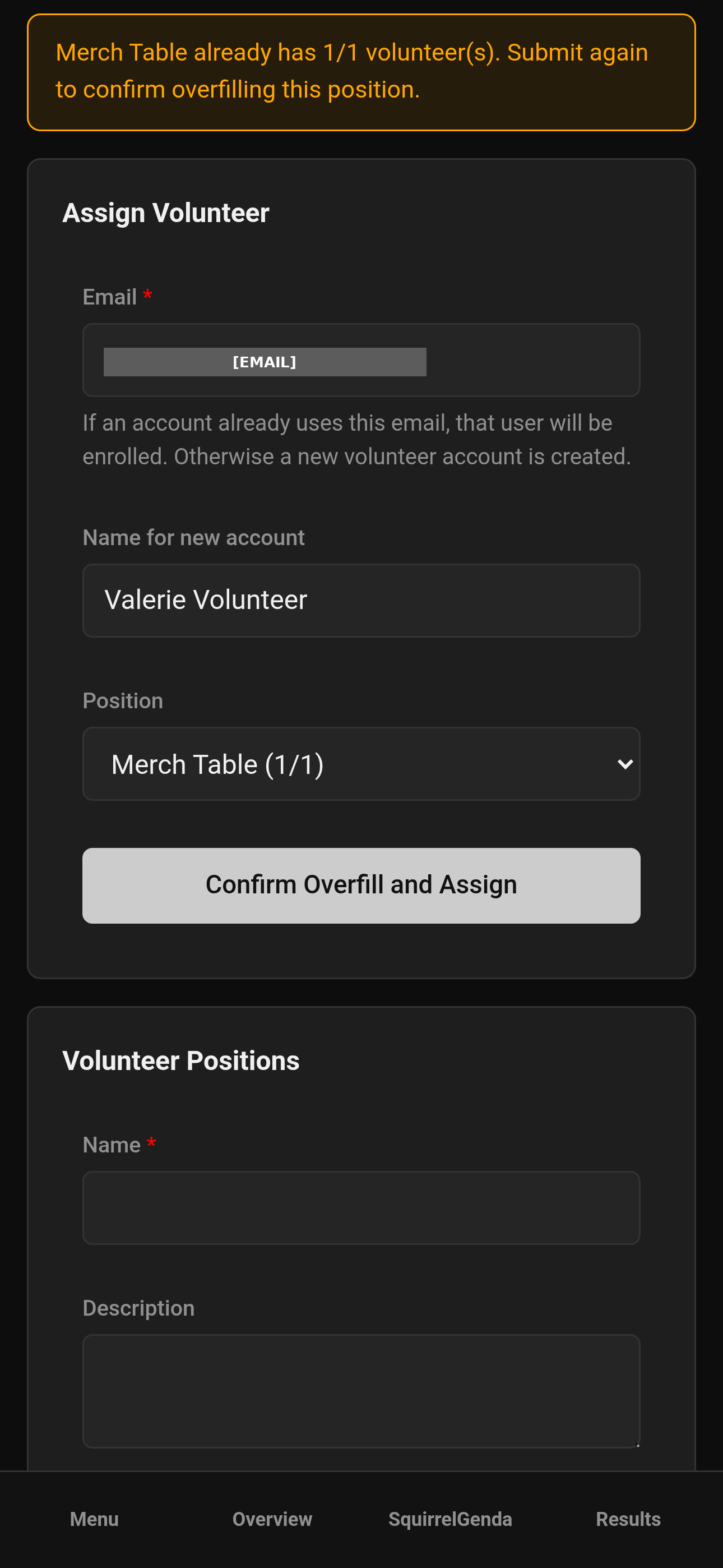
Mobile — Producer, volunteer overfill confirmation (email redacted)
- If you do not want overfill, pick a different position or free a slot first.
¶ Enroll a volunteer directly
From the Volunteers hub you can add someone by email without a public application:
-
Enter name / email as the form requests.
-
If an account already uses that email, that user will be enrolled; otherwise a new volunteer account is created.
-
Assign a position.
-
Prefer set-password links over password-in-chat.
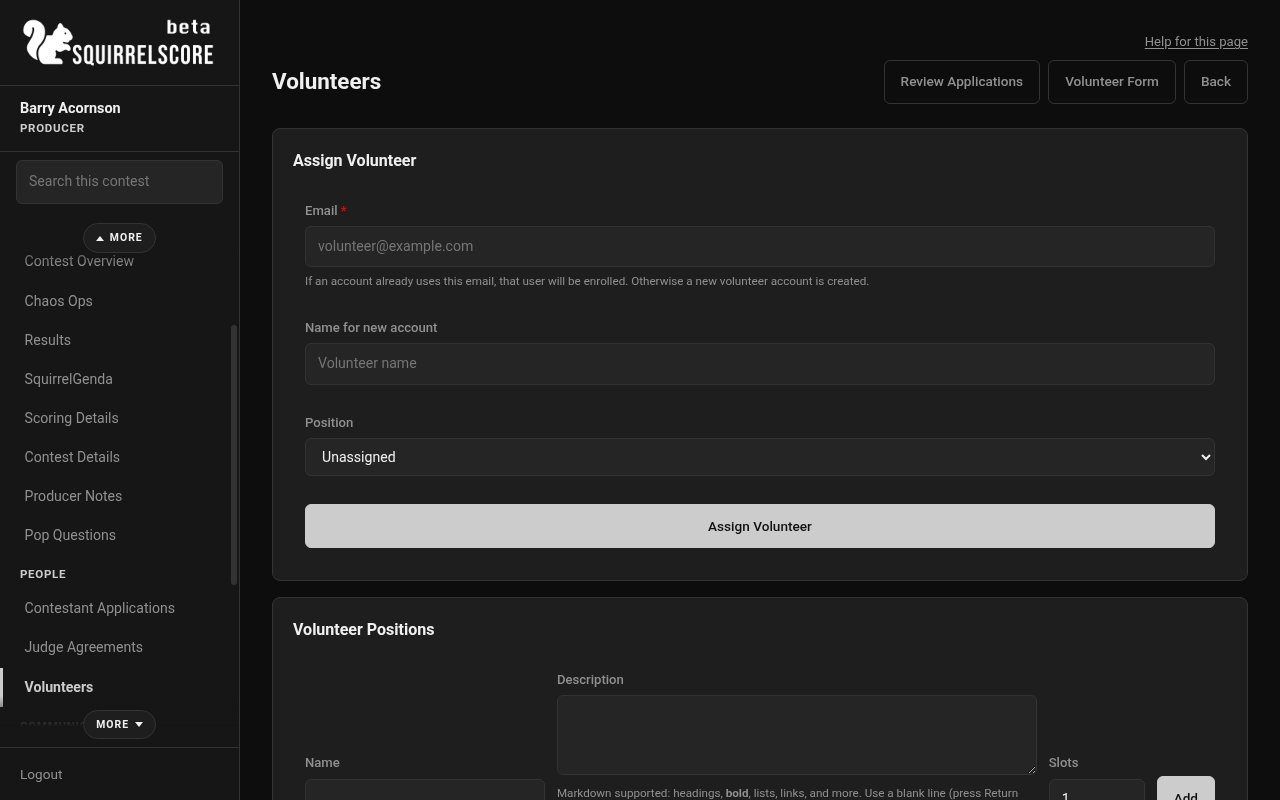
Desktop — Producer, Assign Volunteer
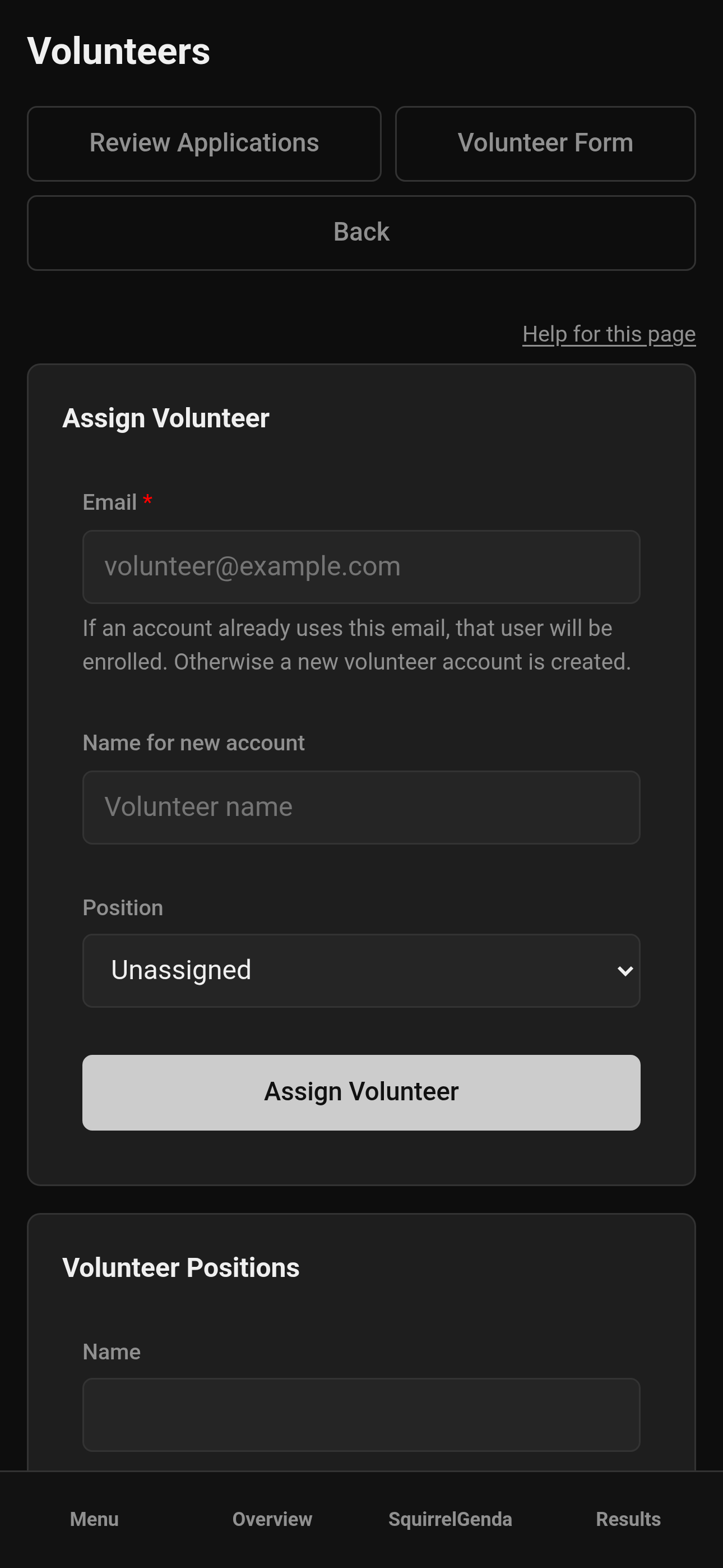
Mobile — Producer, Assign Volunteer
¶ Chaos Ops checklists
When Chaos Ops is enabled, edit a volunteer to mark prep items and click Save. Volunteers can open Go Do the Things themselves.
¶ Example workflow
-
Create positions that match your needs based on your event schedule.
-
Open applications.
-
Approve in batches by shift need, not "whoever submitted first."
-
Assign immediately after approve so nobody is roster-limbo.
-
Confirm overfill only when needed.
-
Point volunteers at Contest Details and Go Do the Things for more info.
¶ Example volunteer form questions
| Field Type | Title (Main Text) | Description (optional) | Options |
|---|---|---|---|
| Required for volunteer account setup. | |||
| text | Legal Name (First and Last) | ||
| text | Pronouns | ||
| phone | Phone Number | ||
| date | Date of Birth | ||
| text | Provide at least 1 social media URL | ||
| text | Telegram | We use Telegram as our main communication platform. Please provide your @ username. | |
| textarea | Are you traveling to Contest? If so, please provide details |
Can be arrival/departure times, accommodations, transportation, etc. | |
| multiple choice | Do you have any accommodation needs to help you volunteer at and/or access the contest events? | Accessibility is core to our mission, and we will try our best to make accommodations for those who need them to access this platform. We recognize that some of these accommodations may require ongoing discussion and preparation. | No, Yes |
| textarea | Accommodations/Accessibility: If yes, please provide details | ||
| textarea | What are your preferred days, times, and/or roles you would like to volunteer for? | Please understand we may not be able to accommodate every request. We will, of course, reach out to you to confirm before committing to volunteering. | |
| multiple choice | I have read, understand, and accept all terms available on the Contest website, including policies, releases, and the Code of Conduct. |
These include but are not limited to: the Terms & Conditions, Privacy Policy, Release of Liability, Photography & Media Release, Code of Conduct, and Diversity & Inclusion Policy | No, Yes |
| multiple choice | I understand I may be provided materials including but not limited to computers and computer access. I will do my best to ensure the security and safety of any materials. | No, Yes | |
| multiple choice | I agree to uphold the Contest ideals, and to maintain integrity, respect, and good sportsmanship while volunteering at the event. |
No, Yes | |
| multiple choice | In the event my role has access to confidential information, I agree to protect PII, confidential information, and system access, and use all data and systems responsibly and as authorized. | No, Yes |
¶ Tips
-
Name positions in a way that makes sense.
-
Overfill is allowed on purpose after confirm - useful for trainees or additional capacity.
-
Close the public form when shifts are full enough.
-
Many contests offer their volunteers a perk to encourage folks to volunteer, such as a discount on registration if they commit to volunteer for a certain number of hours.
-
Use your event schedule and make sure to account for different shifts on different days - and use different people. Remember, folks want to attend the contest, not burn themselves out working the entire weekend. Give them a break and potentially look at 4 hour shift blocks.
¶ Common Mistakes
-
Approving everyone and assigning no positions - sort who will do what job and when before contest weekend, so volunteers know where they are needed.
-
Ignoring overfill confirm and thinking the assign failed.
-
Creating duplicate accounts instead of enrolling the existing email match.
-
Forgetting Save on Chaos Ops checklists.
¶ Frequently Asked Questions
Is the public link the same as contestant apply?
No. Volunteer apply is its own form. See Public volunteer apply.
Can one person hold multiple positions?
Follow what your assign UI allows for your contest; if you need two roles, assign deliberately and label shifts outside the app if needed.
Where do volunteers see contest info?
They use their volunteer contest views and your published Contest details.