¶ Purpose
See placements, section totals, penalties, and optional producer tiebreak controls.
Results is where the math all comes together. It's one of the most important pieces of this software.
¶ Before You Begin
-
Have contestants enrolled and sections scored (at least partially).
-
Know your contest's Olympic / point-system normalizing / Automatic Tiebreak settings (Contest settings).
-
Agree with your tallymaster who handles live Results / adjustments - it's recommended this is one designated person AFTER things have been reviewed and there is consensus between the producers, tallymasters, and head judge.
-
Remember Minimum Overall % to Place: people below the floor show without a placement rank and are left out of Automatic Tiebreak, tie badges, and the remaining-tie card.
¶ Step-by-Step Instructions
-
Open the contest from My Contests.
-
Click Results in the sidebar (or from Manage / Overview links when offered).
-
Wait for the page to load standings for the contest (large contests can take a moment, sometimes there's alot of data and alot of maths going on).
-
Review placements and overall scores - look for tie badges / summary text when Automatic Tiebreak ran.
-
Expand or scan section totals, penalties, and adjustments as shown.
-
If contestants are still tied after Automatic Tiebreak (or if that setting is off), the producer enters tiebreak points on the remaining-tie card on this page. Those points order only the tied people and do not change Total. Use Score adjustments only when you actually need to change someone's overall score.
-
When available, use page actions to open:
-
PDF / CSV exports (Exports)
-
When all sections are locked and the contest is inactive, the owner or co-producer clicks Release Results on this page. A browser confirm (same OK/Cancel style as unsaved score navigation) lists contestants by name who will be emailed vs who have no email. That is what lets contestants open My Results or download their results and feedback PDF from a personal link in the email. Resend results email appears after release if you need to send again (a download token is created when one does not already exist).
-
Don't forget to refresh after late scores land so you're not awarding a title based on a stale tab.
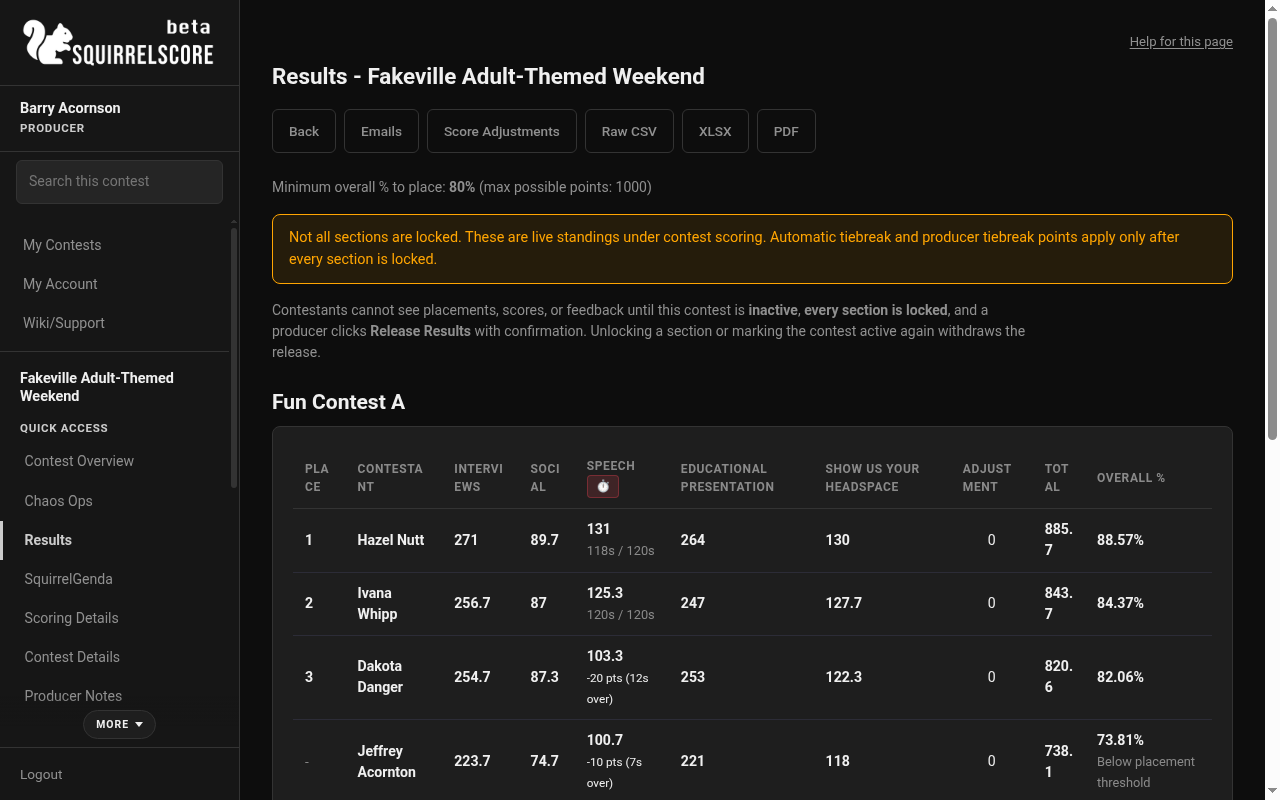
Desktop — Producer, Results, live standings
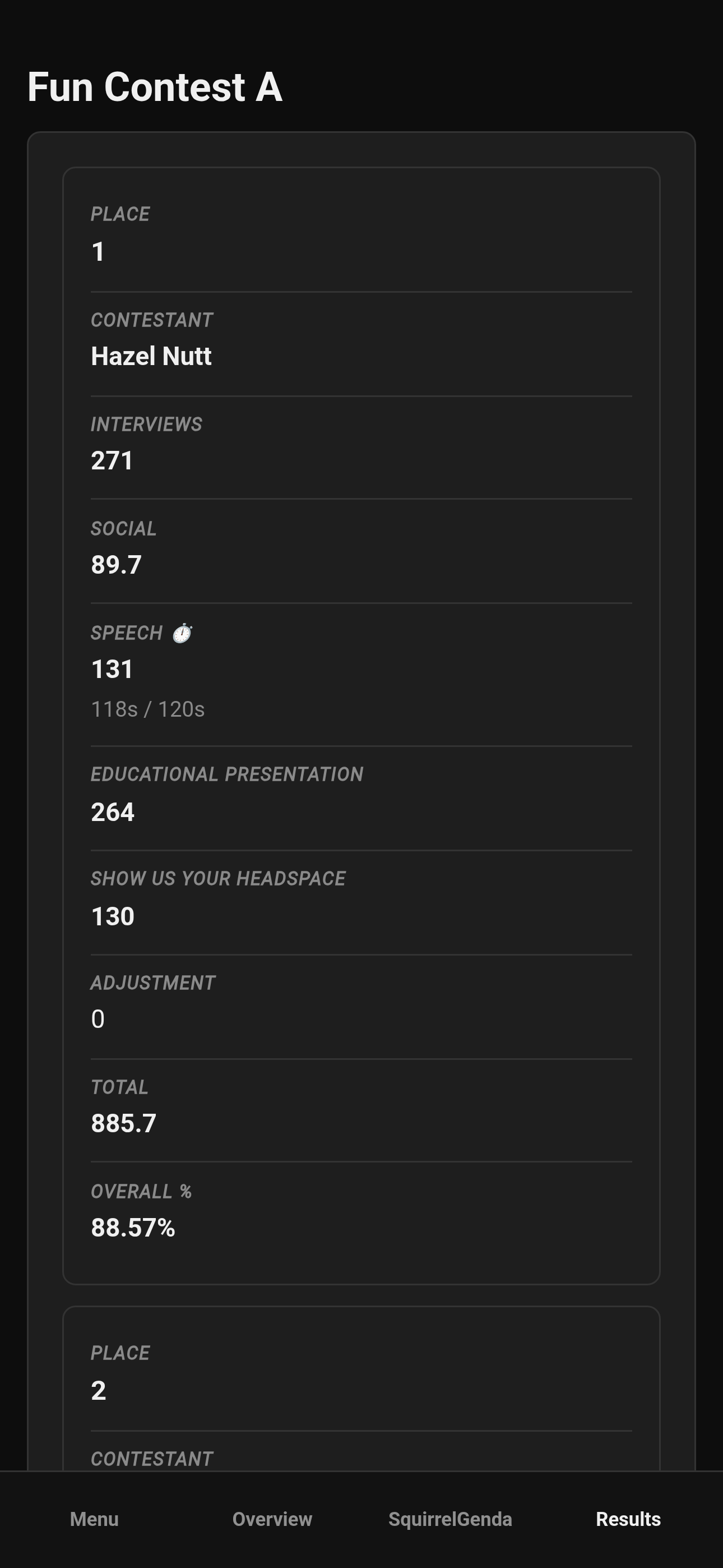
Mobile — Producer, Results (stacked)
¶ Reading the scoreboard
Typical things you'll notice:
-
Placement / rank- who's ahead (unless blocked by minimum % rules). Tied rows share a place when nothing has broken the tie yet. After a resolved tiebreak, places are sequential (tie for 1st becomes 1st and 2nd) with a “Tied for …” label plus the final place.
-
Overall totals- bold number is after automatic tiebreak when that peel ran; a small Original line is the contest-default total. Percent follows the same idea.
-
Olympic with fewer than 3 Judge-category scores for a contestant in a section totals 0 for that section (you'll see a warning on Results)
-
Section breakdowns- same bold / original pattern when automatic tiebreak changed a section net
-
Time penalties- when sections use them
-
Producer tiebreak points- ranking-only integer on remaining ties after lock; labeled on the row; does not change Total
-
Adjustments- integer tweaks to overall Total when enabled
-
Sub-contest grouping- when you use divisions or have multiple titles in the same contest
-
Lock banner- if any section is still open, Results says so and will not run automatic tiebreak or producer tiebreak points yet
-
Table or Bars- Table is the view until this browser stores a choice. Bars show the same places and totals. Open section goes to that section's scores. Judge comparison puts every counting judge on one line across contestants, in name order. A break in the line is an incomplete score. A point on the baseline is a real zero. Exact scores sit under the chart. A wide gap is a pattern to review. It is not a finding that someone was biased.
Alternate Judge scores are recorded in the system but not counted in final results.
¶ Alternate coverage policy
-
Alternate Judges should score every contestant on every section/subsection - they're a backup.
-
When step 4 of Automatic Tiebreak (below) pulls in Alternate Judge scores, any contestant/subsection an alternate didn't score simply contributes 0 for that alternate - it is not skipped, averaged around, or treated as missing data. Make sure your alternates enter scores for contestants consistently if you want that tiebreak step to be fair.
-
On the Raw CSV export, every Alternate Judge gets their own column labeled "not counted" so you can see exactly what they submitted without confusing it for a counted judge score - see Exports.
-
This 0-for-missing rule only affects the alternate tiebreak step; alternates never affect the normal contest-default total, Olympic, or point-system normalizing.
¶ Automatic tiebreak
Off by default. Turn on Enable Automatic Tiebreak in Contest settings if you want the scoreboard to break ties for you.
Automatic tiebreak and producer tiebreak points run only after every section is locked. Before that, Results is live contest scoring (plus any Score Adjustments). On a multi-week contest, pick a week (or Overall) at the top.
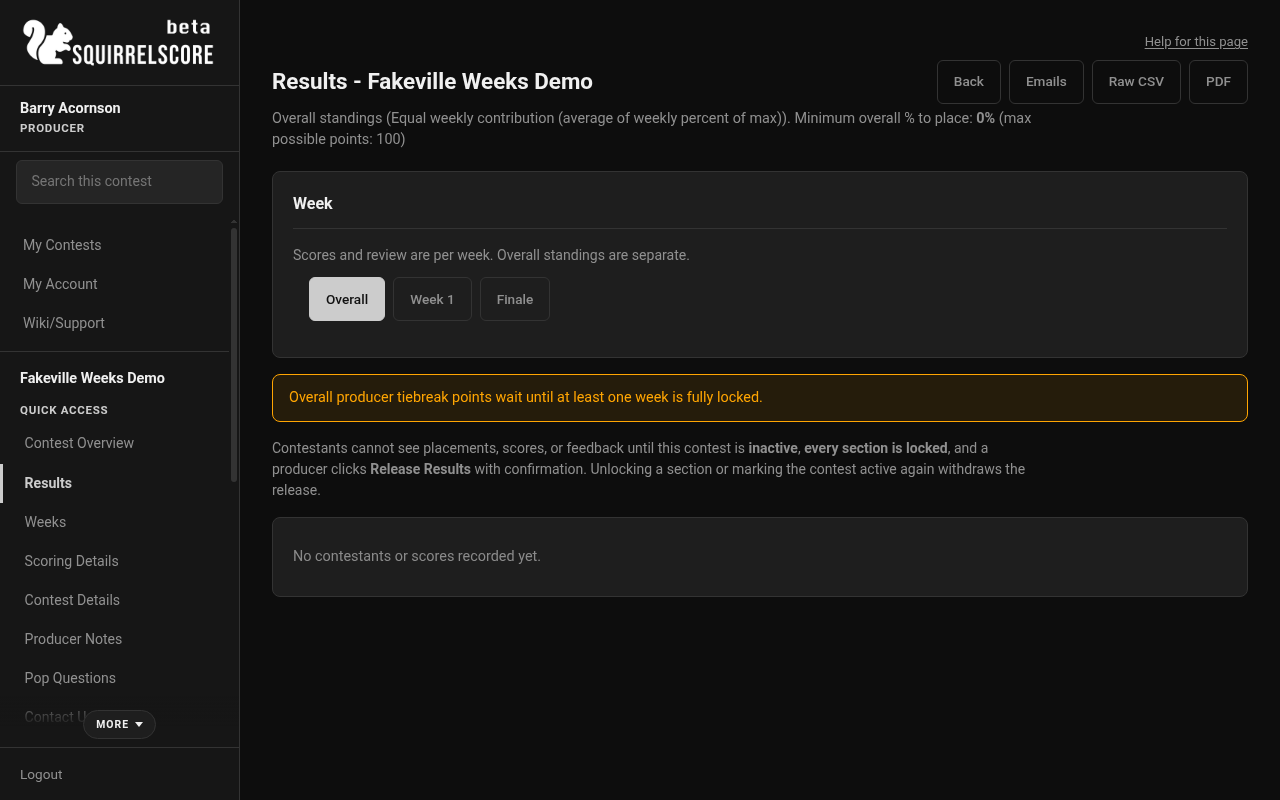
Desktop — Producer, Results week vs Overall
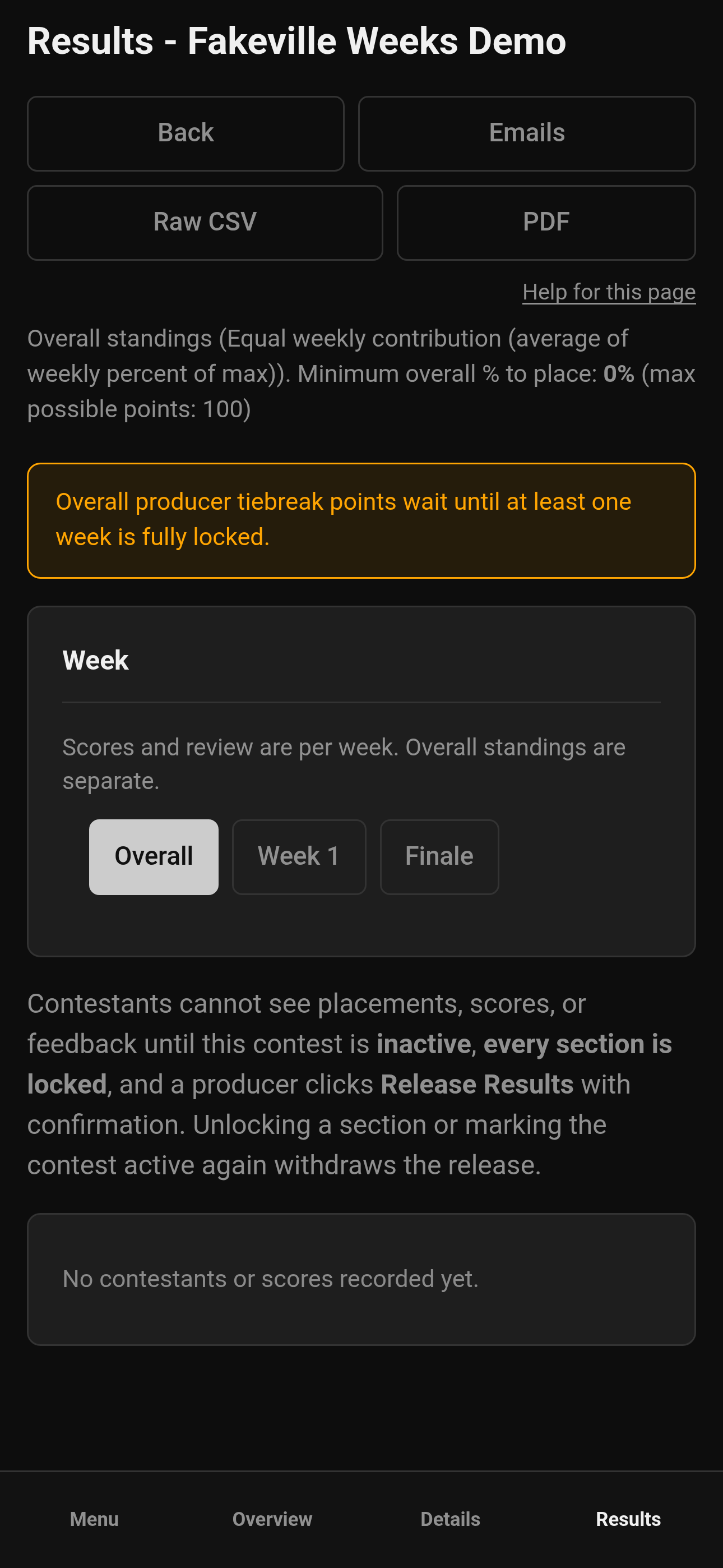
Mobile — Producer, Results week vs Overall
-
Weekly Results is that week's sheet after tally review. Automatic Tiebreak (when enabled) and producer points on this view apply to this week only. Week-scoped producer points do not change another week or overall.
-
Overall is the cumulative percent-of-max standings. Automatic Tiebreak does not run here. Remaining overall ties use contest-level producer points. Those points can be entered once at least one week is fully locked. Release Results still waits until every week is locked.
XLSX and per-contestant PDFs are weekly, not overall. See Weeks.
When Automatic Tiebreak is on, sections are locked, and two or more contestants who are at or above Minimum Overall % to Place share the same contest-default total:
-
Only those tied contestants are re-ranked (everyone else keeps normal scores).
-
If Olympic is on for the contest, those tied people are compared without Olympic first.
-
If they are still tied and point-system normalizing is on, those same people are compared without normalizing.
-
If they are still tied, those same people are compared once more using Judge + Alternate Judge scores together (no Olympic, no point-system normalizing) - the only scenario where Alternate Judge scores can affect a placement.
-
Places stay in that tied slot (for example, a three-way tie for 2nd can become 2nd / 3rd / 4th).
-
Results, PDFs, Overview, Emcee Reveal, and contestant My Results show what was applied, the final place, and the original contest-default numbers underneath the bold post-tiebreak scores.
-
If they are still tied, the producer enters tiebreak points on Results for only those remaining tied contestants. Higher points rank better. Points do not change Total. Equal points stay tied (shared place, name order).
Contestants below Minimum Overall % to Place never enter Automatic Tiebreak, do not get Tied / tiebreak badges, and do not appear on the remaining-tie card — even if they share a total with someone else. They stay unranked under contest-default scores.
If Automatic Tiebreak is off, eligible ties stay tied under contest scoring until the producer enters tiebreak points (after lock) or uses Score Adjustments to change a total.
¶ Producer tiebreak points
After lock, a card on Results lists each remaining-tie group. Enter an integer per contestant and save. Only the producer can edit. Tallymasters see the resulting places and the “Tiebreak +N” note.
On a multi-week contest, week Results stores those points for that week. Overall Results stores contest-level points among remaining overall ties. The two do not mix.
This is not Score adjustments. Adjustments change overall Total for everyone they apply to. Tiebreak points only order people who made the minimum % and are still tied after the automatic math (or, on overall standings, after the overall percent is calculated).
¶ Tiebreak identifiers
If a contest previously had per-contestant Olympic / point-system normalizing overrides stored, those still show as badges on Results (for example “Olympic scoring removed (manual tiebreak)”). The cramped inline apply form on Results is no longer shown; automatic cascade plus producer tiebreak points are the supported remaining-tie tools. Contest-level Enable Olympic Scoring / Enable point-system normalizing on Contest settings still change scoring for everyone.
¶ Jump to other Results tools
From Results (when the actions are available):
-
Emcee Reveal- nice and easy placement reveal by sub-contest, made for use onstage. Think of it as your digital results envelope.
-
PDF / CSV / XLSX- results packets, raw CSV, and a formula workbook of judge data
-
Score adjustments- integer overall tweaks for published penalties or bonus points (if enabled in settings). Not the remaining-tie order tool.
¶ Sanity check before announcing results
-
Confirm judges have submitted and all sections are locked.
-
Check for ties, and apply tiebreakers as necessary.
-
Check penalties and adjustments if needed.
-
Note anyone under Minimum Overall % to Place.
-
Review results, and go into details, with all producers, tallymasters, and the head judge, and make sure everyone agrees on the scores and placement.
-
Export a PDF archive when everyone from step 5 is in agreement and approves.
-
Mark the contest inactive, confirm every section is still locked, then click Release Results. Confirm the named lists in the browser popup (who gets email vs who has no email). Contestants can log in to view scores or use the personal PDF link in the email. Use Resend if someone missed the mail.
-
Only then run Emcee Reveal and announce results.
¶ Tips
-
Tiebreak is a producer power - use it with a tallymaster buddy system. Make sure all producers, tallymasters, and the head judge are involved in the decision, because transparency and consensus are your best friend here.
-
Don't project Results while still editing adjustments unless extra drama is the goal.
-
If placements look "wrong," verify Olympic / point-system normalizing, alternates, penalties, adjustments, and min % before anything. Based on what you enabled and configured, it is what it is.
-
Export a PDF when the results are final to archive.
¶ Common Mistakes
-
Announcing winners from a stale browser tab.
-
Having results or placement tab open, or discussing things loudly, in front of audience members who probably shouldn't hear these conversations.
-
Disabling Olympic globally in contest settings when you only meant to order a remaining tie with producer tiebreak points.
-
Forgetting Minimum Overall % to Place and arguing about ranks that didn't make the minimum score to qualify.
-
Confusing Overview standings toggles on the Contest Overview with the full Results page.
¶ Frequently Asked Questions
Can tallymasters see Results too?
Yes - they have Results tools on their side. Still decide who changes tiebreaks, and make sure tallymasters, producers, and the head judge are aware and in agreement on how to proceed. Probably don't show judges any scores, except for the head judge after all scores are collected and you're working with the tallymasters, producers, and head judge for consensus on the results.
Why is someone unranked?
They may be under Minimum Overall % to Place, or scoring may be incomplete depending on what the page shows.
Where do I change Olympic for the whole contest?
Contest settings. Remaining ties after lock use producer tiebreak points on Results, not a contest-wide Olympic flip.
When do PDFs appear?
Score PDFs and CSVs appear on Results when your contest state allows them - see Exports. The judge Profile PDF is on Manage (Judges card), not Results.