¶ Purpose
Create a brand-new contest so you have a home for applications, people, scoring, and results. You can refine almost everything later - you do not need a perfect plan on the first pass.
¶ Before You Begin
-
Log in as a producer.
-
Open My Contests and confirm you see New Contest.
-
Decide a clear contest name that'll differentiate it from others.
-
Optional: have a square-ish logo image ready (PNG, JPEG, GIF, or WebP).
-
Optional: know whether you want Olympic scoring, point-system normalizing, producer score adjustments, automatic tiebreak, and a minimum overall % to place. Carefully read through Designing your contest structure & scoring at least once, and refer back to it as needed.
Note
Pacing dates and Enable Chaos Ops appear when you edit an existing contest, not on the brand-new create form. Create first, then edit if you need those.
¶ Step-by-Step Instructions
-
In the sidebar, click My Contests (the shared contest list).
-
Click New Contest (usually top right - only if you can produce).
-
Enter the Contest Name (required). This shows up in titles, emails, and exports - make it human-friendly.
-
Optionally fill in Description. A short blurb is enough, like dates and location; long novels belong in Contest Details later.
-
Optionally upload a Contest Logo:
-
Choose an image file.
-
Use the cropper controls (Zoom, Horizontal, Vertical) if they appear.
-
Click Preview Crop when you're happy.
-
Leave the file blank if you don't want a logo yet.
-
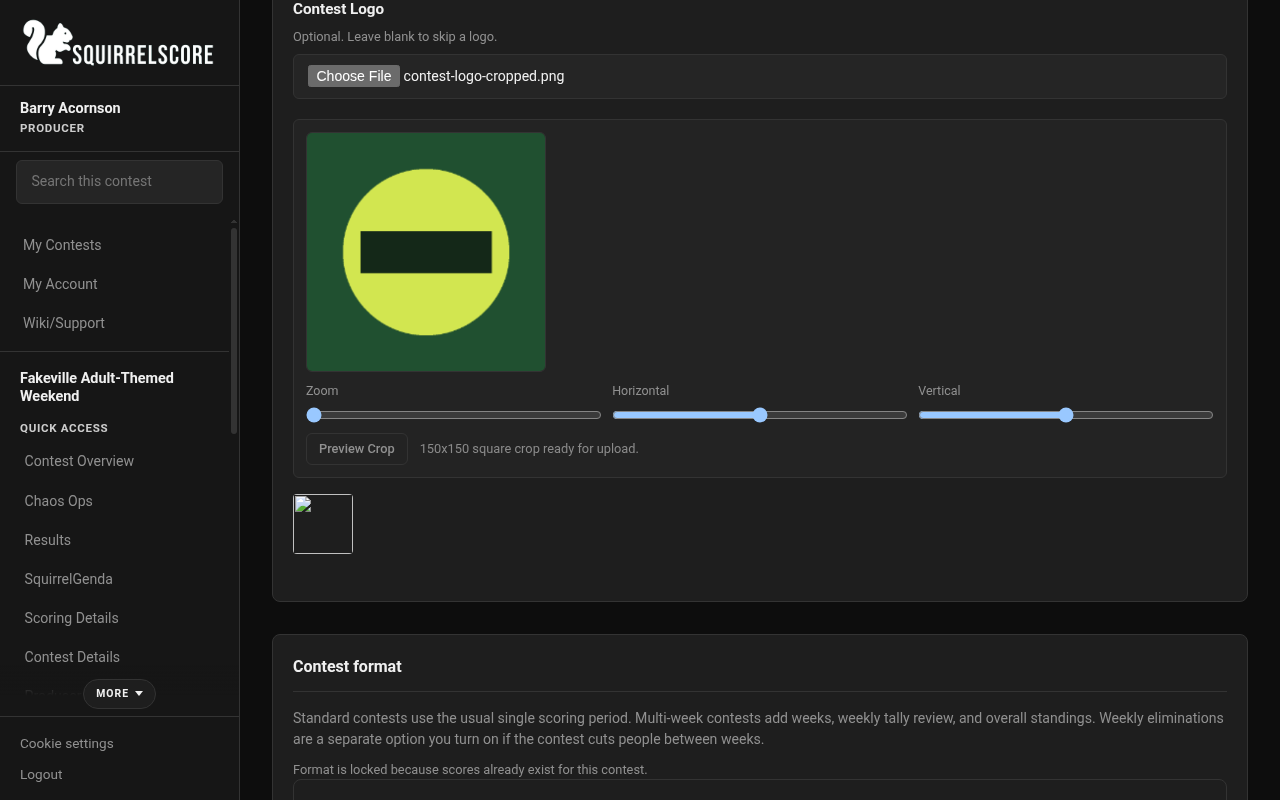
Desktop — Producer, contest logo cropper
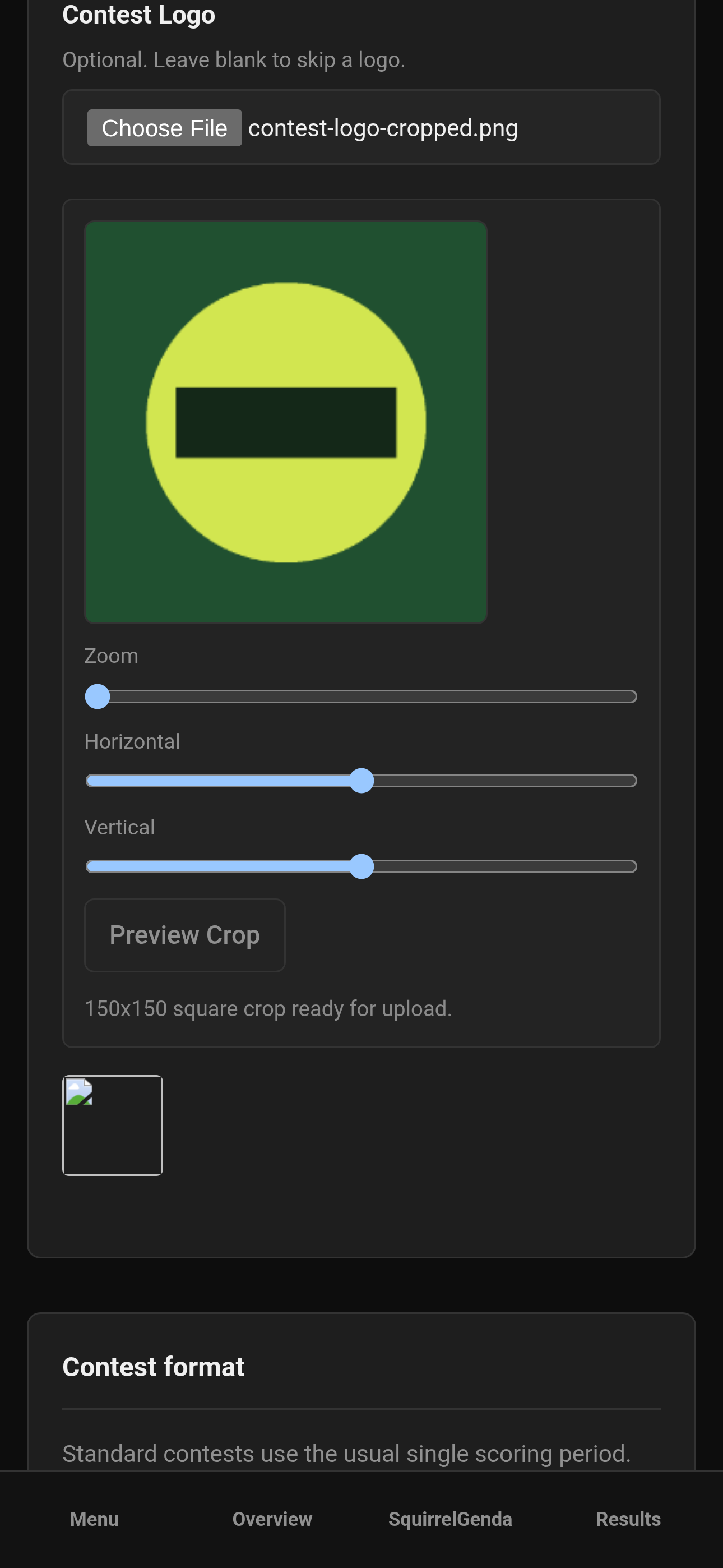
Mobile — Producer, contest logo cropper
- Review the scoring and behavior checkboxes (details in the next section):
-
Enable Olympic Scoring
-
Enable point-system normalizing
-
Contest Active (on by default for new contests)
-
Enable Producer Score Adjustment
-
Enable Automatic Tiebreak
-
Results Exports Show Judge Name (instead of Judge #)
-
Set Contest format to Standard contest unless this event really spans multiple weeks. See Weeks when the contest actually runs across weeks.
-
Leave Enable weekly eliminations off unless this multi-week contest cuts people between weeks. If you turn it on, each week still chooses whether that week has a cut. It has no effect on a standard contest.
-
Set Minimum Overall % to Place if you want a floor (for example
80). Use0if everyone who finishes can place. -
Click Create Contest.
-
Contest setup opens. Up next is the thing that actually blocks you, such as score sheets, weeks, contestants, or judges. Finished work, optional extras, and steps that do not apply yet are folded up. The same page stays on Manage as Contest setup. It does not store a step. Leave it whenever you want and come back later.
-
If you change your mind before saving, click Cancel to return without creating.
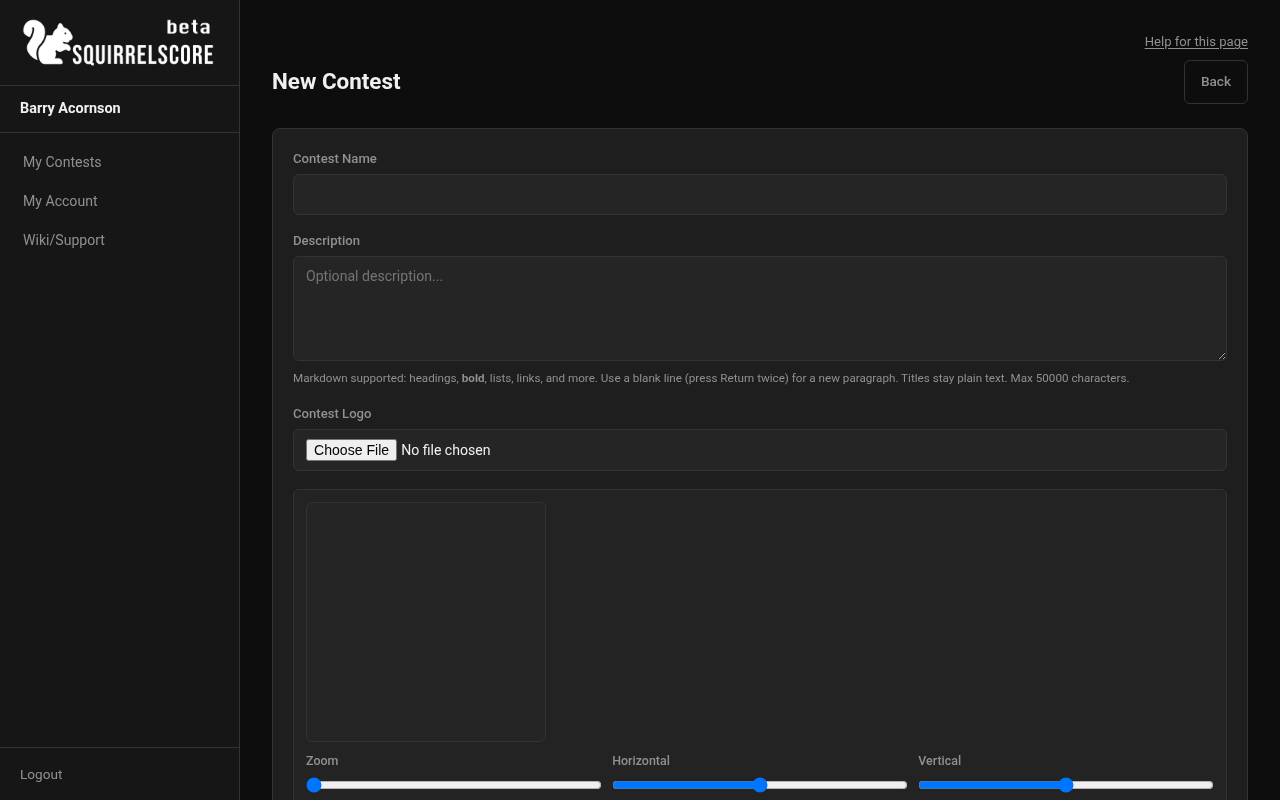
Desktop — Producer, New Contest form
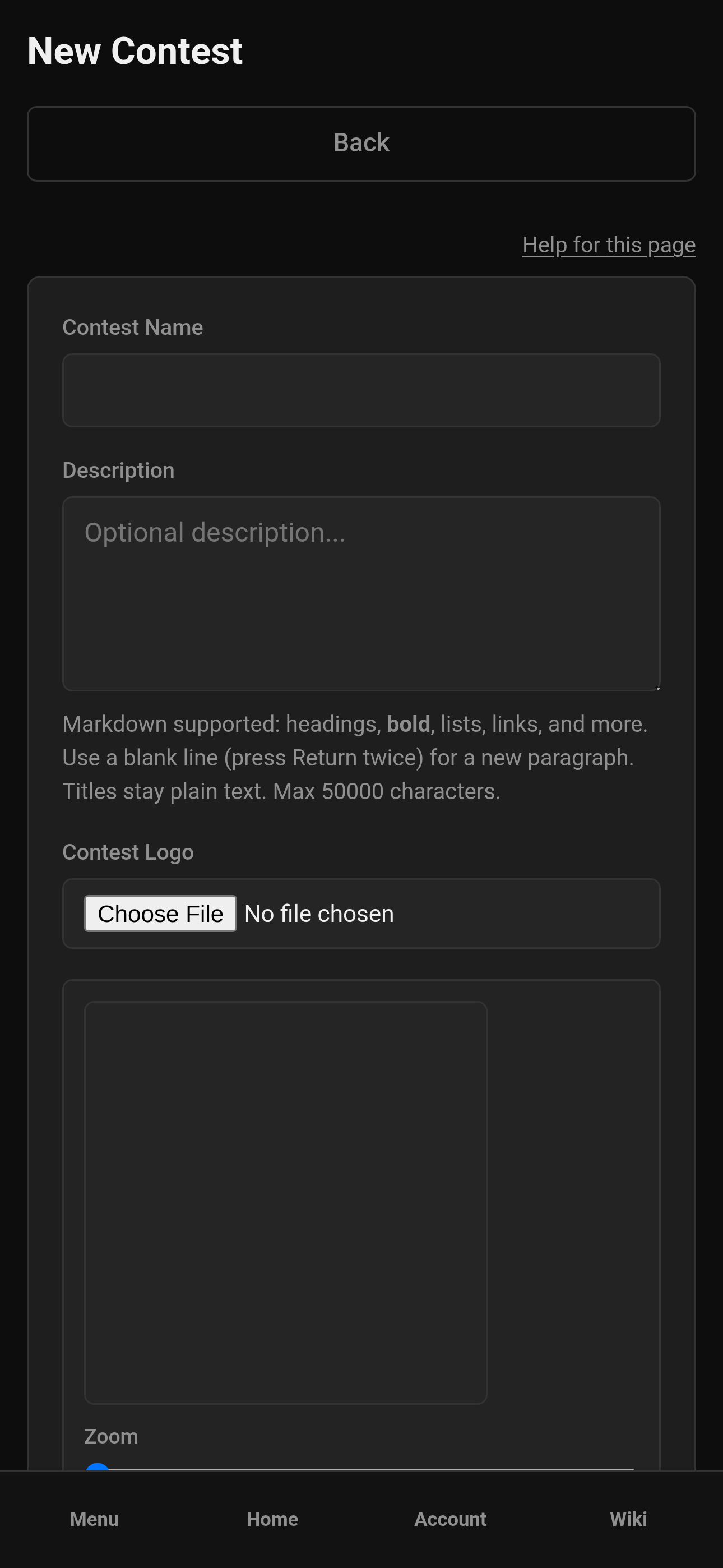
Mobile — Producer, New Contest form
¶ What each option means
¶ Enable Olympic Scoring
When on, for each section the lowest and highest Judge-category totals are shown but excluded from the result. You need at least three Judge-category scores for a contestant in that section; with fewer than three, that section totals 0. Many contests still prefer five or more regular judges so dropping the high and low leaves a meaningful panel. Handy when accounting for any outliers when scoring.
¶ Enable point-system normalizing
When on, judge scores are combined, then normalized to the contest's point system so a section's total matches the section's max points (not max × number of judges). If Olympic Scoring is also on, normalizing happens after Olympic scoring. (This checkbox used to be labeled Averaging — same math, clearer name.)
¶ Contest Active
When Active, assigned judges and tallymasters can select and work this contest from My Contests.
When inactive, judges, tallymasters, and volunteers still see the contest under Inactive Contests, but those cards have no actions (they can't open it to score). Contestants stay in that inactive list until results are released, then the contest returns to their main list with My Results. Producers keep inactive contests in the main My Contests list so you can still open Overview, Manage, and Results. Site-wide login may still work if they have another eligible membership or producer access. Scoring on an inactive contest is locked. Use inactive for drafts or closed archives, not for a short pause during the contest.
¶ Enable Producer Score Adjustment
Allows a producer or tallymaster to enter a whole-number (integer) adjustment per contestant that is added directly to their overall total. Leave off unless you know you'll need it. Remaining ties after automatic math use producer tiebreak points on Results, not this setting.
¶ Enable Automatic Tiebreak
When on, if contestants at or above Minimum Overall % to Place tie under contest-default scoring and every section is locked, only those tied contestants are re-ranked in place (without Olympic first, then without point-system normalizing if still tied, then Judge + Alternate Judge scores). Remaining ties: producer tiebreak points on Results. People below the floor stay unranked. Off by default. Details: Results & tiebreakers and Designing your contest.
¶ Results Exports Show Judge Name
When on, exports show judge names. When off, exports prefer judge numbers where available. Choose based on how public your score packets should feel.
¶ Enable weekly eliminations
Off by default. Only used when Contest format is Multi-week contest. Leave it off if every contestant should stay eligible each week. Turn it on only if you need producer-confirmed cuts after tally review. Each week then has its own Eliminate contestants after this week checkbox. Tallymasters still do not eliminate anyone.
¶ Minimum Overall % to Place
Contestants below this percentage of max possible points are shown without a placement rank and are left out of Automatic Tiebreak, tie badges, and producer remaining-tie points. Set thoughtfully; 0 means no percentage gate.
¶ What happens after you create
After create succeeds:
-
The contest appears on My Contests.
-
Open it and visit Manage to add sections, people, and forms.
-
Open Edit / settings when you need pacing dates or Chaos Ops.
-
Optionally clone an old contest next year instead of rebuilding from scratch - but for your first one, create is perfect.
¶ Right after create - tiny checklist
-
Open the new contest from My Contests.
-
Visit Manage and confirm you see people/sections.
-
Edit settings to add pacing dates if you know them.
-
Decide whether Chaos Ops belongs in your life this year.
-
Build at least one scoring section before inviting judges.
¶ Tips
-
Create now; polish later.
-
Keep the name unique across years ("Title 2026") so exports and emails don't confuse folks.
-
Turn Contest Active off only when you intentionally want judges/tallymasters locked out.
-
Logo crop is optional. A missing logo is fine, too.
-
If you're unsure about Olympic vs point-system normalizing, talk to other producers. Make sure you clearly outline in your contest rules what you end up using before the contest.
-
Write the description for humans ("Regional title weekend in June"- good), not for a database ("contest_v3_final_FINAL"- not so good).
¶ Common Mistakes
-
Leaving the name as "Test" forever and emailing applicants from "Test."
-
Turning Contest Active off while judges still need to score.
-
Enabling score adjustments "just in case" without agreeing on a plan for how to use them.
-
Expecting Chaos Ops on the create screen - enable it from edit settings after create.
-
Uploading a huge or panorama logo and wondering why the crop looks weird - use a nearer-to-square image.
¶ Frequently Asked Questions
Can I change these options later?
Yes. See Contest settings.
Can I copy last year's contest instead?
Yes - Clone & delete. Cloning is great for structure; still update dates and people.
Do I need a logo to create?
No. Skip it and add one later.
The logo failed and I thought the contest was gone.
The contest should still save. You'll see a note that the logo did not. Open the contest, go to Edit, and add the logo there.
Will creating a contest email anyone?
No. Emails go out when you invite, approve, or otherwise trigger those flows.
Who can create contests?
People with producer-level access (and owners/co-producers). If you don't see New Contest on My Contests, use Request Producer-Level Access on the login page.