¶ Purpose
Enroll and edit contestants for your contest: names, logins, emails, contestant numbers, sub-contest grouping, photos, and (when Chaos Ops is on) preparation checklists.
Most contestants arrive through applications. This page is for direct enrollment and day-of fixes when you need to do things like a number change five minutes before things start.
¶ Before You Begin
-
Have the contest open in Manage.
-
Create sub-contests first if you plan to assign divisions.
-
Prefer approving applications when the person applied publicly - keeps answers attached.
-
Have a photo file ready if you want headshots in the system (optional).
¶ Step-by-Step: add a contestant
-
Open Manage for the contest.
-
Find the contestants area and choose New / Add contestant.
-
Enter Name.
-
Optionally enter Login / Username- leave blank to auto-generate (firstname + 4 digits style).
-
Enter Email (required for new people). We'll email a set-password link (or you can issue one from their edit page). You don't pick a password for them.
-
If the email already matches accounts, read the warning:
-
Use existing to enroll that account, or
-
Create new account anyway when you truly need a separate login.
-
Set Contestant Number if you use numbers.
-
Choose a Sub-Contest or leave - None -.
-
Optionally upload and crop a Profile Picture. Extra photos, bios, or clips go on Contest media when that is on — send that contestant their upload link from that page.
-
Click Create.
-
If mail didn't go out, open the person and use Issue set-password link. Each new link replaces any earlier unused one and lasts 24 hours — tell them to open the newest email.
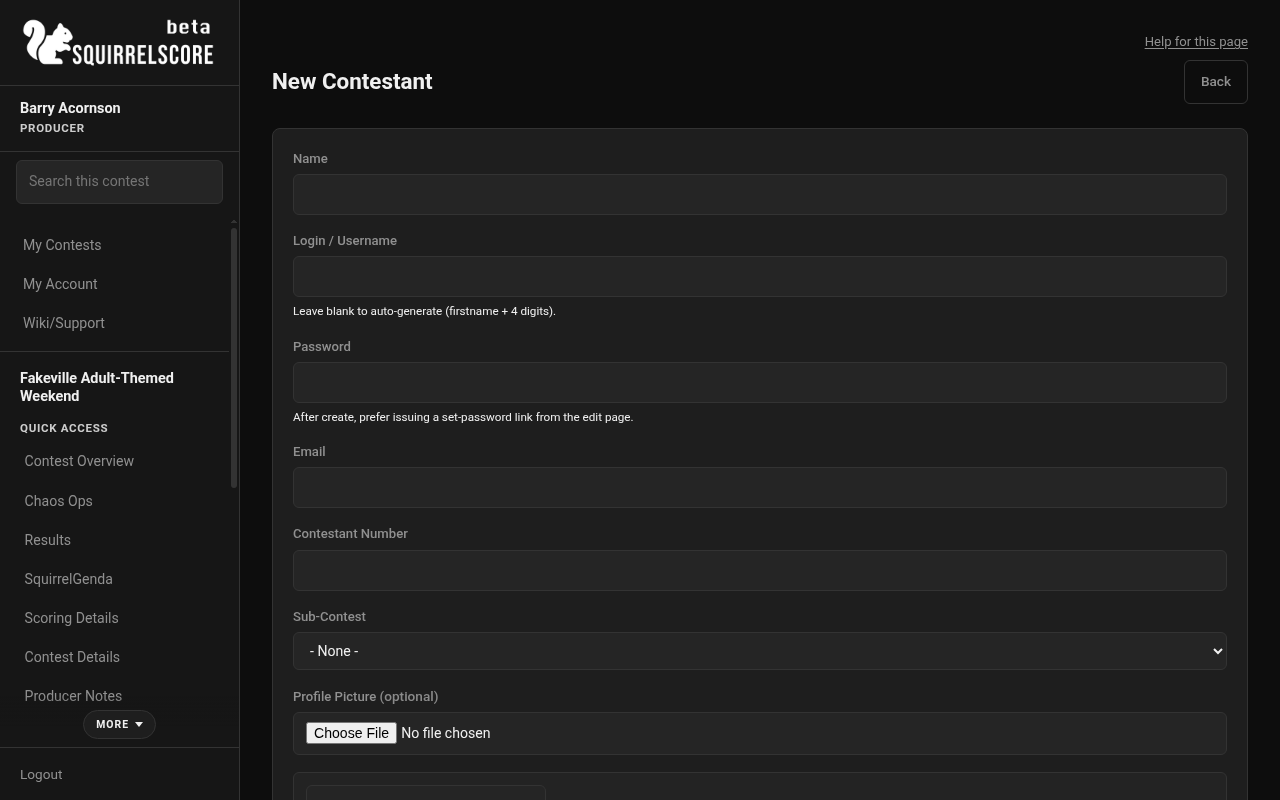
Desktop — Producer, New Contestant
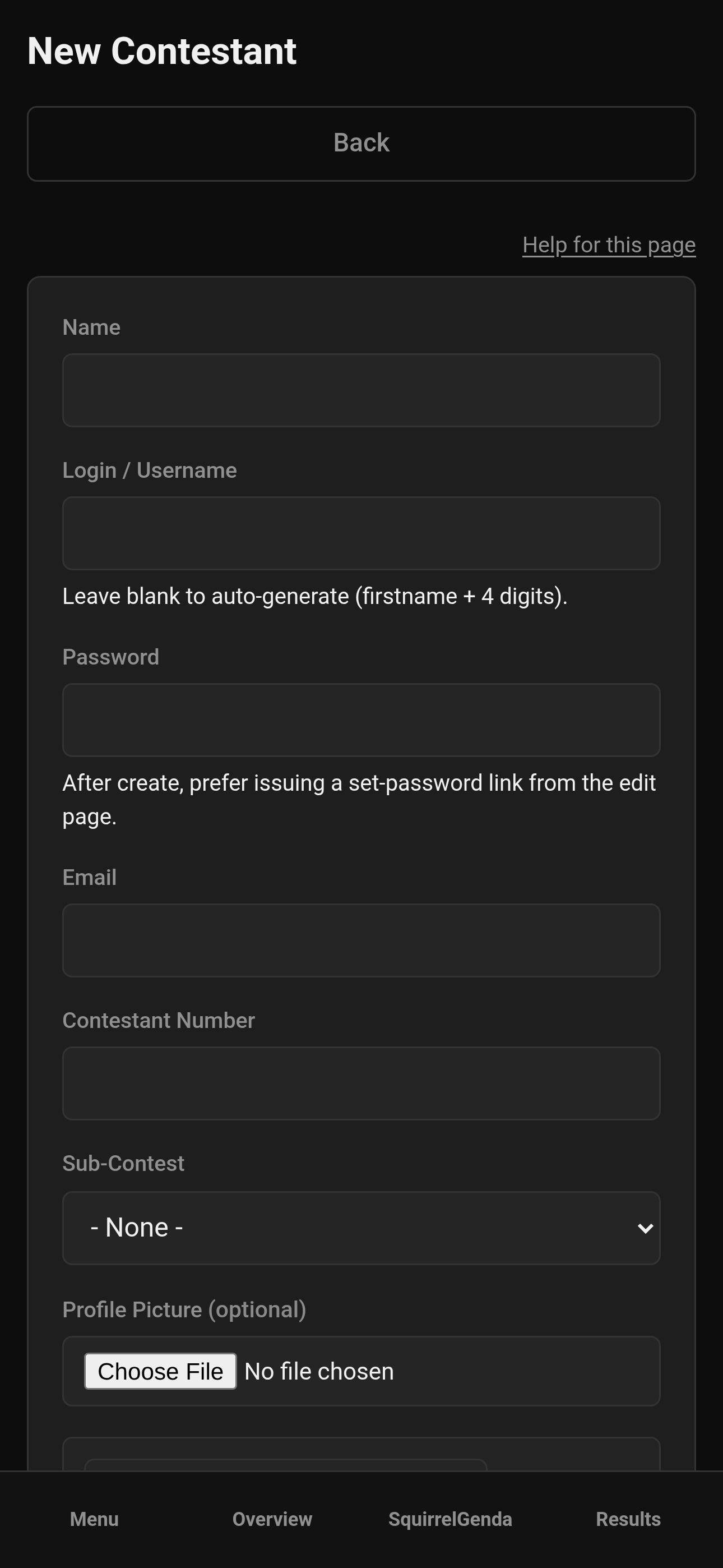
Mobile — Producer, New Contestant
¶ Step-by-Step: edit a contestant
-
On Manage, find the contestant in the list.
-
Click Edit.
-
Update name, login, email, number, sub-contest, or photo.
-
Click Update.
-
To let them pick a password, use Issue set-password link on the same page. You can't type a password for them here.
-
Use Back to return toward where you came from when the page tracked it.
-
If you need an application record for someone already enrolled, use Add for Existing Contestant under applications.
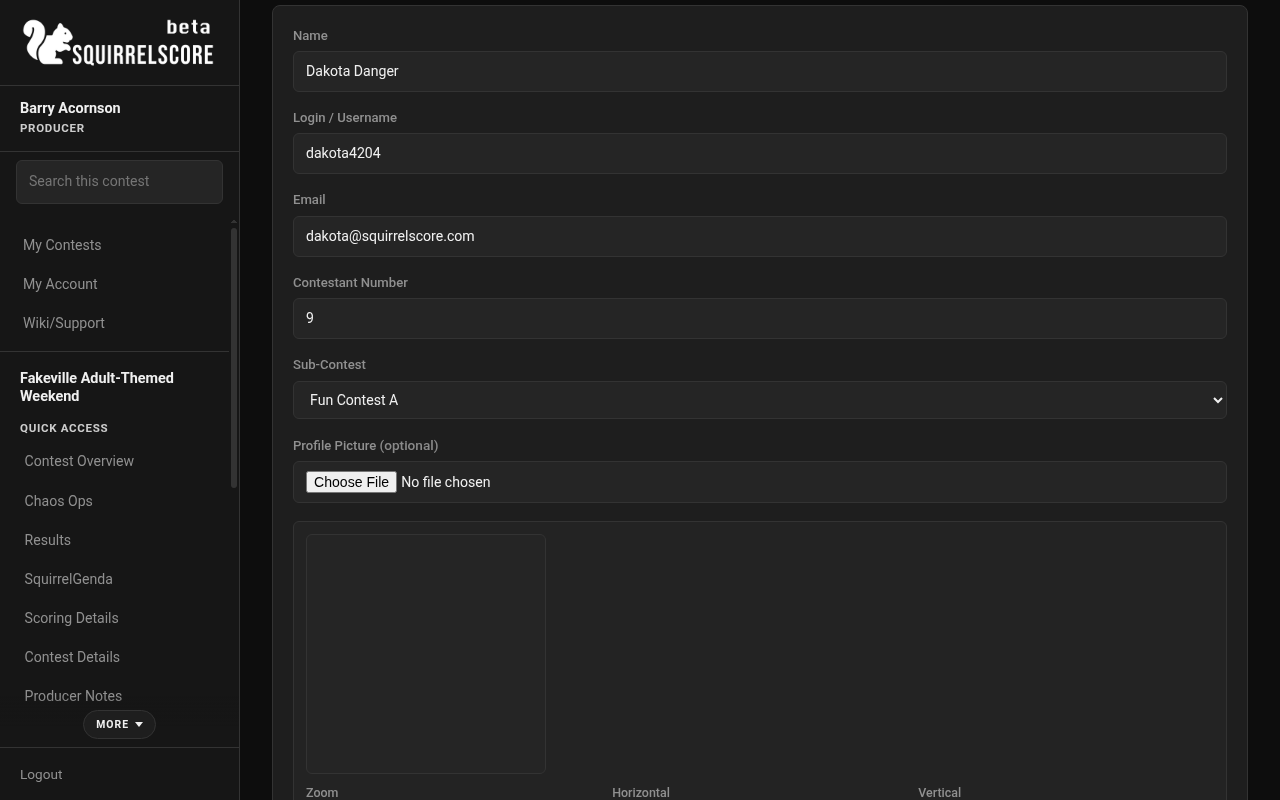
Desktop — Producer, edit a contestant
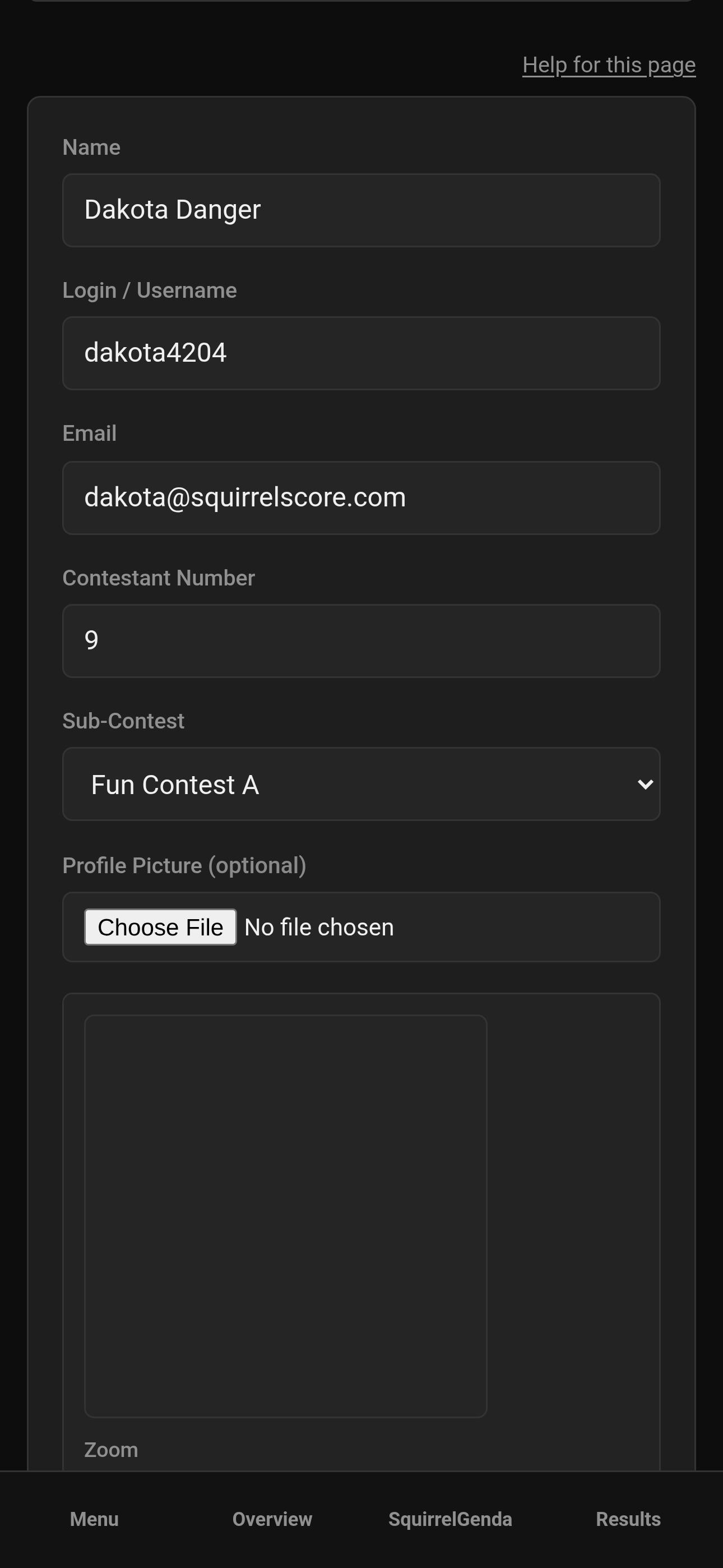
Mobile — Producer, edit a contestant
¶ Photos, numbers, and sub-contests
-
Photos- optional, cropable, helpful for judges who meet fifty people in a weekend.
-
Contestant numbers- your stage order / score sheet identity; keep them unique in practice.
-
Sub-contests- group people for results and Emcee Reveal (for example, if they're running all in one contest with the same judges but for different titles). Assign here or when approving into the roster workflow your contest uses.
¶ Chaos Ops
When Chaos Ops is enabled and prep items exist for contestants:
-
Open the contestant Edit page.
-
Find the Chaos Ops preparation card.
-
Check off prep items that are done (photo received, bio in, travel confirmed - whatever your defaults/custom tasks defined).
-
Click Save (this part needs the Save button - it is not the auto-save dropdown from the Chaos Ops dashboard).
Contestants can open Go Do the Things on their side to see their checklist.
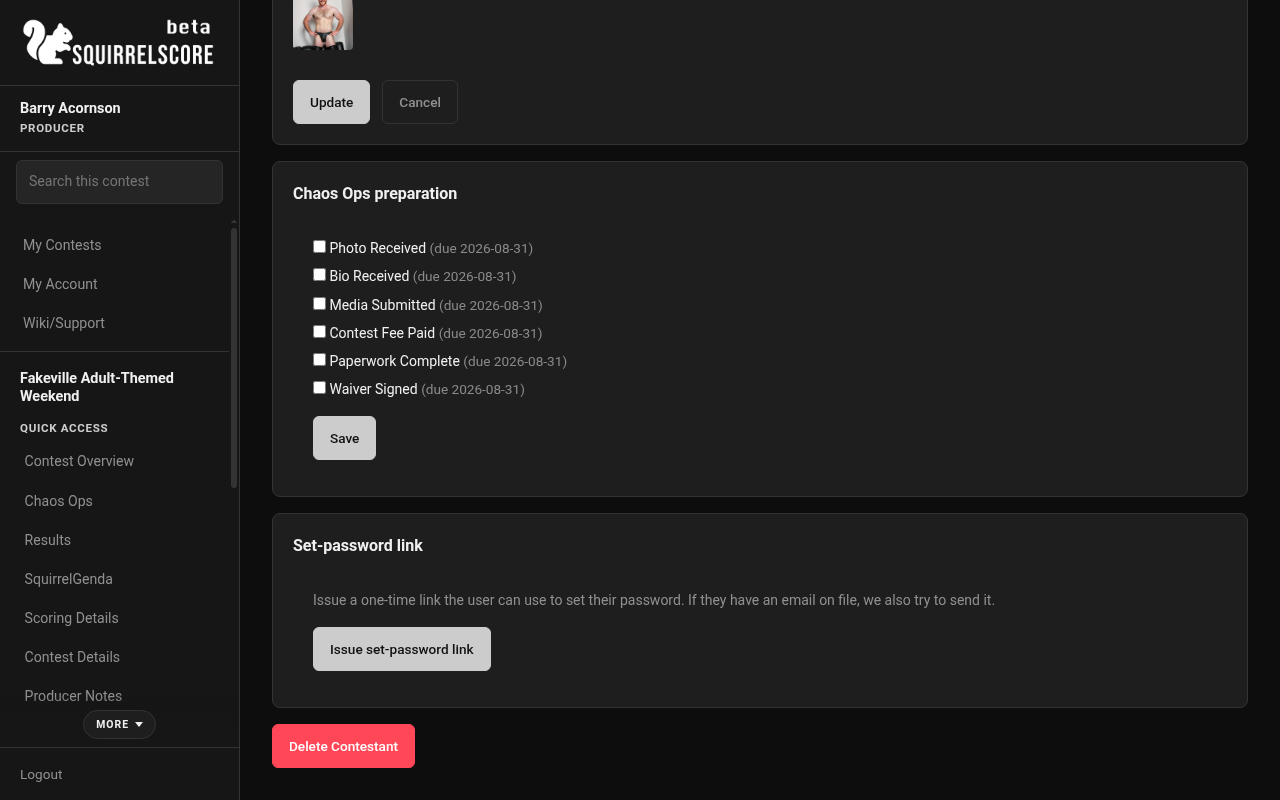
Desktop — Producer, contestant Chaos Ops preparation
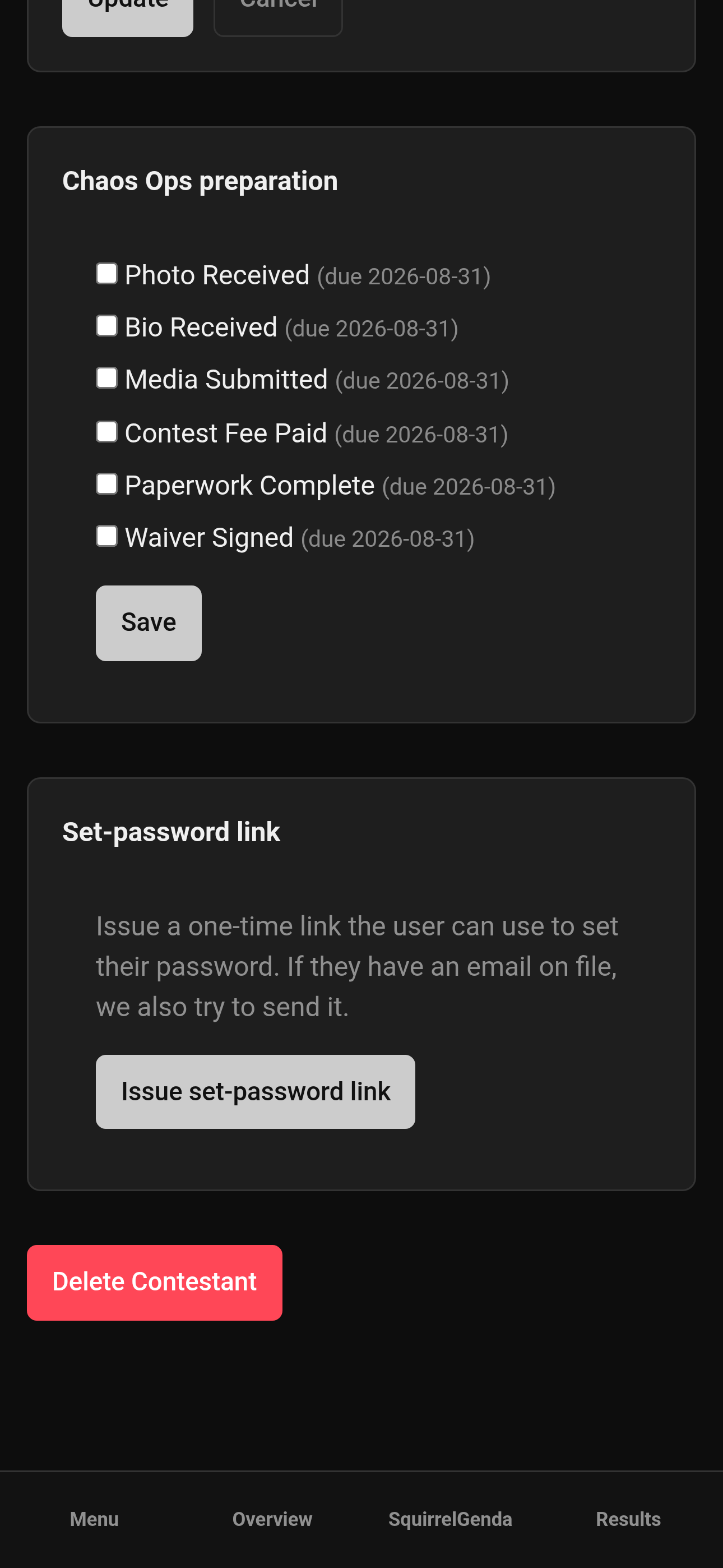
Mobile — Producer, contestant Chaos Ops preparation
¶ Tips
-
Approving applications is usually much easier than hand-building every contestant.
-
Check contestant and judge numbers well before the contest.
-
Back returns to where you came from - handy when you hopped in from Overview.
-
If Chaos Ops is empty, either Chaos Ops is off or no prep items exist for that role yet.
¶ Common Mistakes
-
Creating a second account because you clicked through the "email already in use" warning.
-
Forgetting sub-contest assignment until the contest weekend.
-
Checking prep boxes but not clicking Save.
-
Emailing raw passwords in a public channel - prefer set-password links.
¶ Frequently Asked Questions
Do contestants need applications?
No, but applications are the easiest way to set up contestants.
Can I remove someone?
If they came from an approved application, rejecting that approved application removes them from the roster (account kept). You can also manage enrollment from your contest tools - be deliberate.
Where do they see results?
Contestants use their own My Results when you're ready for that. See contestant docs.
Where do judges' notes to the producers go?
Producer Notes.
¶ Day-of contestant fixes
-
Open the contestant Edit page from Manage.
-
Fix number or sub-contest first - those affect lineup.
-
Update photo only if you have a better crop ready.
-
Save / Update.
-
If Chaos Ops prep changed, click Save.
-
Confirm any changes like contestant number with the stage manager WELL BEFORE they go on stage.
¶ Multi-week status
On a multi-week contest, the contestant list on Manage has Active, Withdrawn, and Disqualified, plus As of week. That week is when the status starts. Judges can still score that person in earlier weeks. From that week on, they drop off the scoring list. They stay on standings through the week you picked.
Cuts are not this form. Use the week's Elimination page.